
Collect guestbook messages and voice messages
Show the guestbook on your event page, review what guests write and record, and see how guests leave a message or a voice message.
Steps for
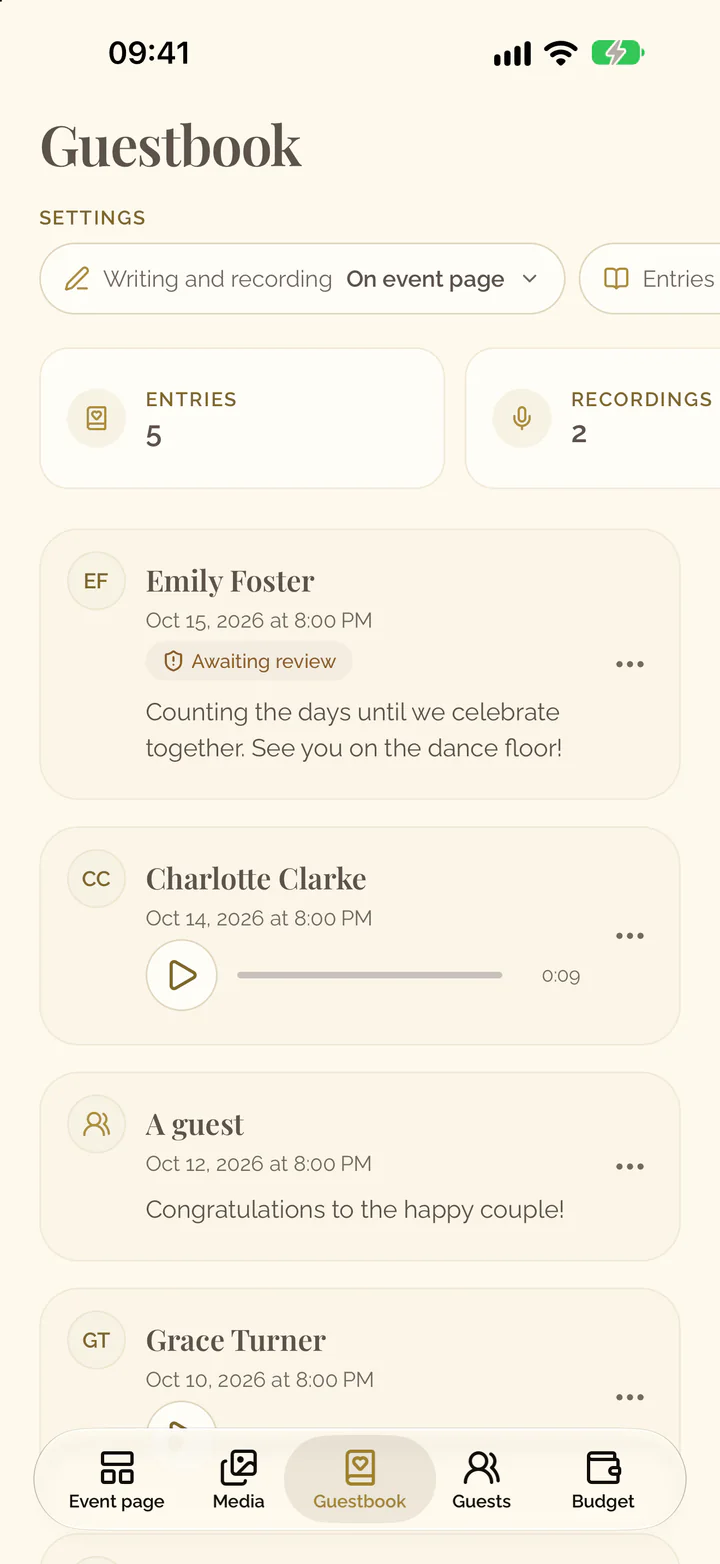
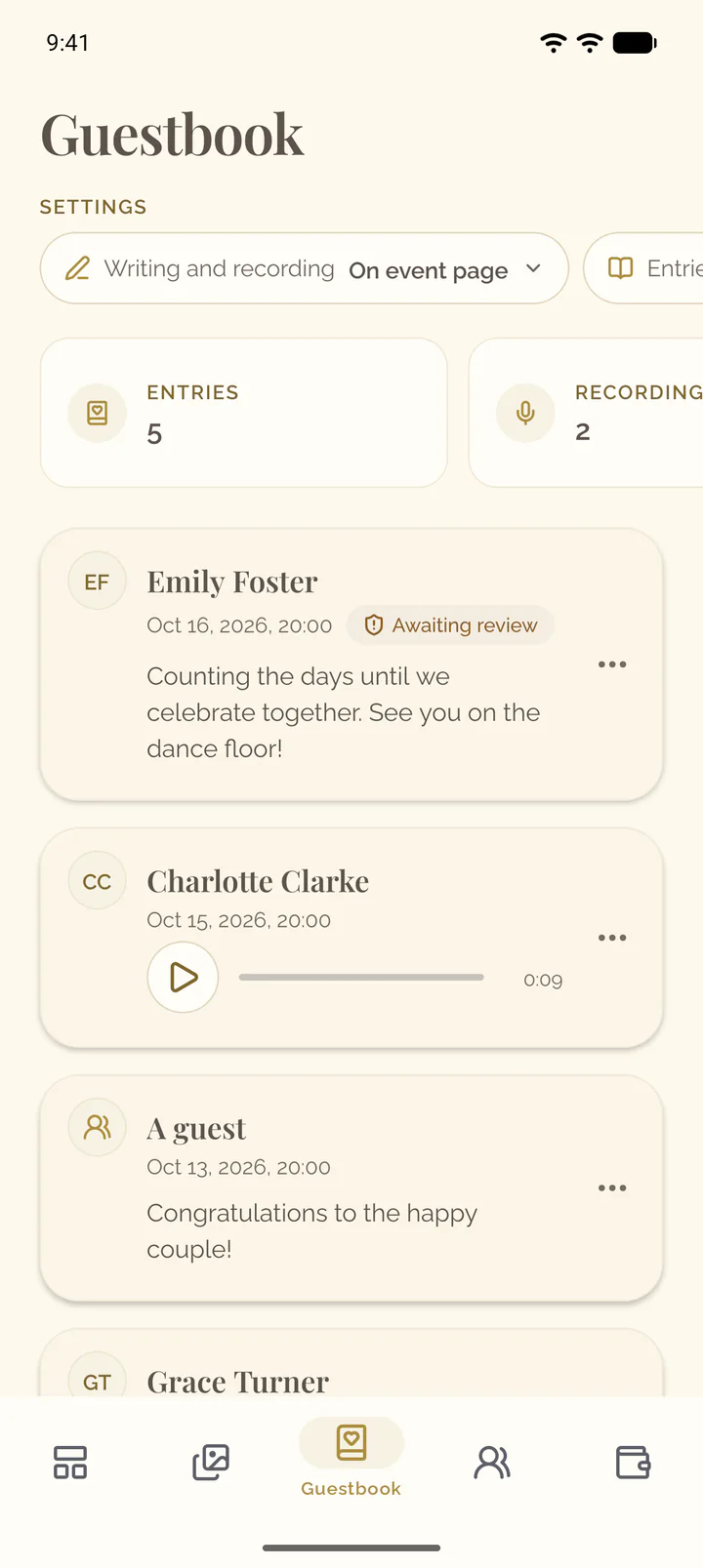
The settings of the guestbook stand under the title of the Guestbook tab. Each names its current value. A new event has no guestbook on its page yet: the first setting puts it there.
Show the guestbook to guests
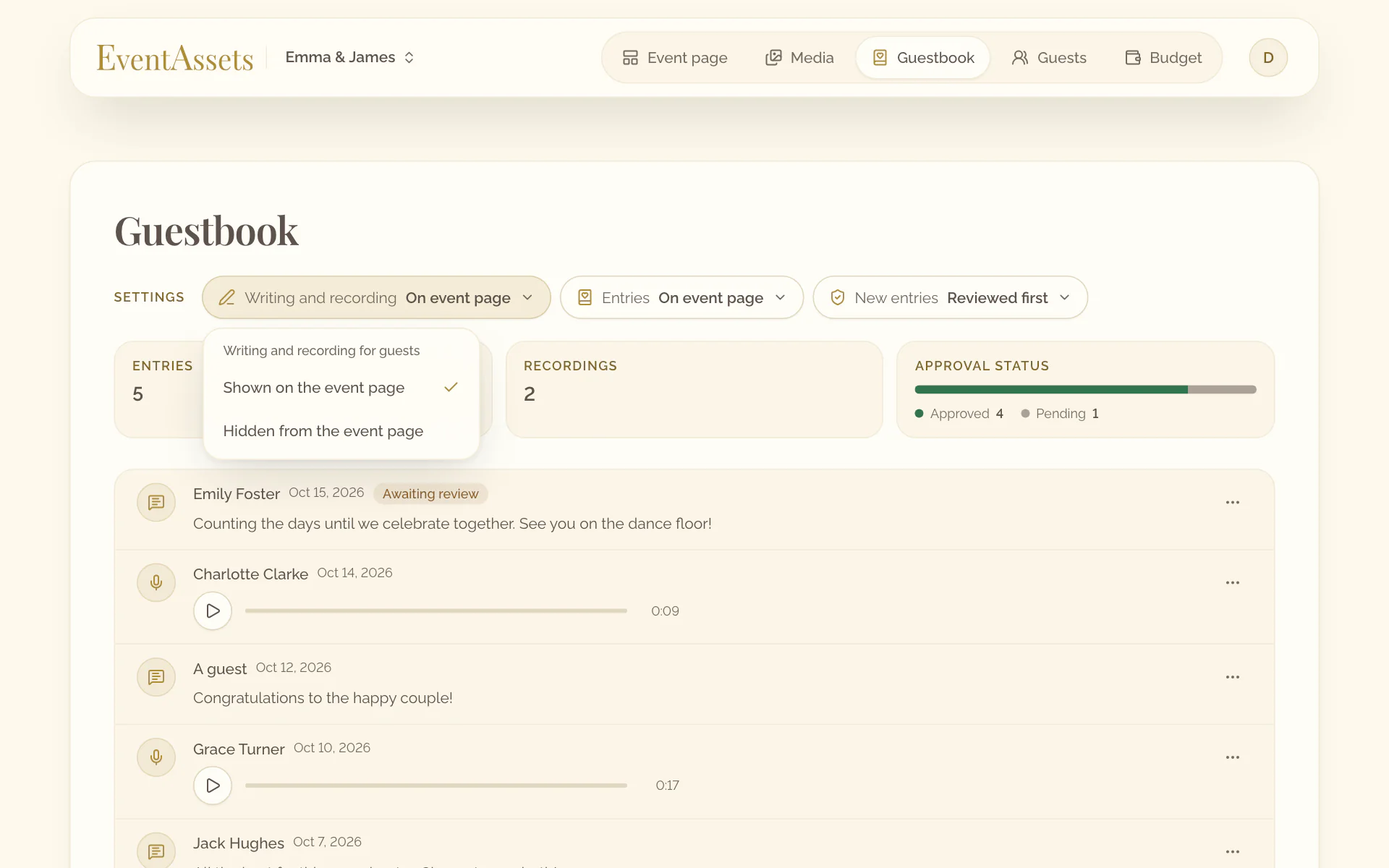
- Open the Guestbook tab of the event.
- Select Writing and recording.
- Choose Shown on the event page.
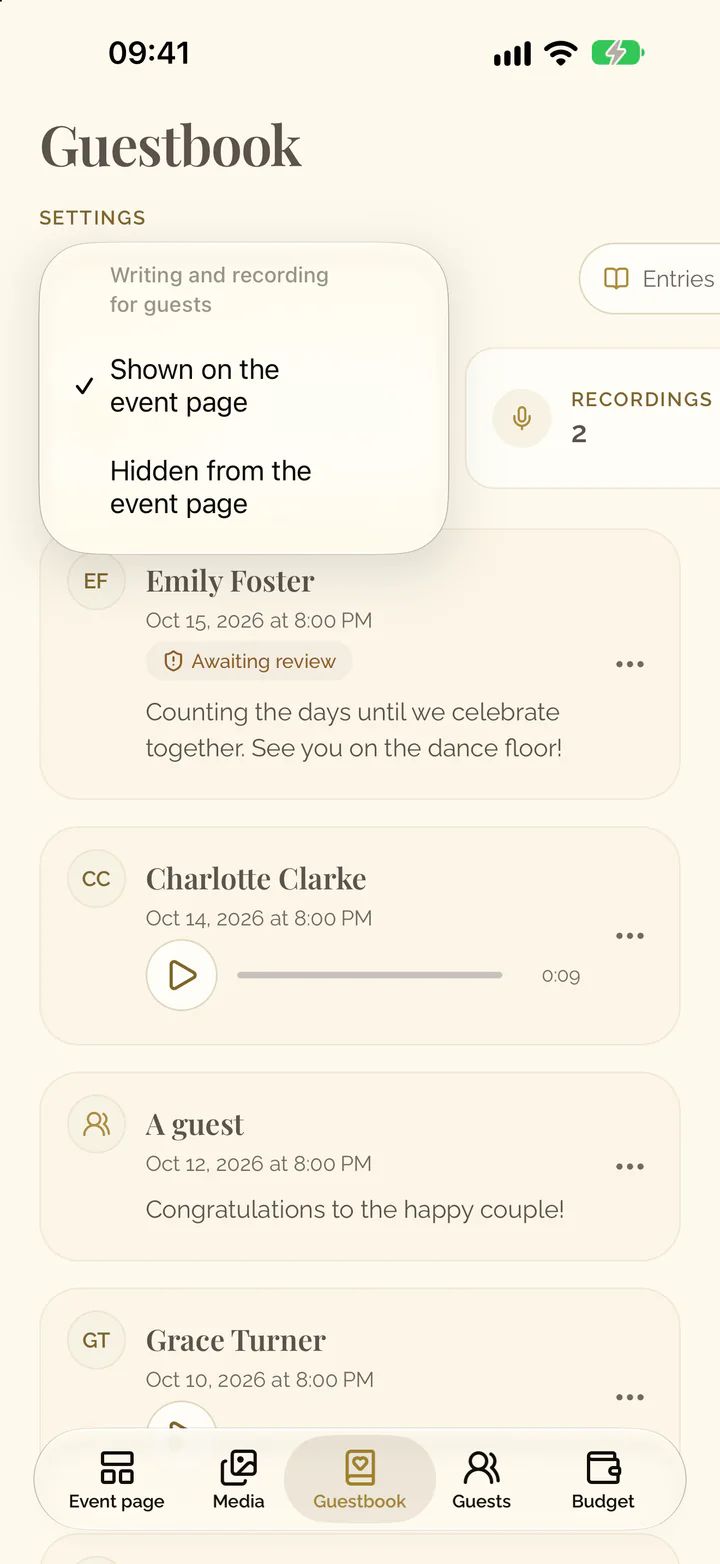
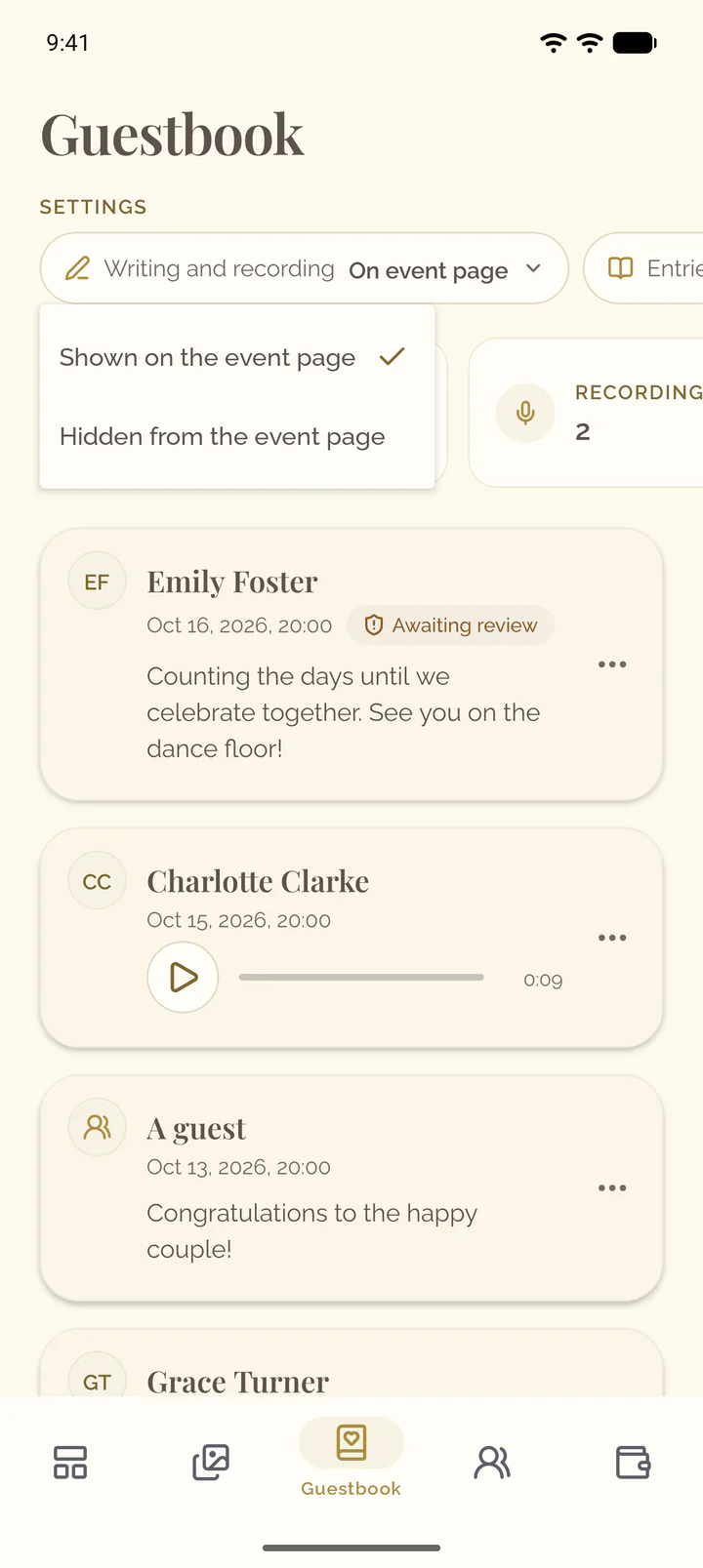
- Open the Guestbook tab of the event.
- Select Writing and recording, under the title.
- Choose Shown on the event page.
Let guests read the entries
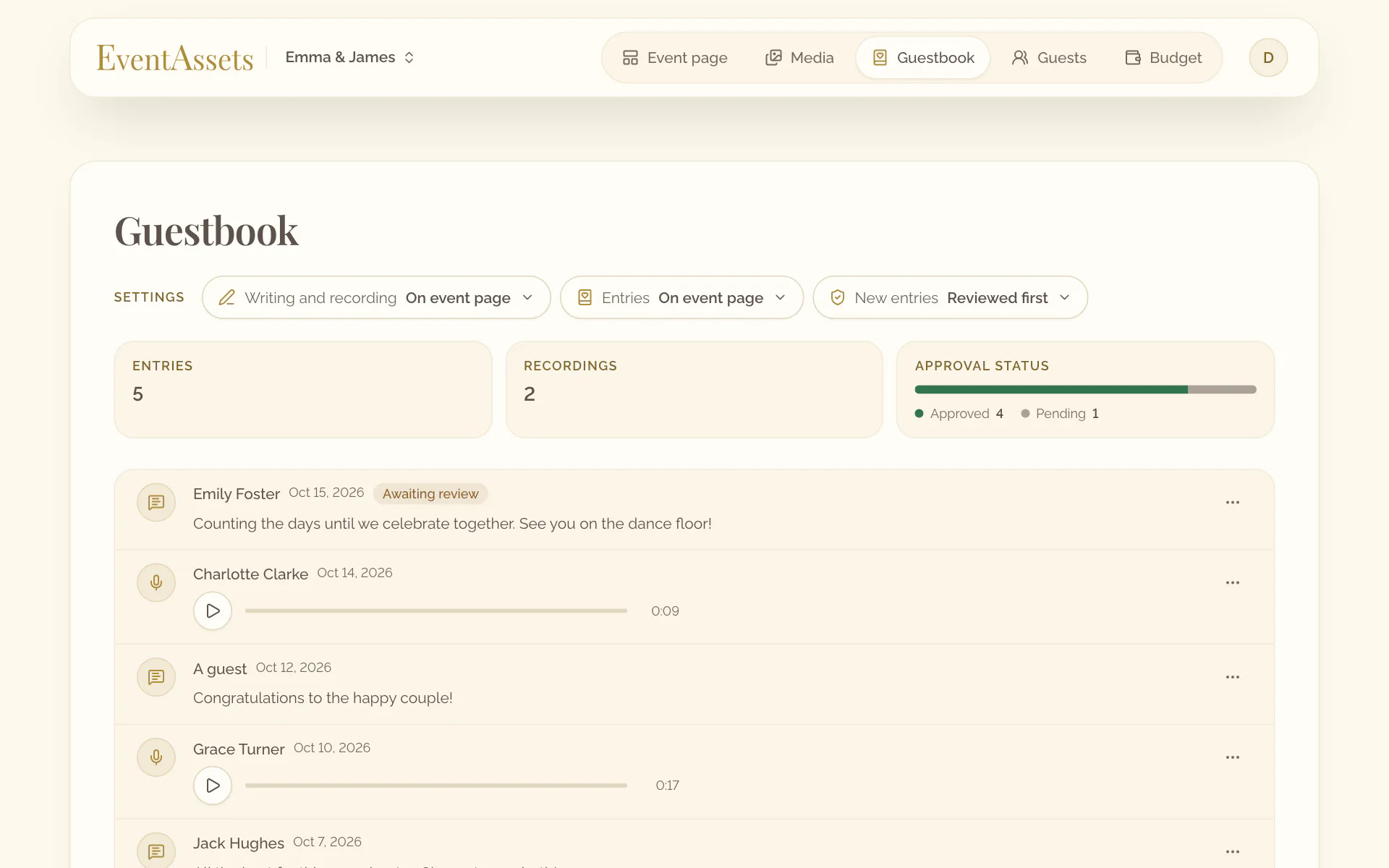
- Open the Guestbook tab of the event.
- Select Entries.
- Choose Shown on the event page.
- Open the Guestbook tab of the event.
- Select Entries, under the title.
- Choose Shown on the event page.
Review entries before guests see them
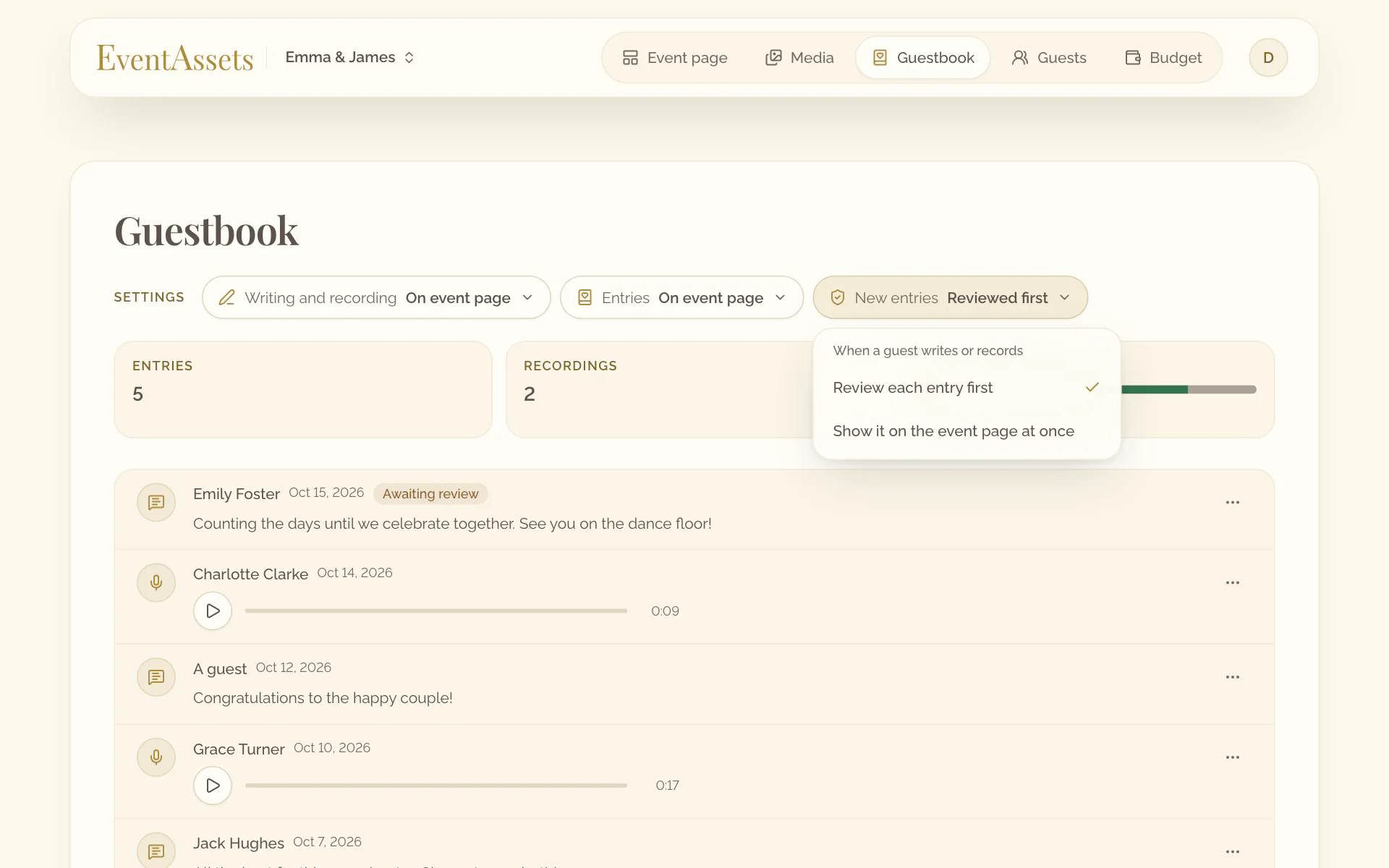
- Open the Guestbook tab of the event.
- Select New entries and choose Review each entry first.
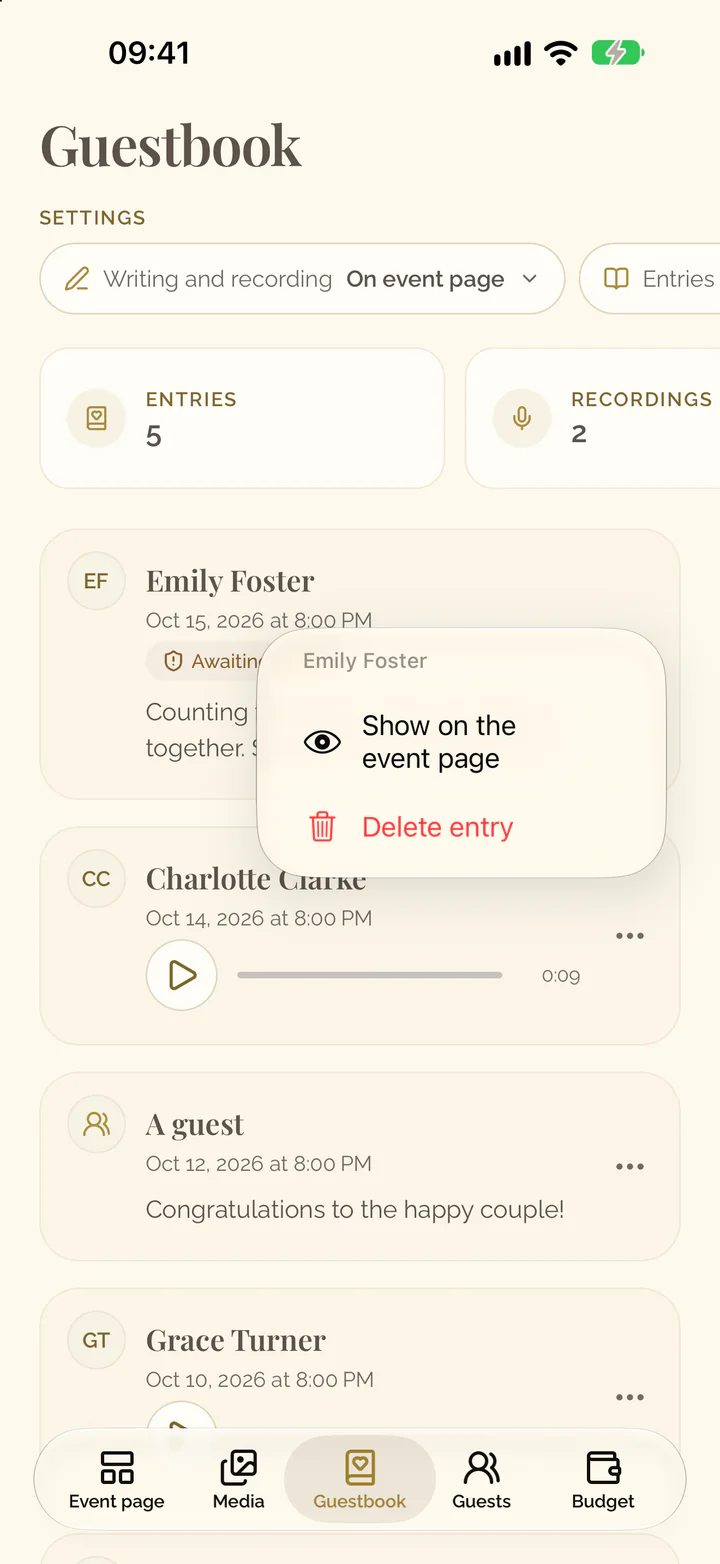
- After a guest has written or recorded, find the entries with the label Awaiting review.
- Open the menu of the entry, at the end of its row, and select Show on the event page.
- Open the Guestbook tab of the event.
- Swipe the row of settings to the left, select New entries and choose Review each entry first.
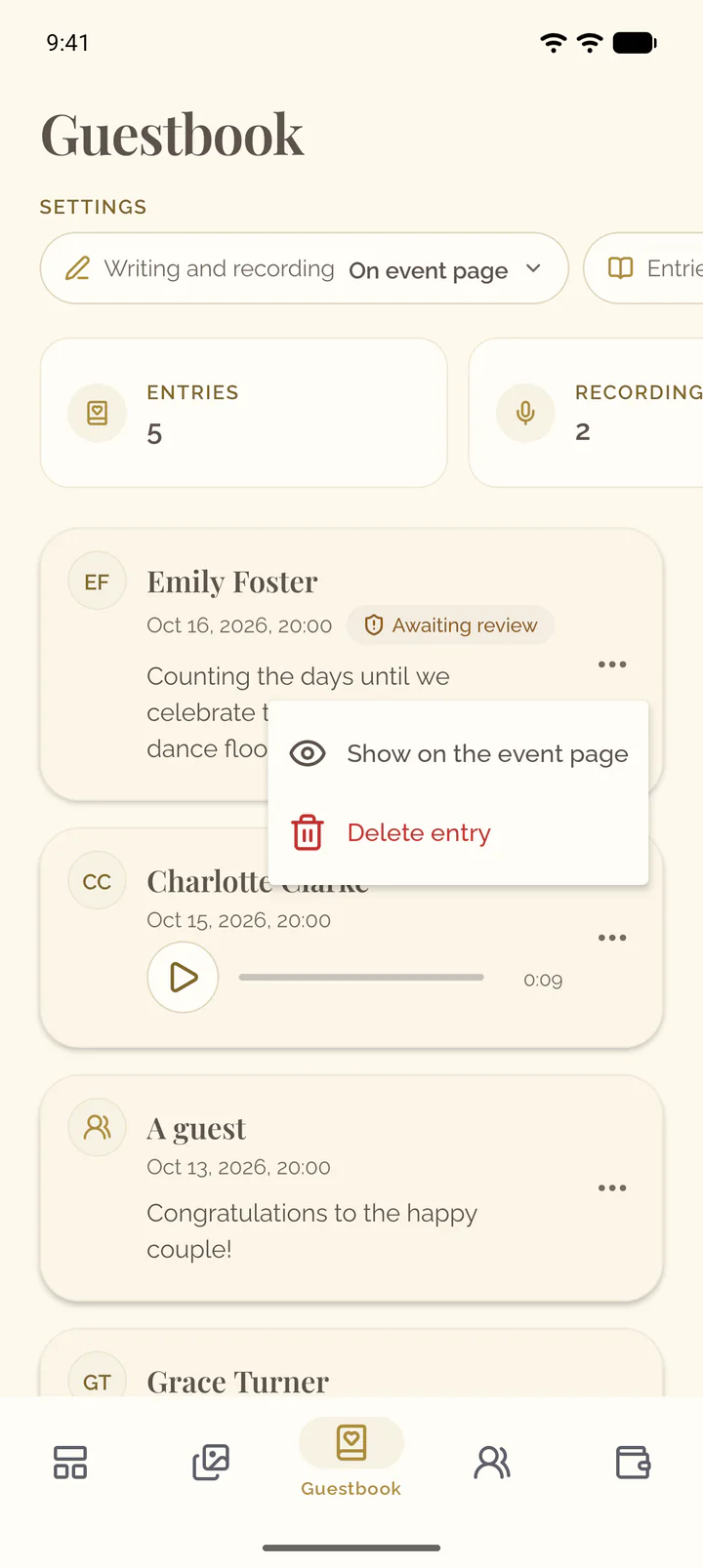
- After a guest has written or recorded, find the entries with the label Awaiting review.
- Select the three dots on the card of the entry and select Show on the event page.
Hide or delete an entry
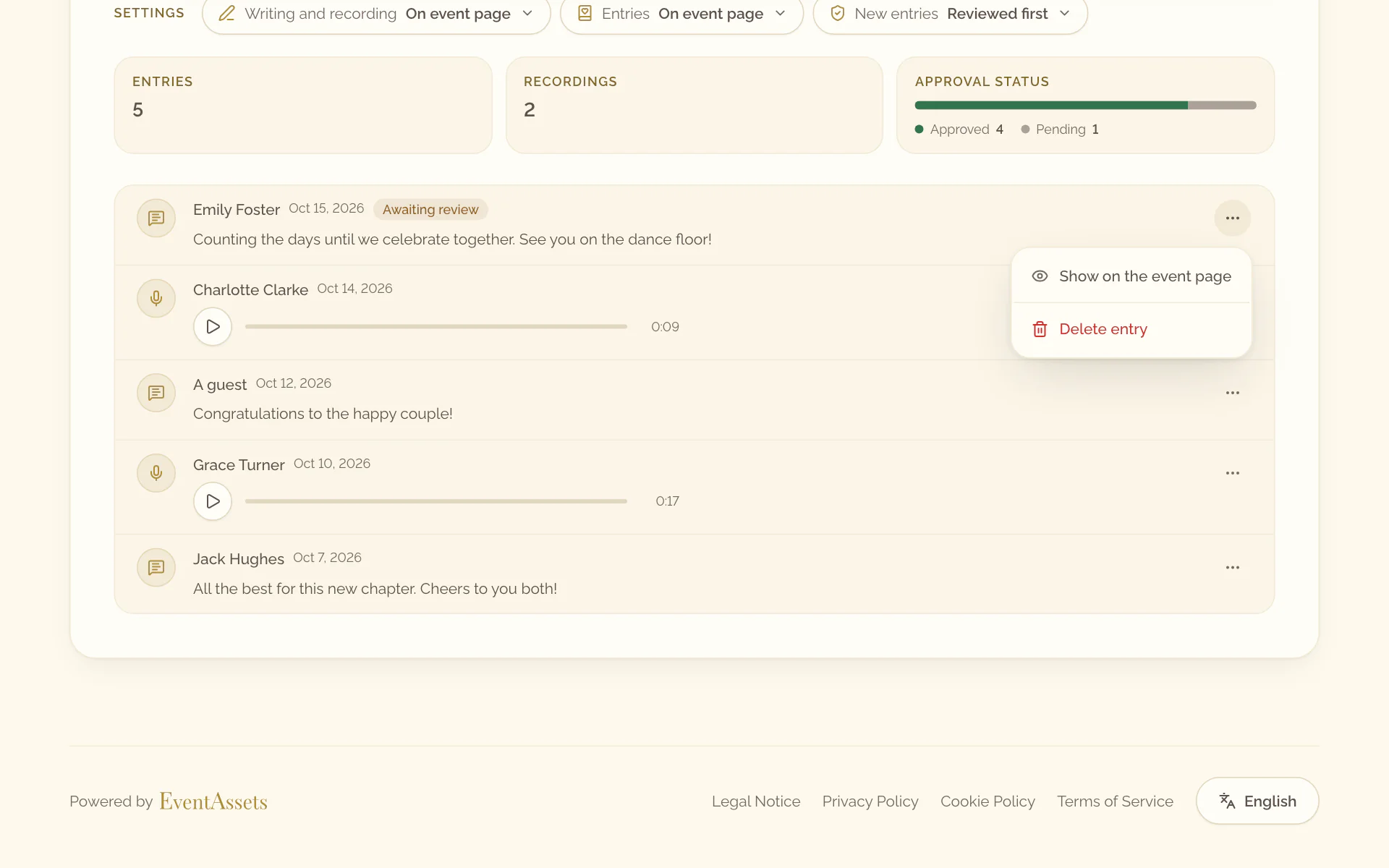
- Open the Guestbook tab of the event.
- Open the menu of the entry, at the end of its row.
- Select Hide from the event page to take it off the page, or Show on the event page to put it back.
- Select Delete entry and confirm.
- Open the Guestbook tab of the event.
- Select the three dots on the card of the entry.
- Select Hide from the event page to take it off the page, or Show on the event page to put it back.
- Select Delete entry and confirm.
How guests write a message
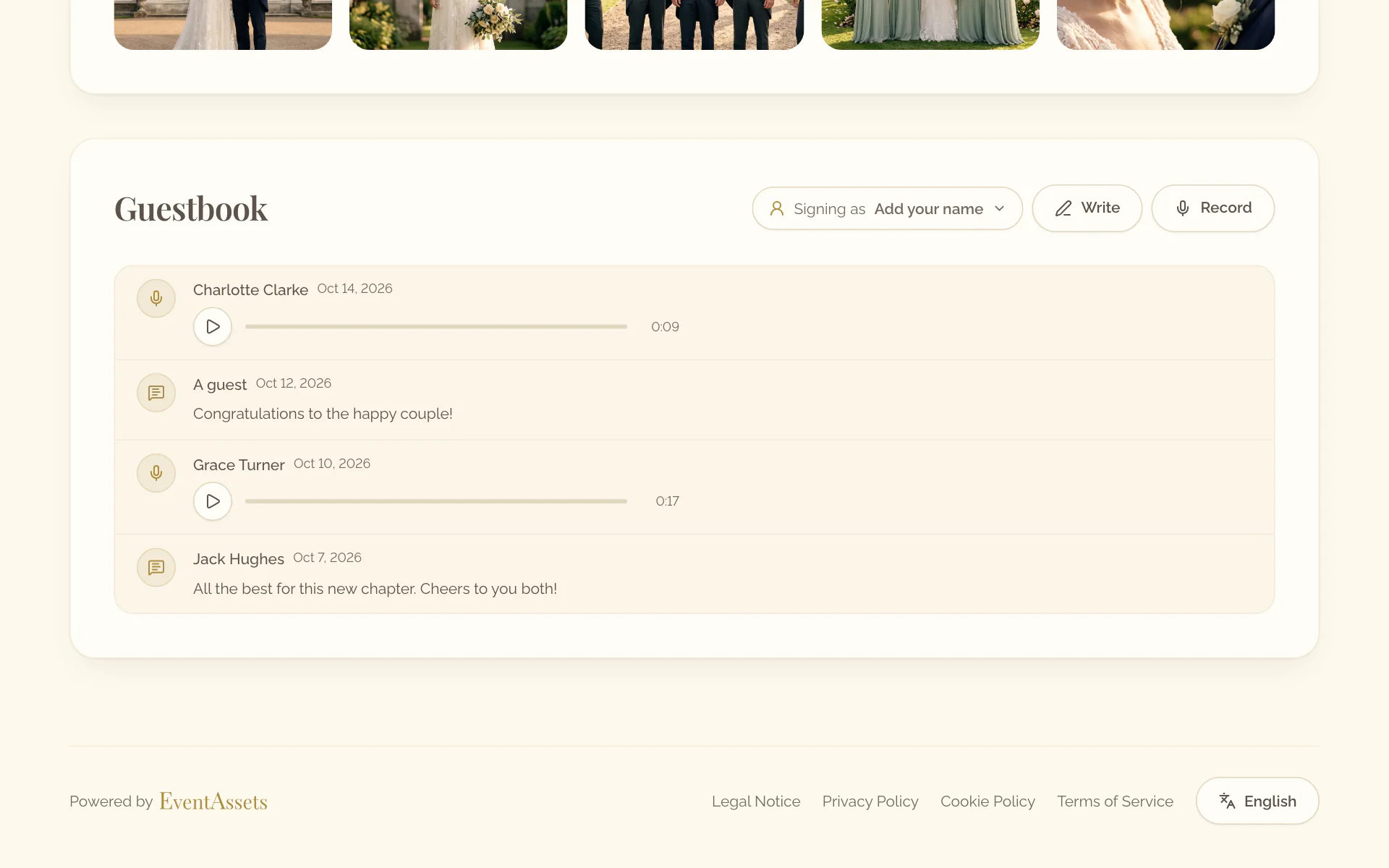
Guests open the event page in a browser; they need no app and no account. A guest who chose their name on the page, under RSVP, Seating or Signing as, signs the entry with it; without a name the entry reads A guest.
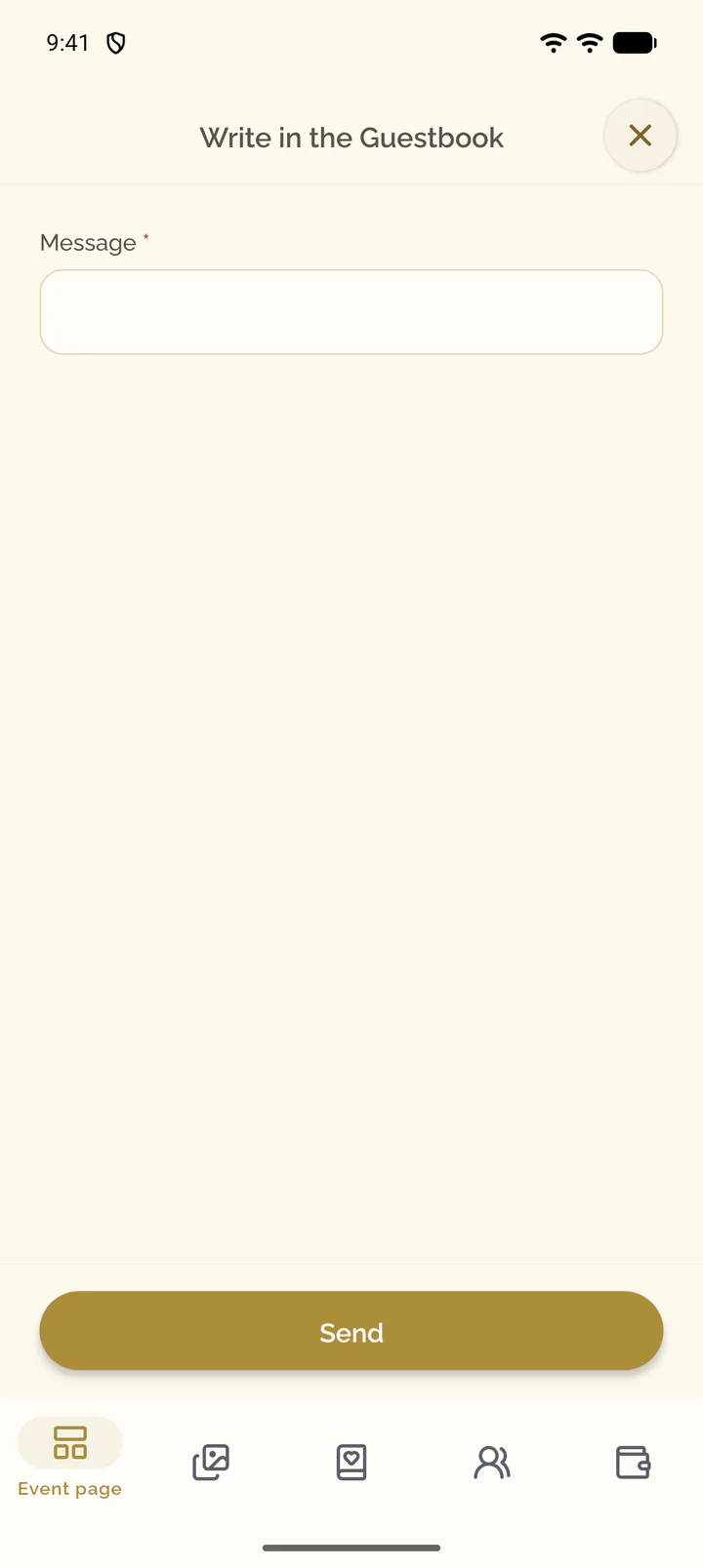
- On the event page, go to Guestbook.
- Select Write.
- Under Message, write a few words and select Send.
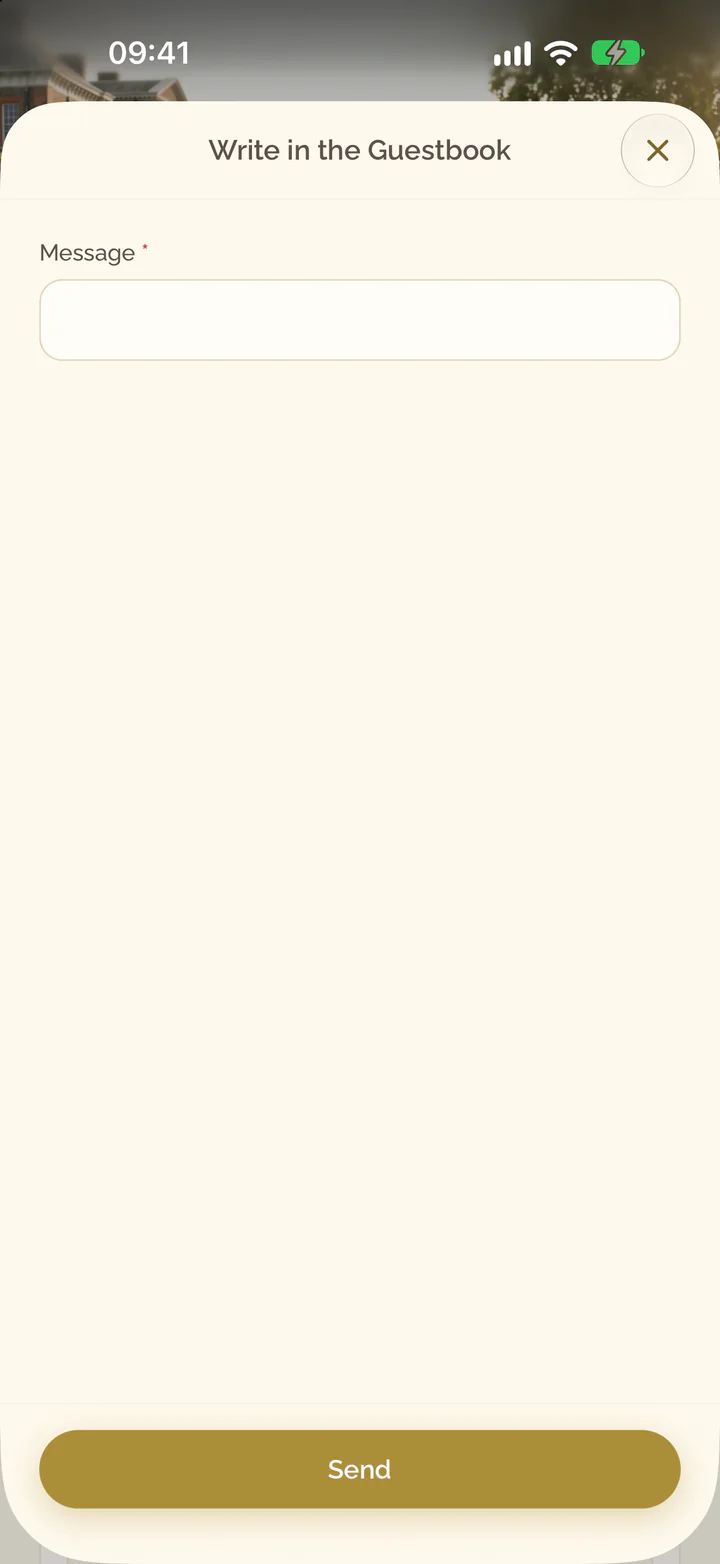
- Open the Event page tab of the event and scroll to Guestbook.
- Select Write.
- Under Message, write a few words and select Send.
How guests record a voice message
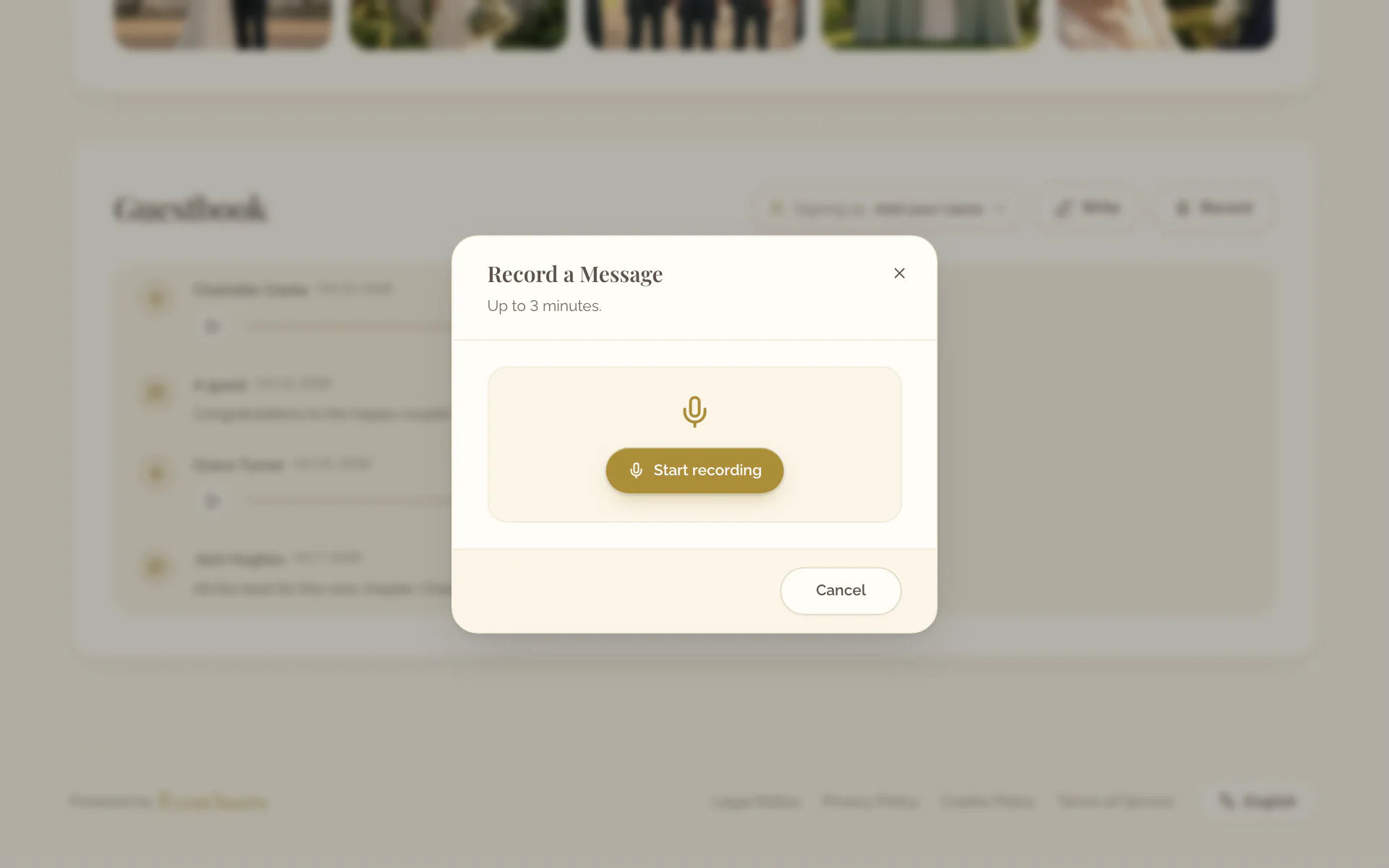
- On the event page, go to Guestbook and select Record.
- Select Start recording and allow the microphone when the browser asks.
- Speak, then select Stop recording. Listen back; Record again replaces the recording.
- Select Send.
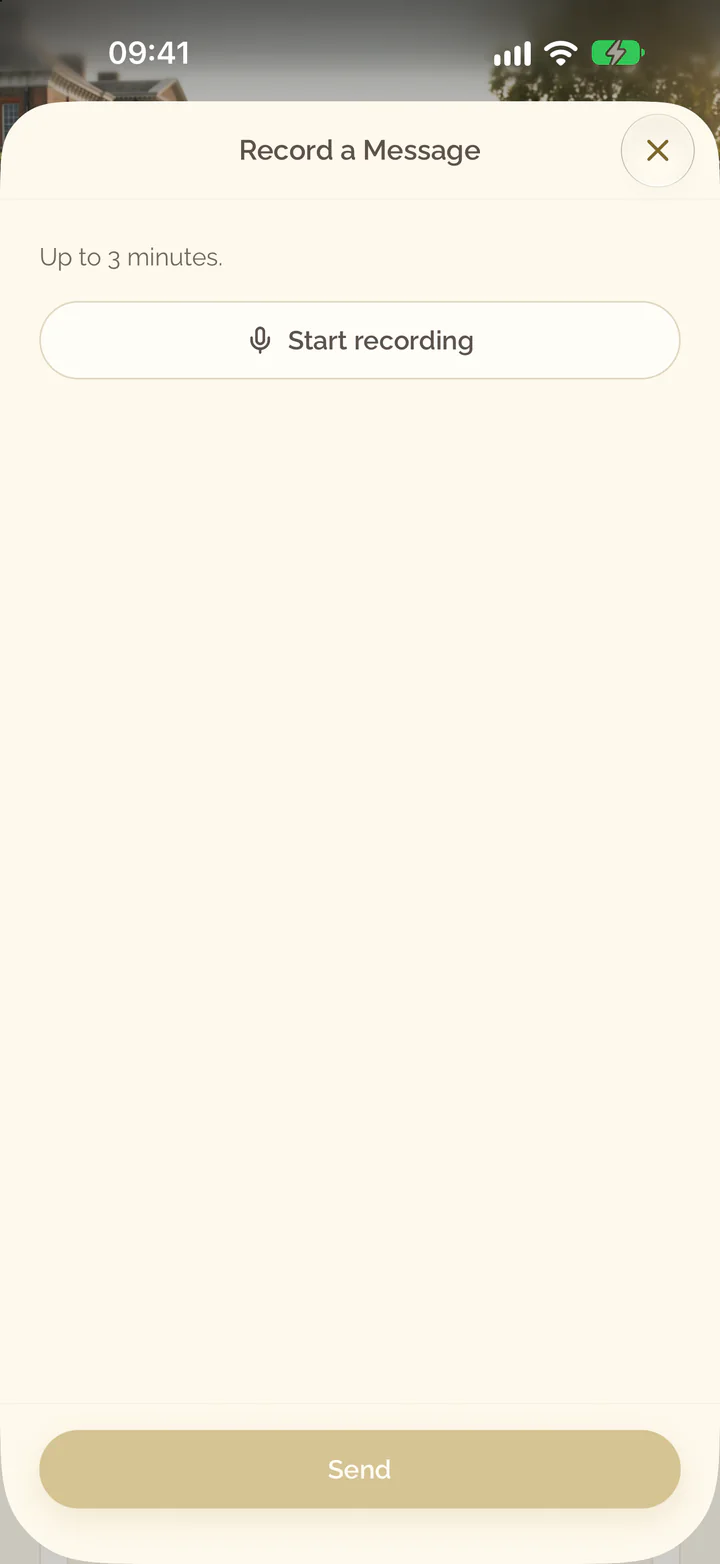
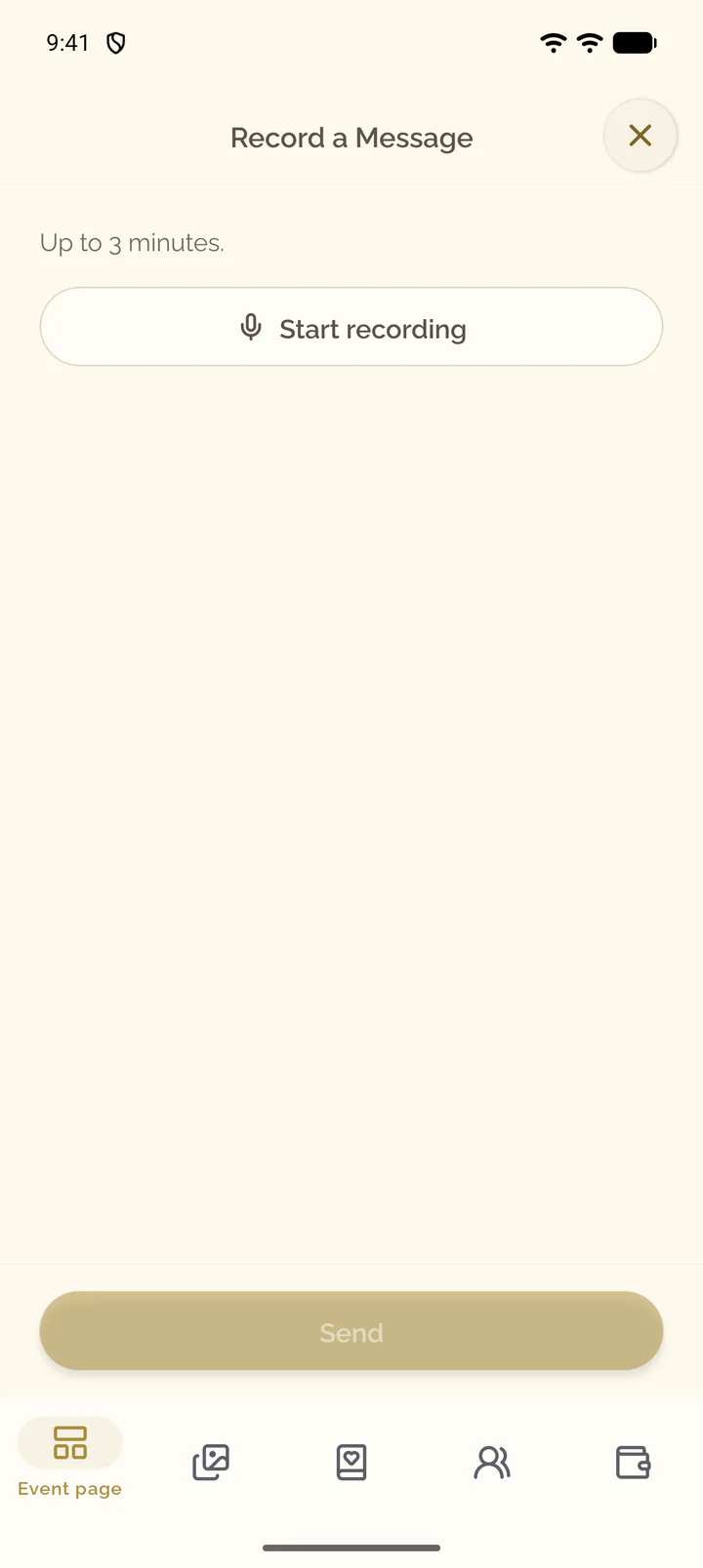
- Open the Event page tab of the event, scroll to Guestbook and select Record.
- Select Start recording and allow the microphone when the phone asks.
- Speak, then select Stop recording. Listen back; Record again replaces the recording.
- Select Send.
What the guestbook holds
- A message holds up to 2,000 characters. A recording lasts up to 3 minutes and is sent as an M4A (AAC) or WAV file of up to 25 MB.
- A free event holds up to 10 recordings. The tile Recordings of the Guestbook tab counts them and reads Almost full and Free limit reached like the tiles of the Media tab. At the limit guests can still write; an upgrade lifts it, see Upgrade an event and manage billing.
- Deleting an entry deletes its recording; deleting the event deletes the guestbook.