
Manage your guest list and collect RSVPs
Build your guest list with companions, show RSVP on your event page, and follow or record every reply.
The Guests tab has two views: Guest list for the people you invite, RSVP for what they are asked.
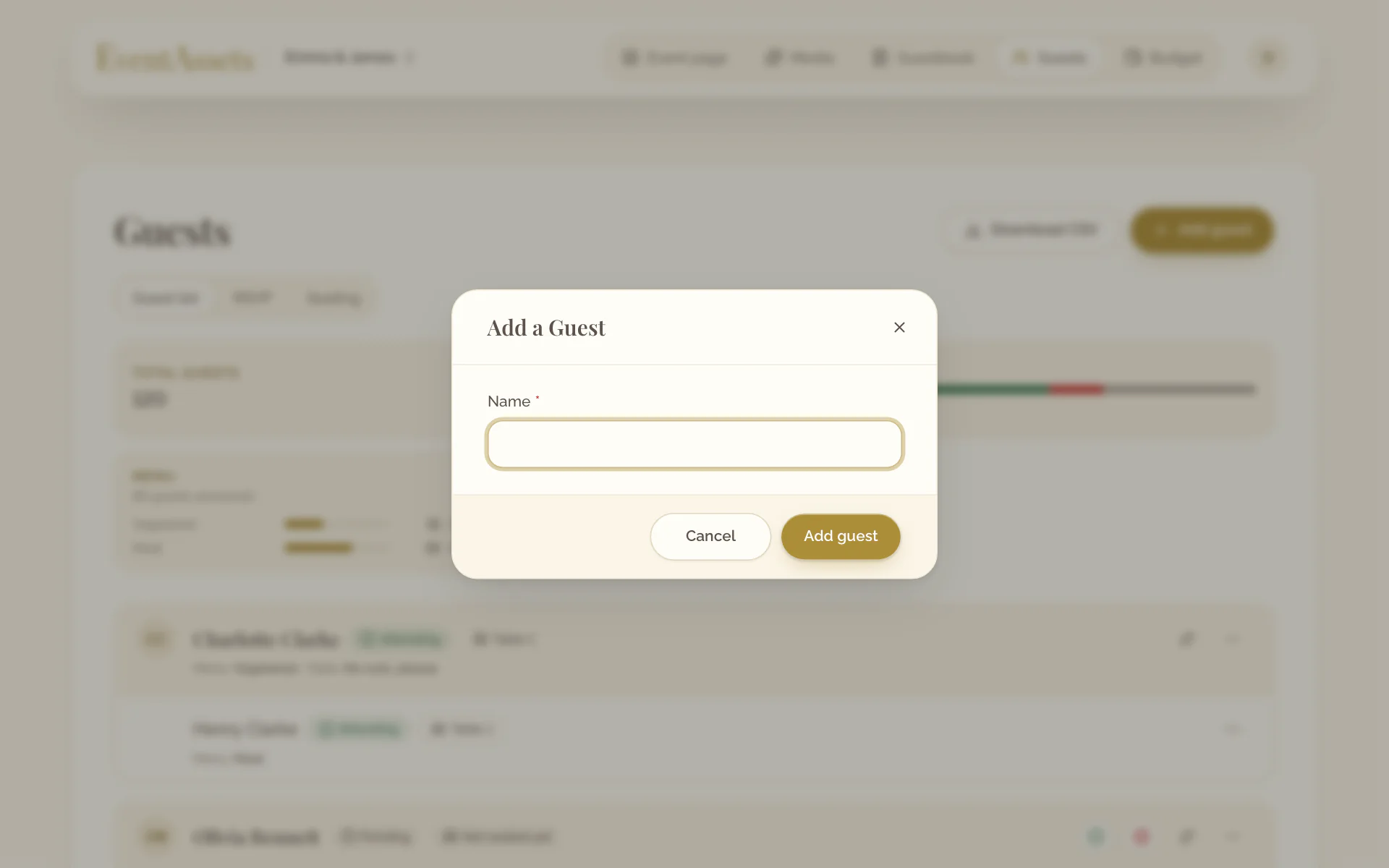
Add a guest
- Open the Guests tab of the event.
- Select Add guest.
- Enter the Name and select Add guest.
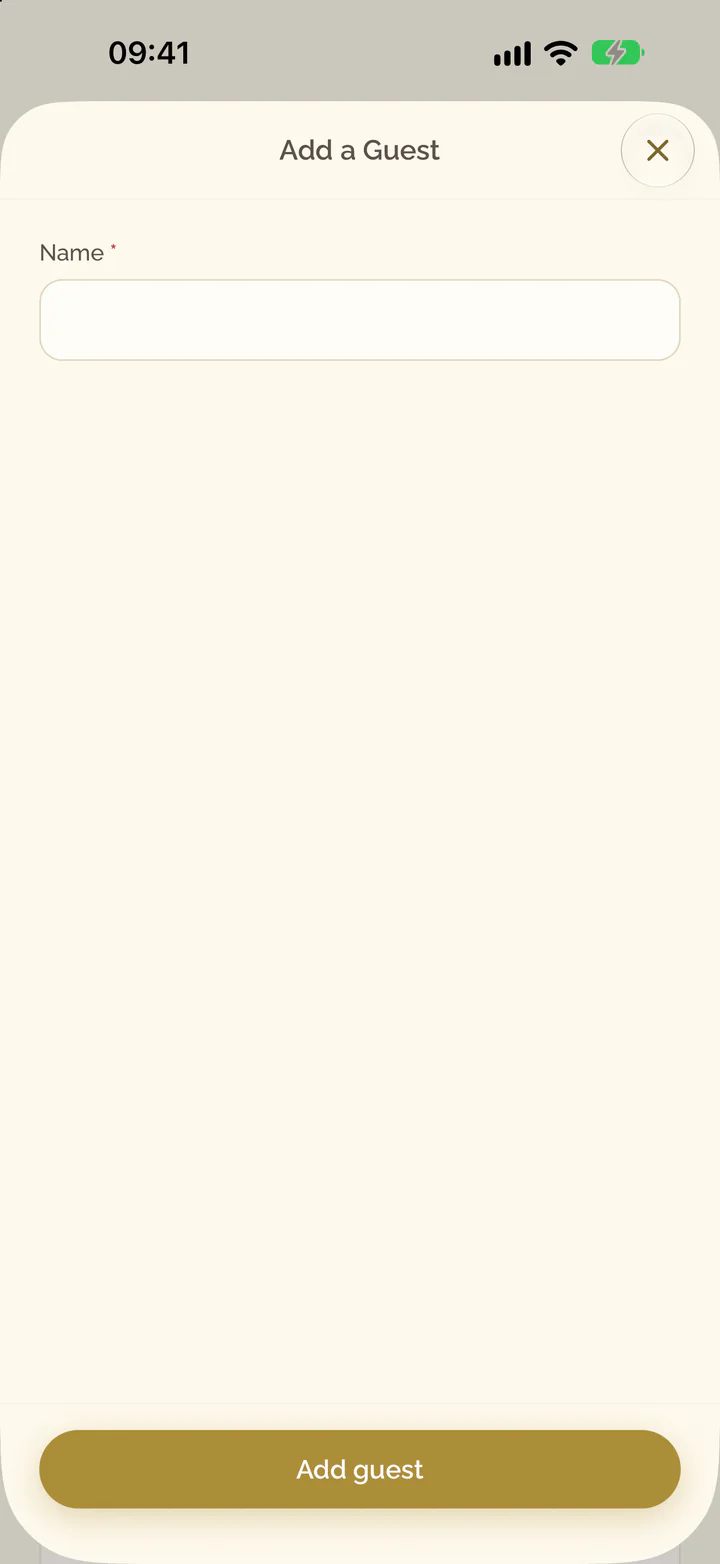
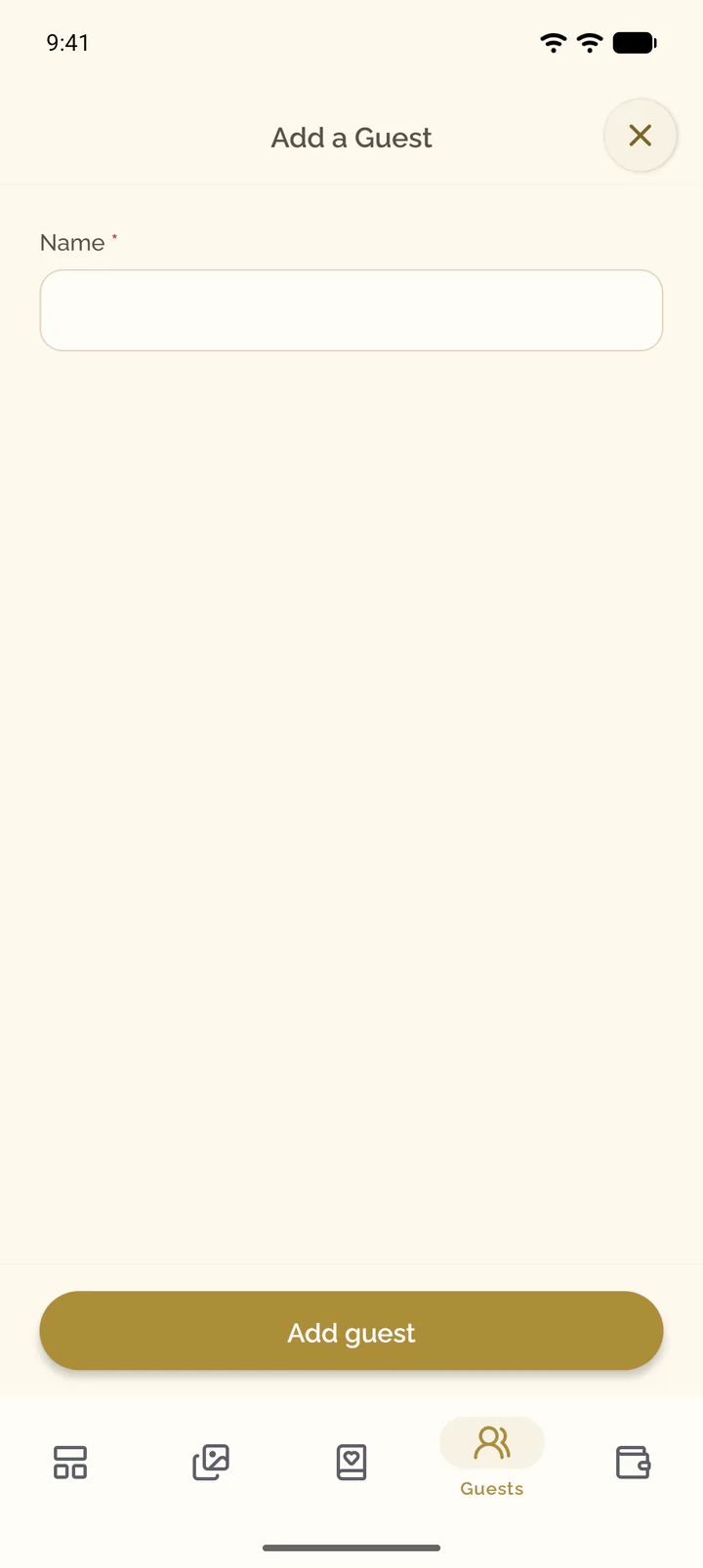
- Open the Guests tab of the event.
- Select the plus button at the top of the screen.
- Enter the Name and select Add guest.
Add companions
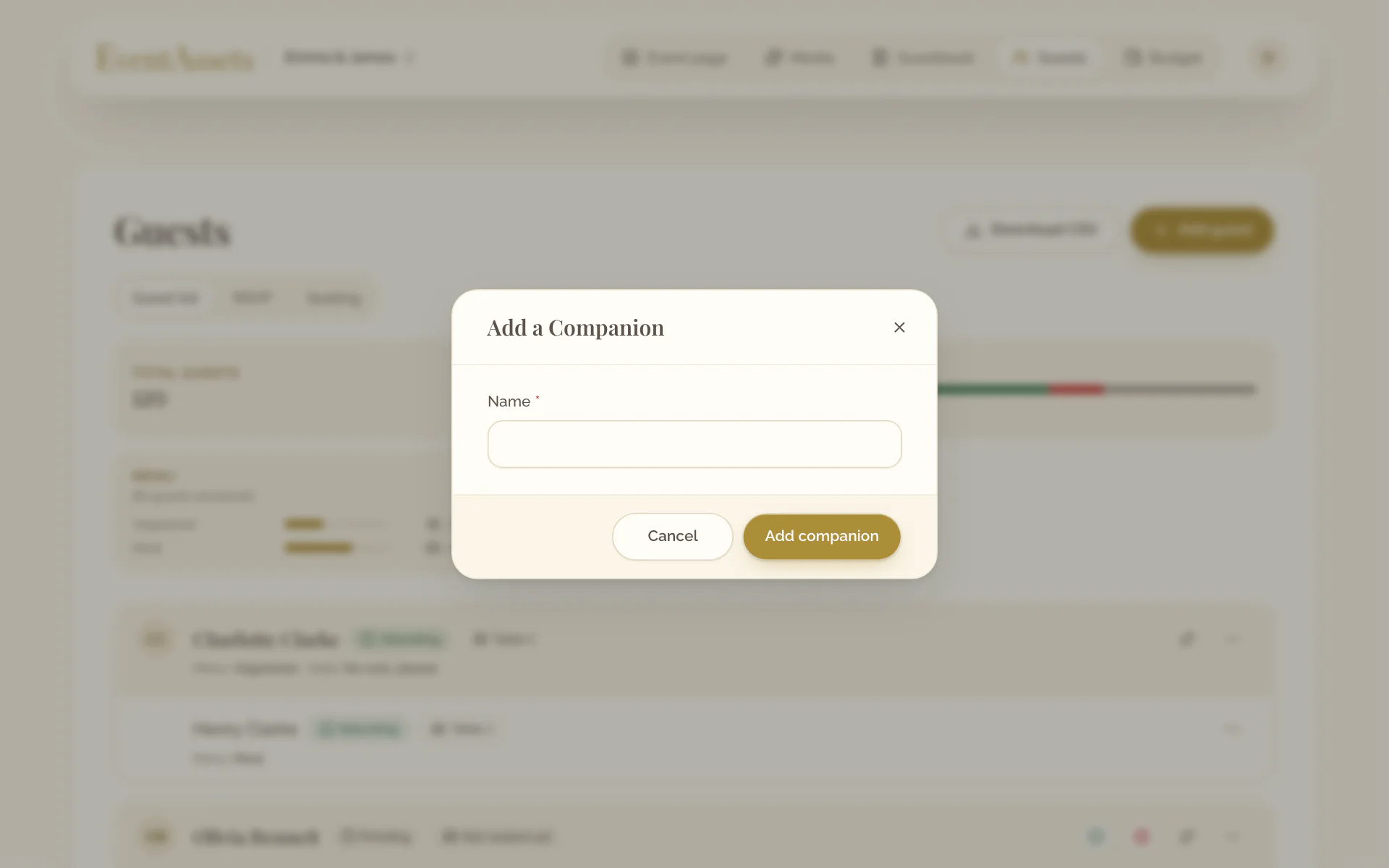
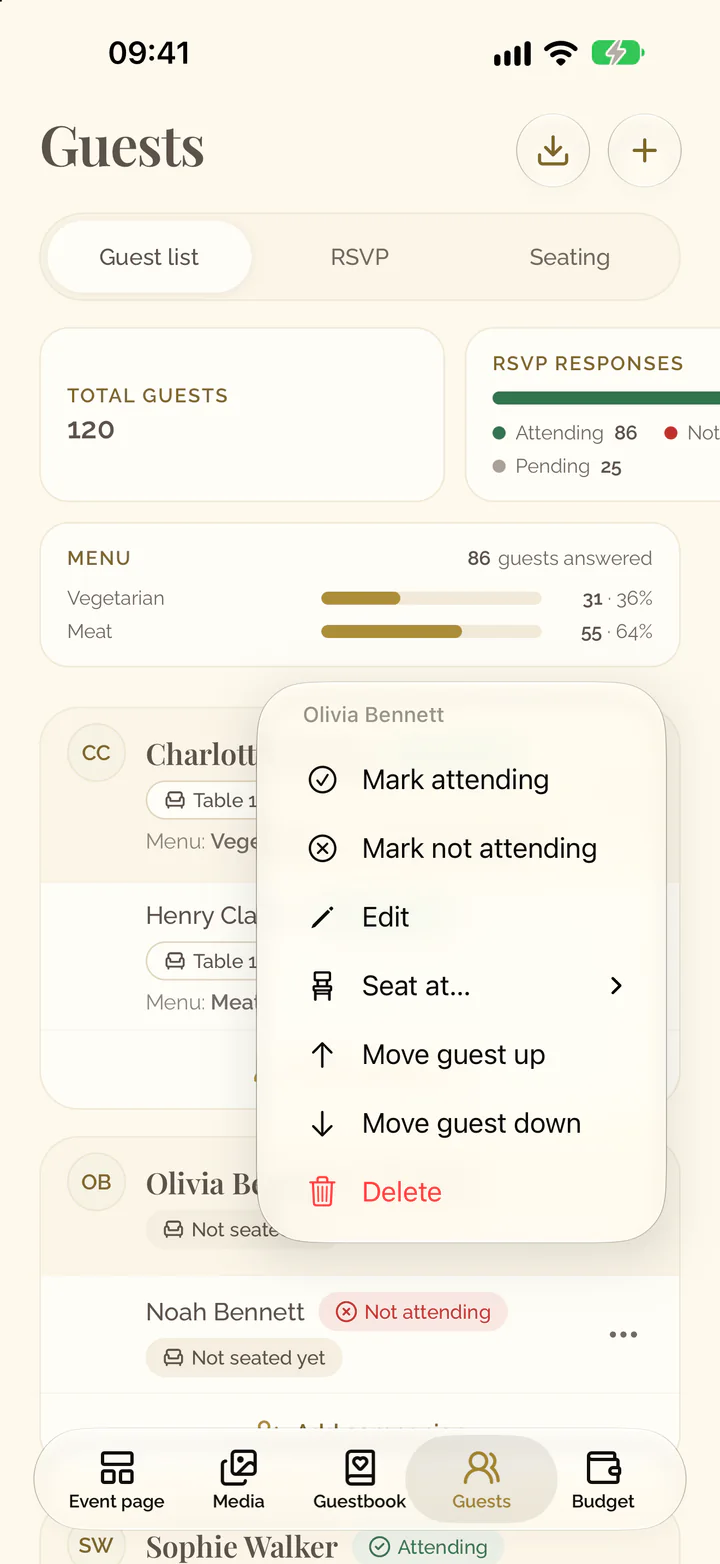
- Open the menu of the guest, for example Actions for Anna Weber.
- Select Add companion.
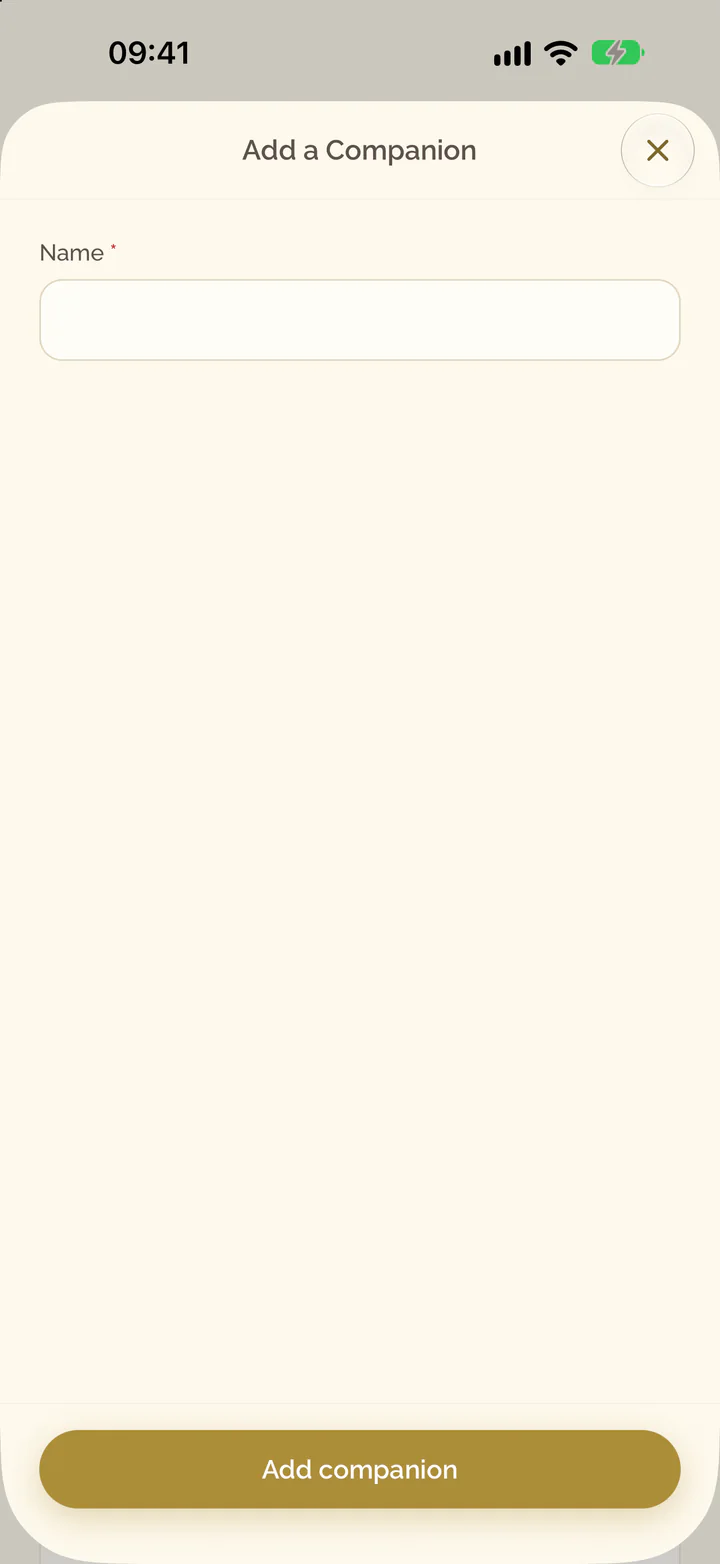
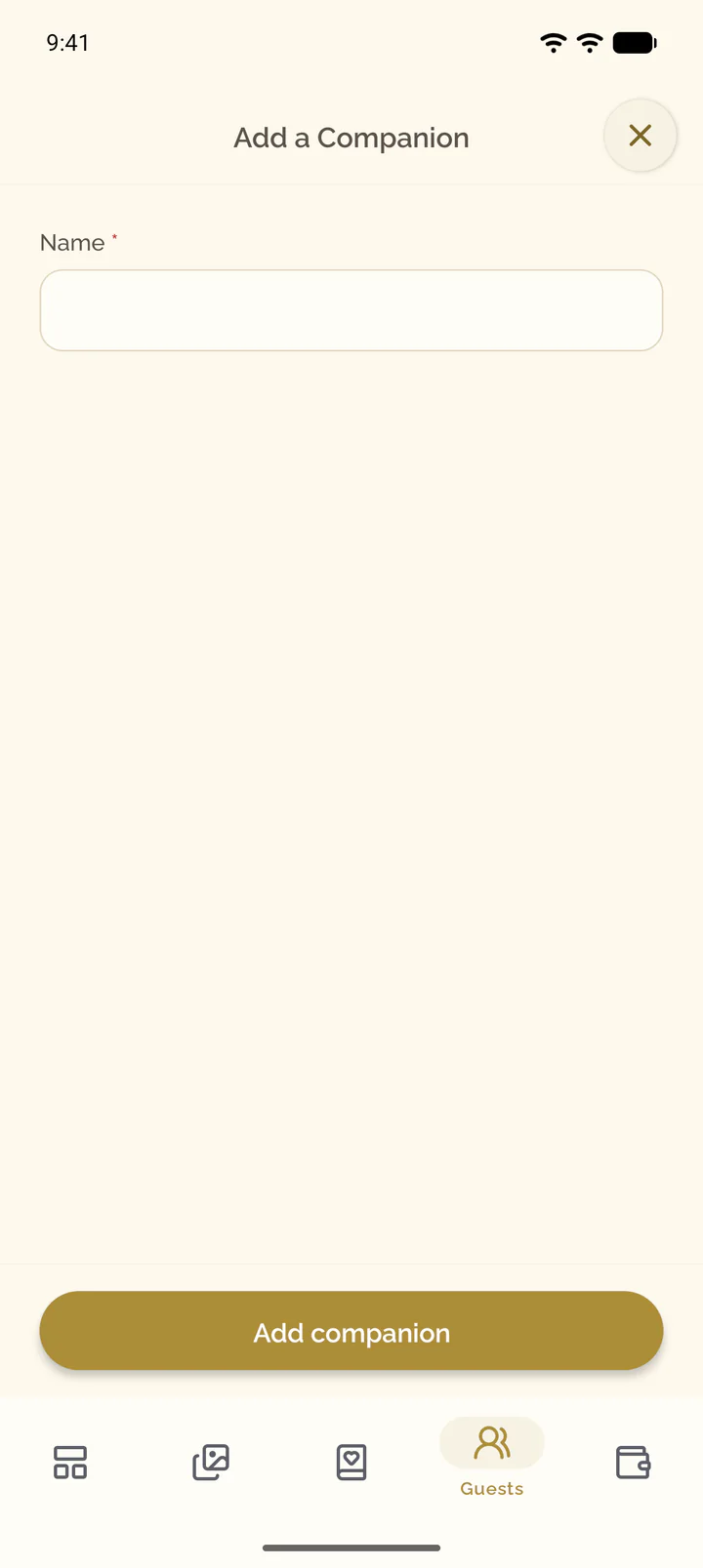
- Enter the Name and select Add companion.
- Open the Guests tab of the event.
- Under the guest, select Add companion.
- Enter the Name and select Add companion.
Edit or reorder guests
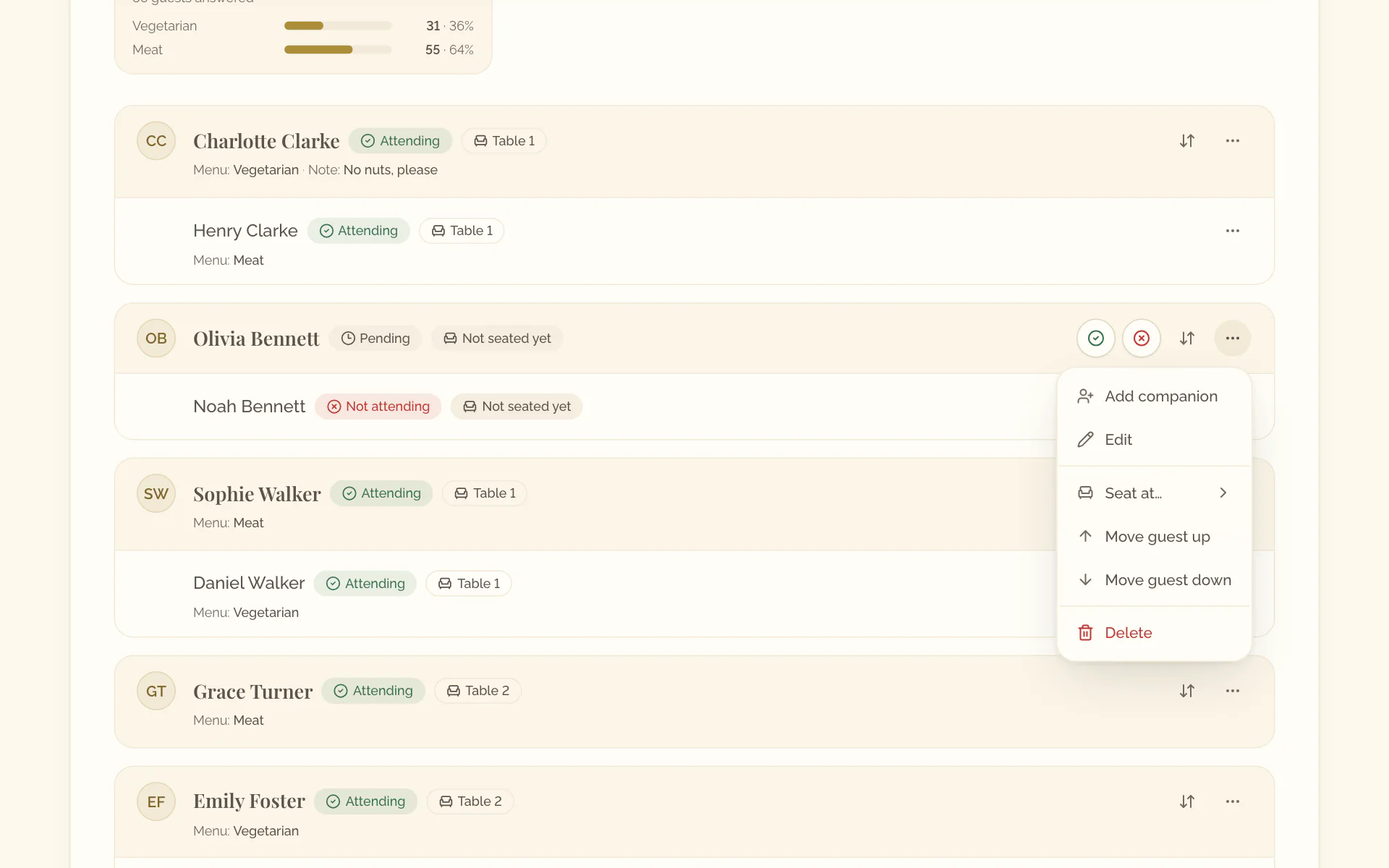
- Open the menu of the guest or the companion.
- Select Edit to change the name, then Save.
- Select Move guest up or Move guest down to change the order.
- Select the guest or the companion.
- Change the name and select Save.
- To change the order, open the menu at the end of the row and select Move guest up or Move guest down.
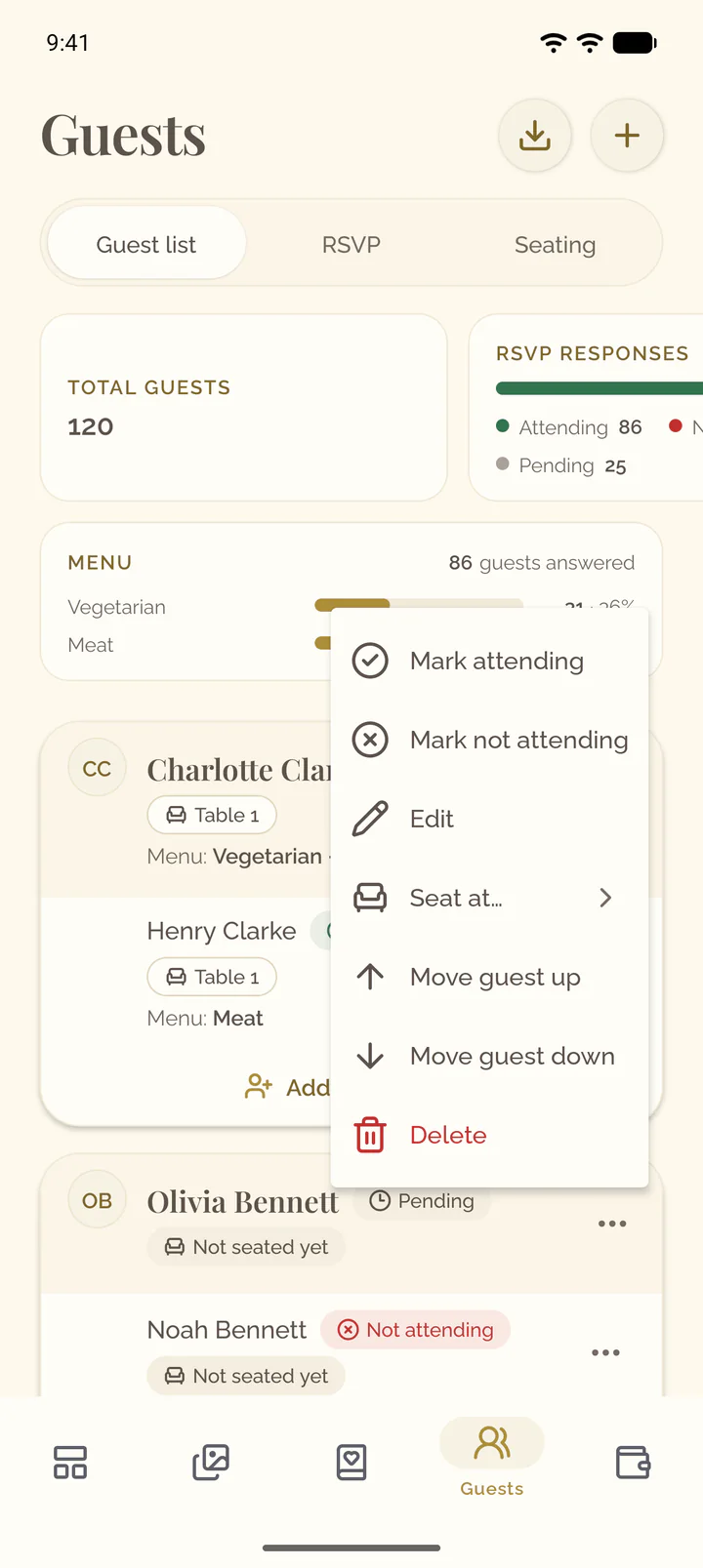
Delete a guest
- Open the menu of the guest or the companion.
- Select Delete and confirm.
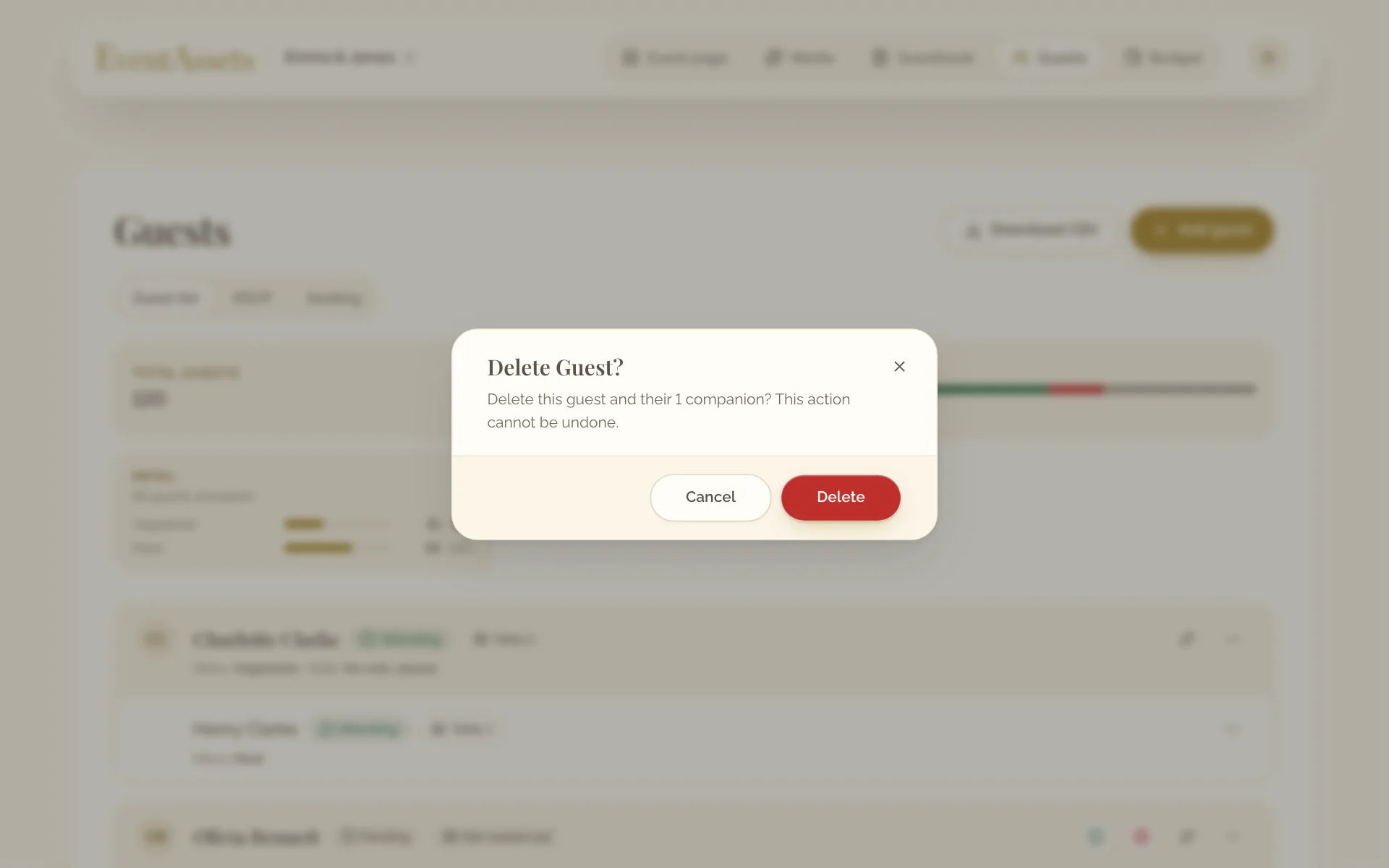
- Open the menu at the end of the row of the guest or the companion.
- Select Delete and confirm. A companion can also be swiped aside to delete.
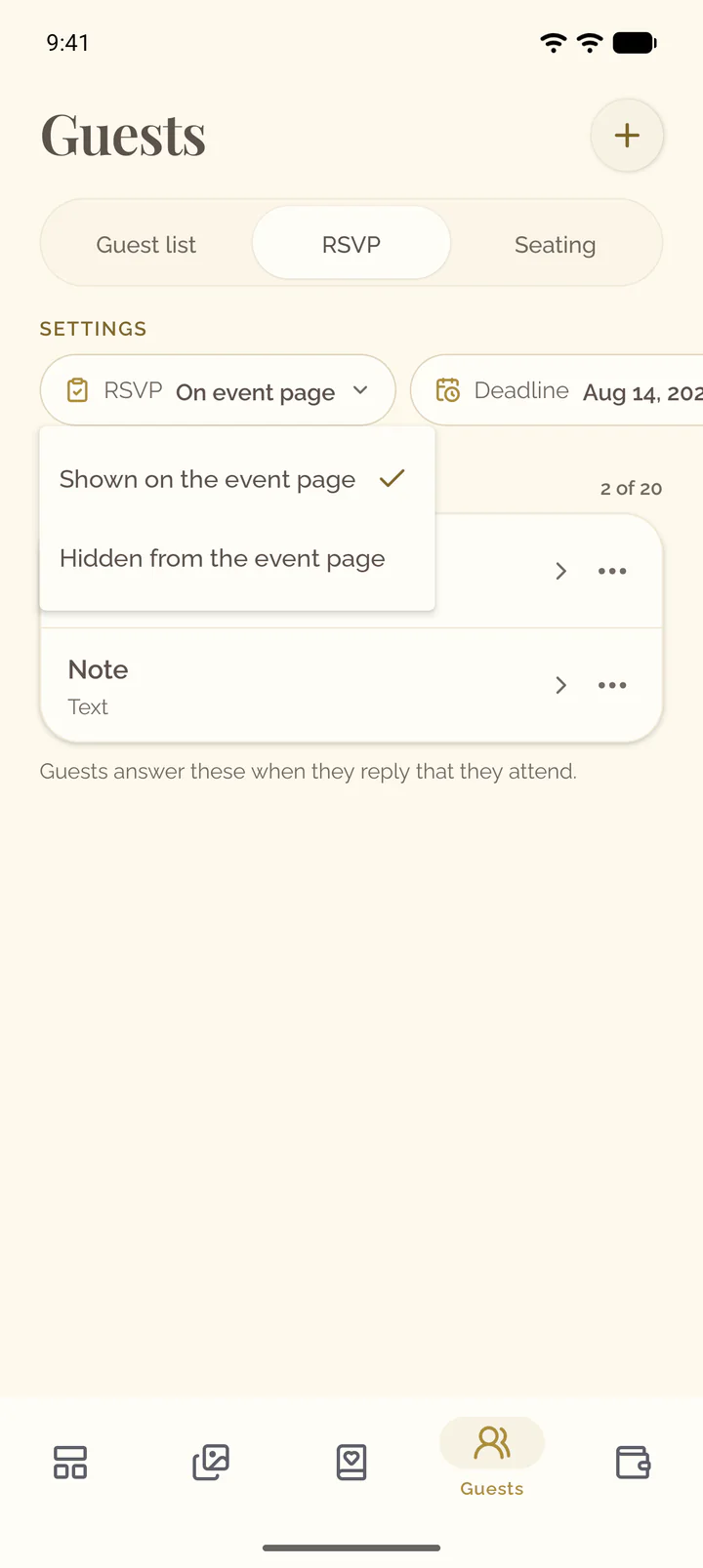
Show RSVP on the event page
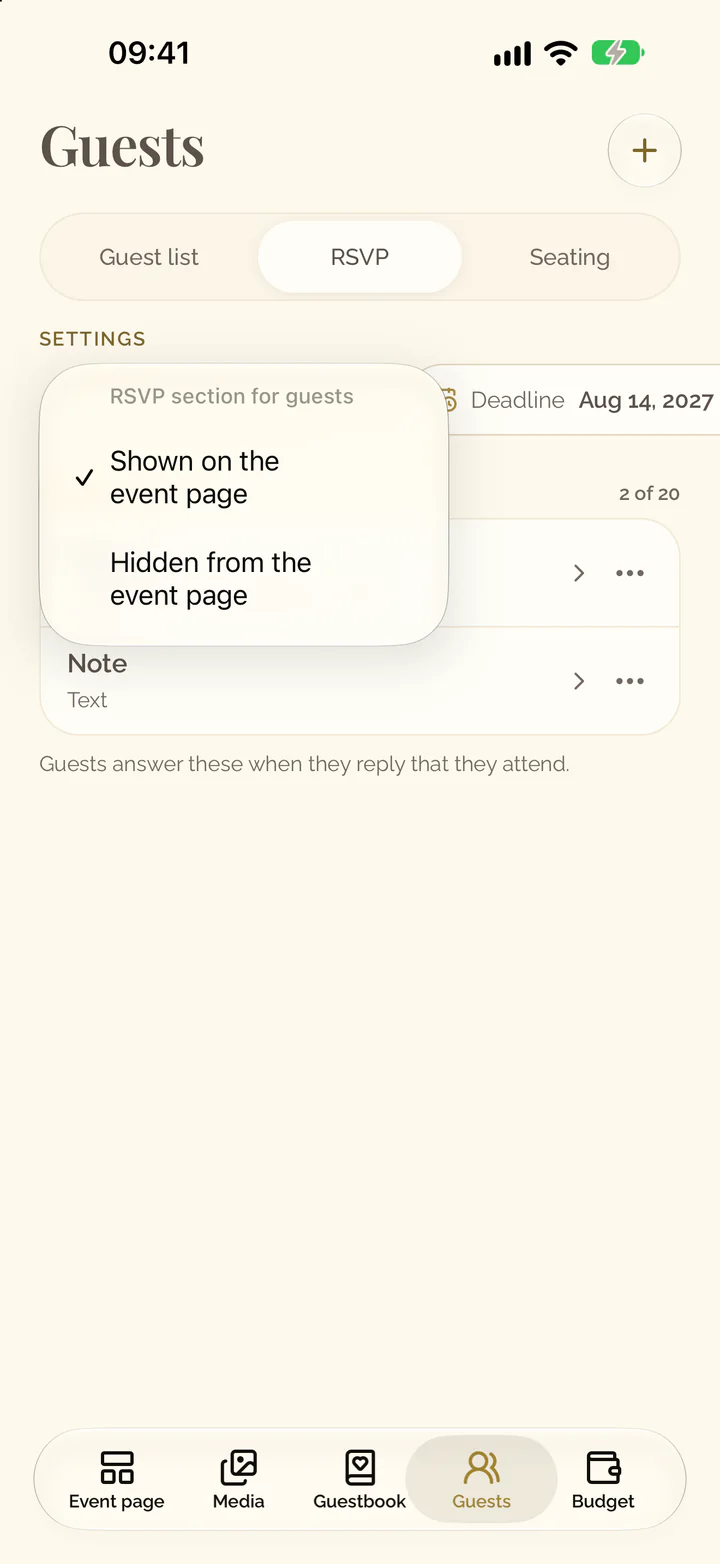
- Open the Guests tab and its view RSVP.
- Select the setting RSVP.
- Choose Shown on the event page.
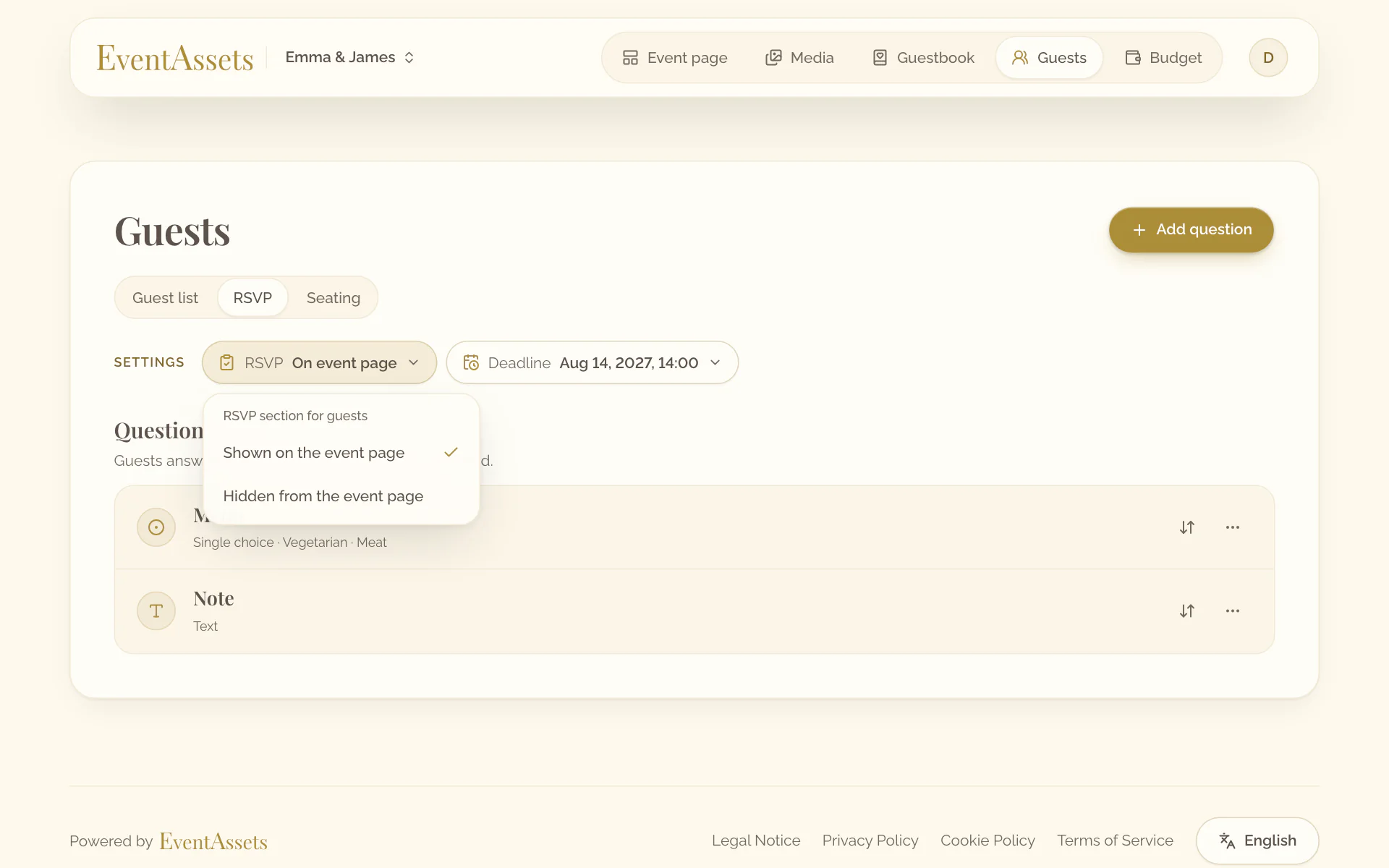
- Open the Guests tab and its view RSVP.
- Select the setting RSVP.
- Choose Shown on the event page.
How guests choose their name
- Guests open the event page and select Find your name under RSVP.
- They type their name; the guest list shows their party.
- They select themselves.
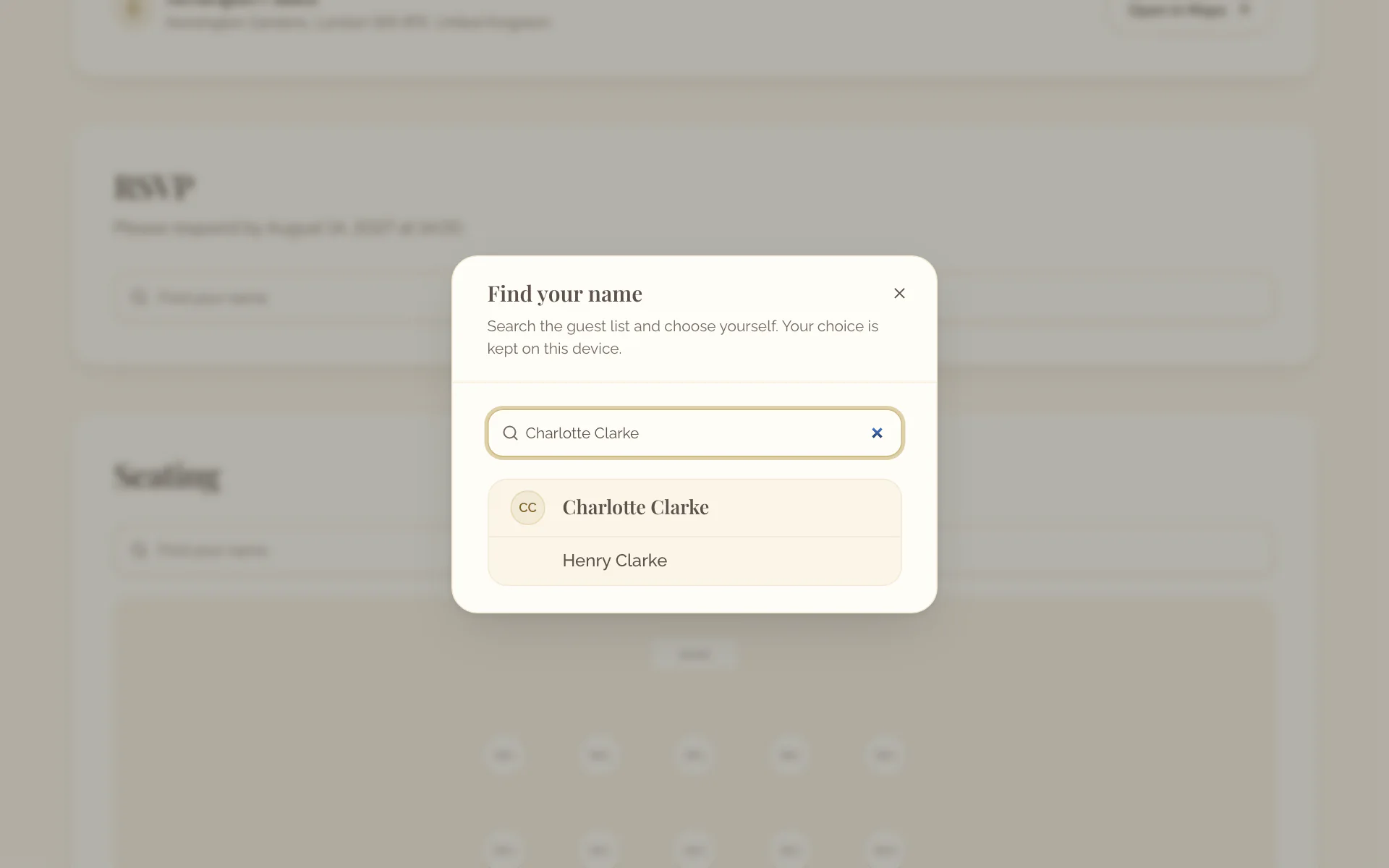
Guests choose their name on the web. The Event page tab shows the section as they see it: select Find your name and choose a guest to answer for their party.
How guests reply
- For each person of their party, guests select Mark attending or Mark not attending.
- Where you ask questions, they answer them and select Save RSVP.
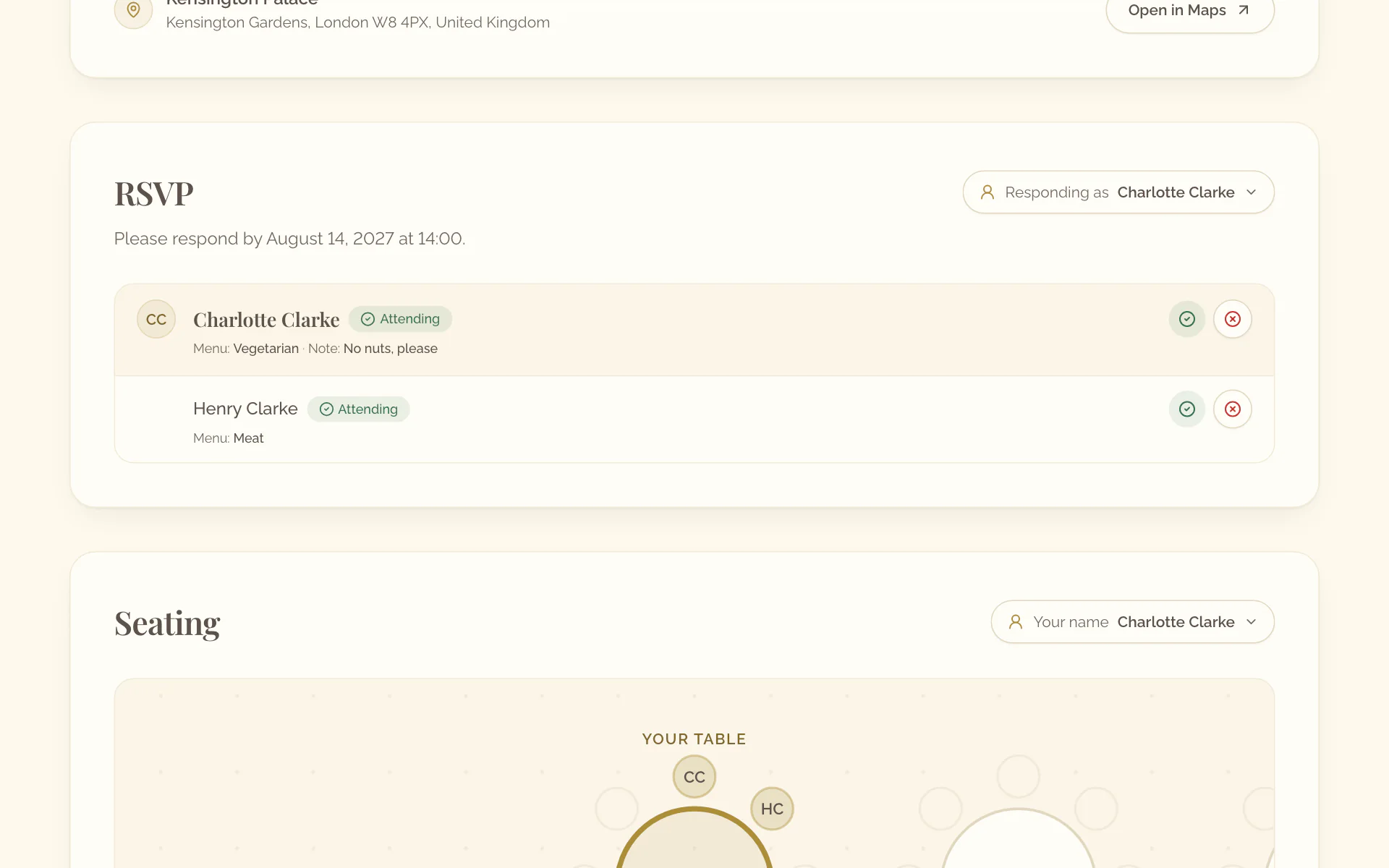
Guests reply on the web; to record a reply yourself, see below.
Record a reply yourself
- Open the Guests tab of the event.
- On a guest who has not replied, select Mark attending or Mark not attending. On a phone, open the menu of the guest first.
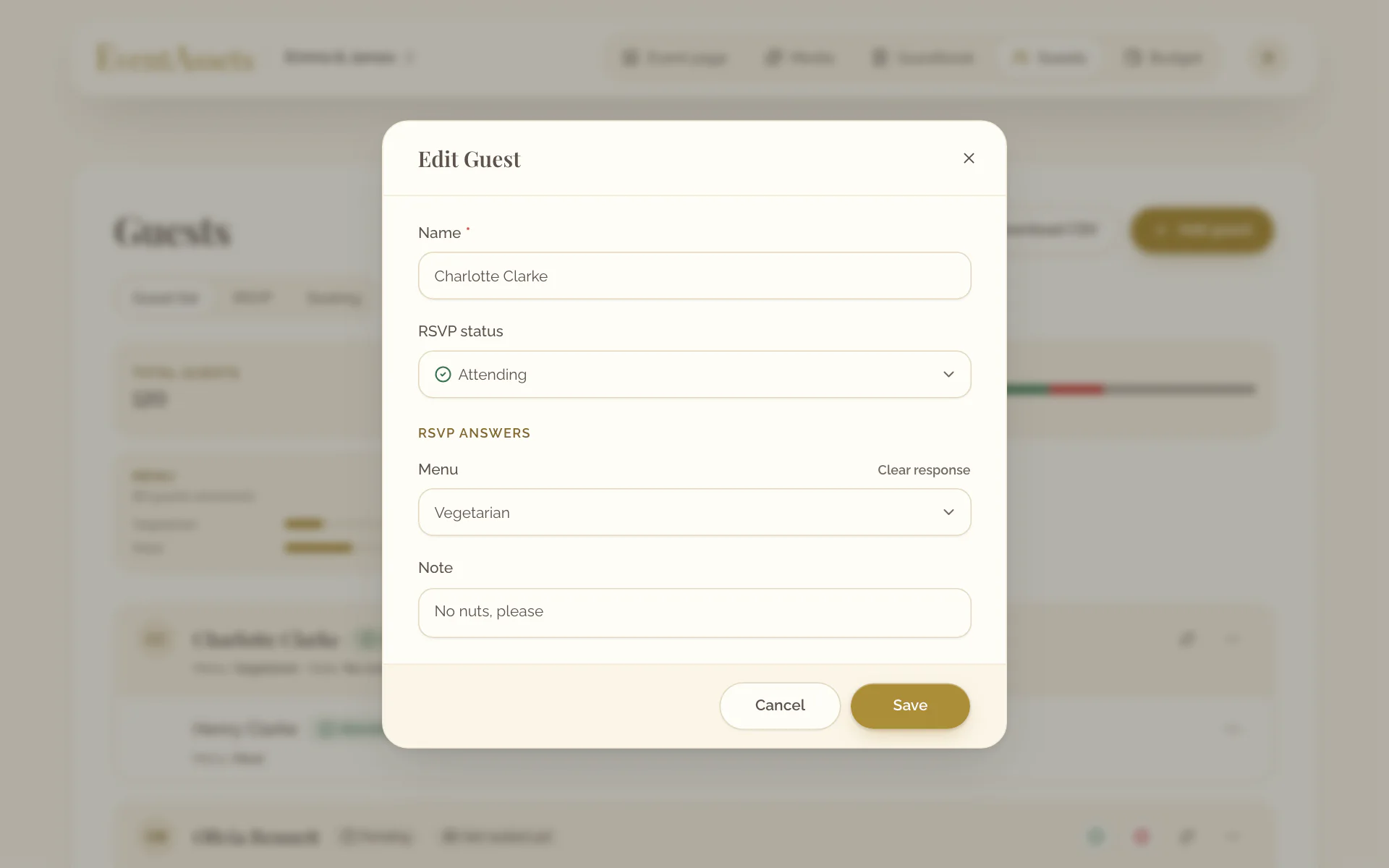
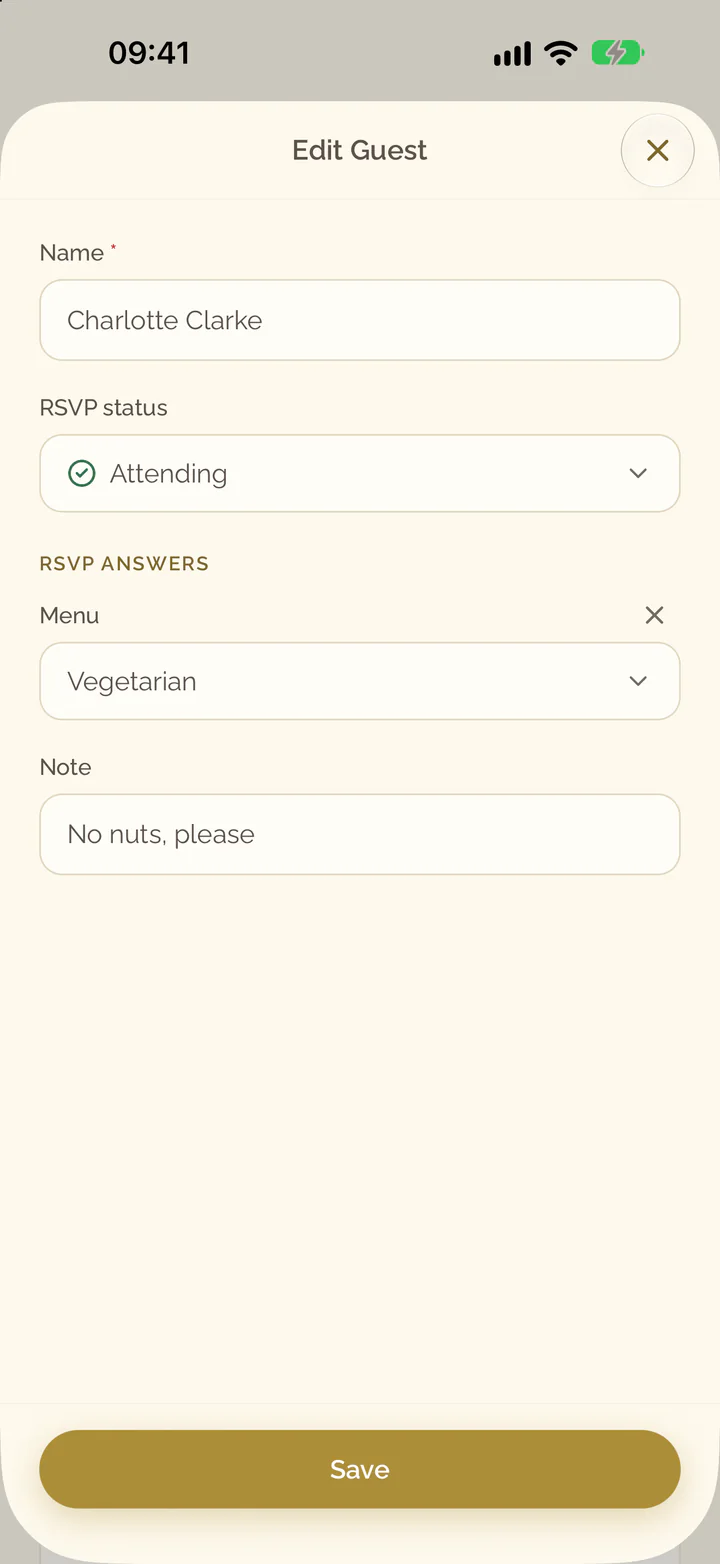
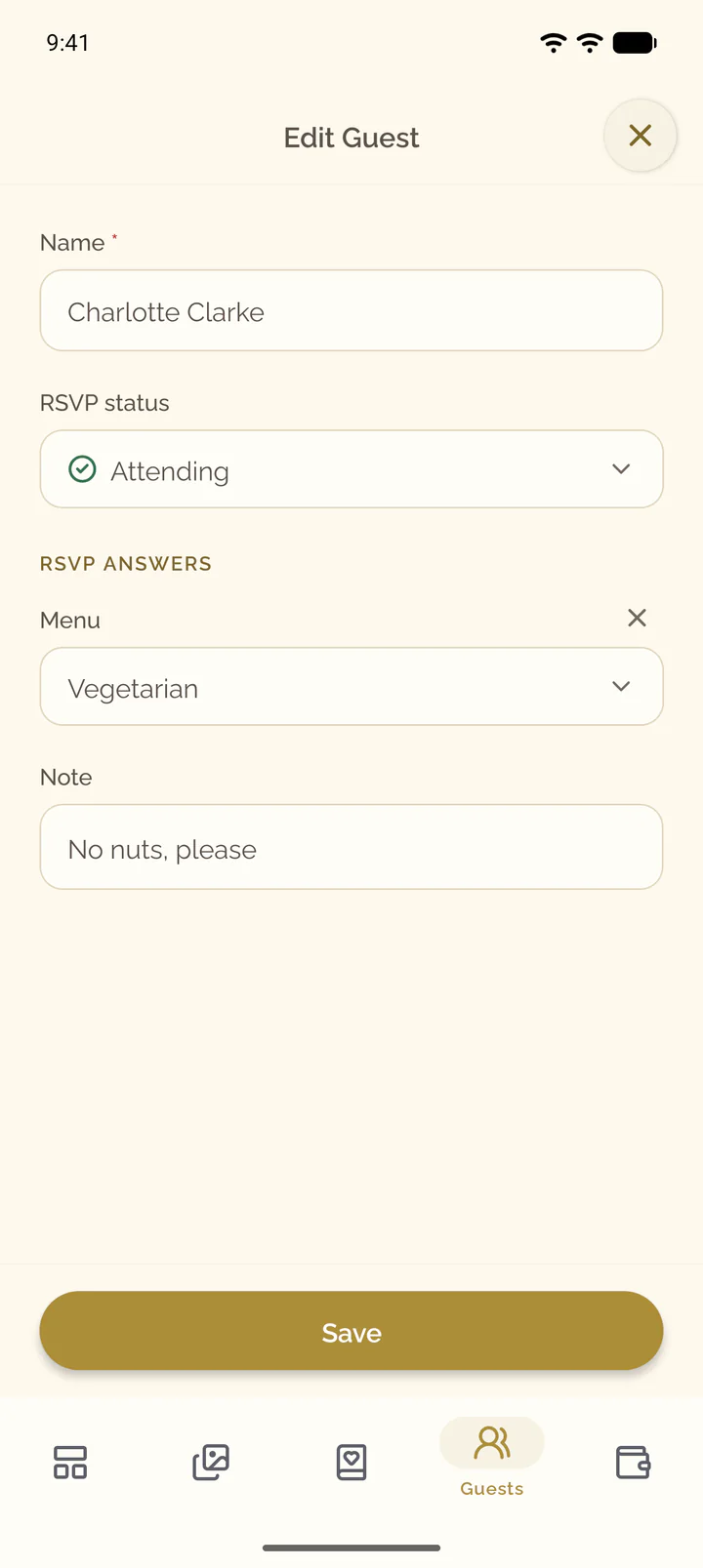
- To change a reply or to enter answers, open the menu of the guest and select Edit.
- Set RSVP status and the answers, then select Save.
- Open the Guests tab of the event.
- On a guest who has not replied, open the menu at the end of the row and select Mark attending or Mark not attending. On a wide screen both stand in the row.
- To change a reply or to enter answers, select the guest.
- Set RSVP status and the answers, then select Save.
Follow the replies
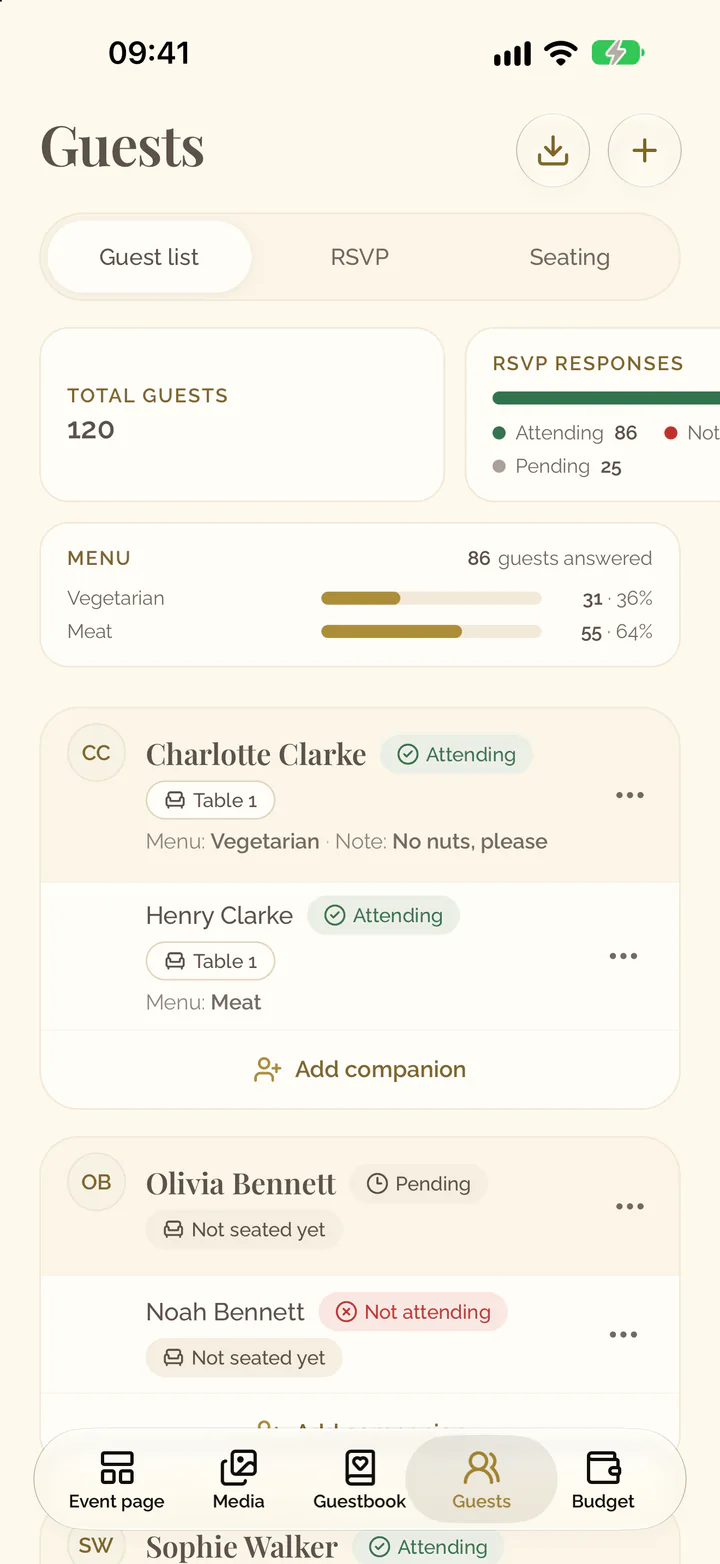
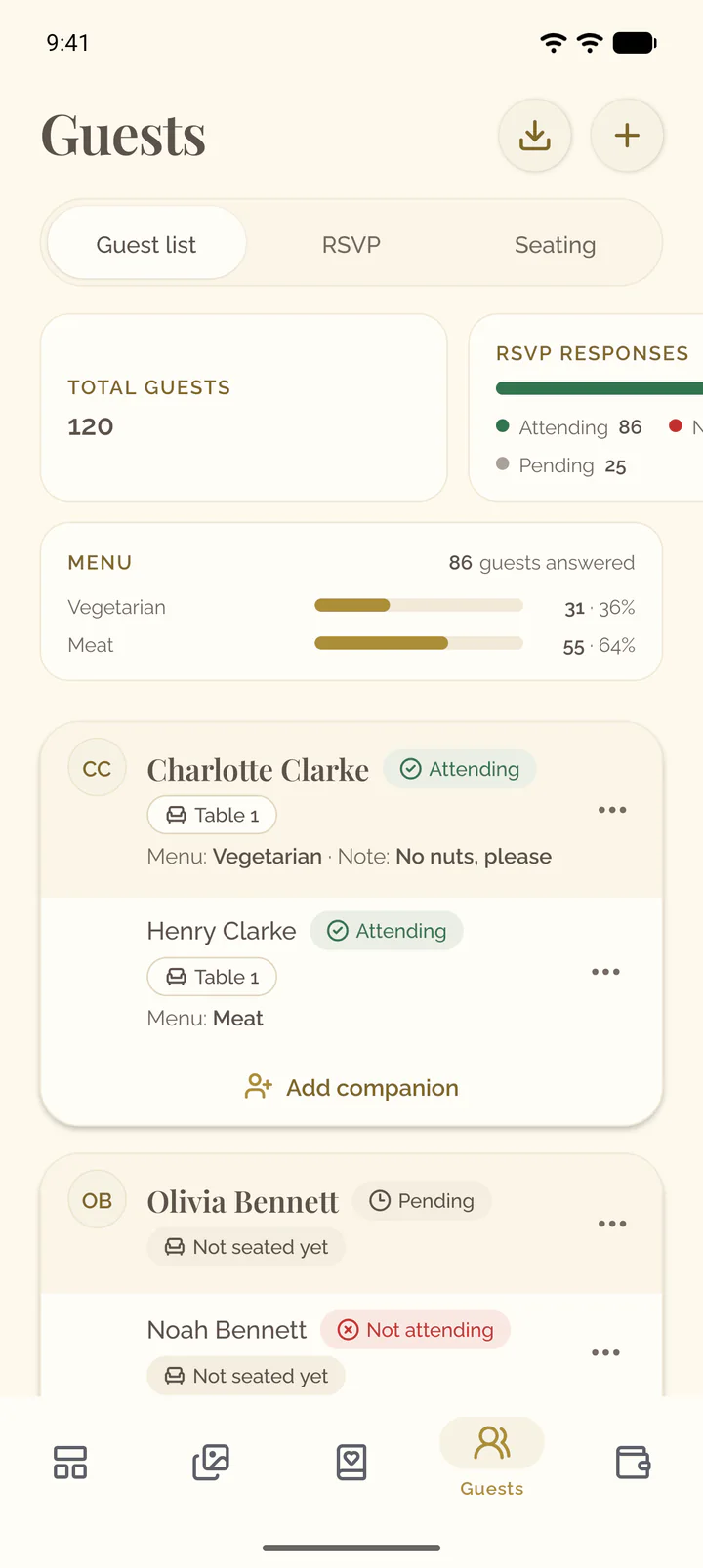
The tiles above the list show Total guests and, under RSVP responses, how many are Attending, Not attending and Pending. Every guest carries their answers on their row.
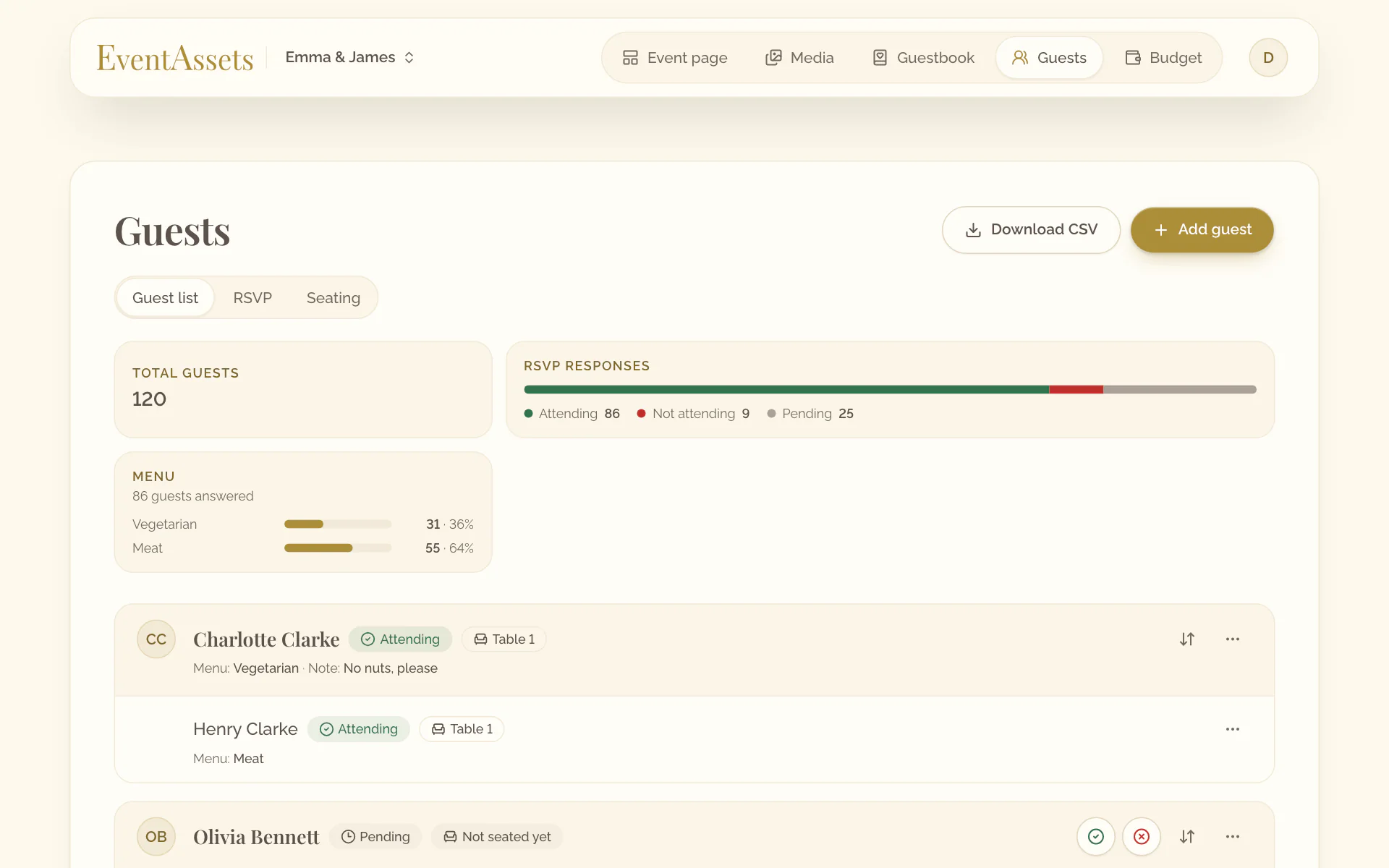
The tiles above the list show Total guests and, under RSVP responses, how many are Attending, Not attending and Pending. Swipe the row of tiles to see them all. Every guest carries their answers on their row.
To ask questions and to export the list, see Customize RSVP questions, deadline and export.