
Create a seating chart and seat your guests
Add the tables of your room, seat your guests by party, and show the chart on your event page so every guest finds their table.
Steps for
The Guests tab has a third view: Seating, the chart of your tables and who sits at them.
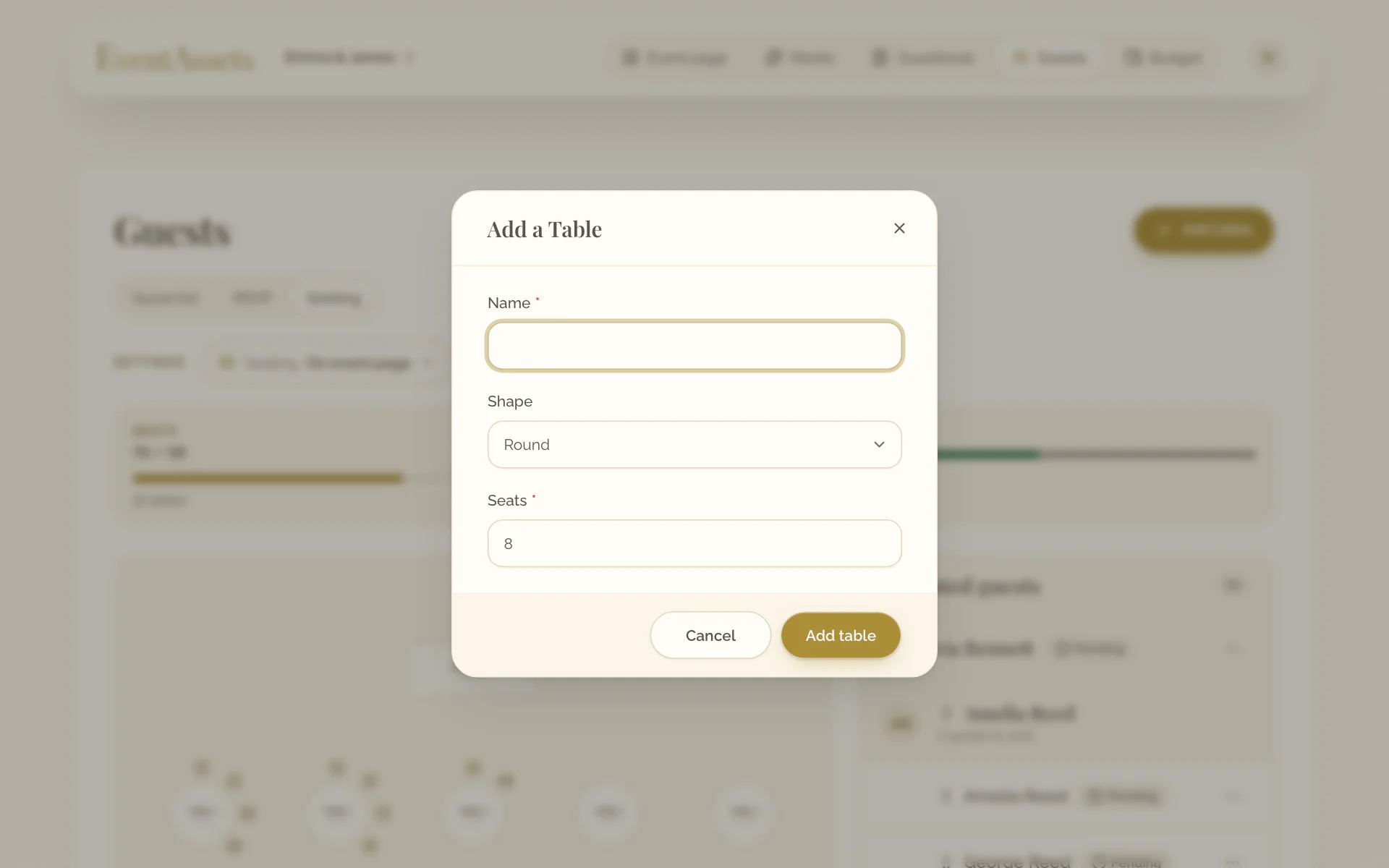
Add a table
- Open the Guests tab of the event and its view Seating.
- Select Add table.
- Enter the Name, choose the Shape and the number of Seats, then select Add table.
- Open the Guests tab of the event and its view Seating.
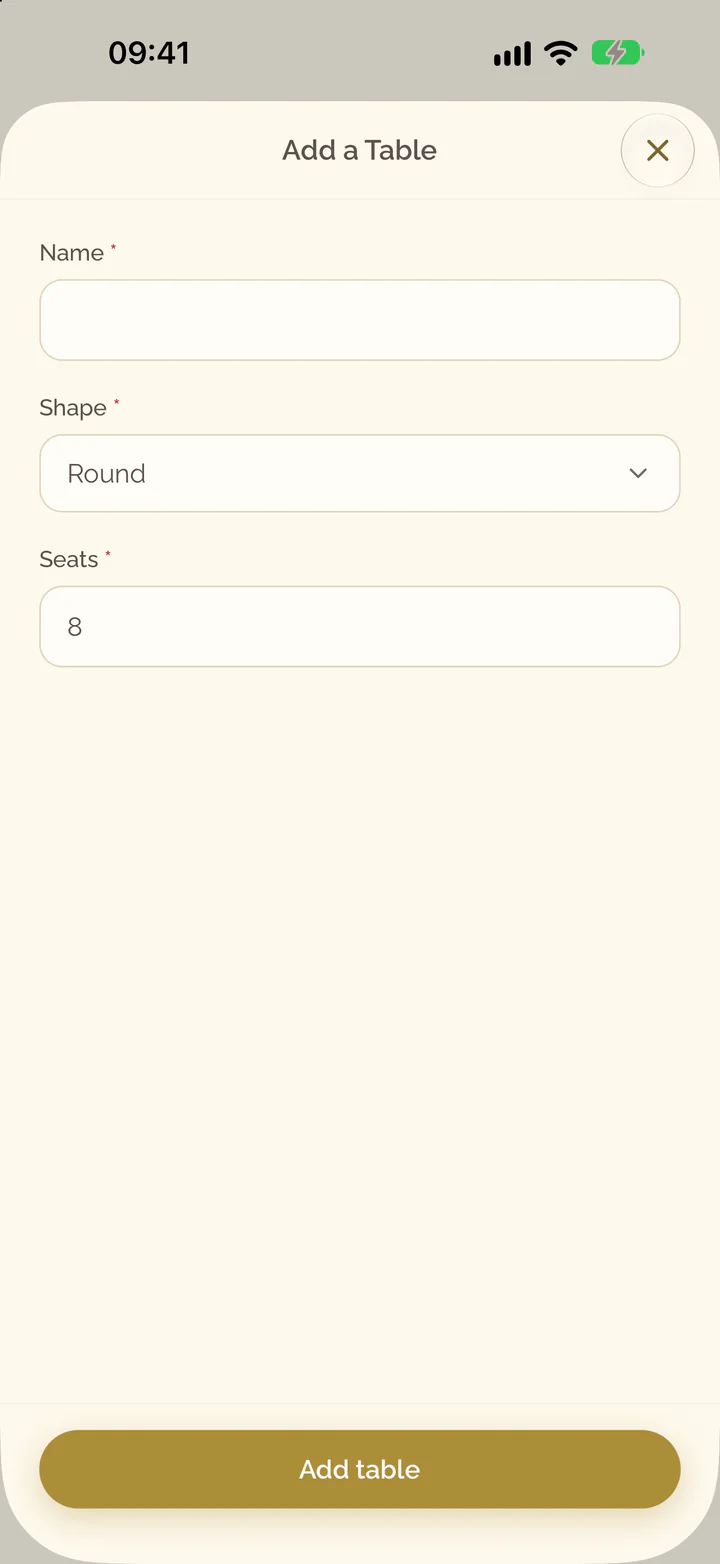
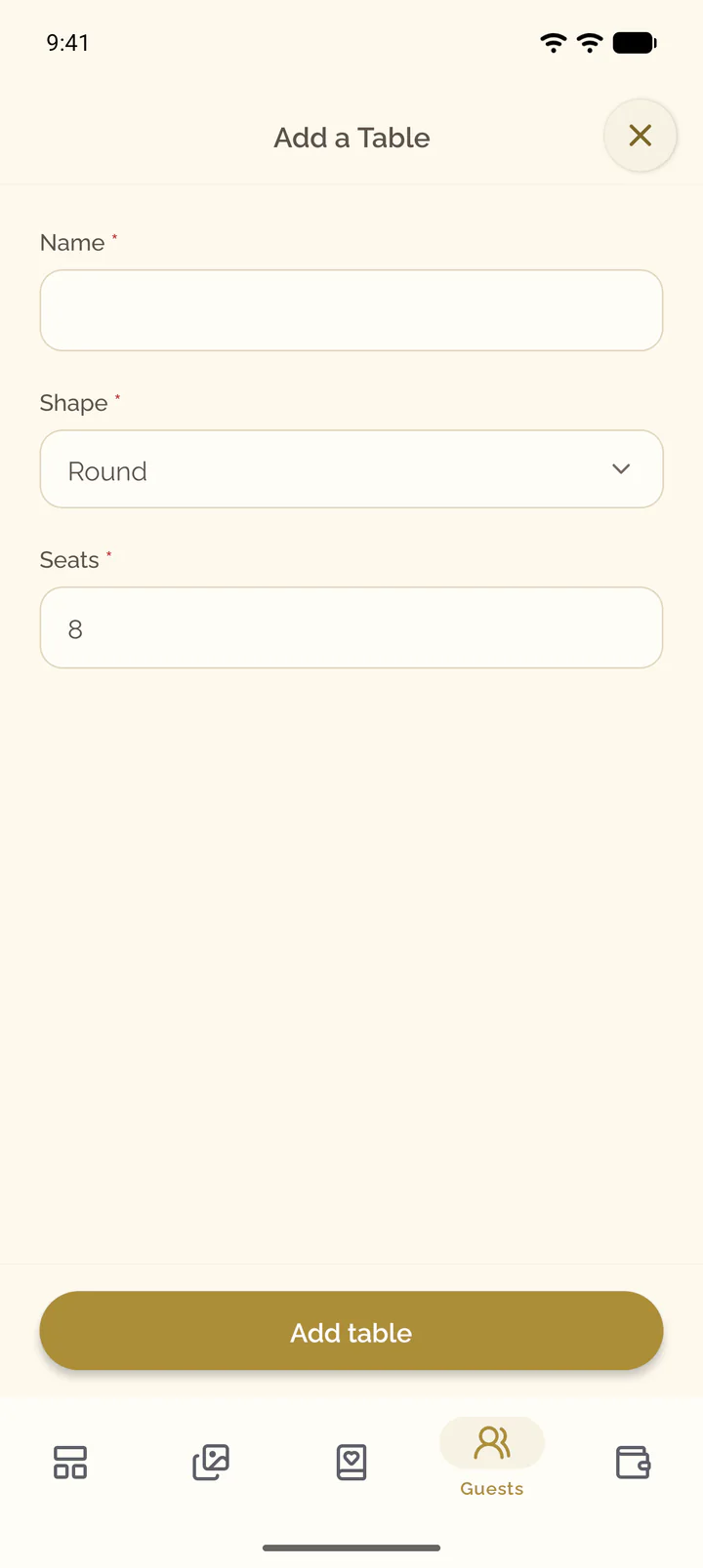
- Select the plus button at the top of the screen.
- Enter the Name, choose the Shape and the number of Seats, then select Add table.
Arrange the tables
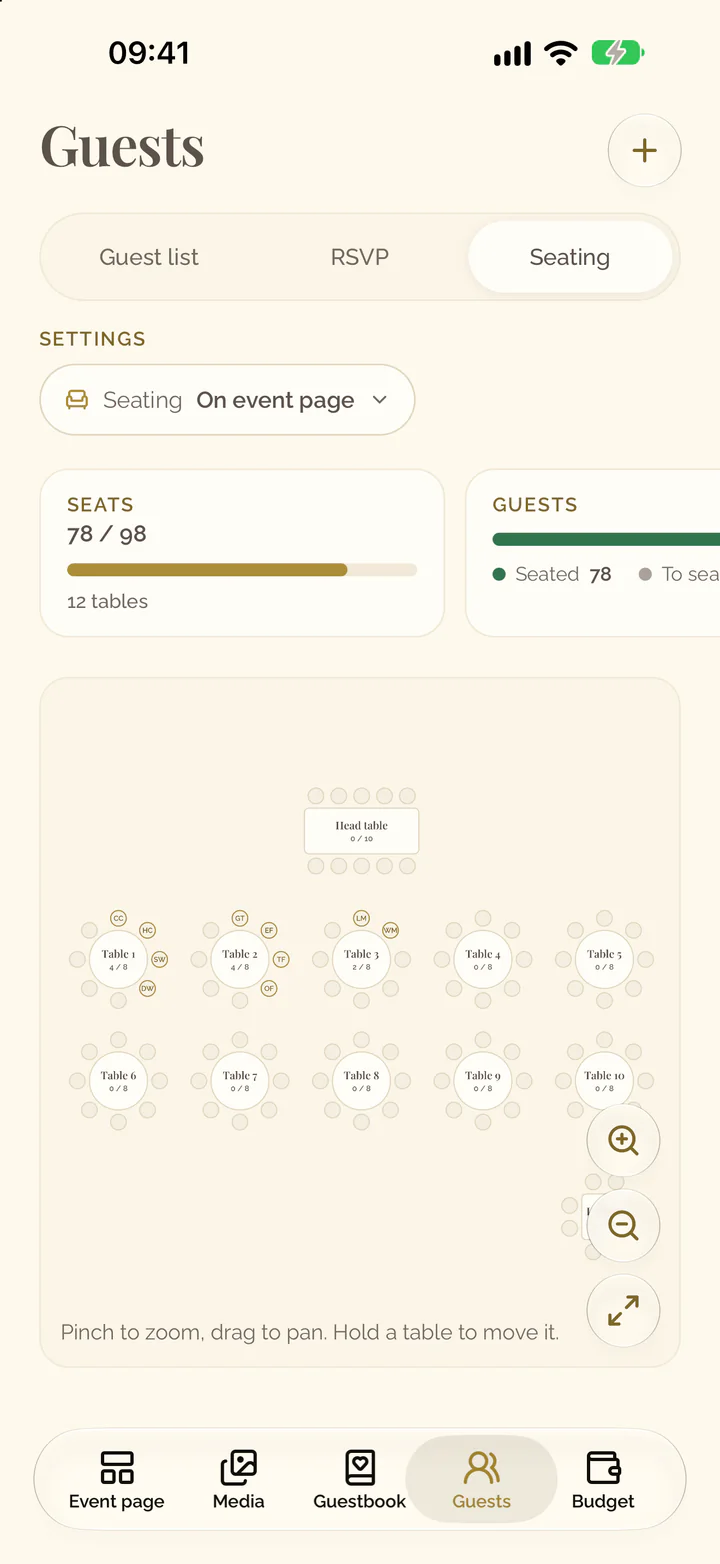
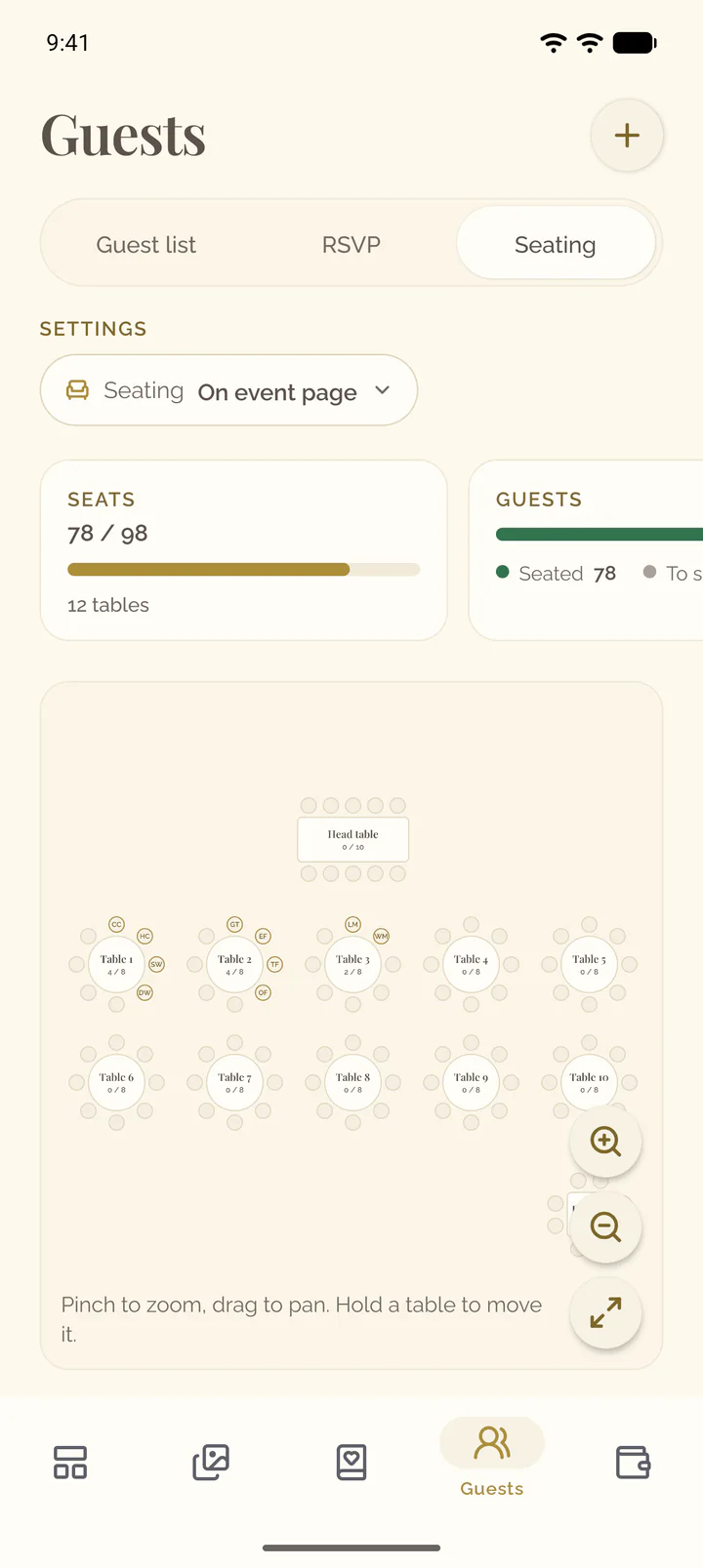
- Drag a table on the chart to where it stands in your room. Drag the empty chart to move the view, and use the buttons on the chart to zoom or to Show all tables.
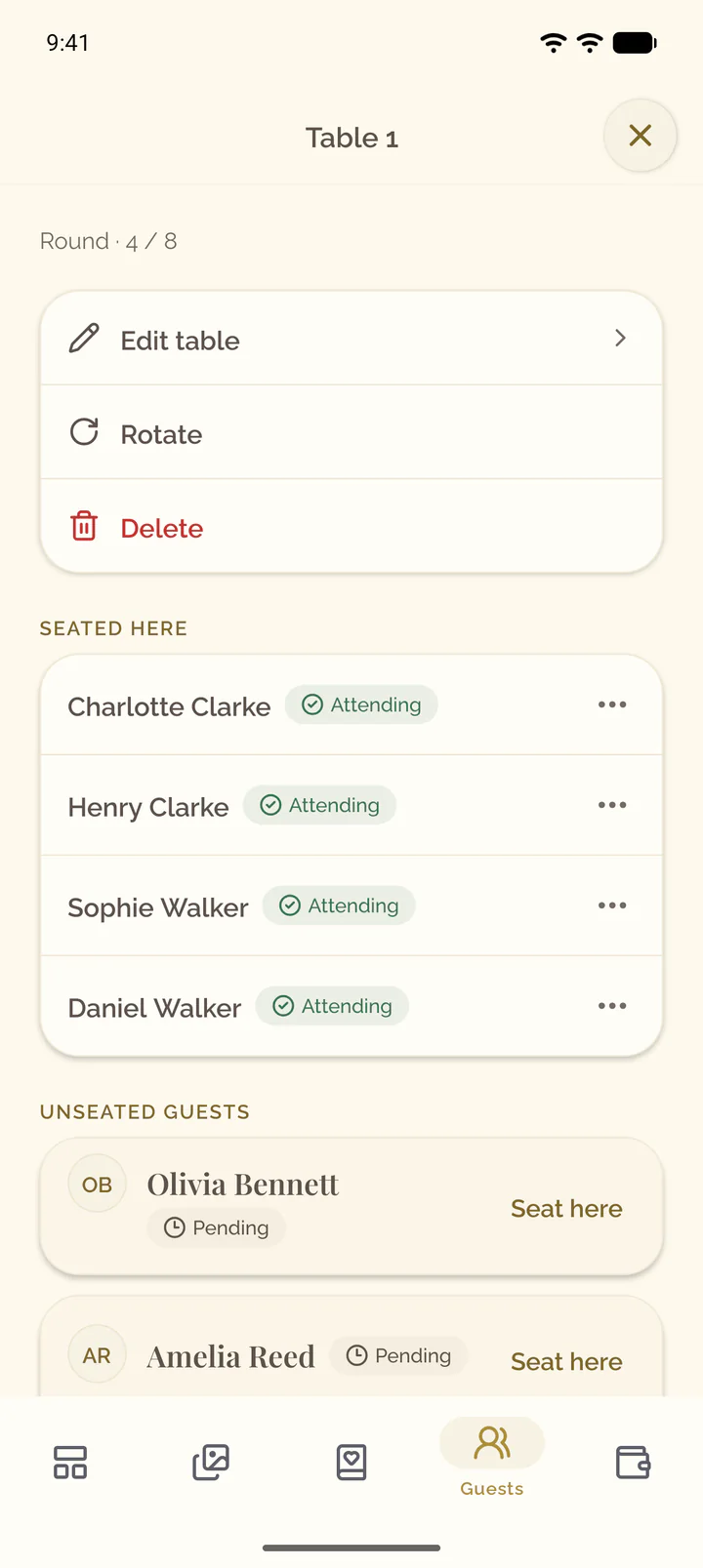
- Select a table to open its details. Select Rotate to turn it a quarter or Edit table to change its name, shape or seats. To remove it, open the menu of the table, for example Actions for Table 1, and select Delete.
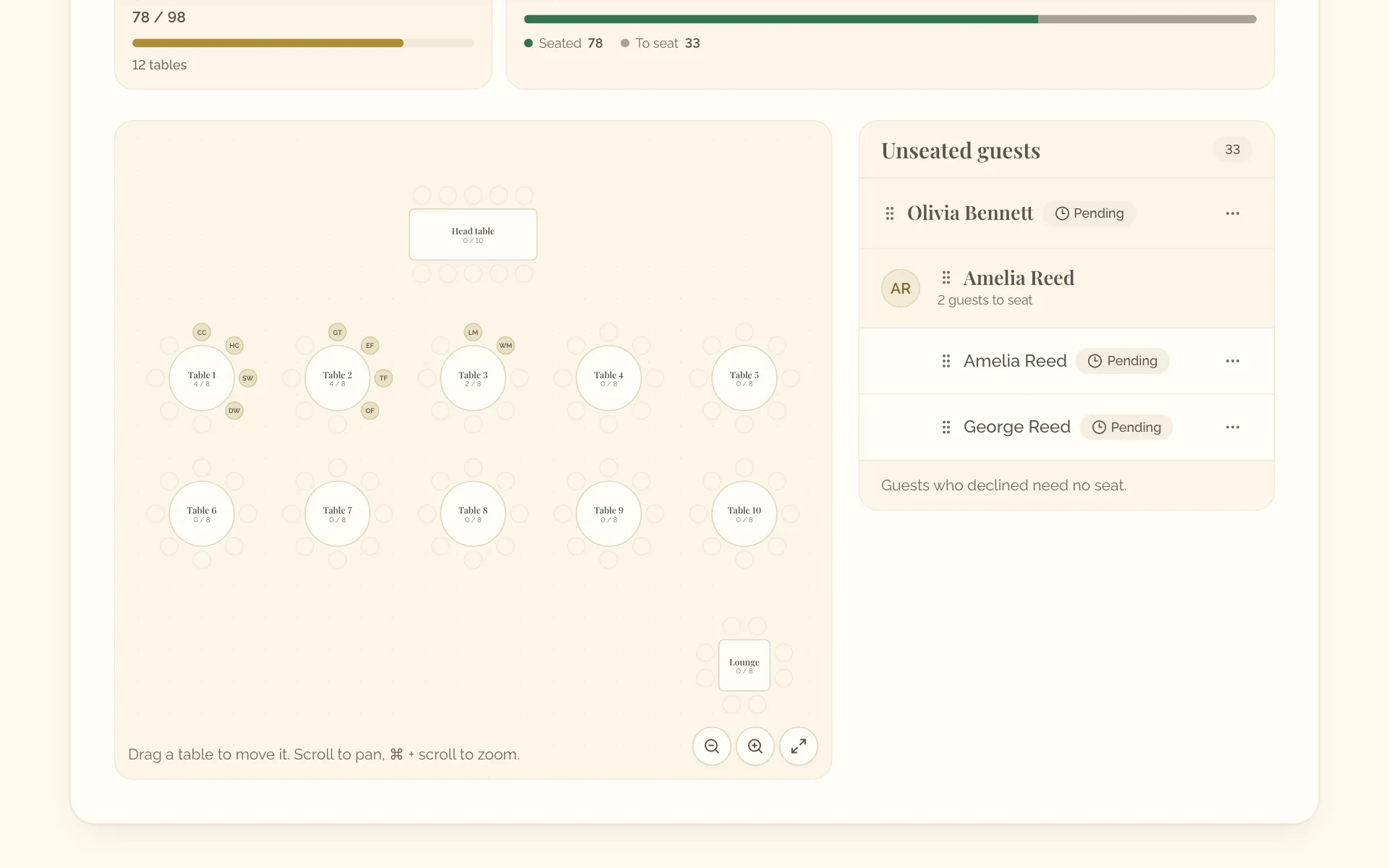
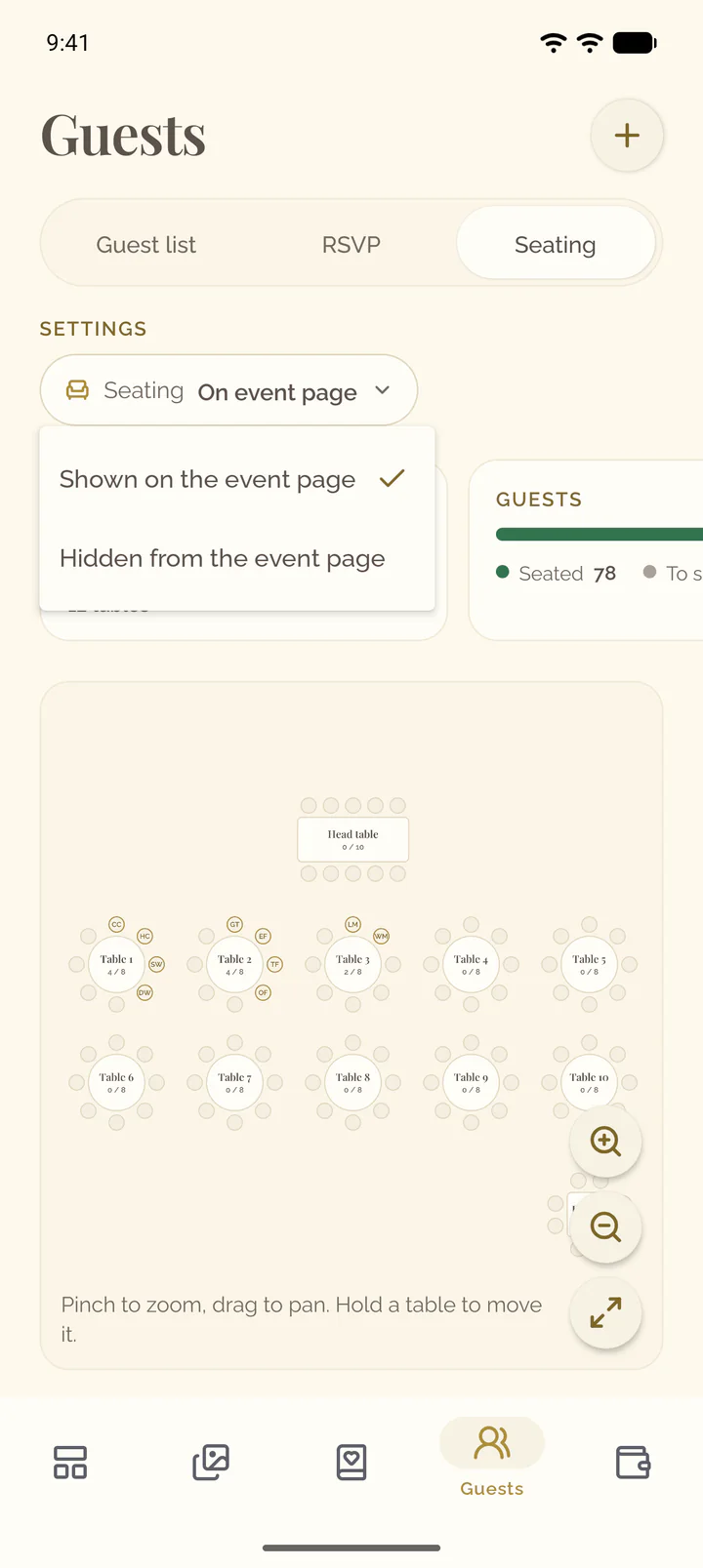
- Touch and hold a table on the chart, then drag it to where it stands in your room. Pinch to zoom and drag the empty chart to move the view.
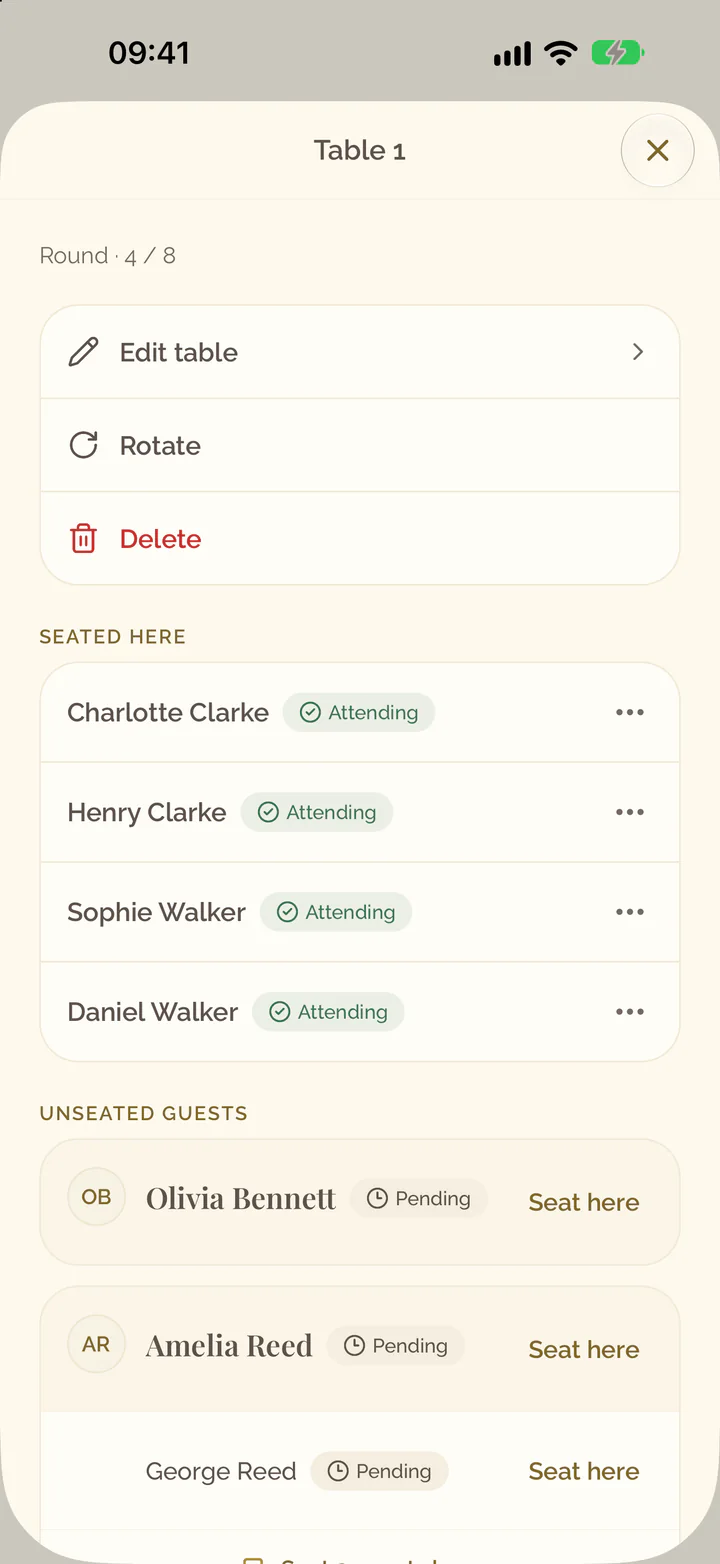
- Select a table to open its details. Select Rotate to turn it a quarter, Edit table to change its name, shape or seats, or Delete to remove it.
Seat guests
- Select a table on the chart, then under Unseated guests select Seat here next to a guest or next to a party.
- Or drag a guest, or a whole party by its name, onto a table, or open the menu of the guest, select Seat at… and choose the table.
- To move a guest, drag them to another table or back to Unseated guests, or select Unseat in their menu.
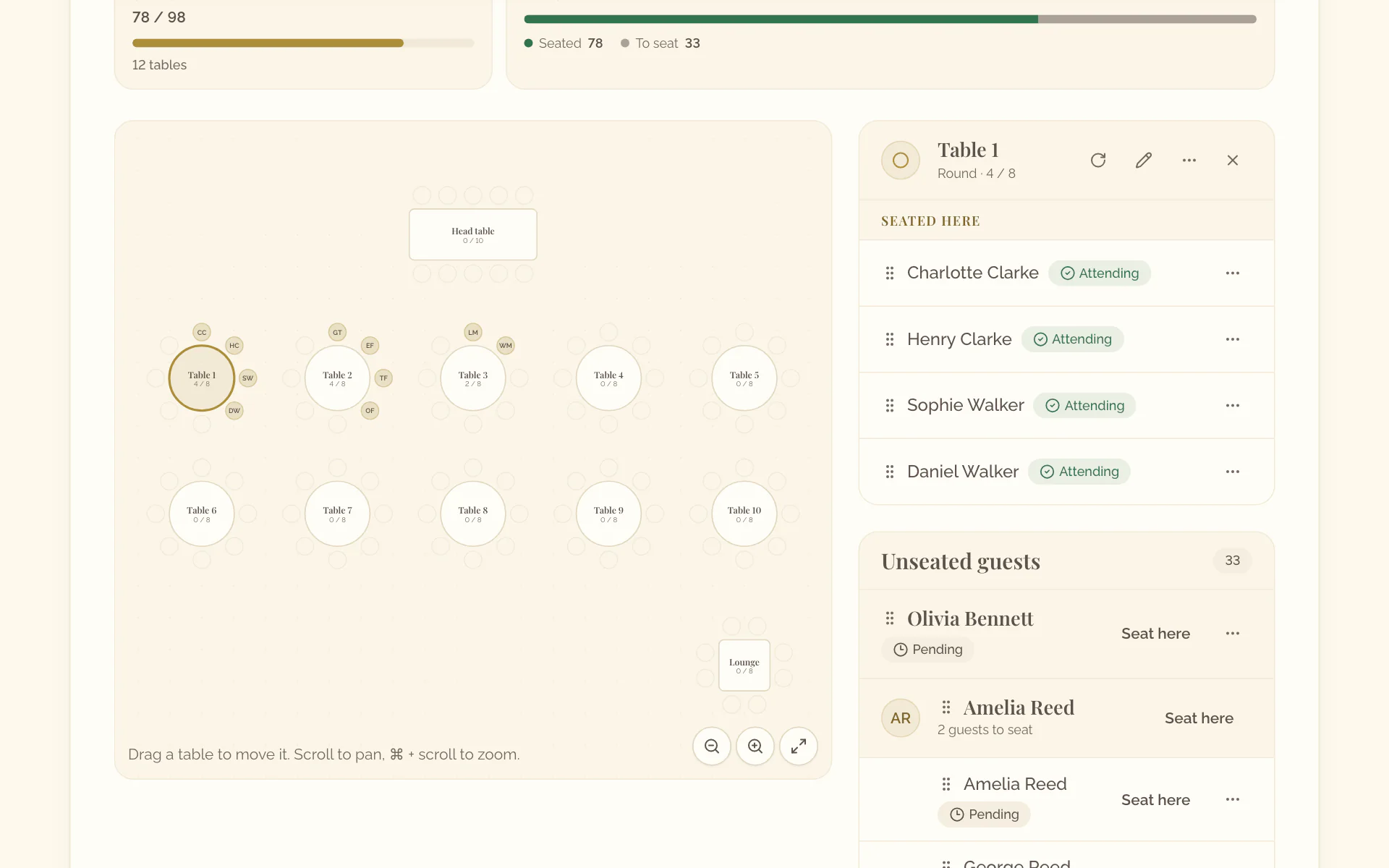
- Select a table on the chart.
- Under Unseated guests, select Seat here next to a guest, or the button under a party to seat all of them.
- To move a guest, open the menu at the end of their row and select Seat at… or Unseat.
Show the seating on the event page
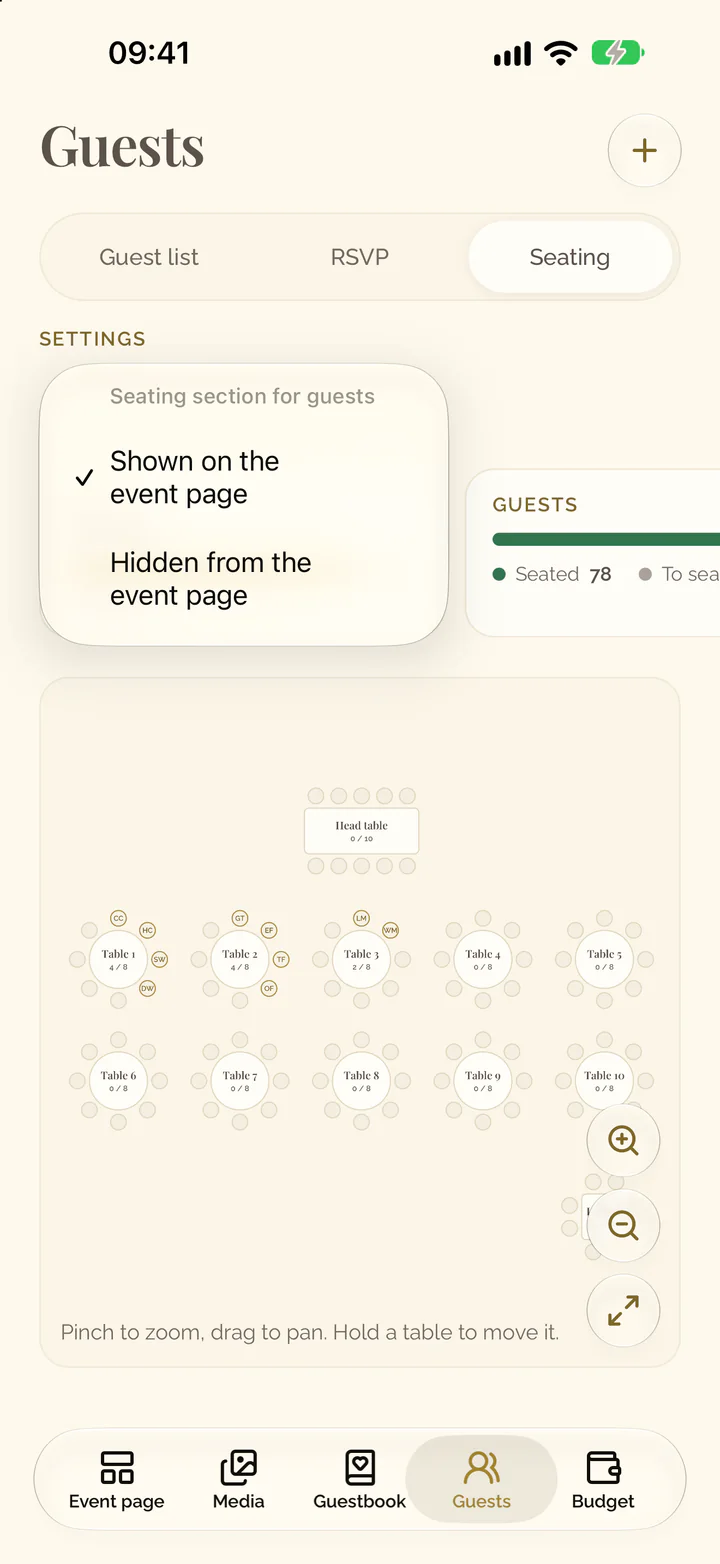
- Open the Guests tab and its view Seating.
- Select the setting Seating.
- Choose Shown on the event page.
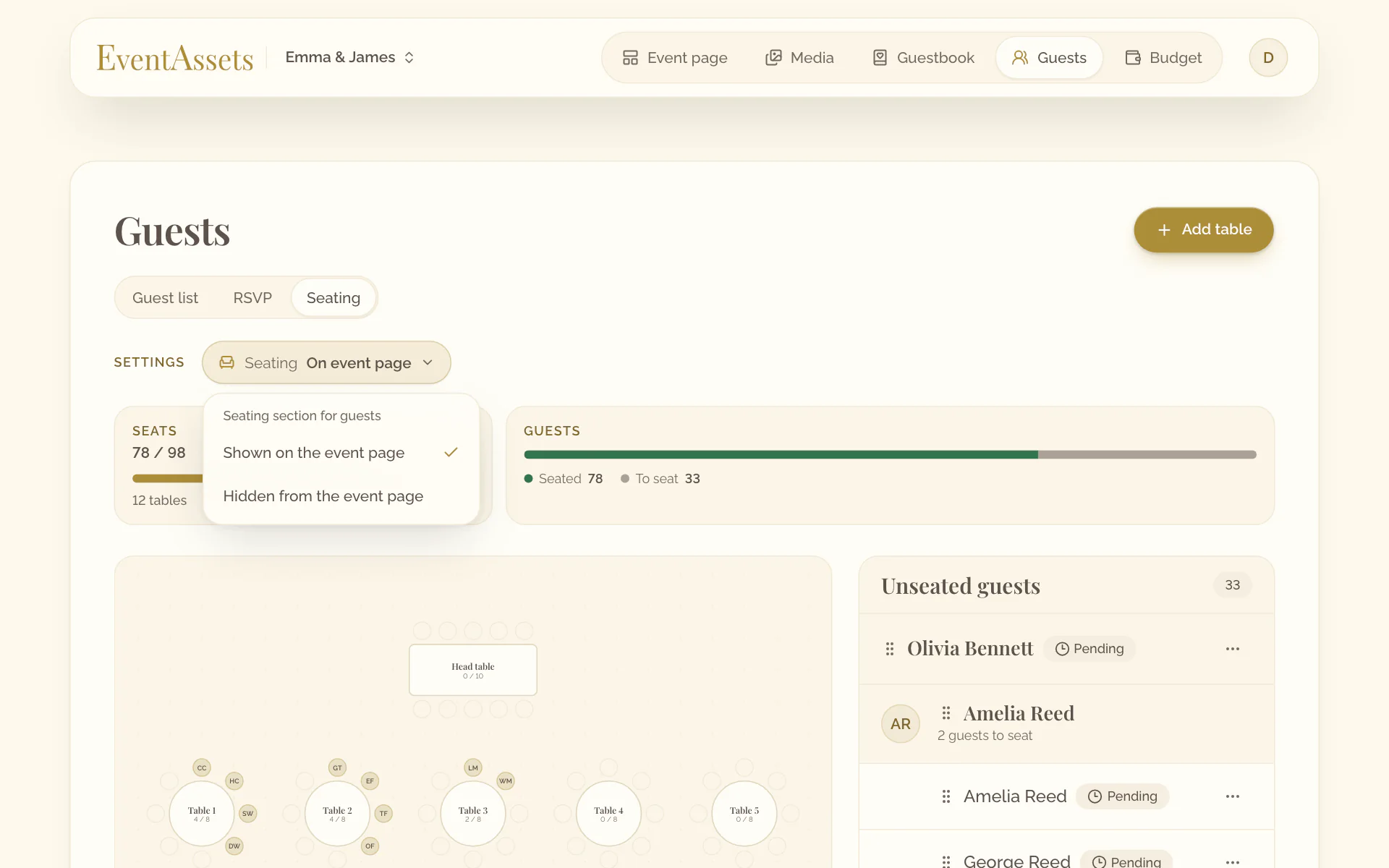
- Open the Guests tab and its view Seating.
- Select the setting Seating.
- Choose Shown on the event page.
How guests find their table
- Guests open the event page and choose their name under Find your name, as for RSVP.
- Under Seating the chart zooms to their table and the tables of their companions and marks them, with their initials on the chairs; hovering or tapping a chair shows the name. Companions who have no table yet are listed under the name.
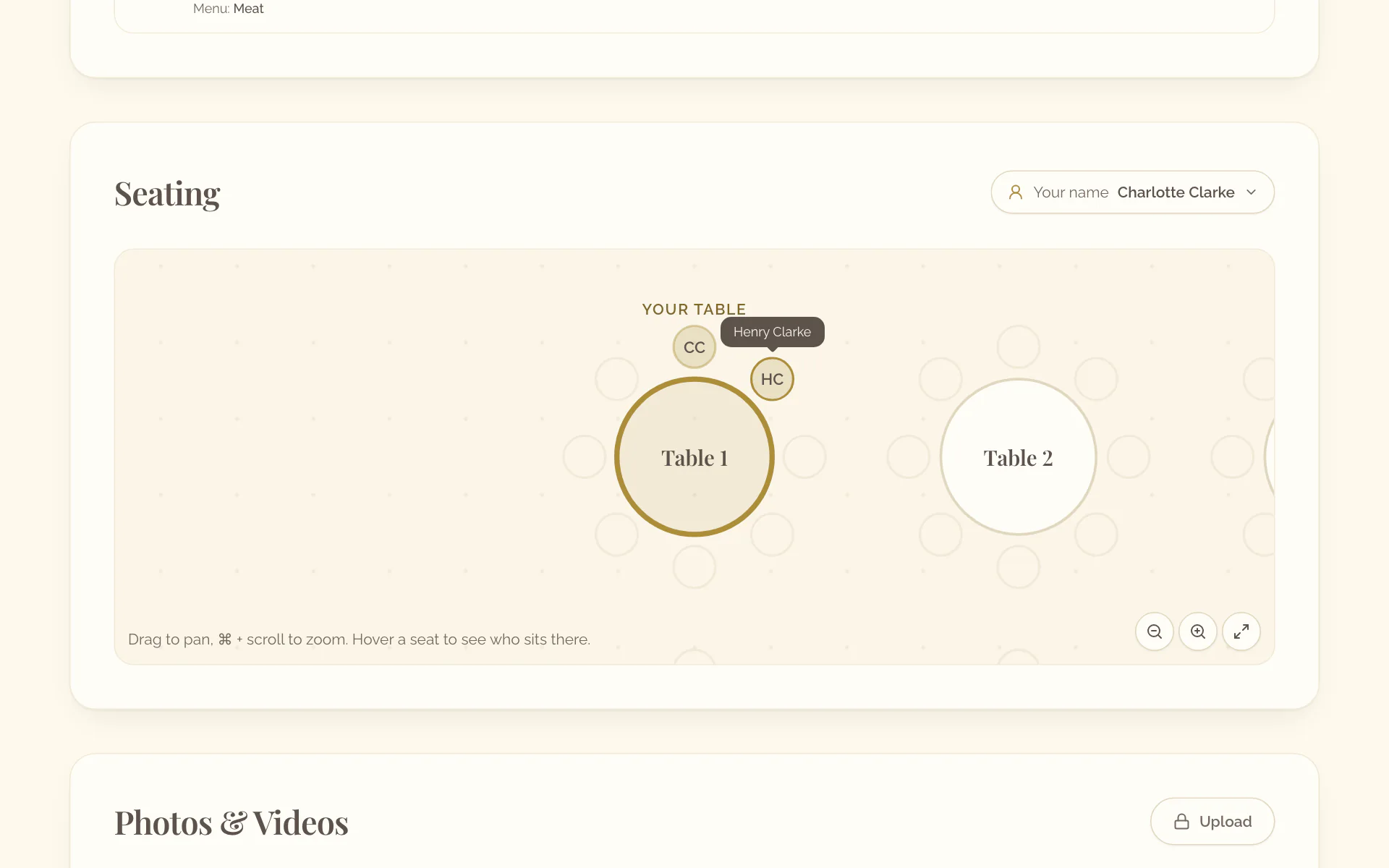
Guests find their table on the web. The Event page tab shows the section as they see it: select Find your name and choose a guest to see them and their companions on the chairs of their tables; tapping a chair shows the name.
The chart shows guests only themselves and their companions; who else sits where stays with you. To build the guest list, see Manage your guest list and collect RSVPs. The CSV export of the list carries the table of every guest, see Customize RSVP questions, deadline and export.