
Collect guest media uploads
Let guests upload to your event page, set when uploads open, add your own photos and videos, and see what guests can upload.
The settings for uploads stand under the title of the Media tab. Each names its current value.
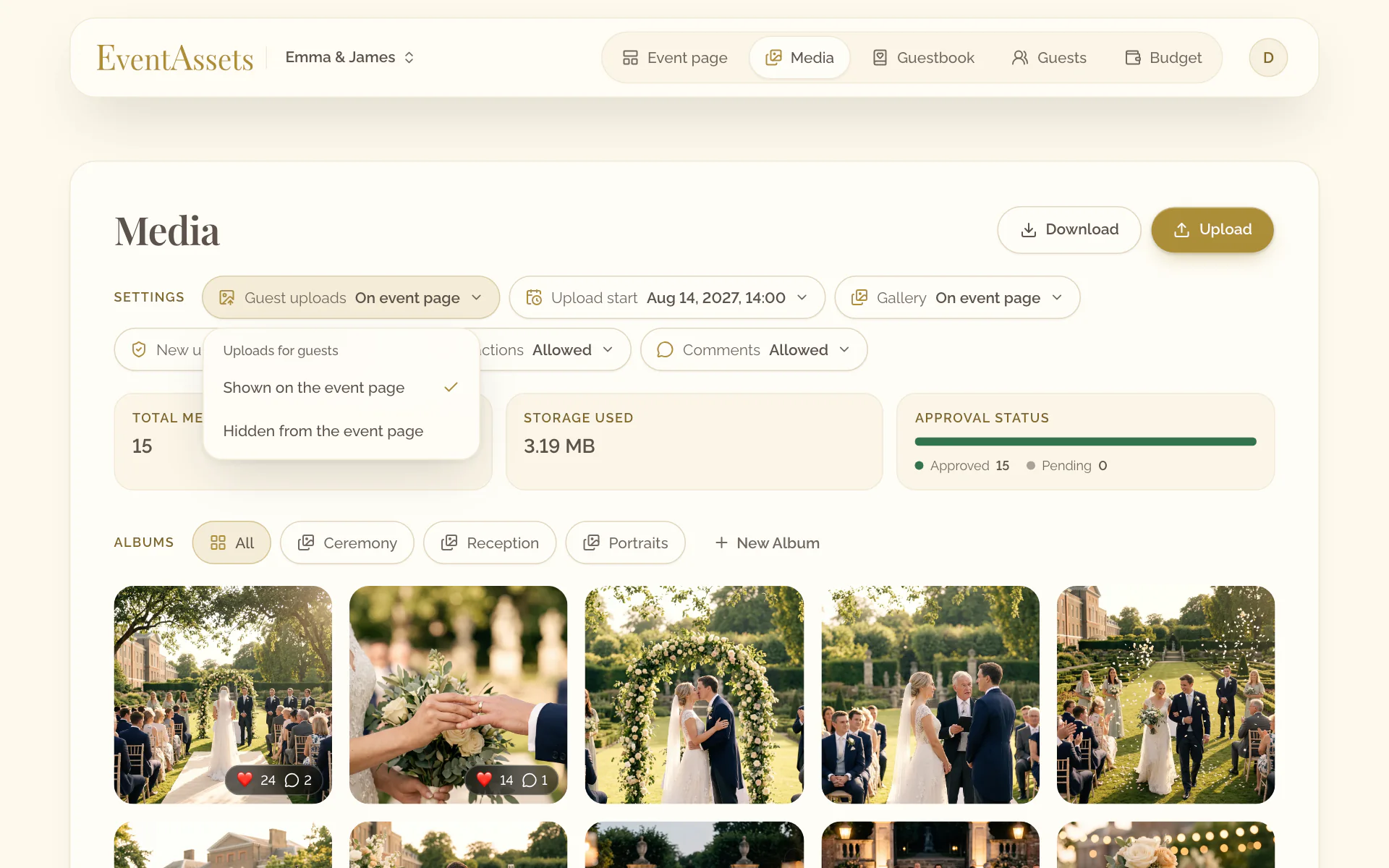
Let guests upload
- Open the Media tab of the event.
- Select Guest uploads.
- Choose Shown on the event page.
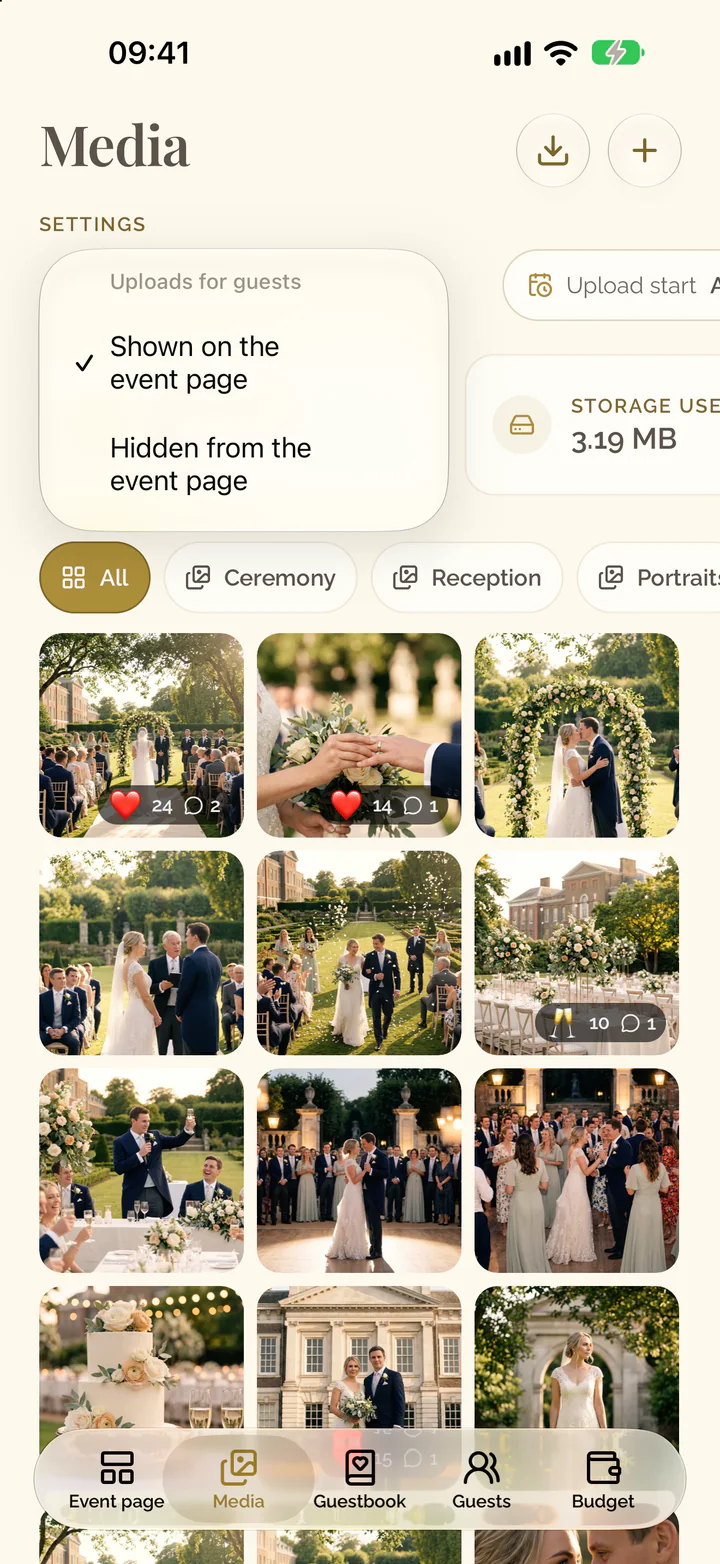
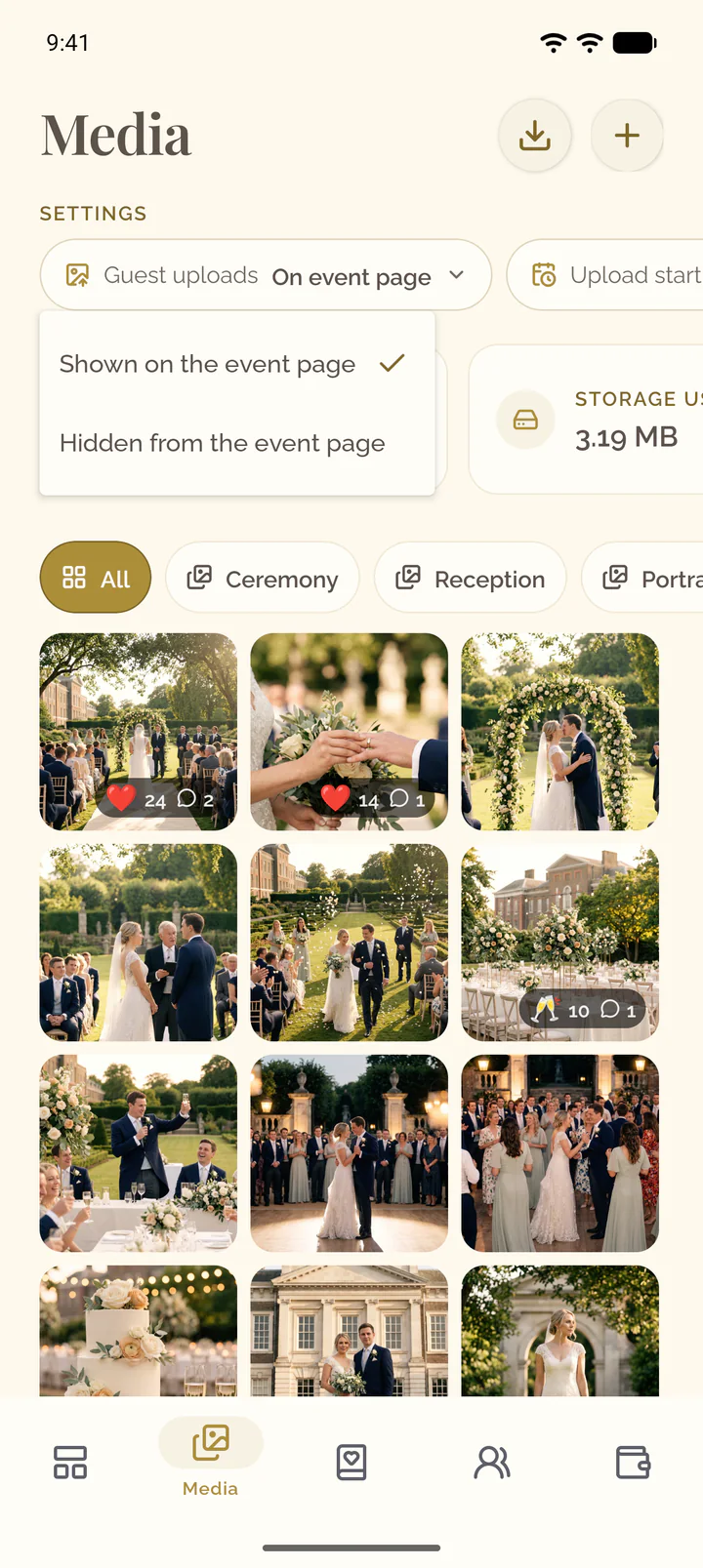
- Open the Media tab of the event.
- Select Guest uploads, under the title.
- Choose Shown on the event page.
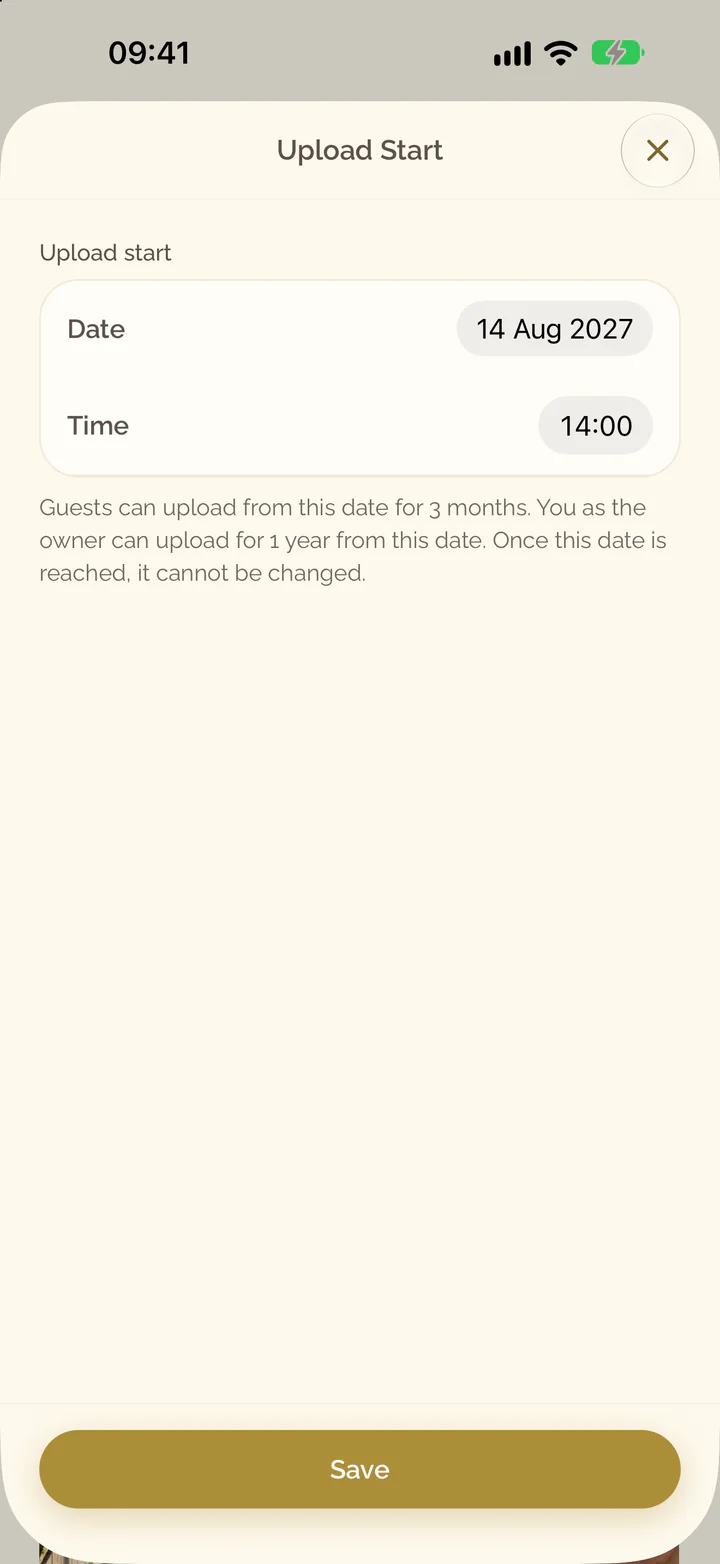
Set when uploads open
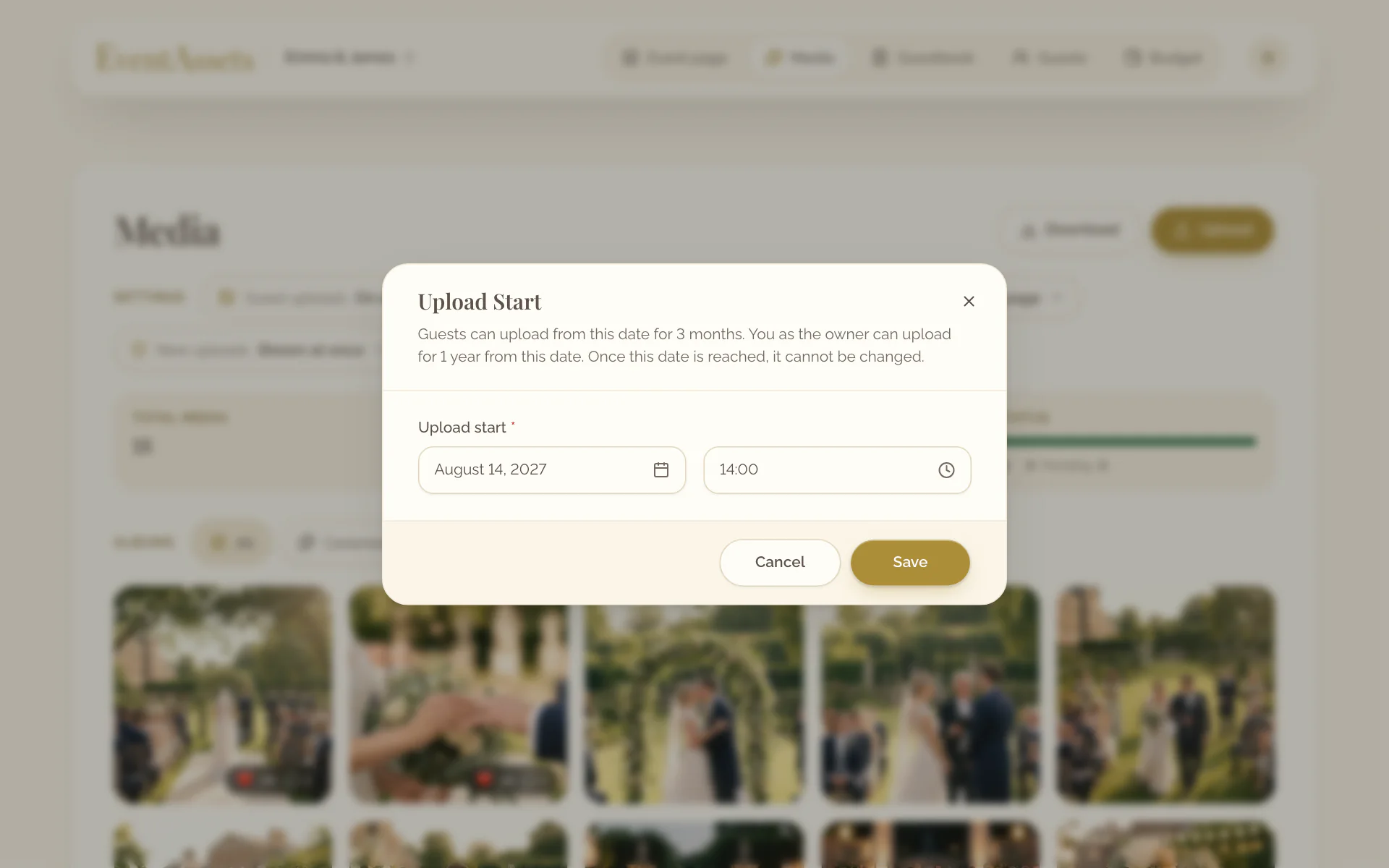
- Open the Media tab of the event.
- Select Upload start.
- Choose a date and a time in the future.
- Select Save.
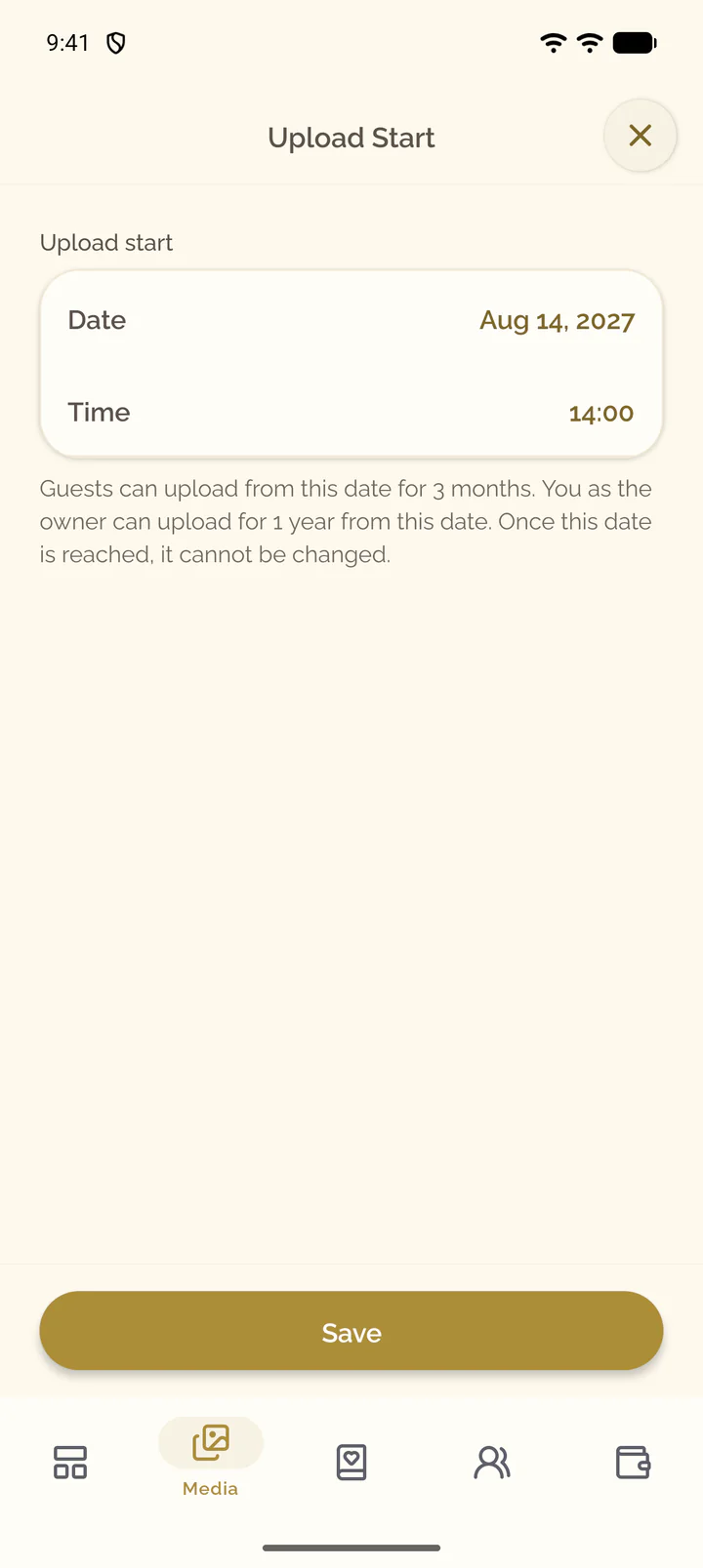
- Open the Media tab of the event.
- Select Upload start.
- Choose a date and a time in the future.
- Select Save.
Upload your own photos and videos
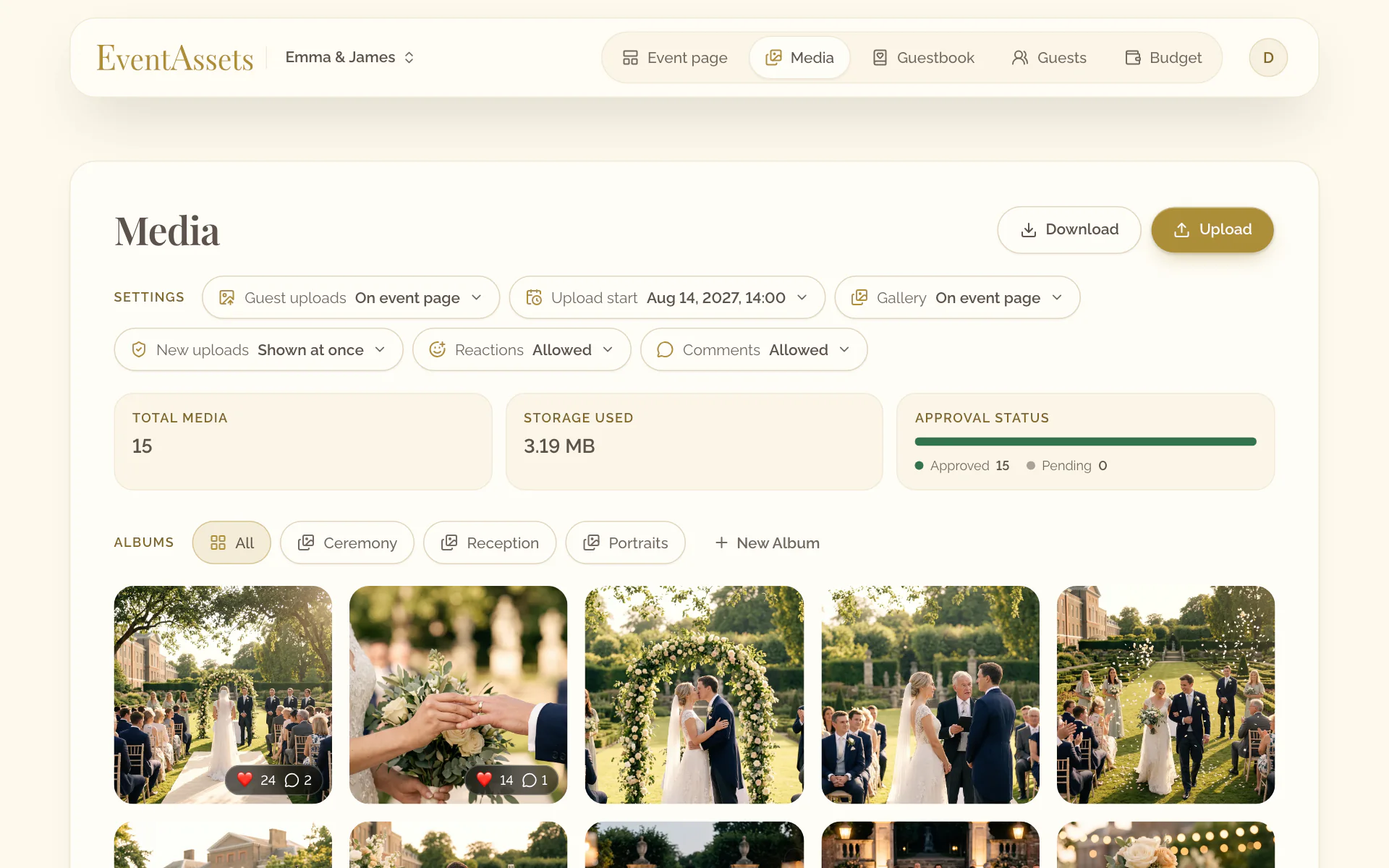
- Open the Media tab of the event.
- In the row of albums, choose the album the files go into, or All for none.
- Select Upload, beside the title, and choose the files. They upload at once, with their progress above the gallery.
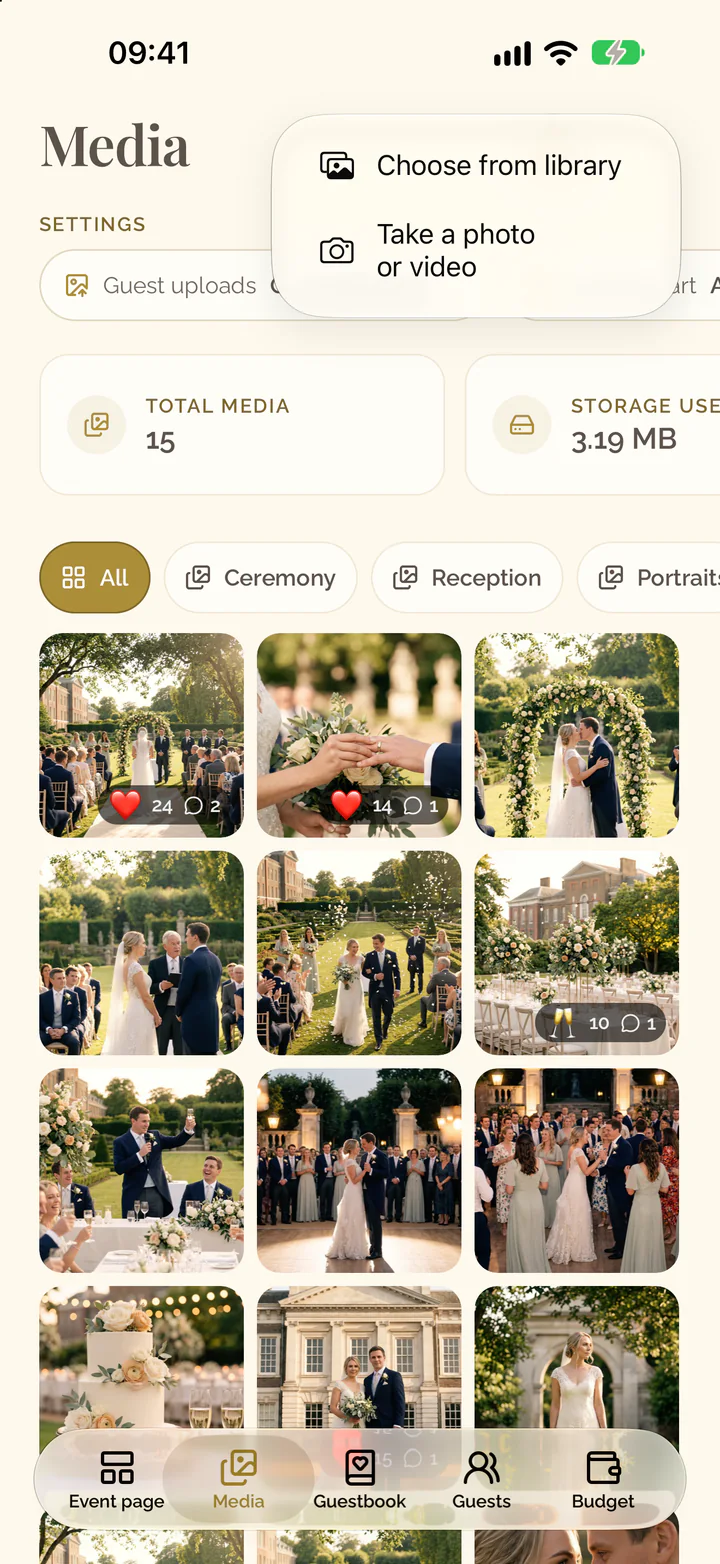
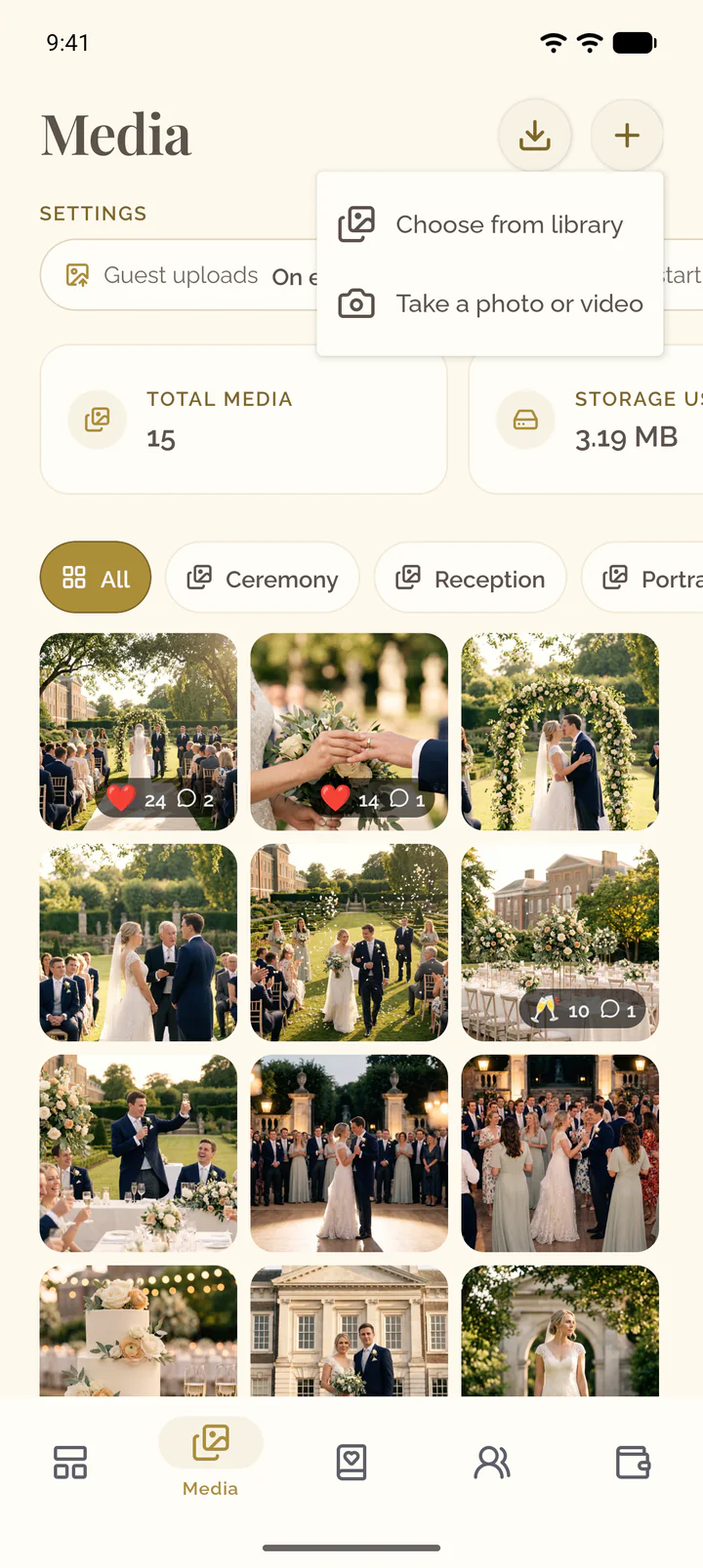
- Open the Media tab of the event.
- Select the plus button at the top of the screen.
- Choose Choose from library or Take a photo or video.
- Pick the photos and videos. They go into the album that is selected in the gallery.
What guests can upload
Guests open the event page and select Upload in Photos & Videos; where you have albums, they choose one under Uploading to. They need no app and no account. A guest who chose their name on the page, under RSVP, Seating or Contributing as beside Upload, shares their photos under it: the viewer of your gallery says who shared what. What you upload yourself without choosing a guest is shown as Shared by the hosts.
- Photos: JPG, PNG, GIF and WebP
- Videos: MP4, MOV, AVI and WebM
- Up to 1 GB per file and up to 1,000 files at a time
What guests see outside the upload window
Before the upload start, Upload is locked and the section says when uploads open. When the 3 months are over, it says that the upload window has ended. While the gallery is hidden too, the section shows that sentence alone. The line marked Only you see this. on your event page names the date that applies.