
Manage your media gallery
Decide what guests see in the gallery, review new uploads, organize photos and videos in albums, and let guests react and comment.
Steps for
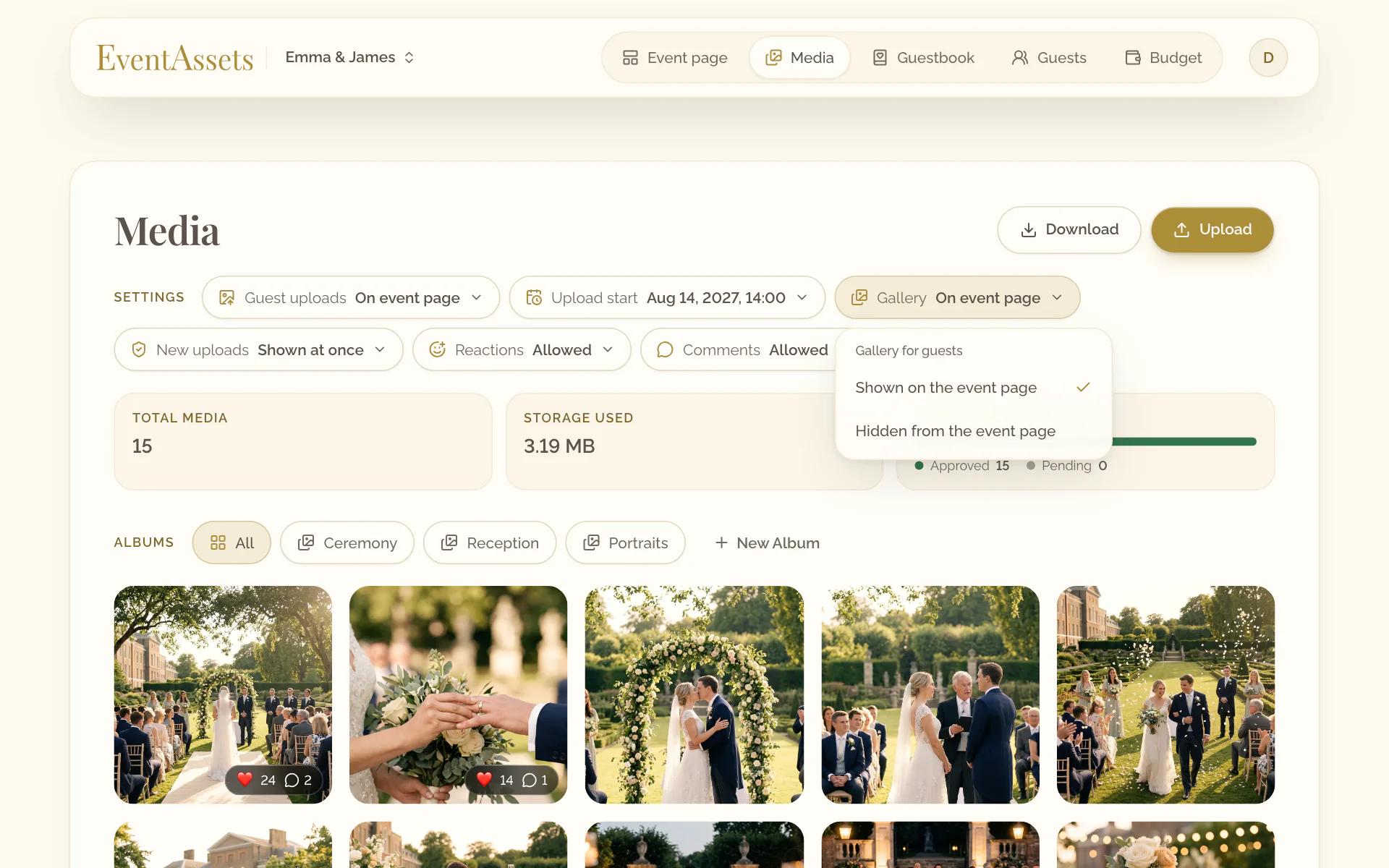
Show the gallery to guests
- Open the Media tab of the event.
- Select Gallery.
- Choose Shown on the event page or Hidden from the event page.
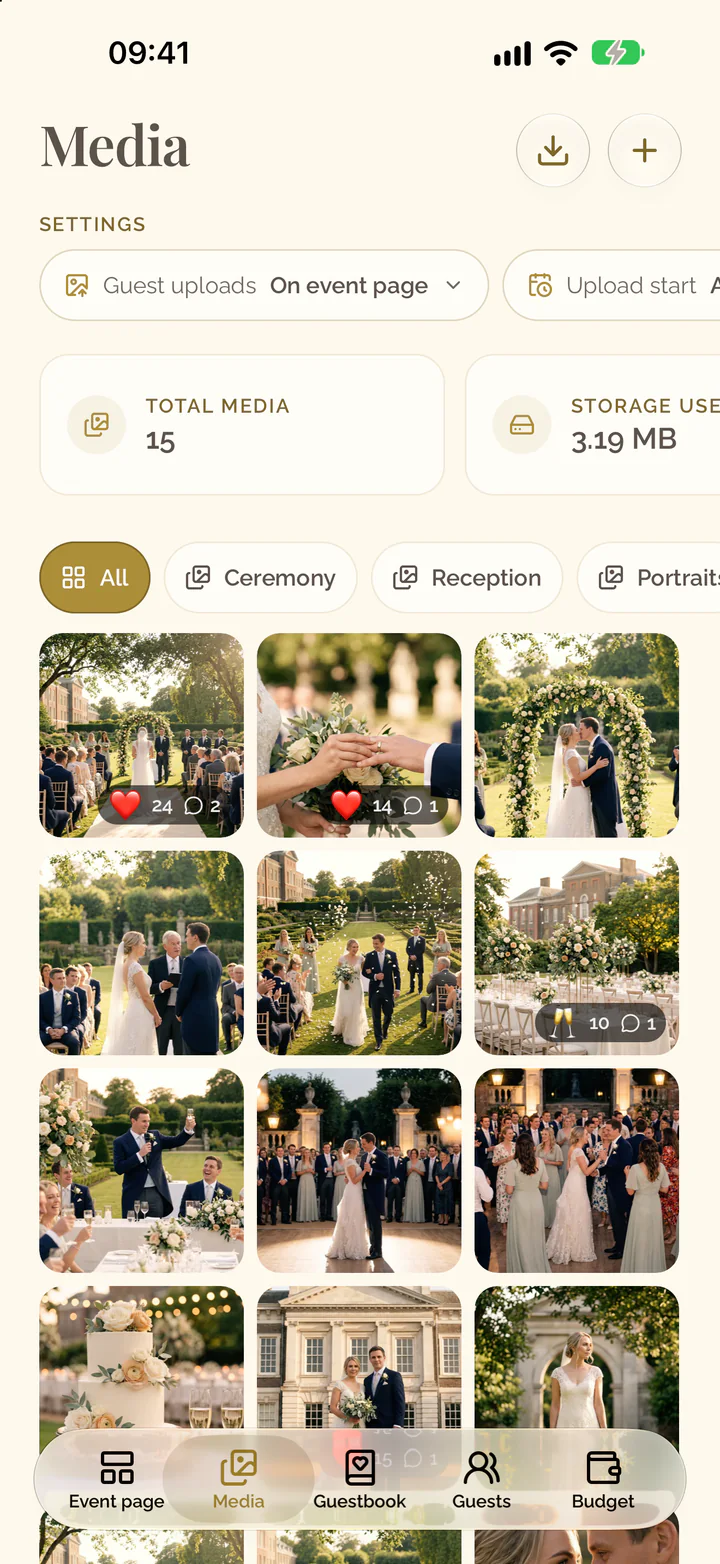
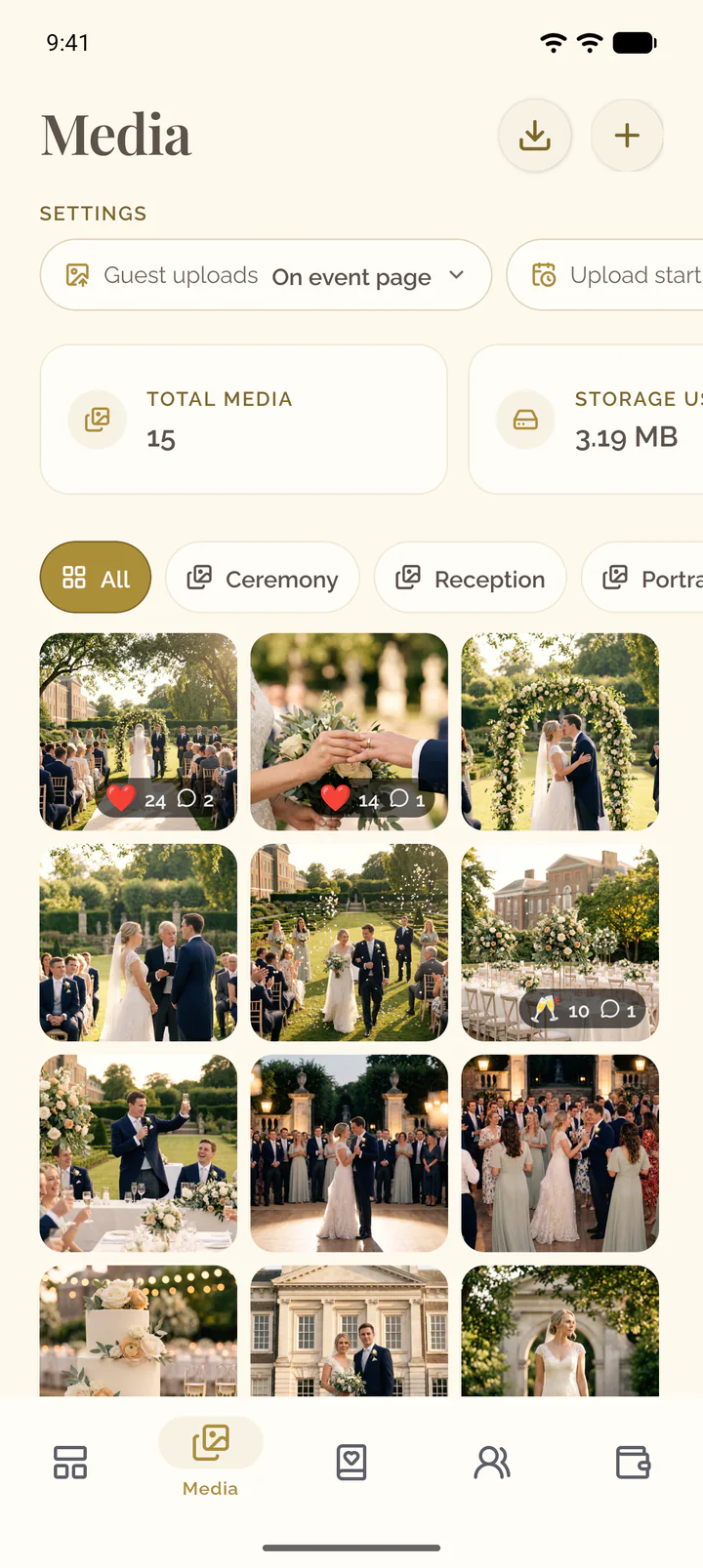
- Open the Media tab of the event.
- Swipe the row of settings to the left and select Gallery.
- Choose Shown on the event page or Hidden from the event page.
Review uploads before guests see them
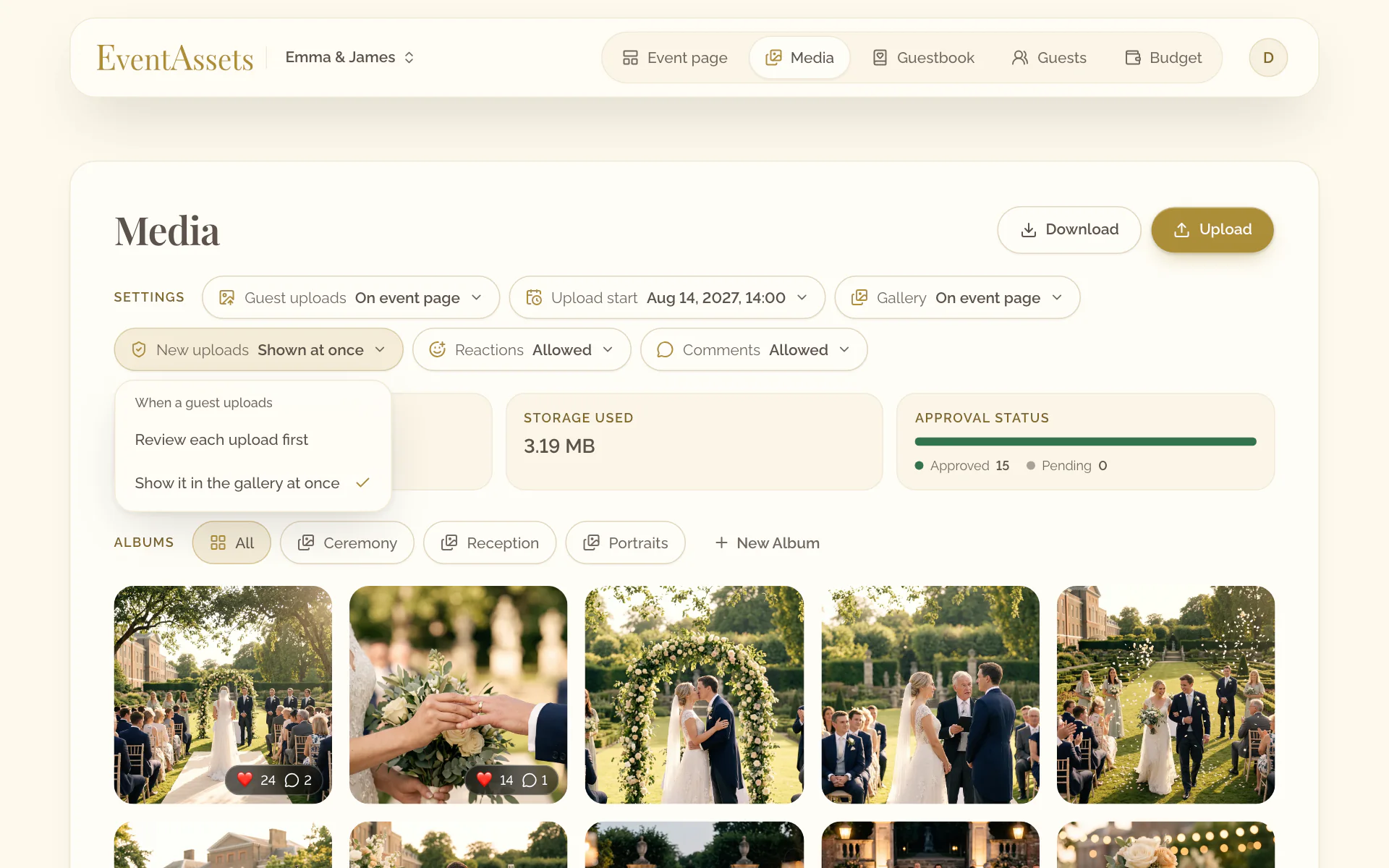
- Open the Media tab of the event.
- Select New uploads and choose Review each upload first.
- After a guest has uploaded, find the items with the label Hidden.
- Open the menu of an item, Media actions, and select Show.
- Open the Media tab of the event.
- Swipe the row of settings to the left, select New uploads and choose Review each upload first.
- After a guest has uploaded, find the items that carry a crossed-out eye.
- Touch and hold an item and select Show.
Allow or turn off reactions and comments
- Open the Media tab of the event.
- Select Reactions or Comments.
- Choose Allow or Turn off.
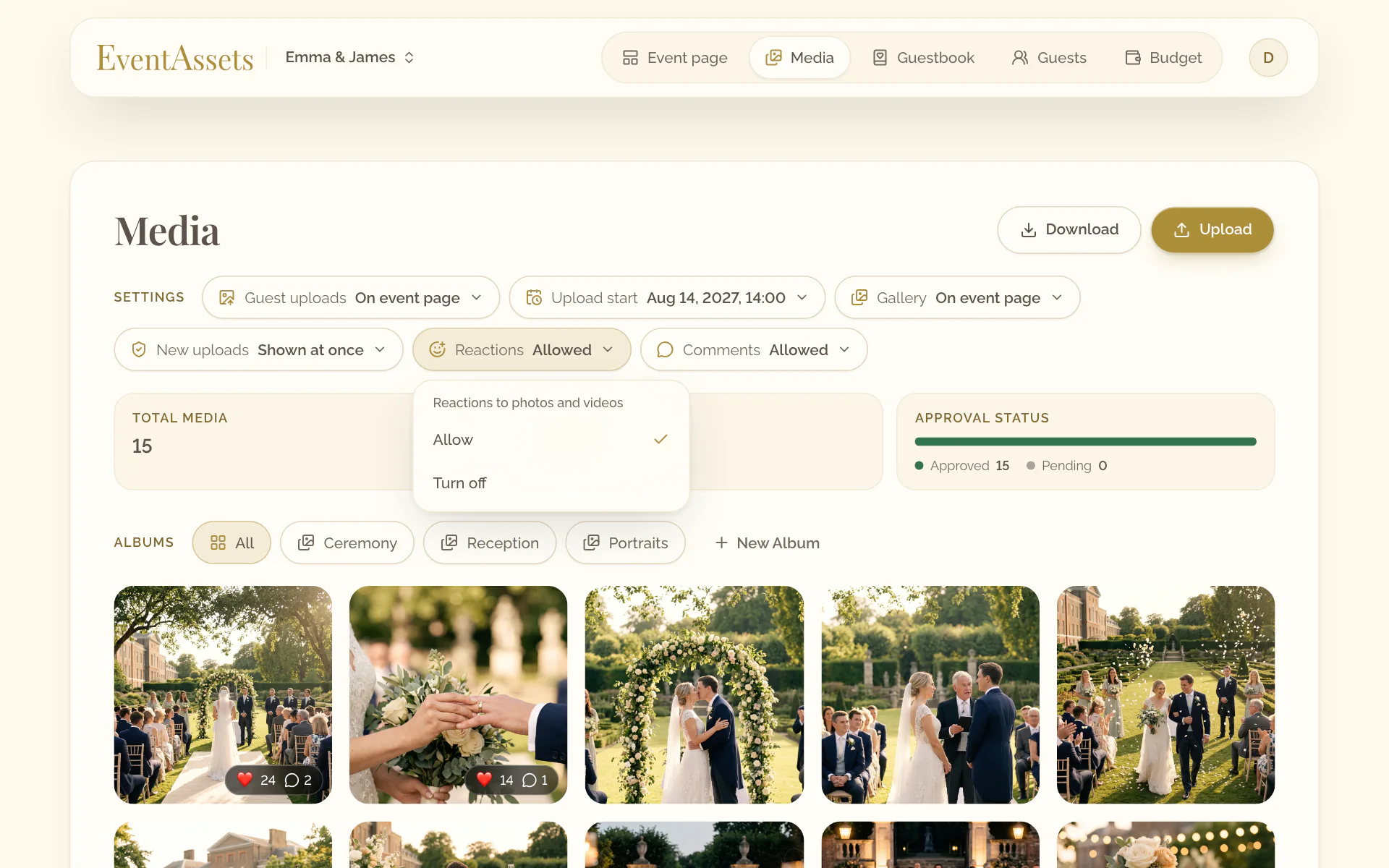
- Open the Media tab of the event.
- Swipe the row of settings to the left and select Reactions or Comments.
- Choose Allow or Turn off.
Hide or show a single item
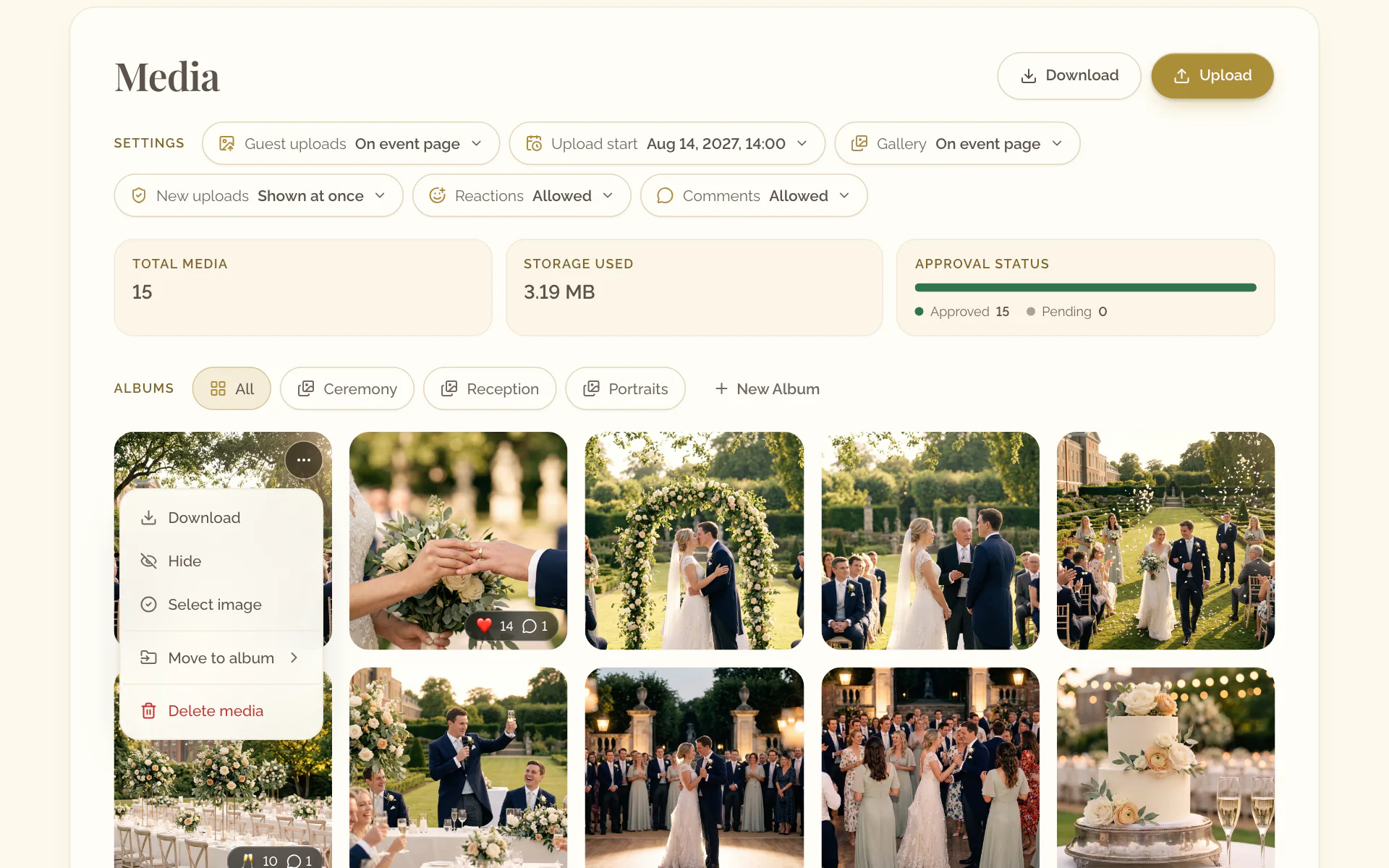
- Open the menu of the item, Media actions.
- Select Hide to take it out of the guests' gallery, or Show to put it back.
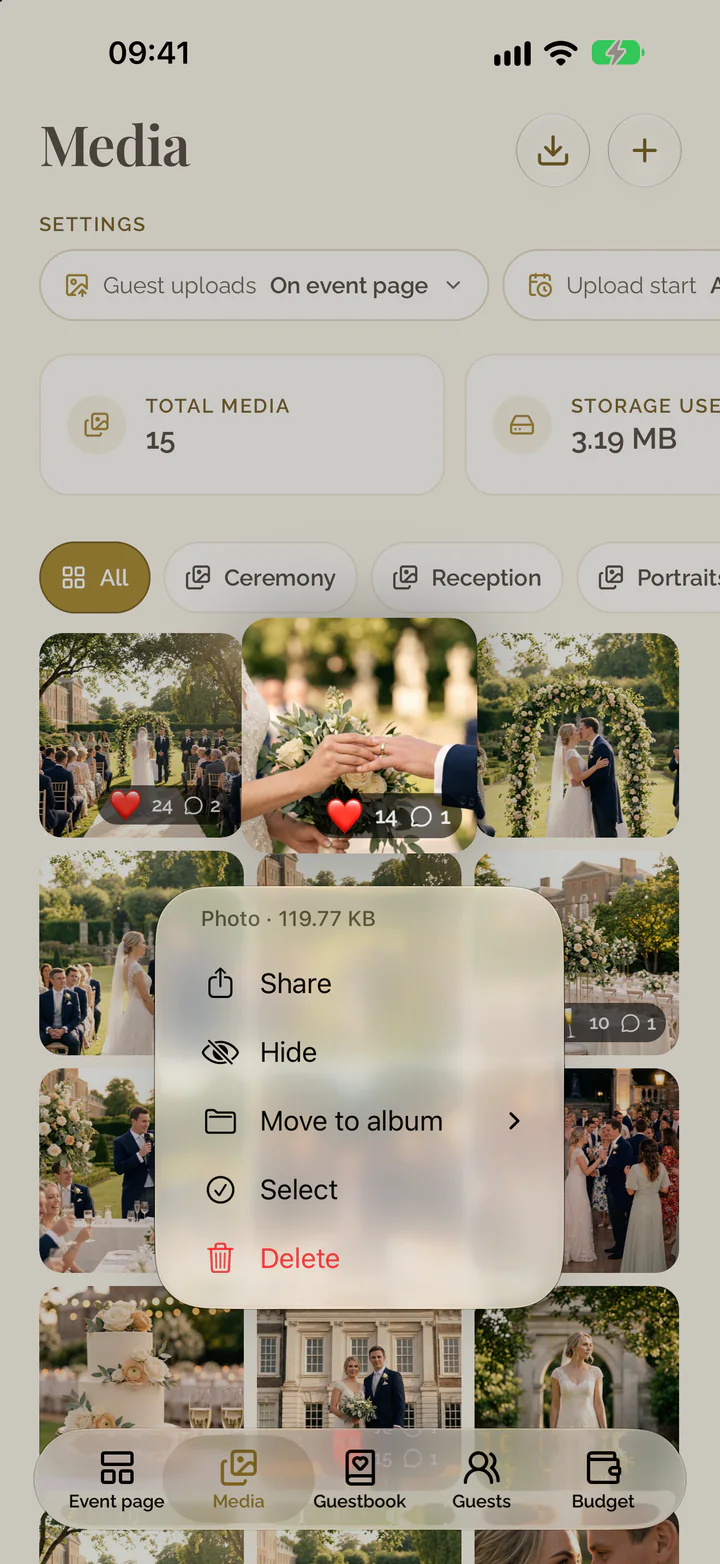
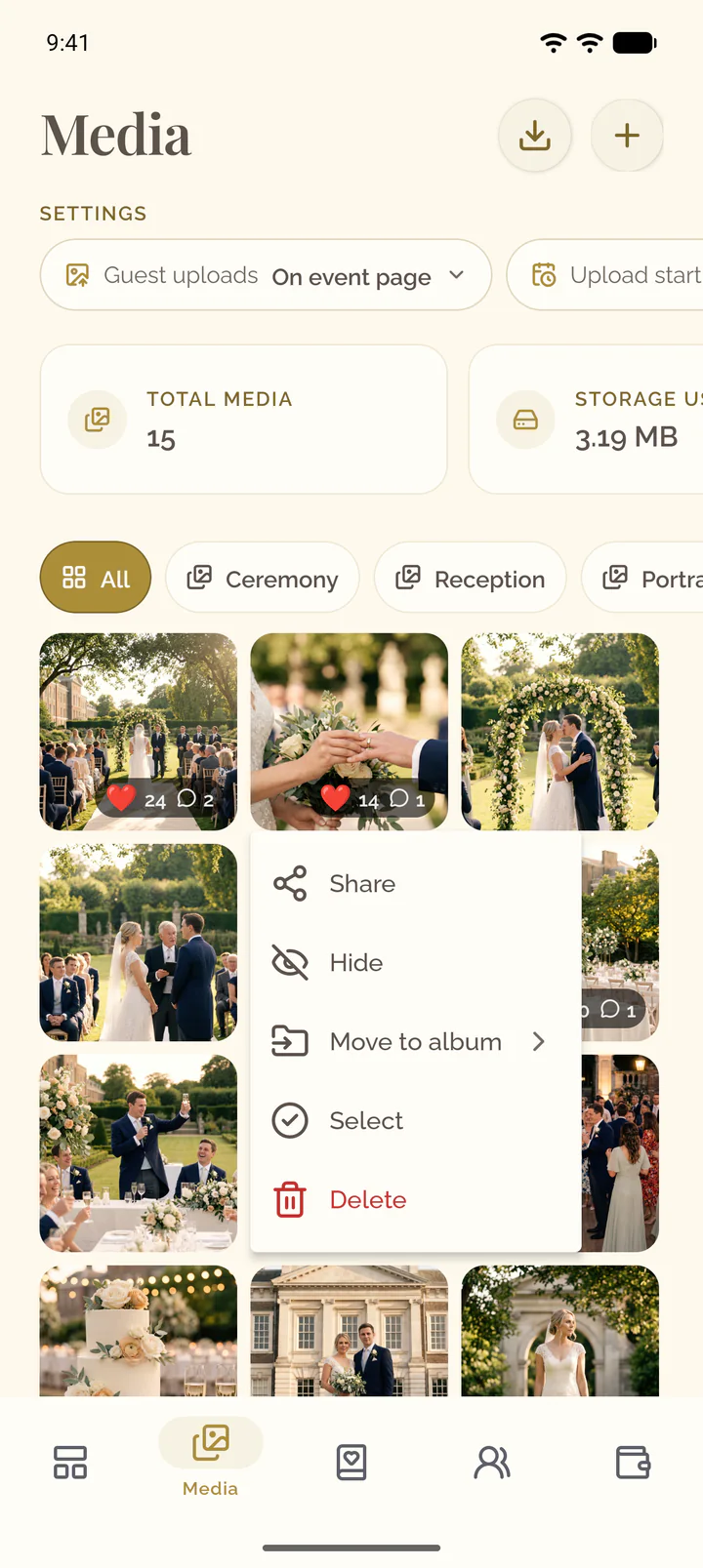
- Touch and hold the item in the gallery.
- Select Hide to take it out of the guests' gallery, or Show to put it back.
React to a photo or video
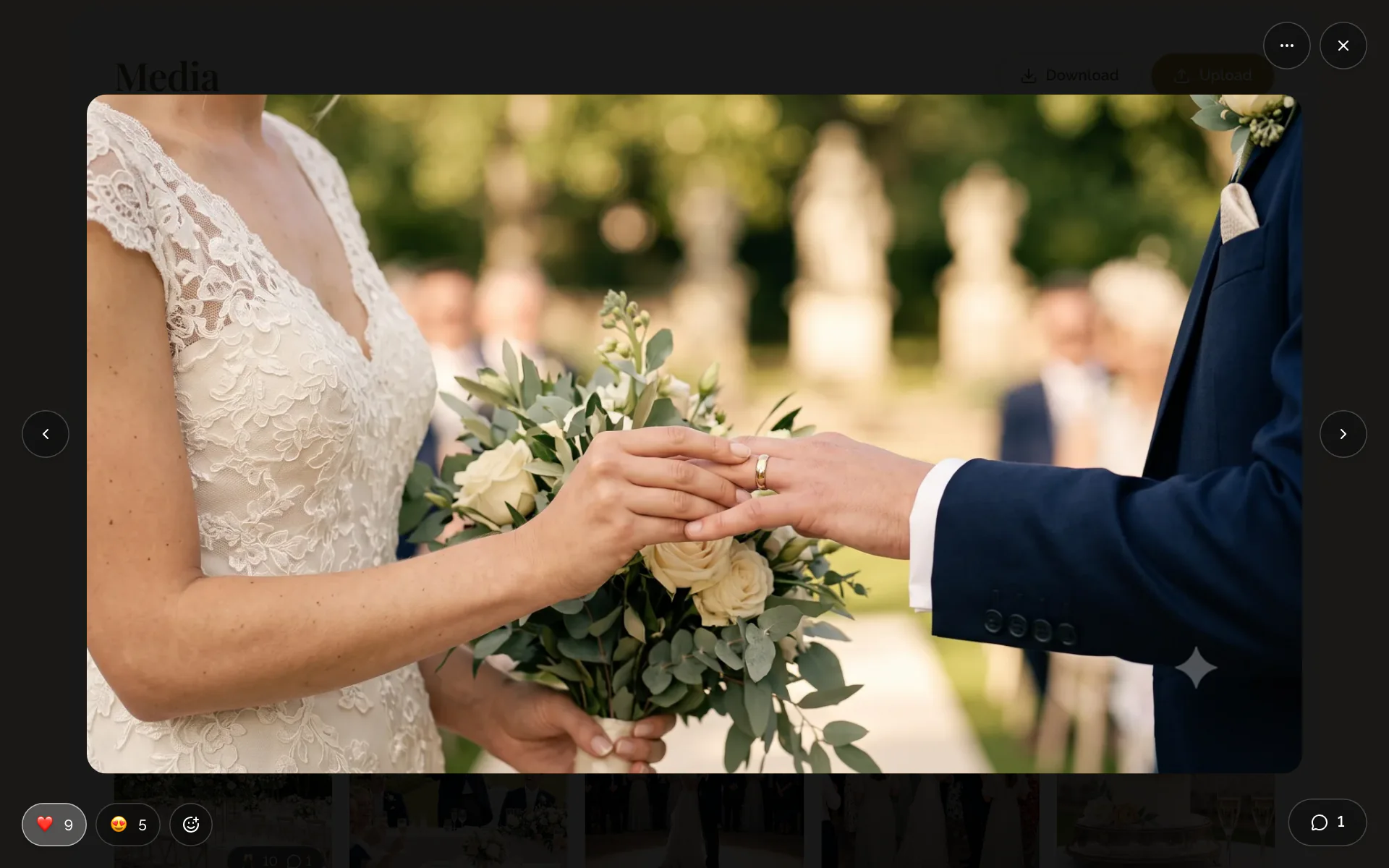
- Open a photo or video in the gallery.
- Select one of its emoji to add your reaction, or select it again to take the reaction back.
- For another emoji, select Add reaction and choose one.
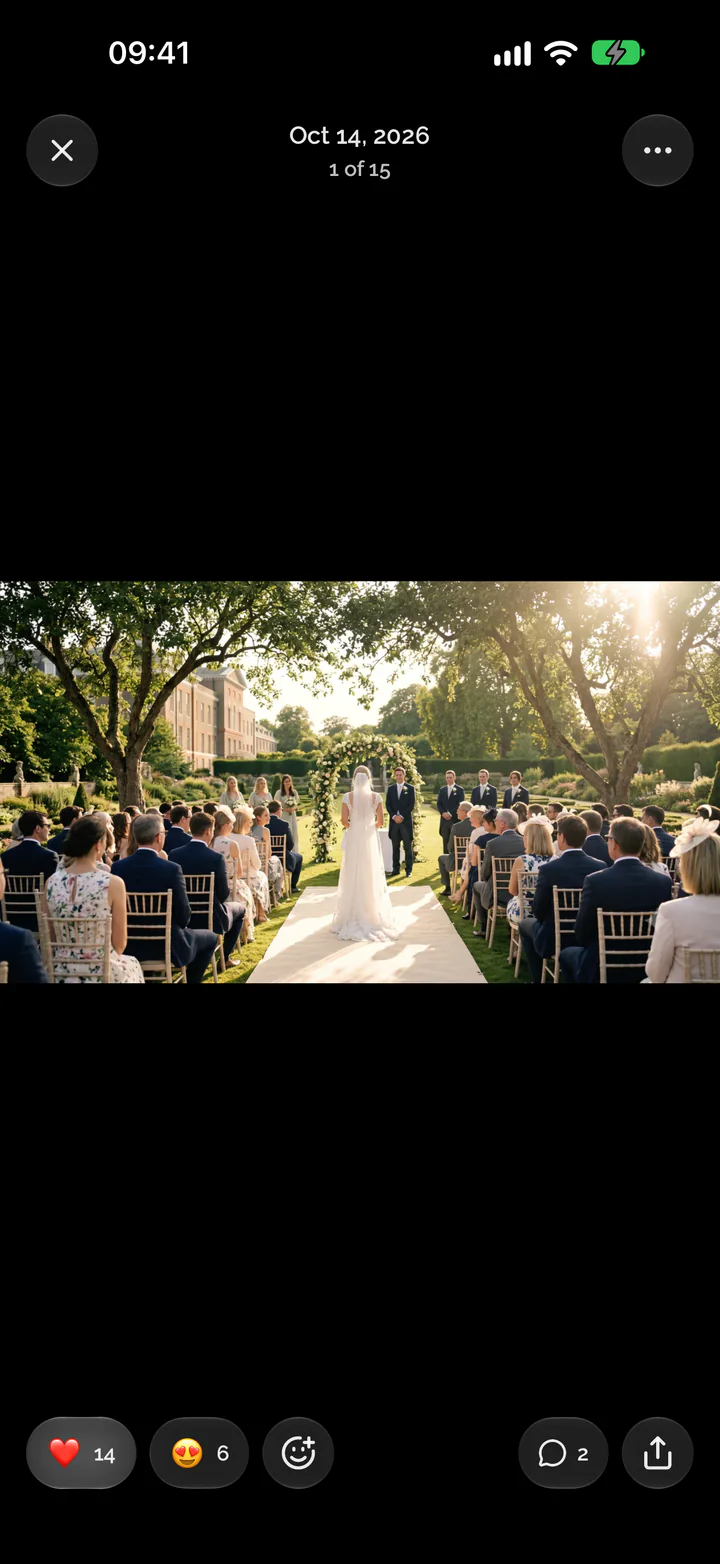
- Open a photo or video in the Media tab.
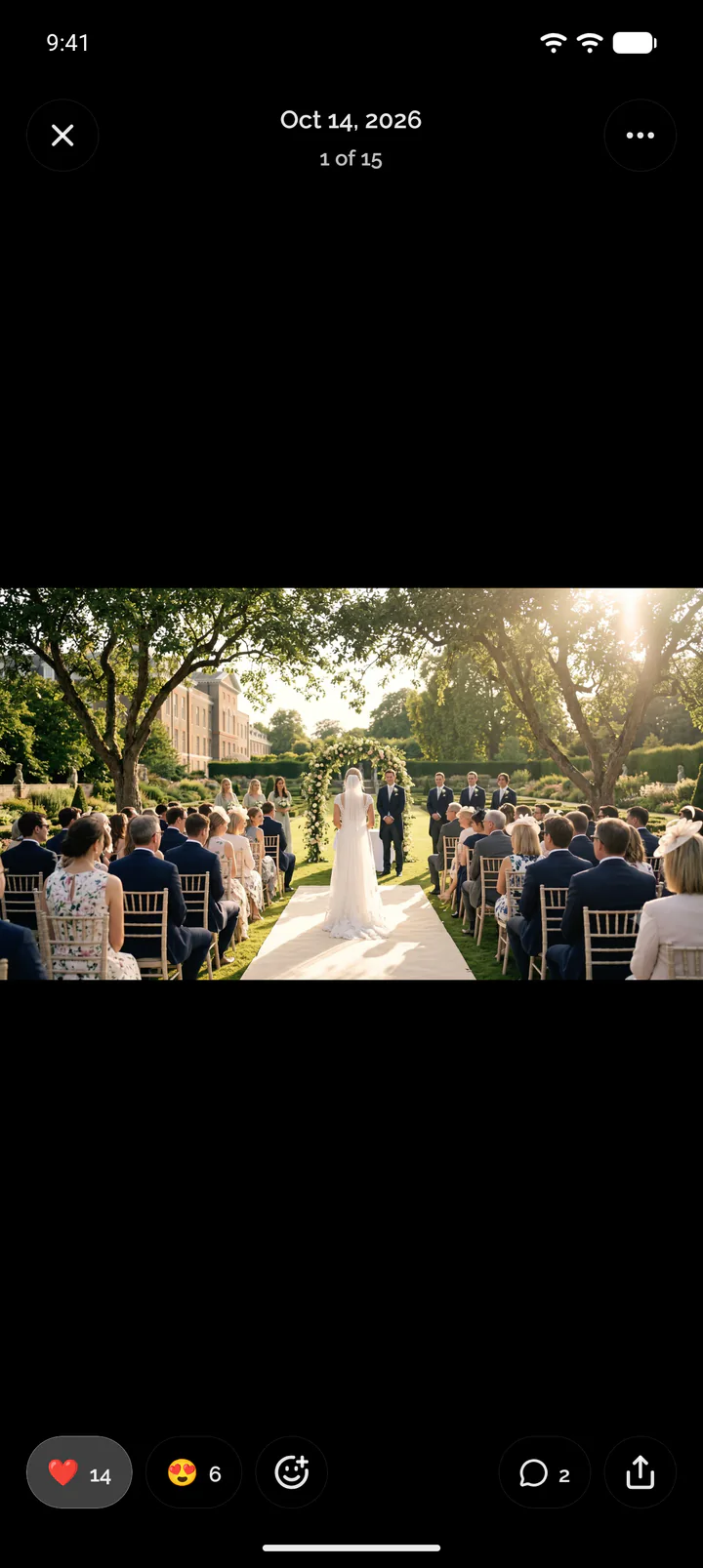
- Tap one of the emoji in the bar at the bottom to add your reaction, or tap it again to take the reaction back.
- For another emoji, tap Add reaction and choose one.
Comment on a photo or video
- Open a photo or video in the gallery.
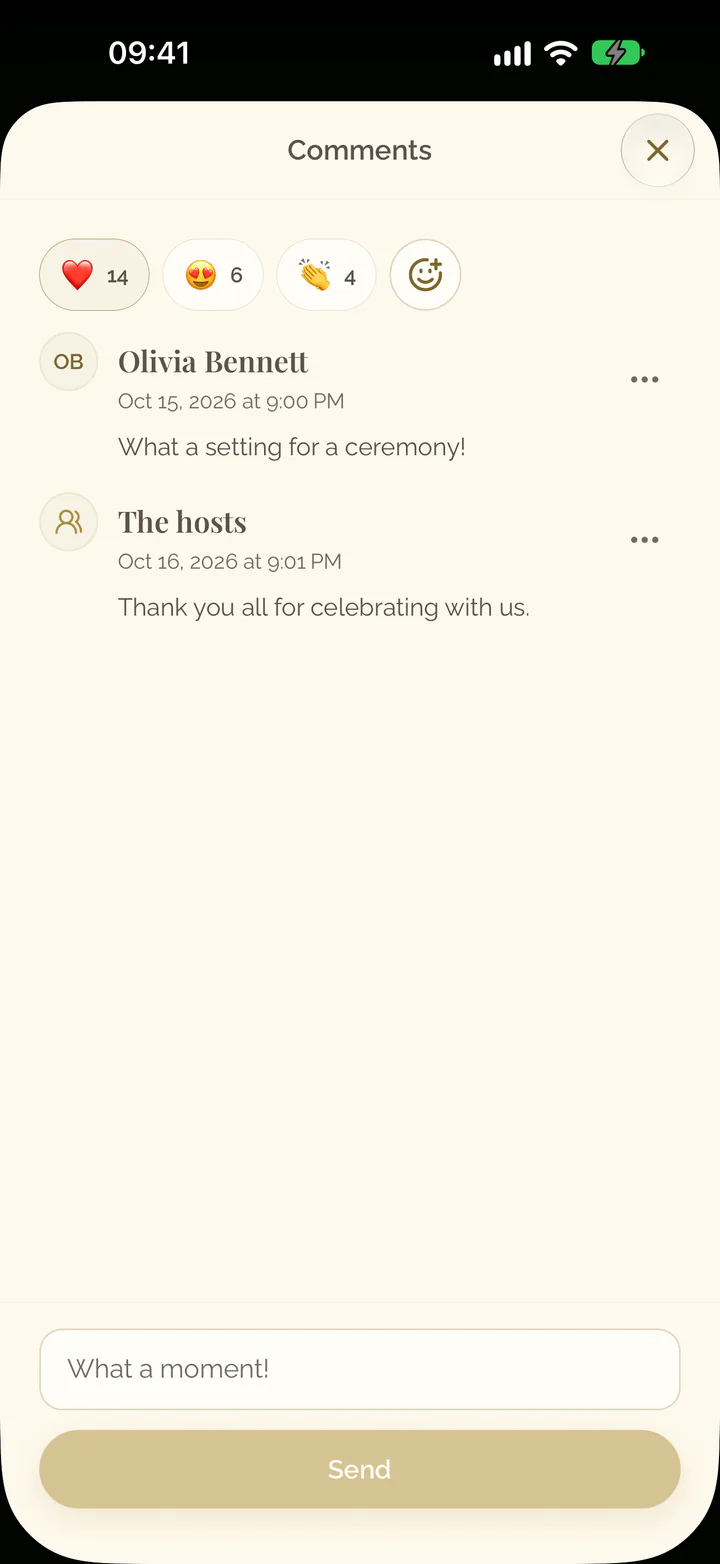
- Select the speech bubble at the foot of the photo.
- Write your comment and select Send.
- Open a photo or video in the Media tab.
- Tap the speech bubble in the bar at the bottom.
- Write your comment and tap Send.
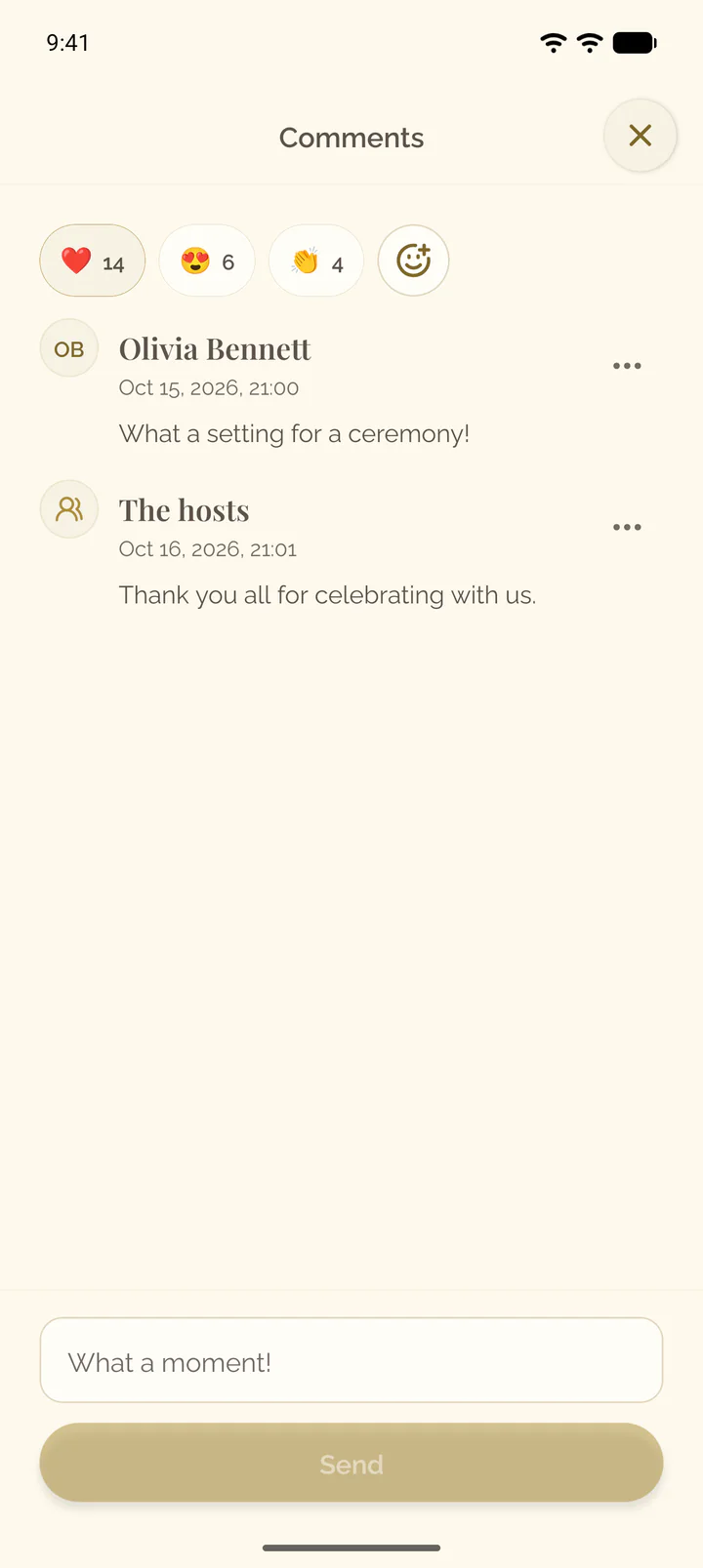
Delete a comment
- Open the photo or video in the Media tab.
- Select the speech bubble at the foot of the photo.
- Open the menu of the comment, Comment actions.
- Select Delete comment and confirm.
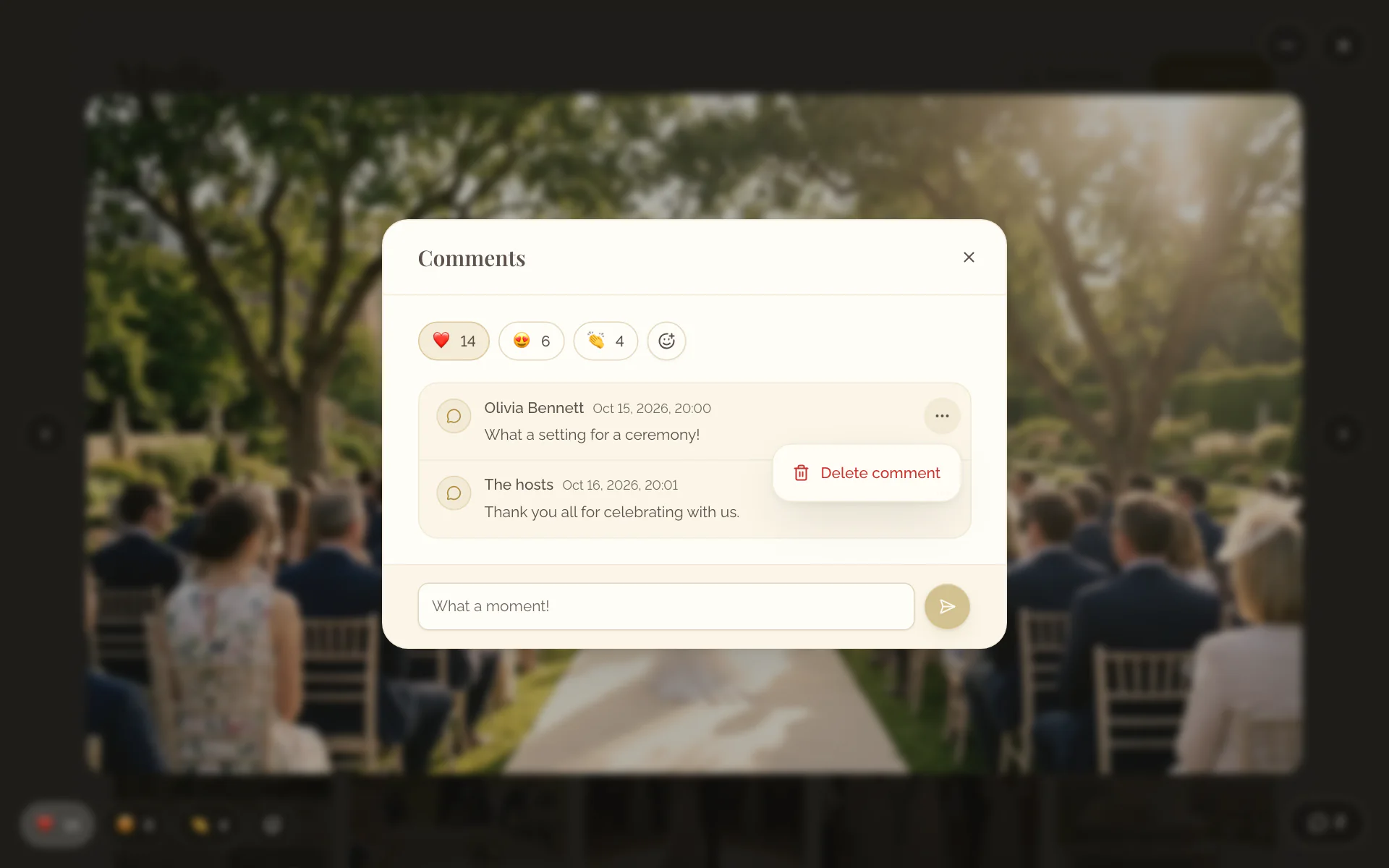
- Open the photo or video in the Media tab.
- Tap the speech bubble in the bar at the bottom.
- Tap the menu of the comment, Comment actions.
- Select Delete comment and confirm.
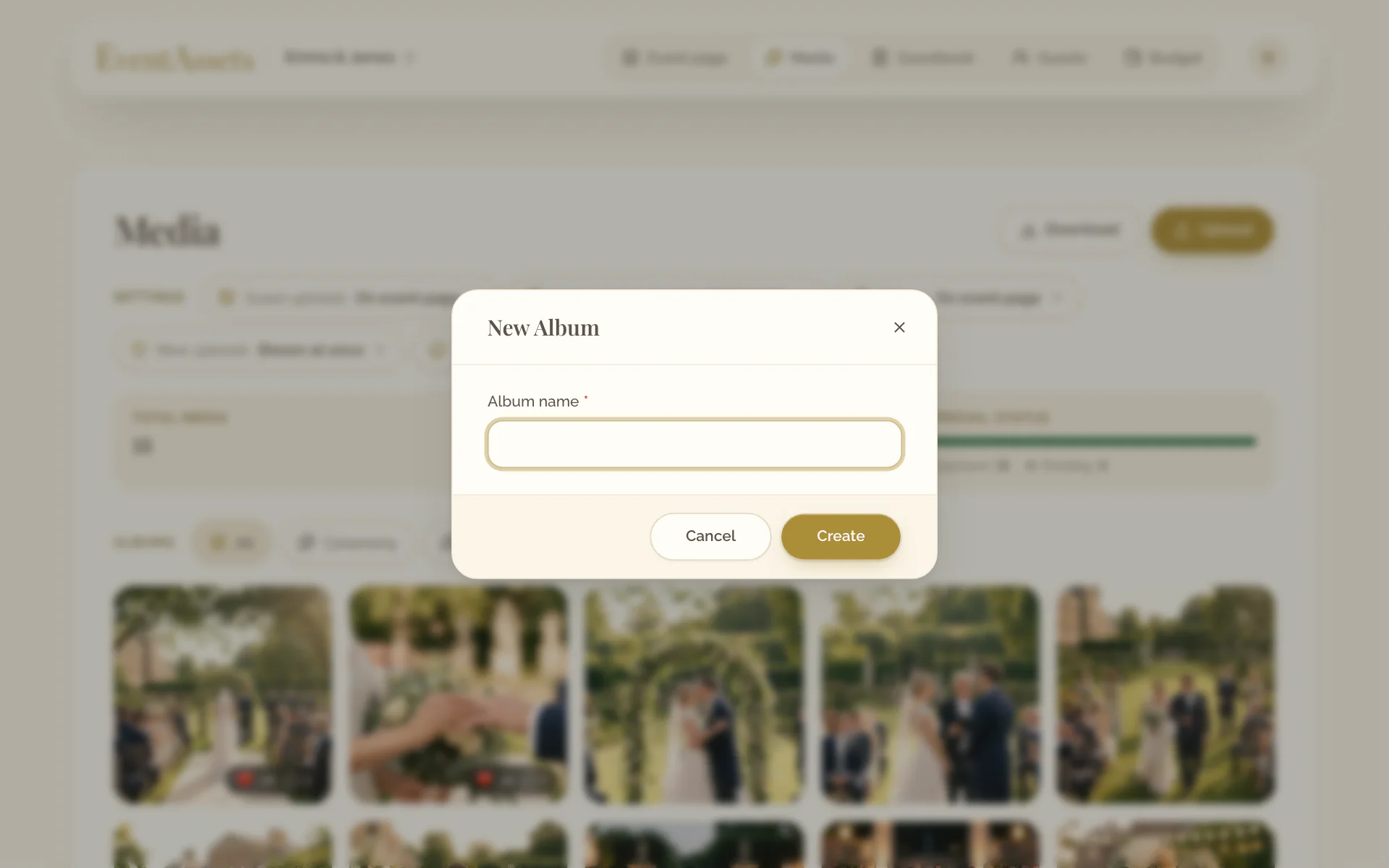
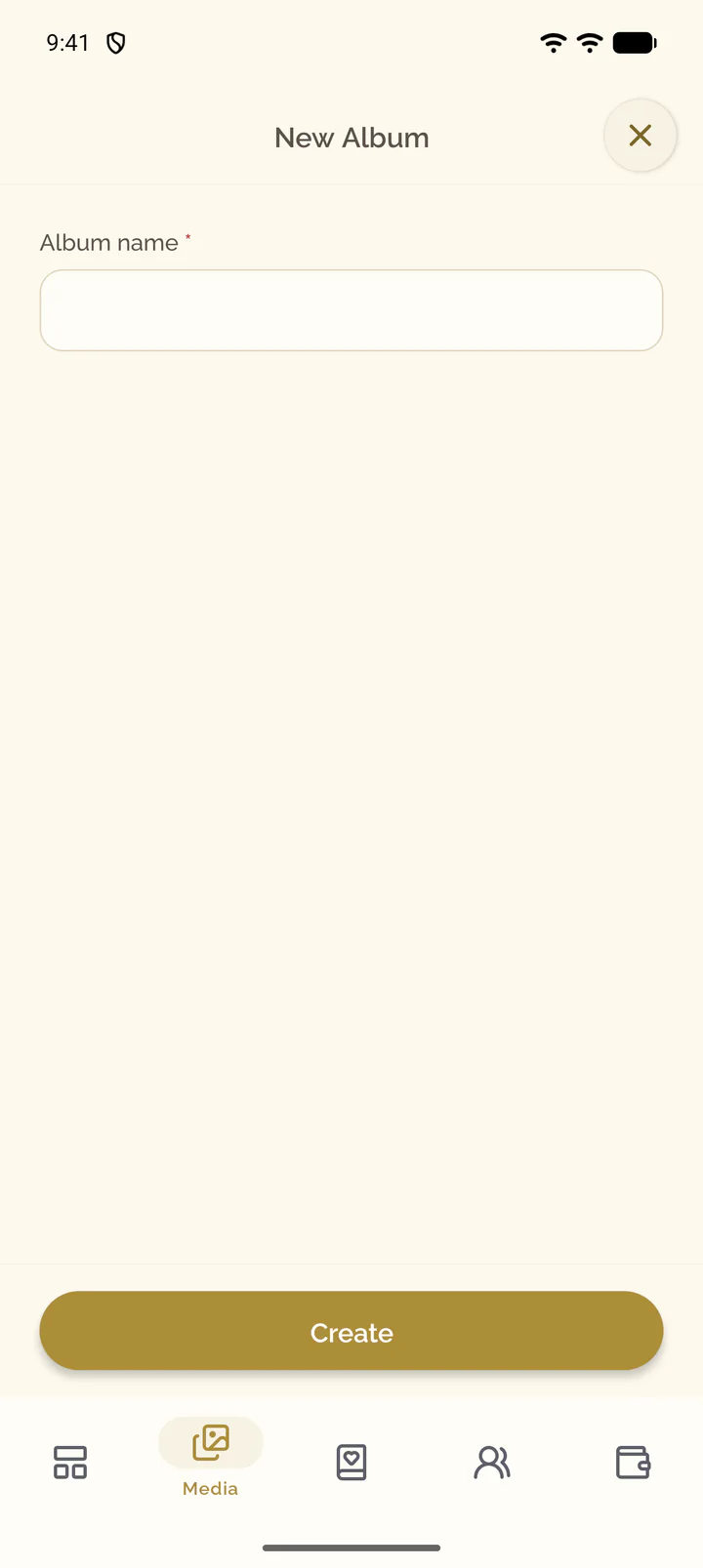
Create an album
- Open the Media tab of the event.
- Select New Album.
- Enter the name and select Create.
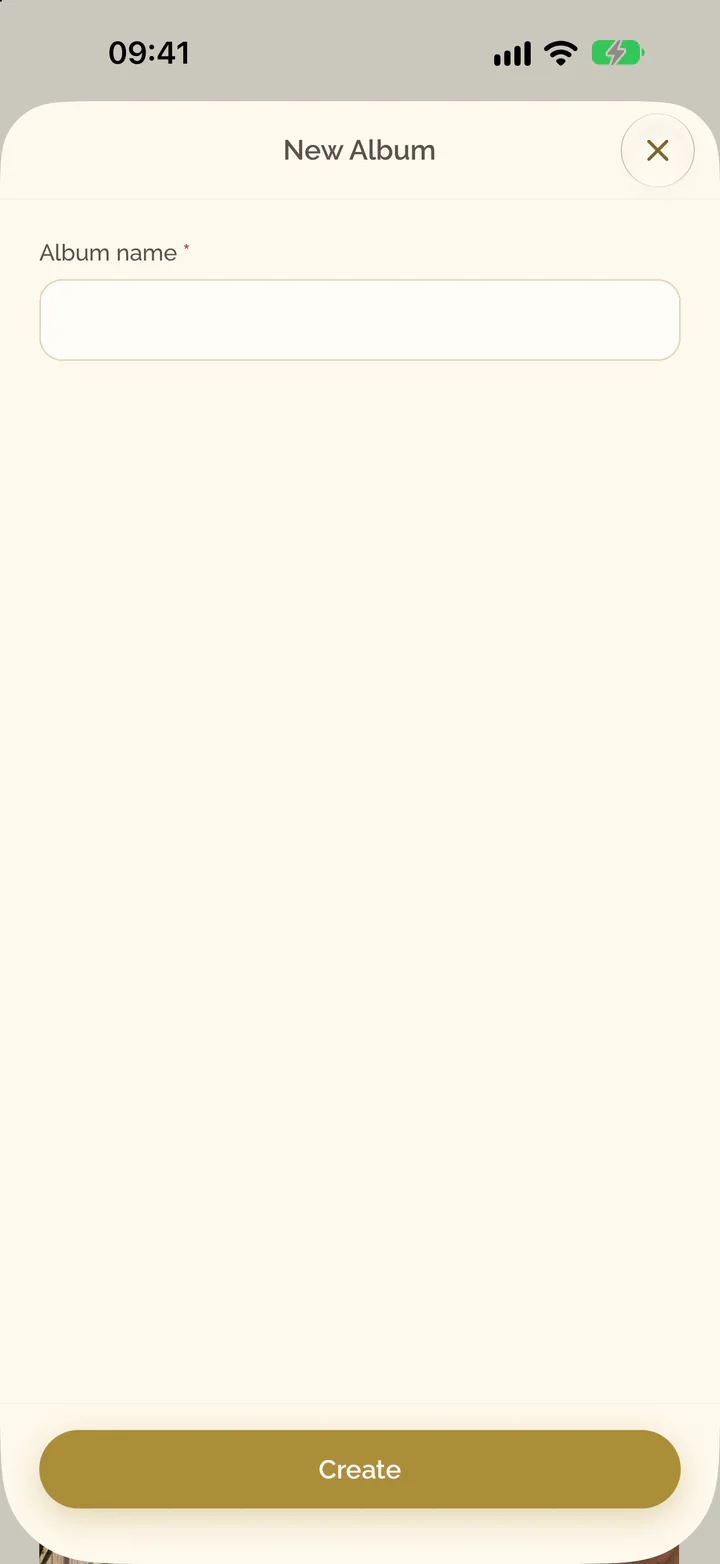
- Open the Media tab of the event.
- Select New Album, at the end of the row of albums.
- Enter the name and select Create.
Move media into an album
- Open the menu of the item, Media actions.
- Select Move to album.
- Choose the album, or No album.
- Touch and hold the item in the gallery.
- Select Move to album.
- Choose the album, or No album.
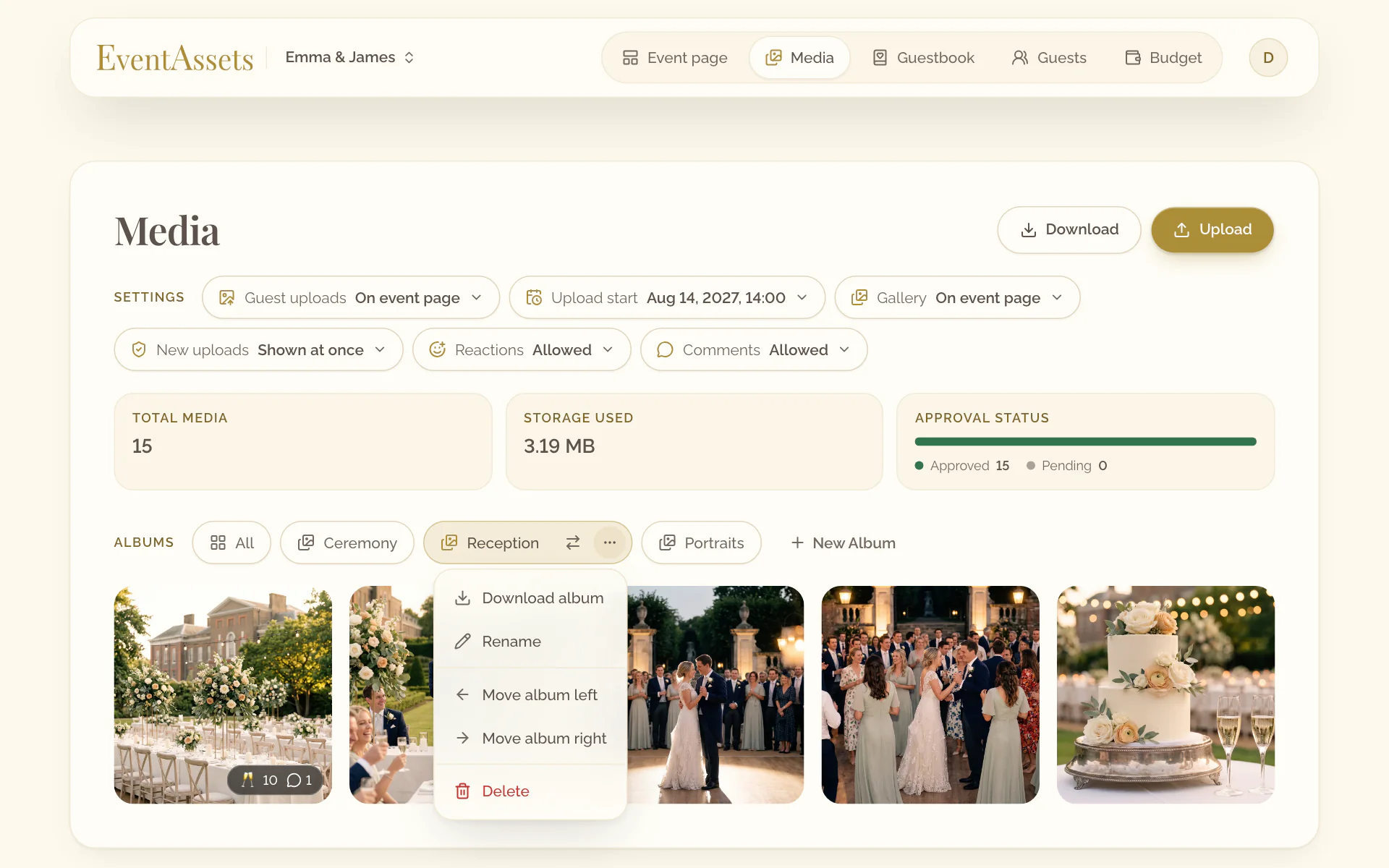
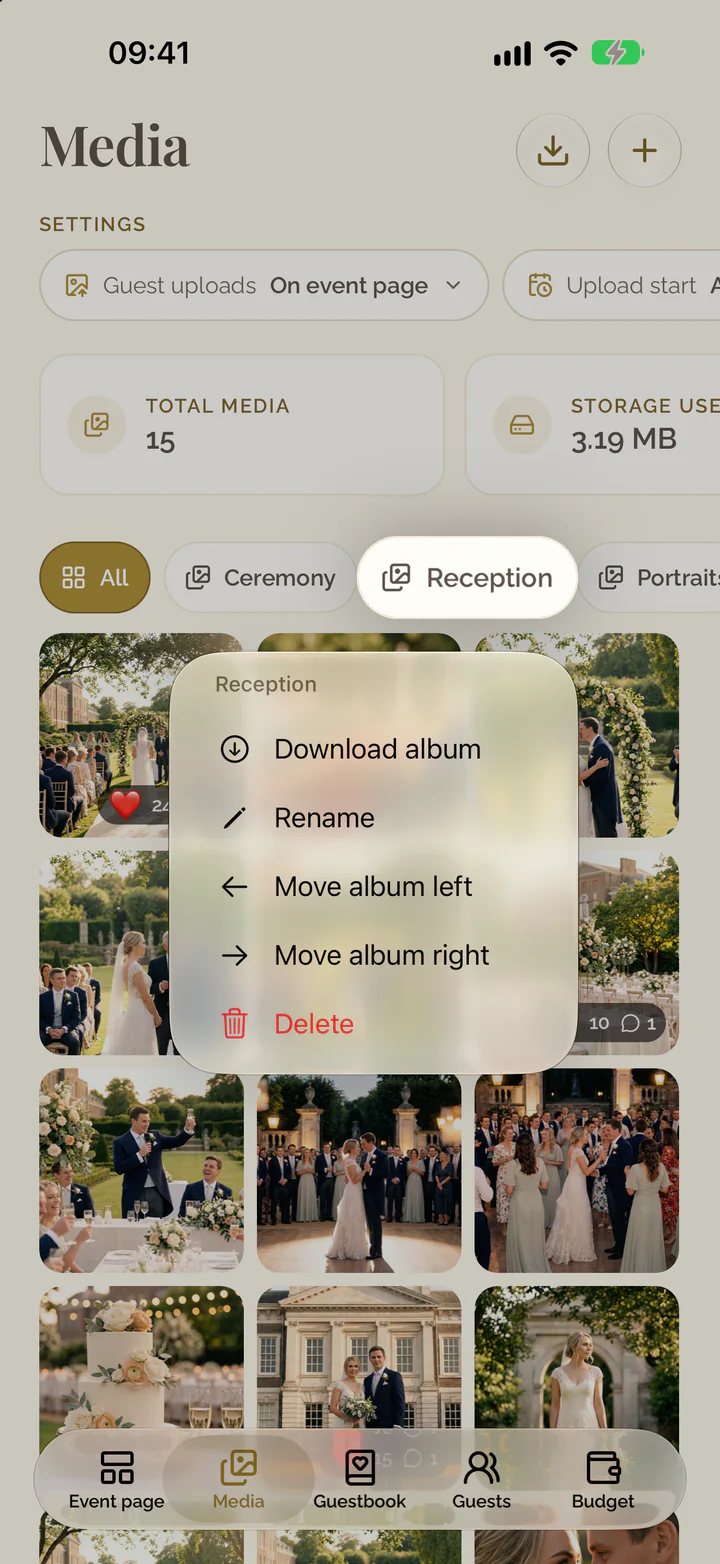
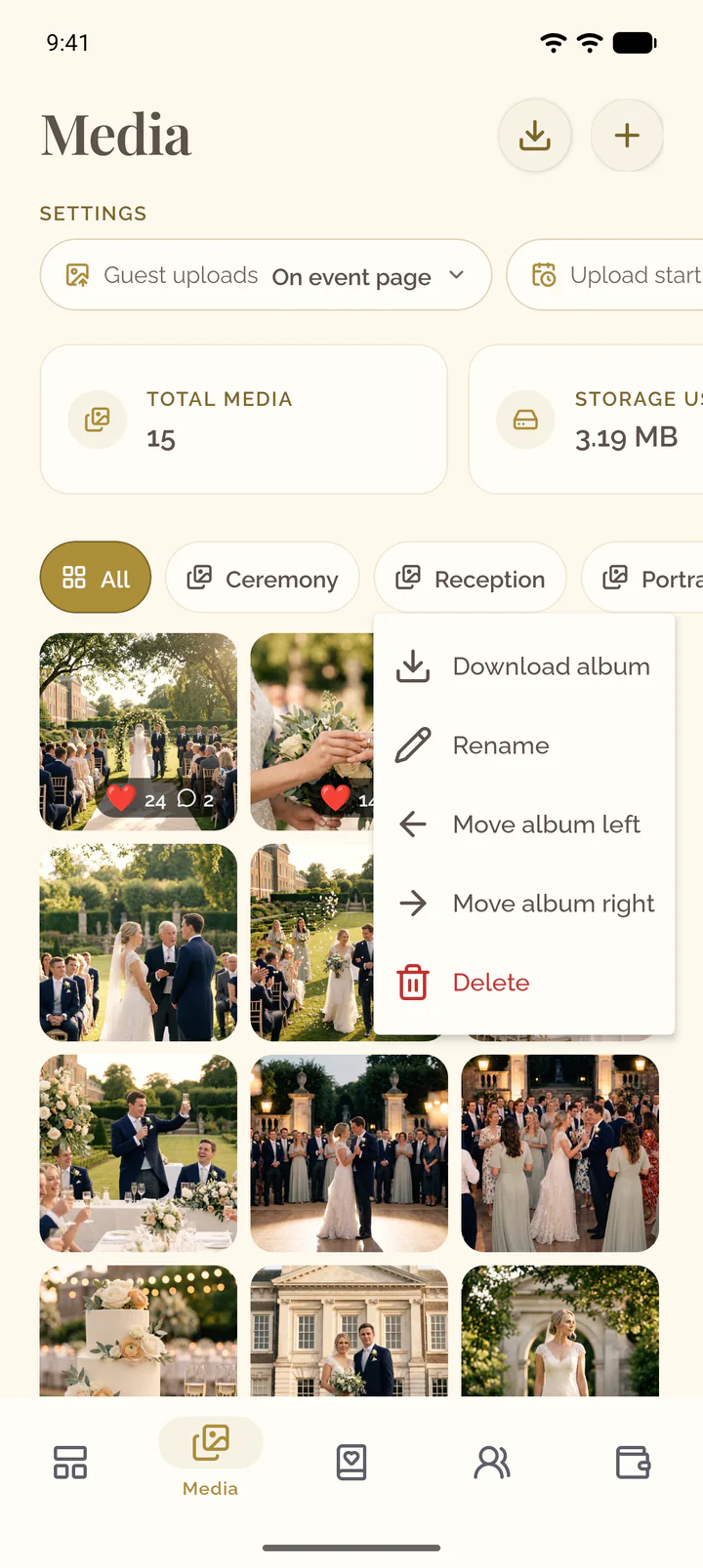
Rename, reorder or delete an album
- Select the album and open its menu, for example Actions for Reception.
- Select Rename, Move album left, Move album right or Delete.
- Confirm the change.
- Touch and hold the album in the row of albums.
- Select Rename, Move album left, Move album right or Delete.
- Confirm the change.
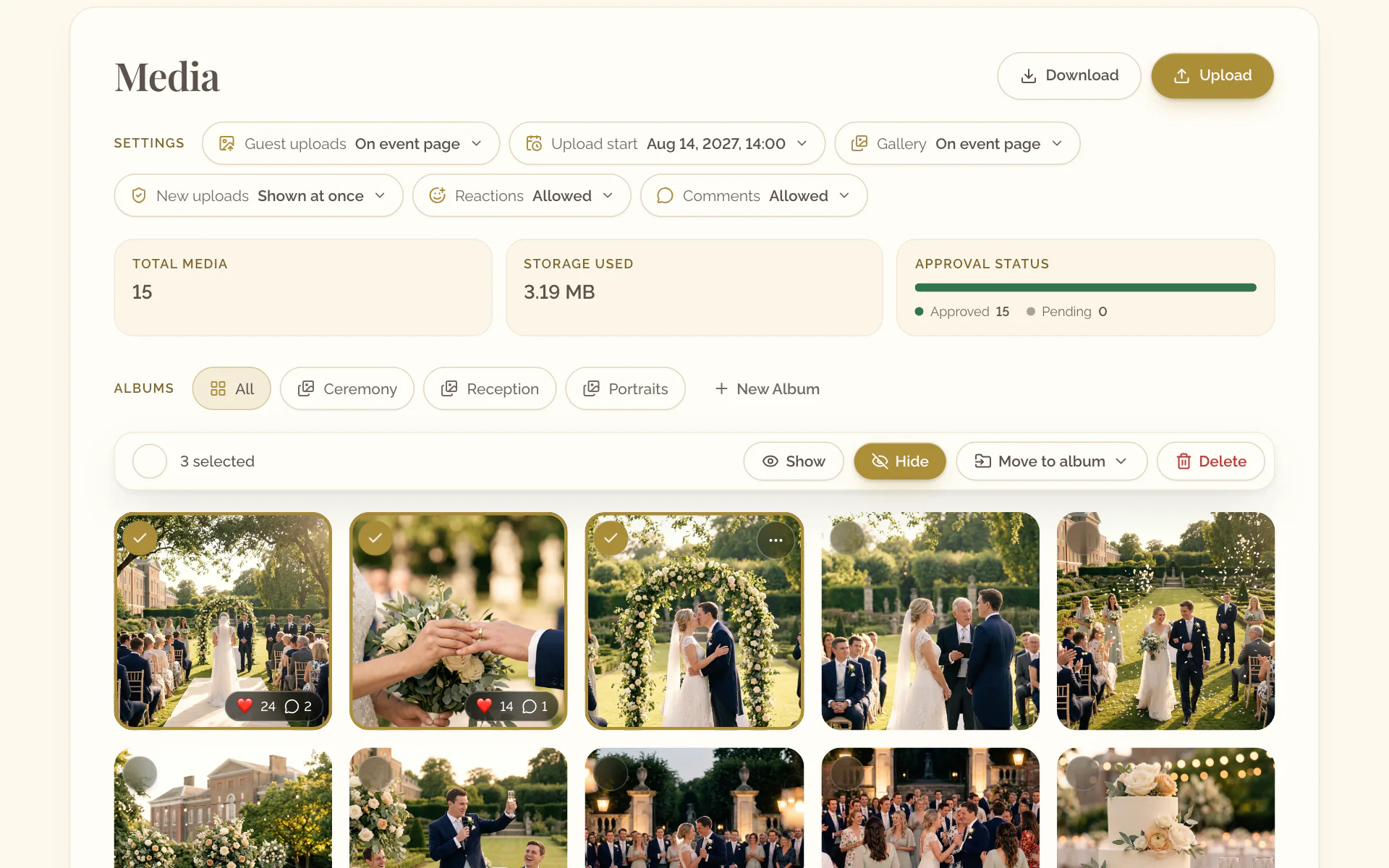
Work with several items at once
- Open the menu of an item and select Select image.
- Select further items. Select all takes every item that is loaded.
- In the toolbar, choose Show, Hide, Move to album or Delete.
- Touch and hold an item and select Select.
- Tap further items. The checkbox in the bar at the bottom takes every item that is loaded.
- In the bar, choose the button that shows, hides, moves or deletes the selection. The cross at the top ends it.
Delete media
- Open the menu of the item, Media actions.
- Select Delete media and confirm.
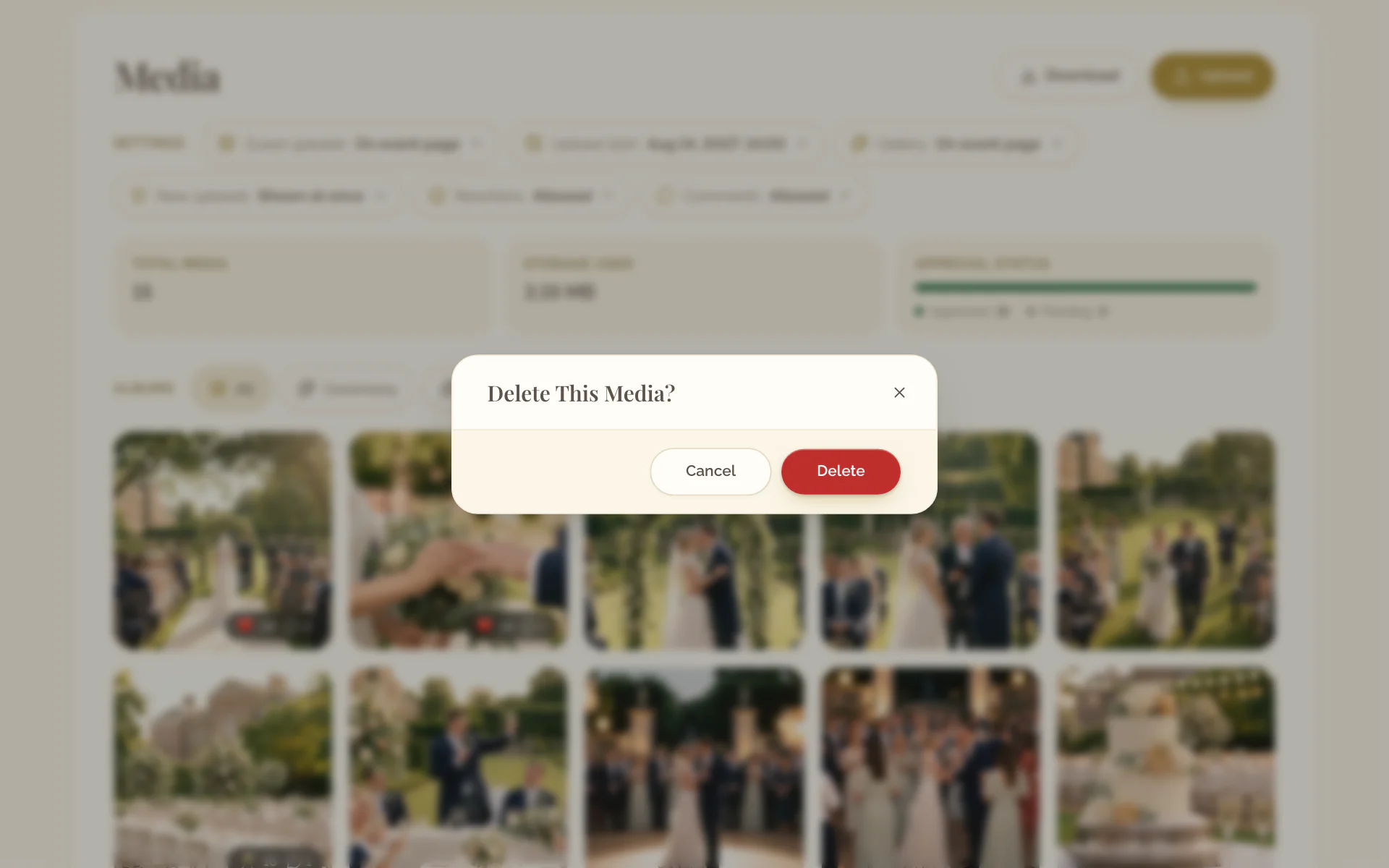
- Touch and hold the item in the gallery.
- Select Delete and confirm.
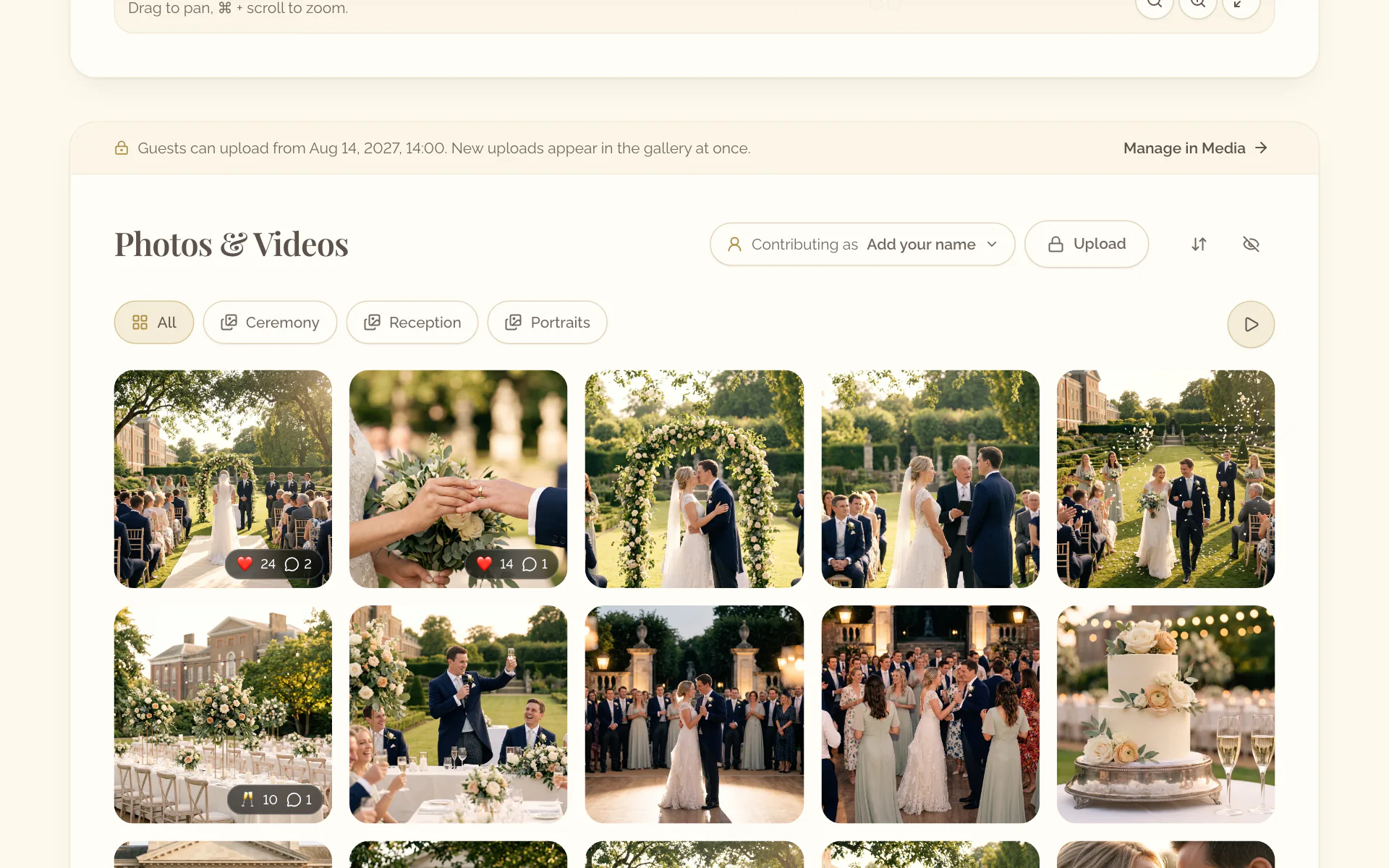
Show the gallery as a slideshow
- Open the event page and go to Photos & Videos.
- At the right end of the row of albums, select Start slideshow.
The app has no slideshow. Open the event page in a browser to start it.