
Add an event About section
Add a description to your event page, edit it, or remove the section.
Steps for
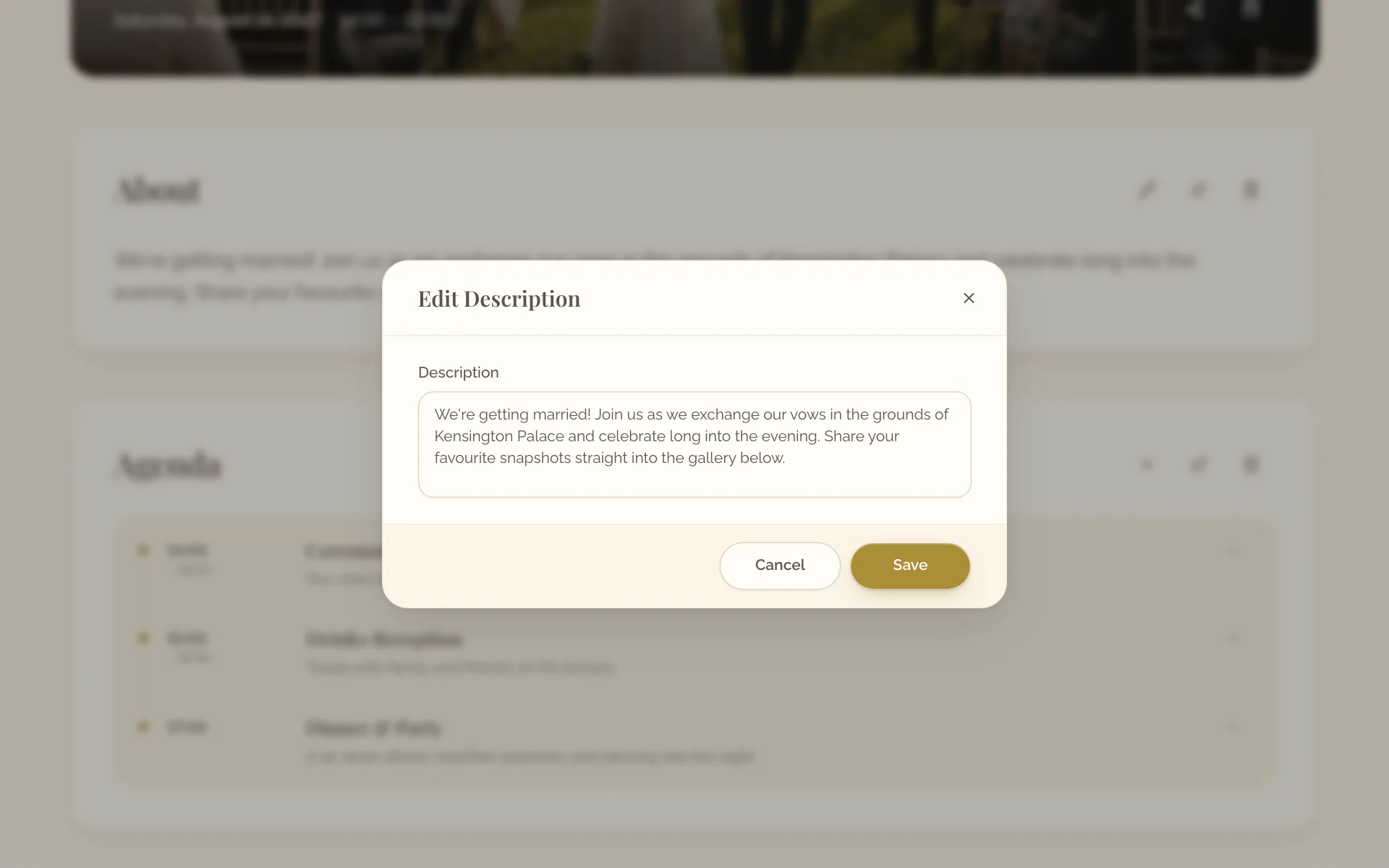
Add the description
- Open the Event page tab of the event.
- On the card About, select Add.
- Enter the text under Description.
- Select Save.
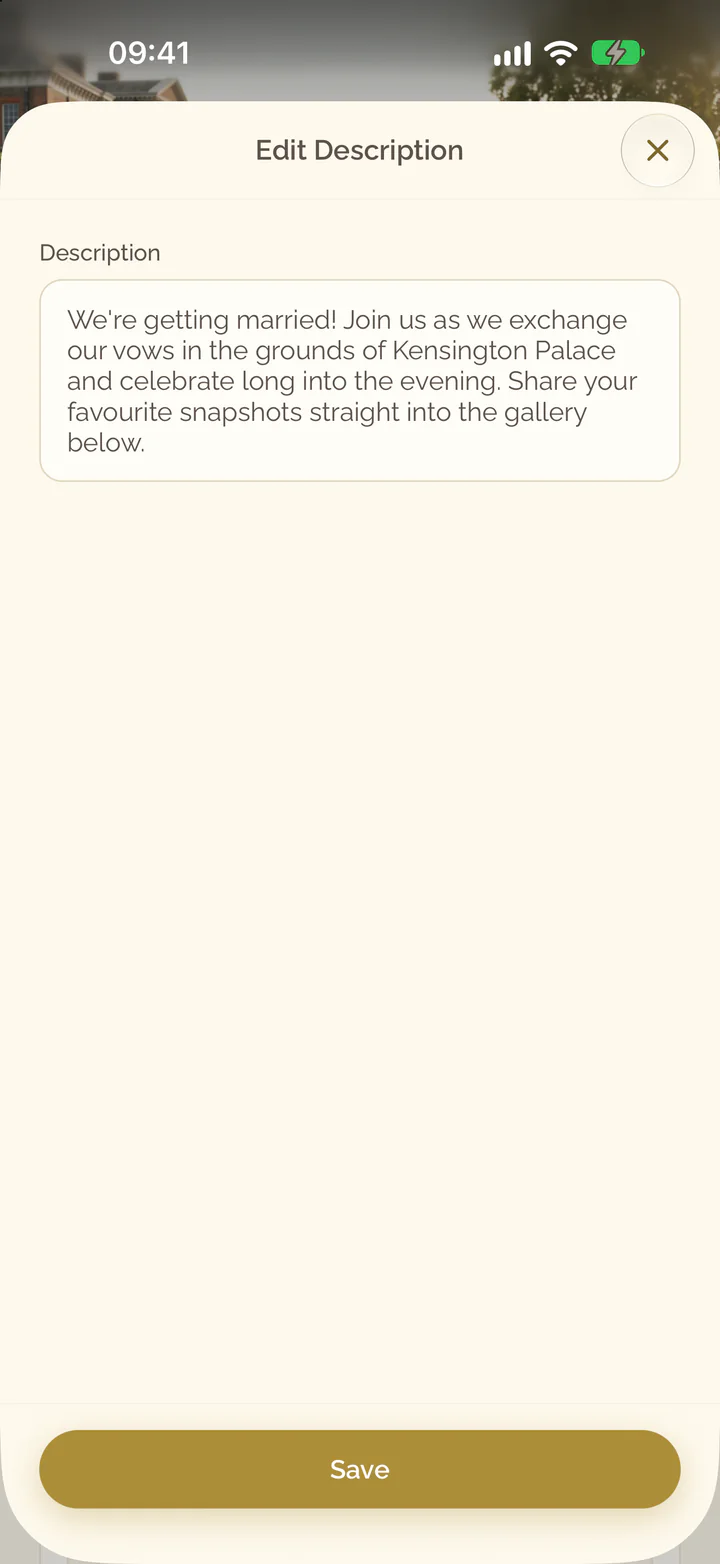
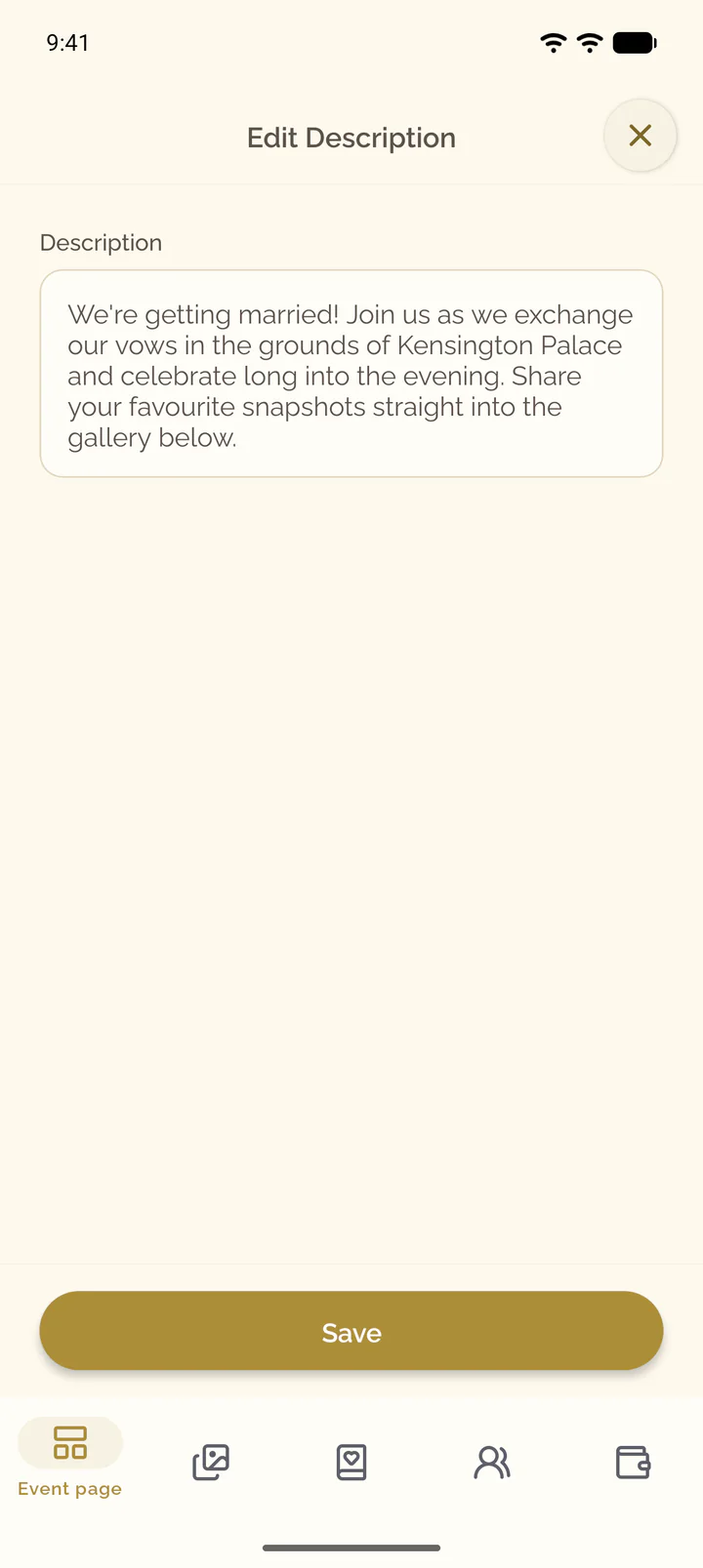
- Open the Event page tab of the event.
- Scroll to the end of the page and tap the row About.
- Enter the text under Description.
- Select Save.
Edit the description
- On the section About, select Edit Description.
- Change the text.
- Select Save.
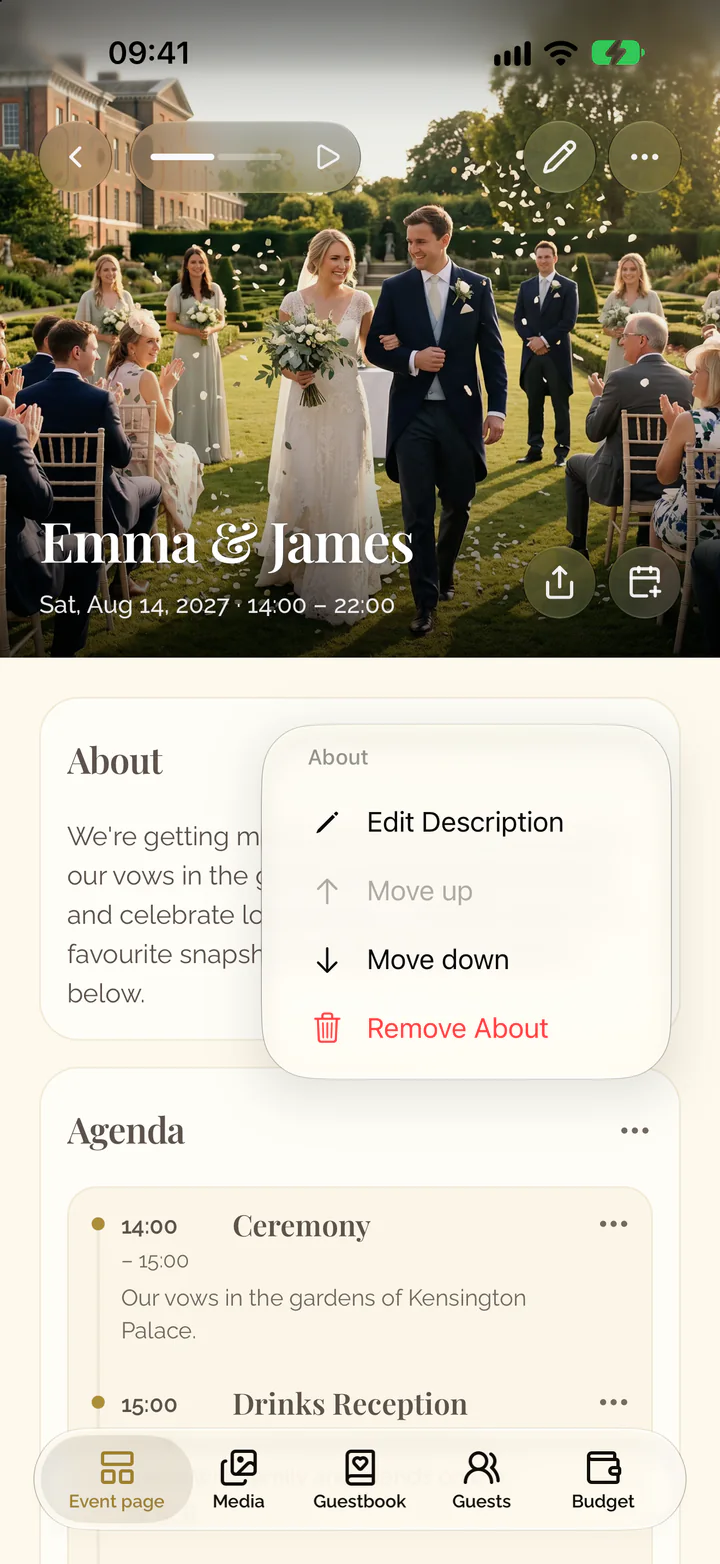
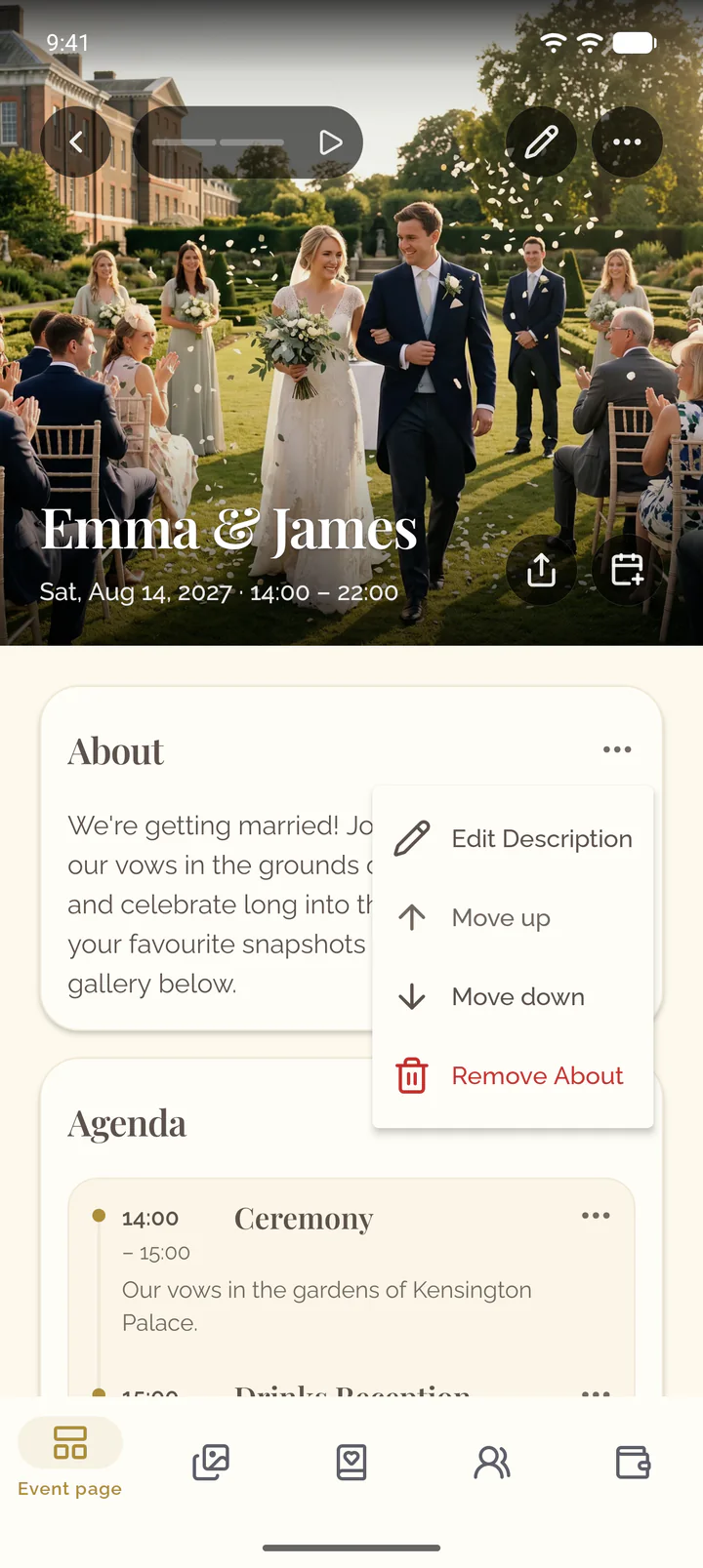
On a phone, Edit Description stands in the menu of the section, Actions for About.
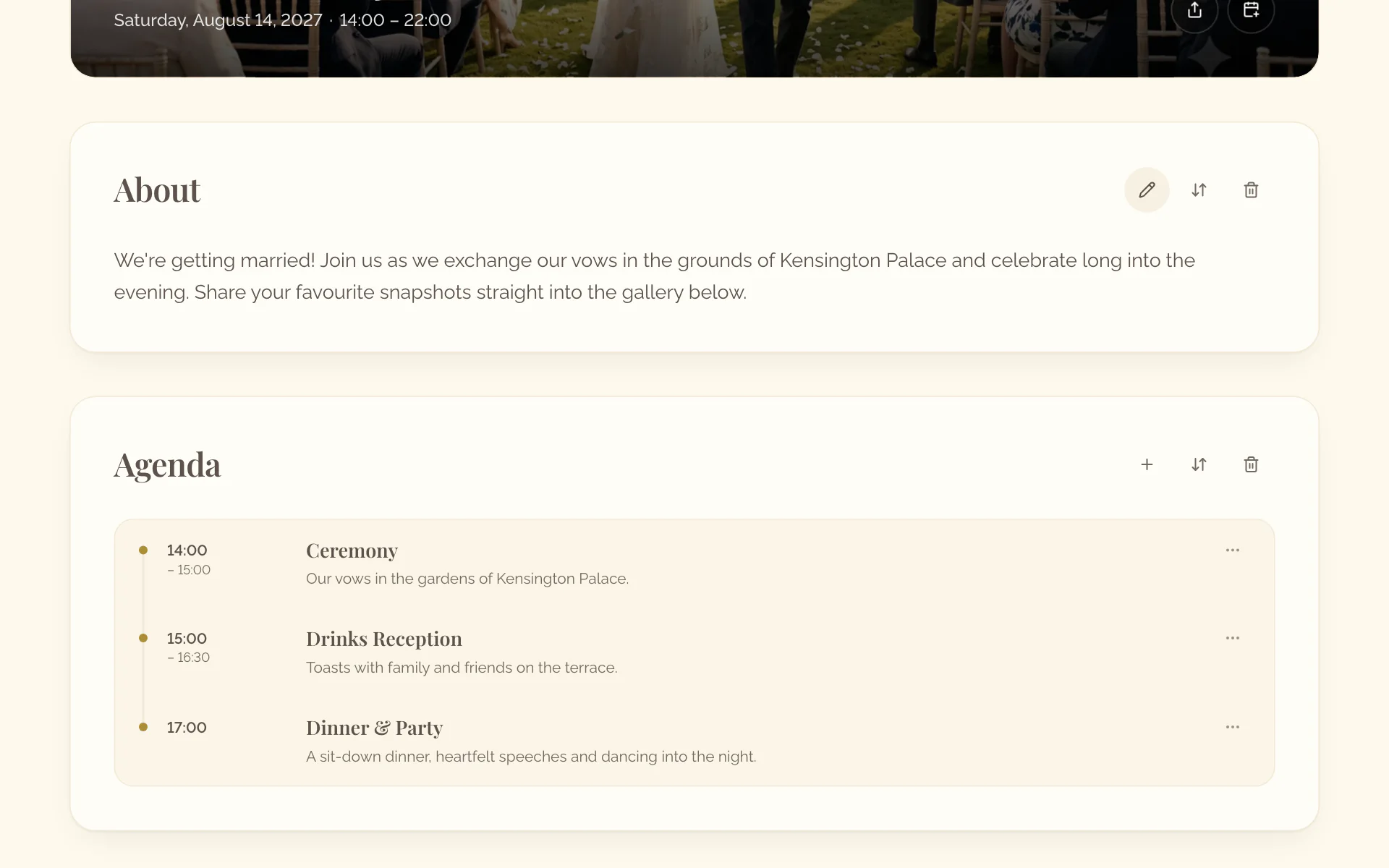
- On the card About, select the three dots, then Edit Description.
- Change the text.
- Select Save.
Remove the section
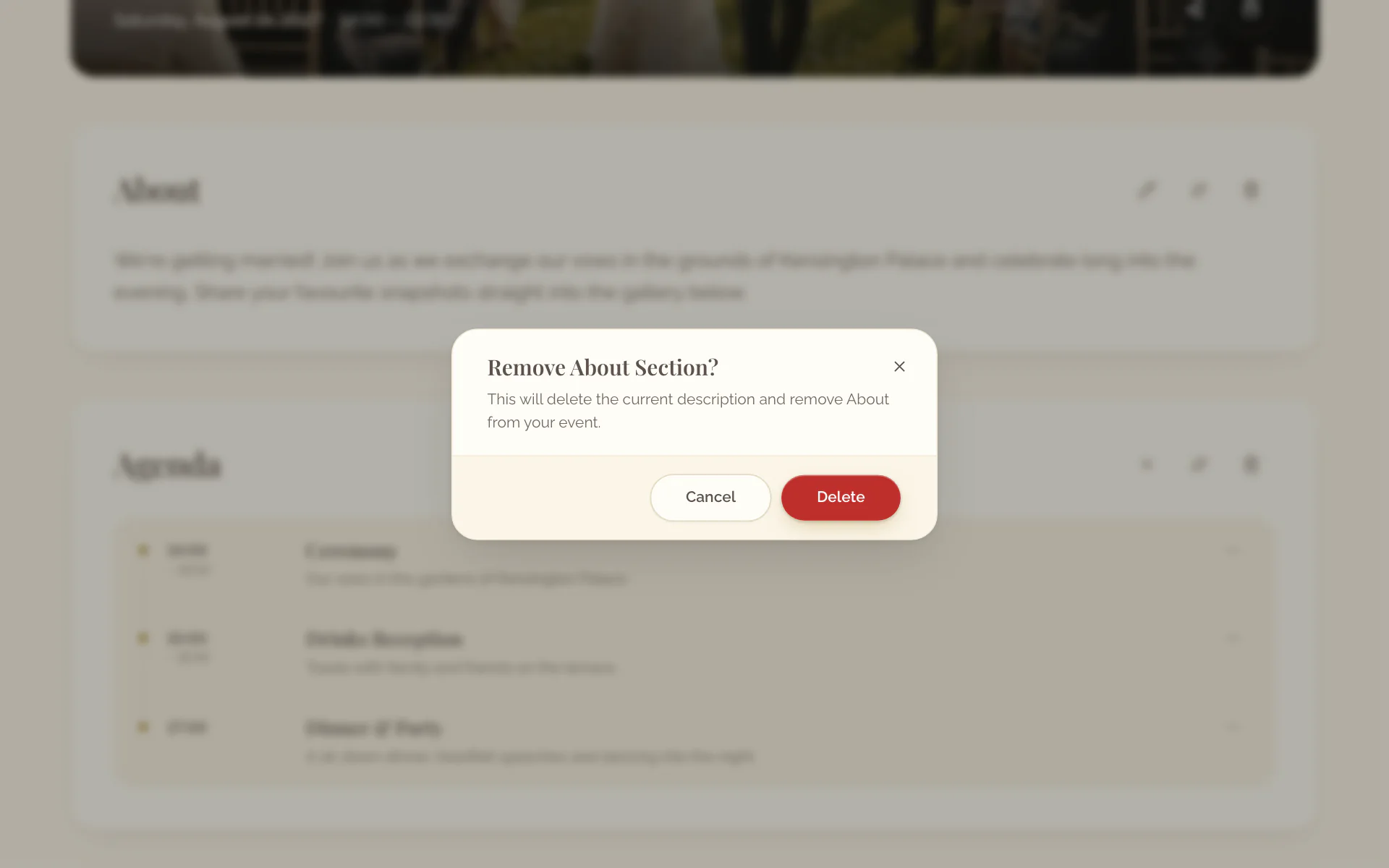
- Open the actions of the section and select Remove About.
- Confirm with Delete.
- On the card About, select the three dots, then Remove About.
- Confirm with Remove About.