
Ask RSVP questions and set a deadline
Ask your guests your own questions, read their answers, and set until when they can reply.
Steps for
Questions and the deadline stand in the view RSVP of the Guests tab. To show RSVP on your event page, see Collect RSVPs.
Add a question
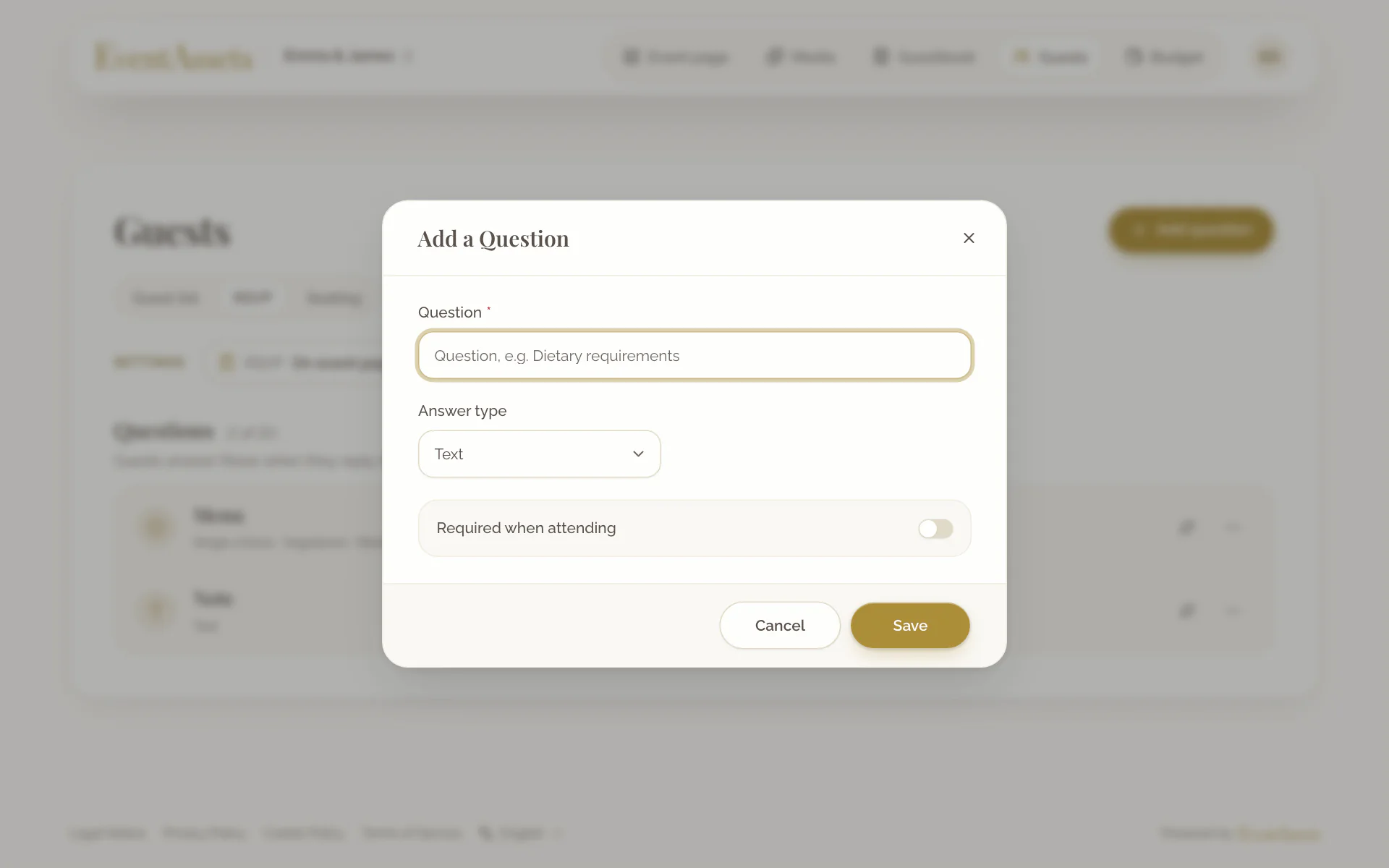
- Open the Guests tab and its view RSVP.
- Select Add question.
- Enter the Question and choose the Answer type: Text, Number, Single choice or Multiple choice.
- For a choice, enter what guests can pick under Options. Add option adds a line.
- Switch on Required when attending if guests must answer.
- Select Save.
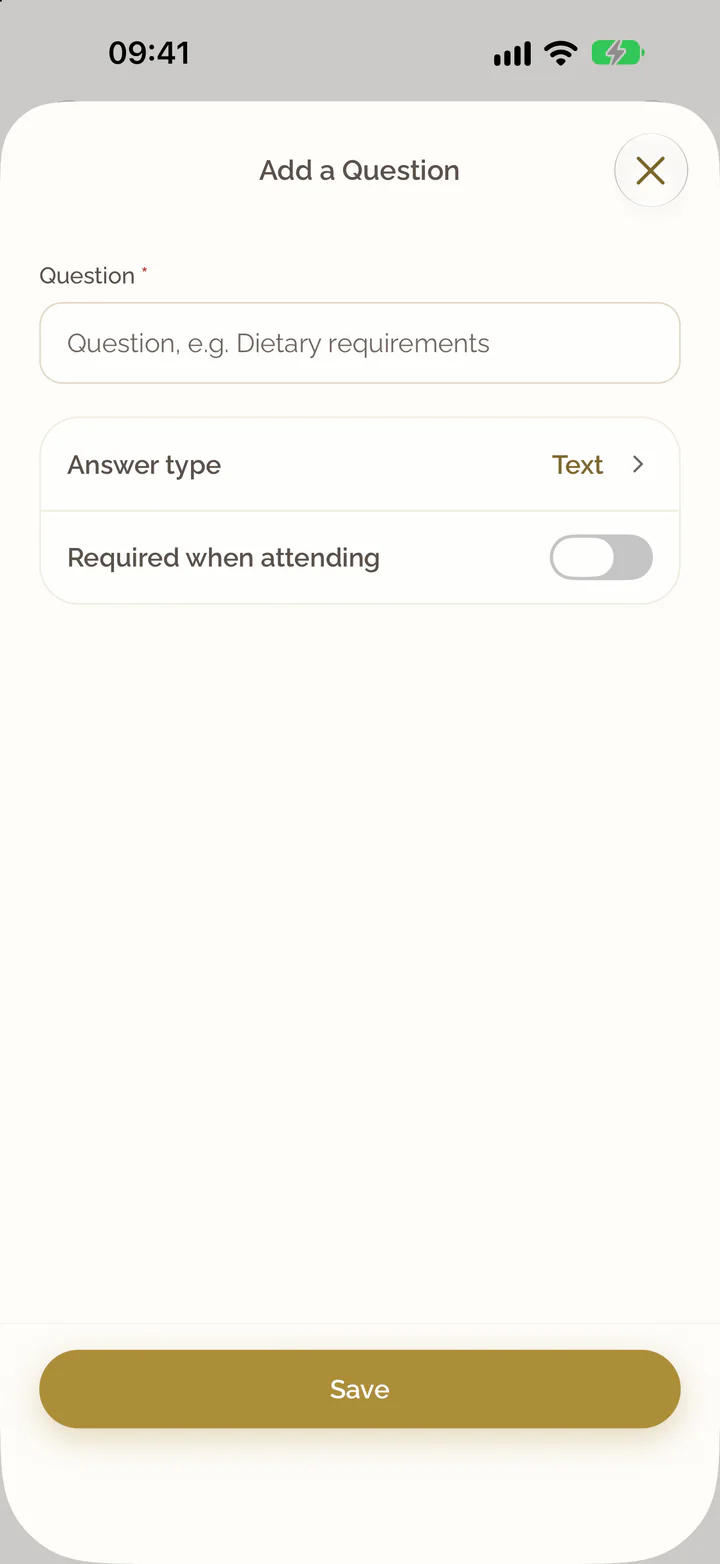
- Open the Guests tab and its view RSVP.
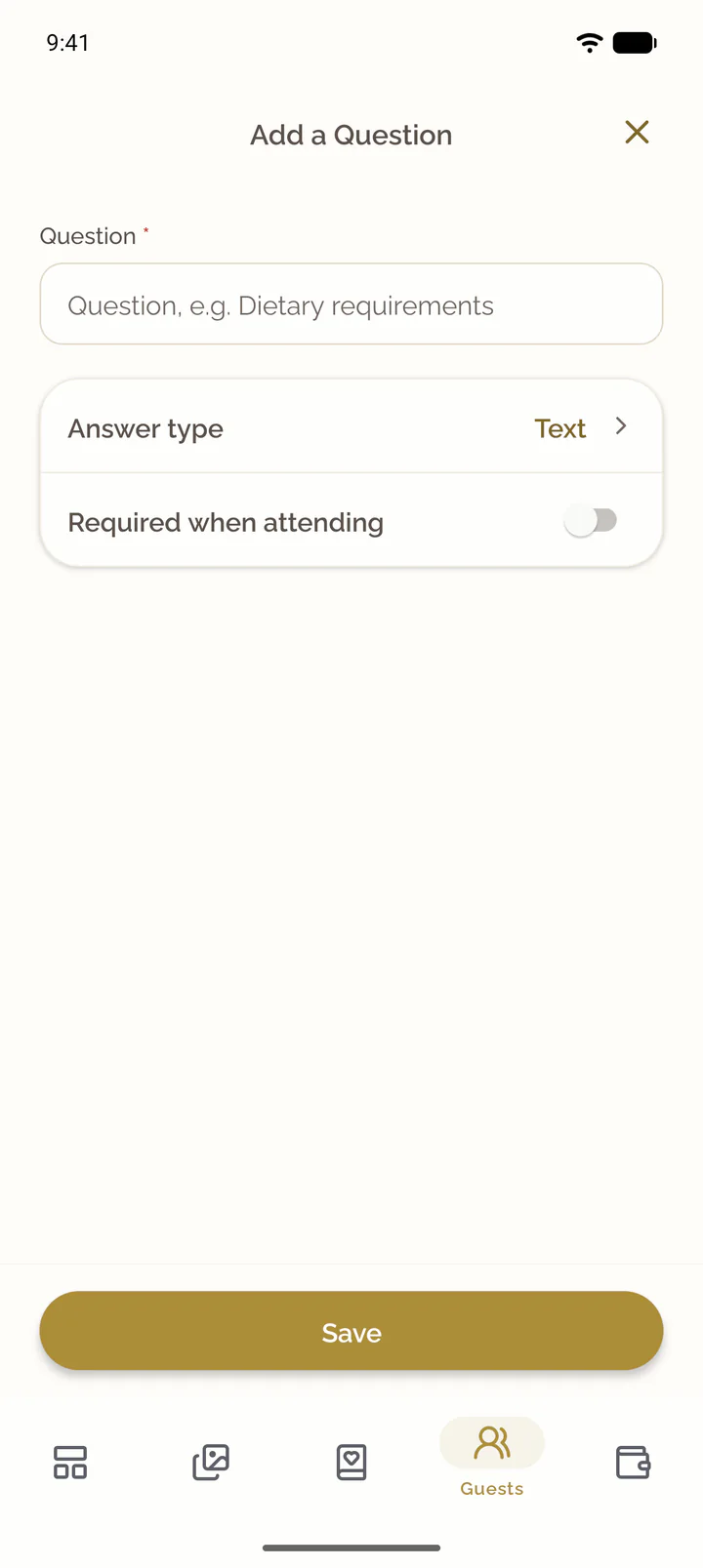
- Select the plus button at the top of the screen.
- Enter the Question and choose the Answer type: Text, Number, Single choice or Multiple choice.
- For a choice, enter what guests can pick under Options. Add option adds a line.
- Switch on Required when attending if guests must answer.
- Select Save.
Edit or reorder questions
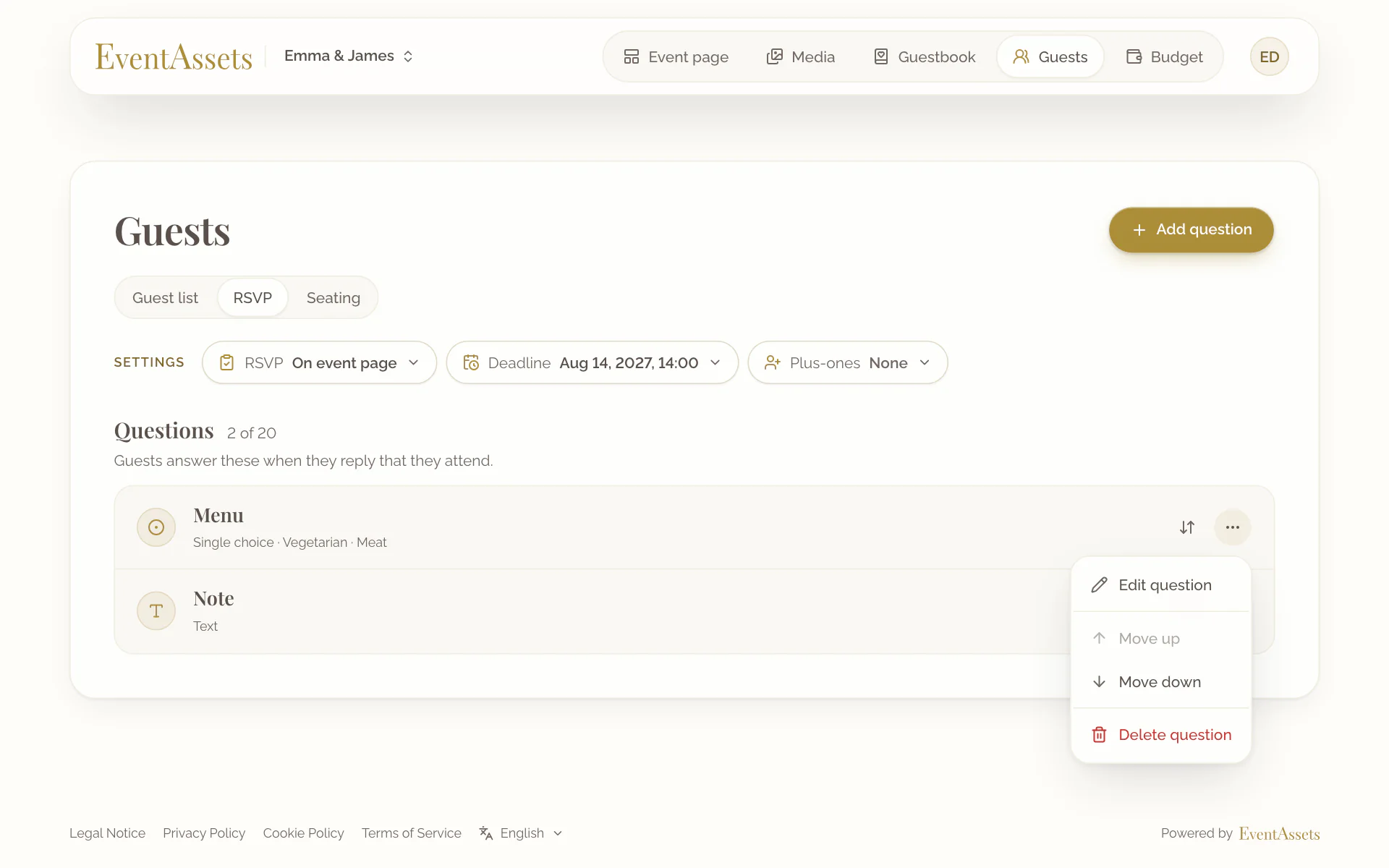
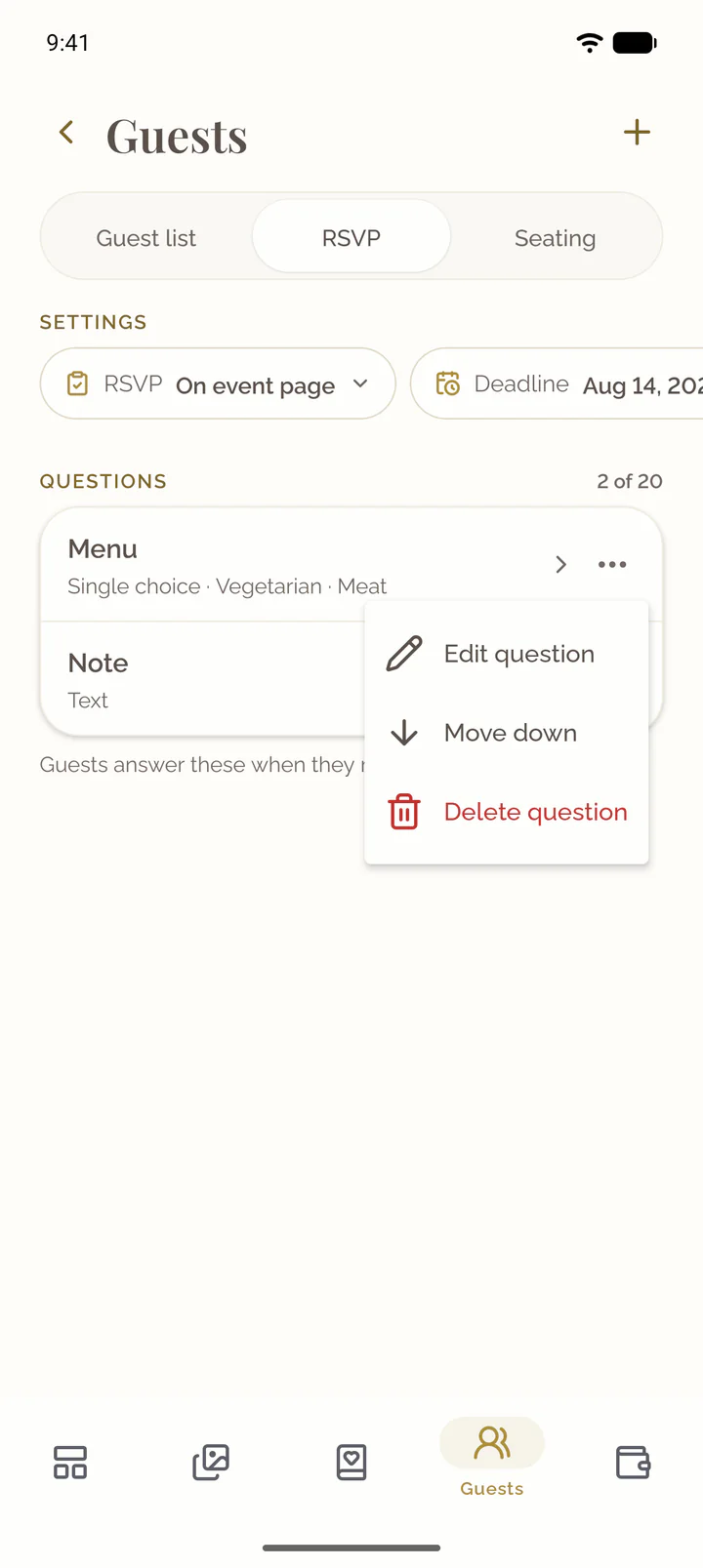
- Open the menu of the question, for example Actions for Meal.
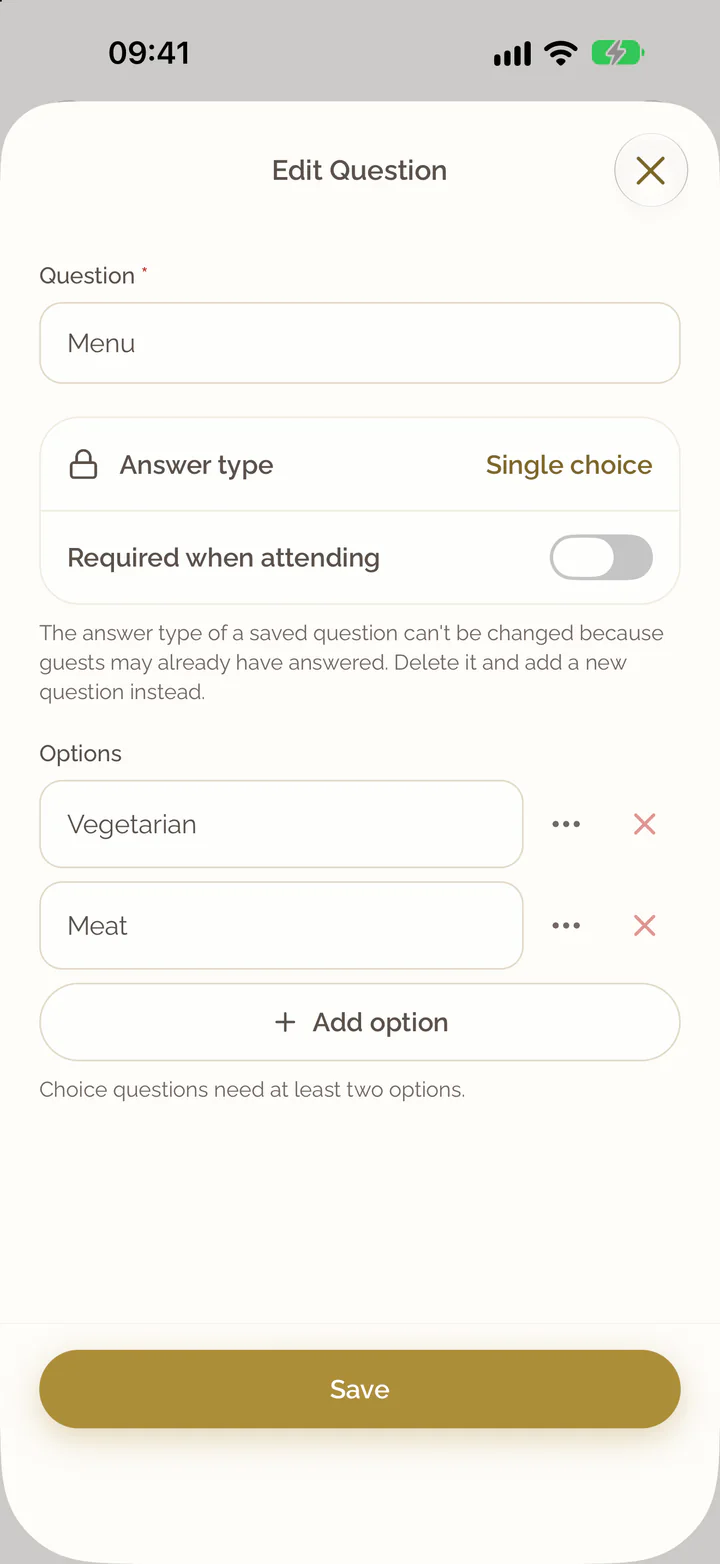
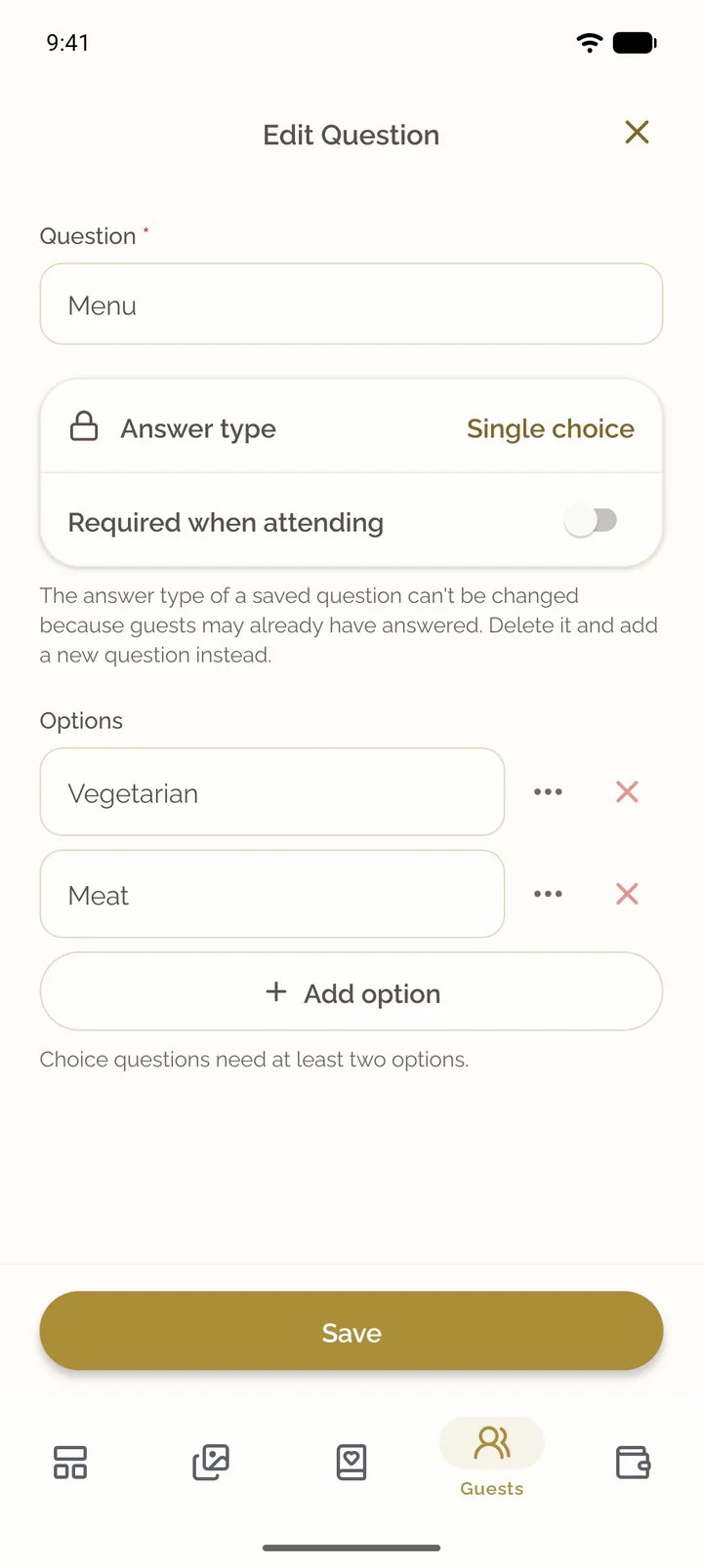
- Select Edit question, change the question or its options, and select Save.
- Select Move up or Move down to change the order guests see.
- Select the question.
- Change the question or its options and select Save.
- To change the order guests see, open the menu at the end of the row and select Move up or Move down.
Delete a question
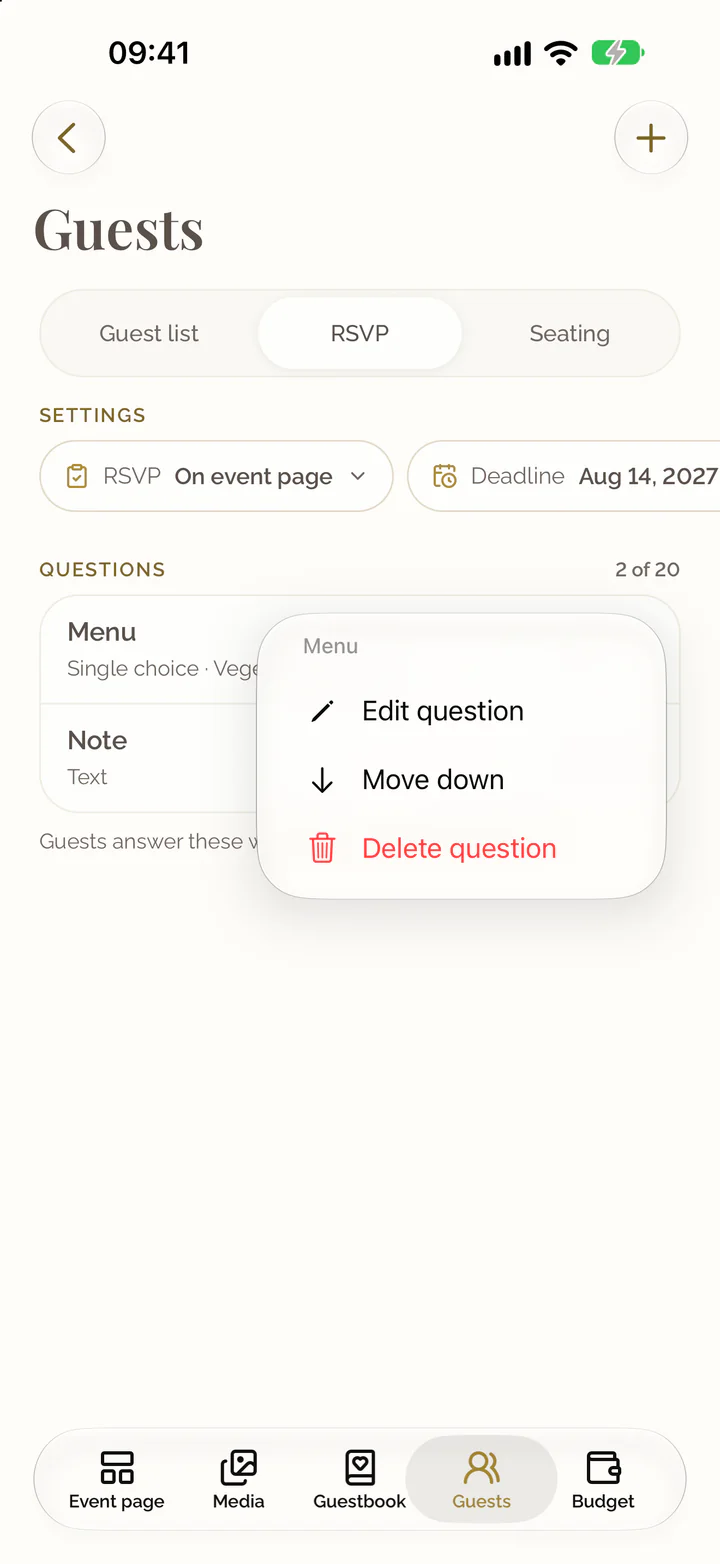
- Open the menu of the question.
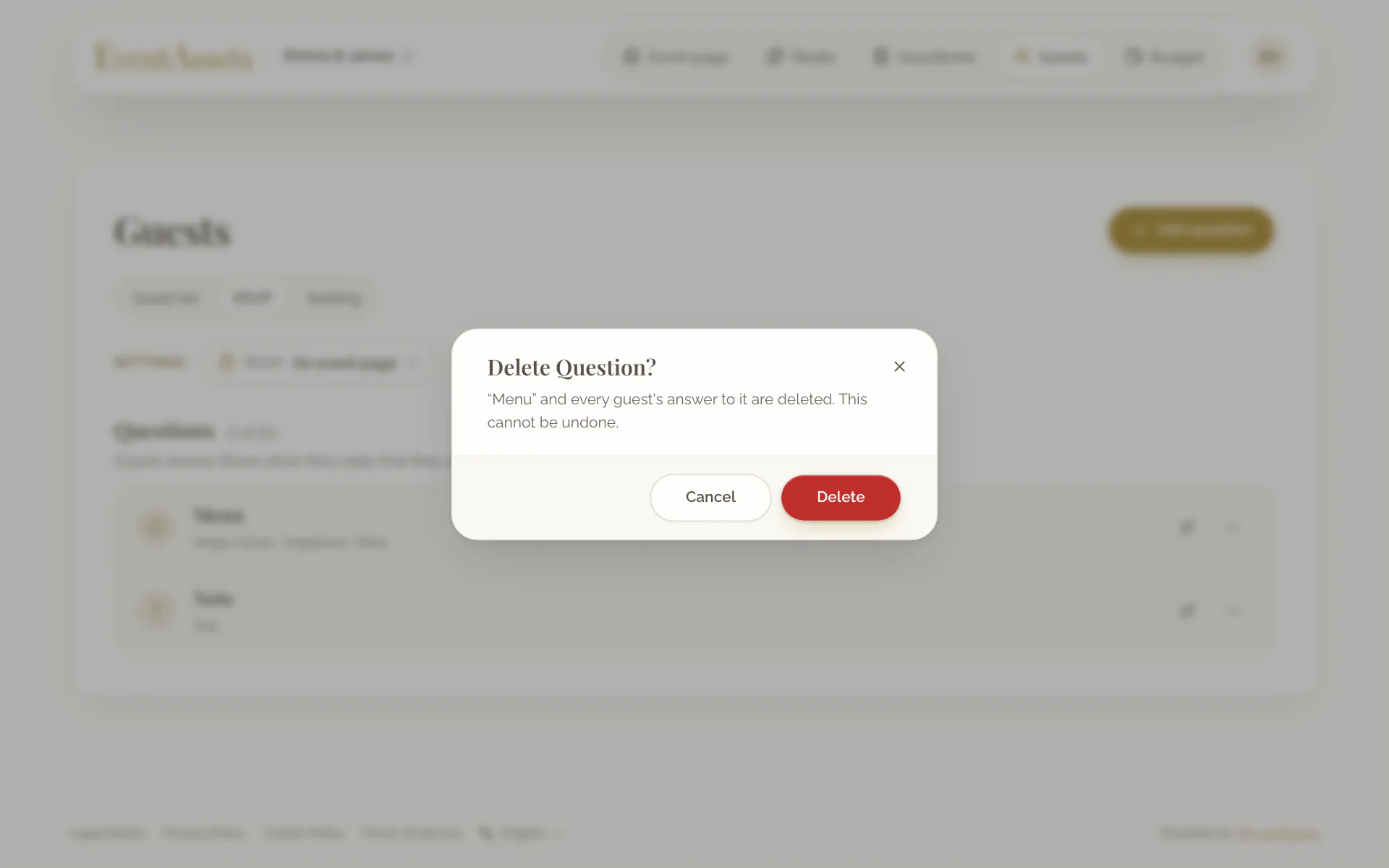
- Select Delete question and confirm.
- Open the menu at the end of the row of the question.
- Select Delete question and confirm.
Read the answers
- Open the Guests tab of the event.
- Read the tile of each question, next to RSVP responses.
- Read a single guest's answers on their row.
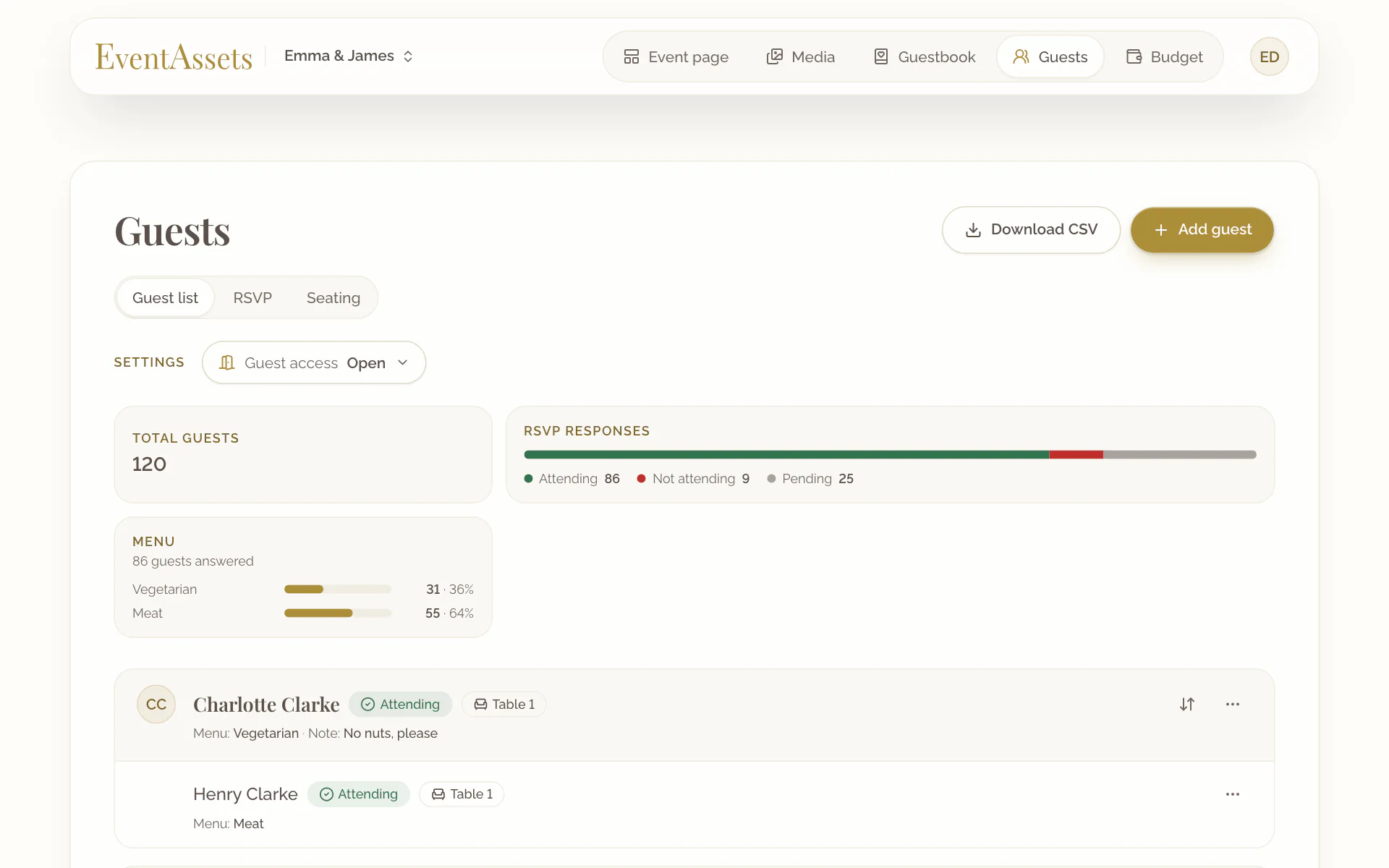
- Open the Guests tab of the event.
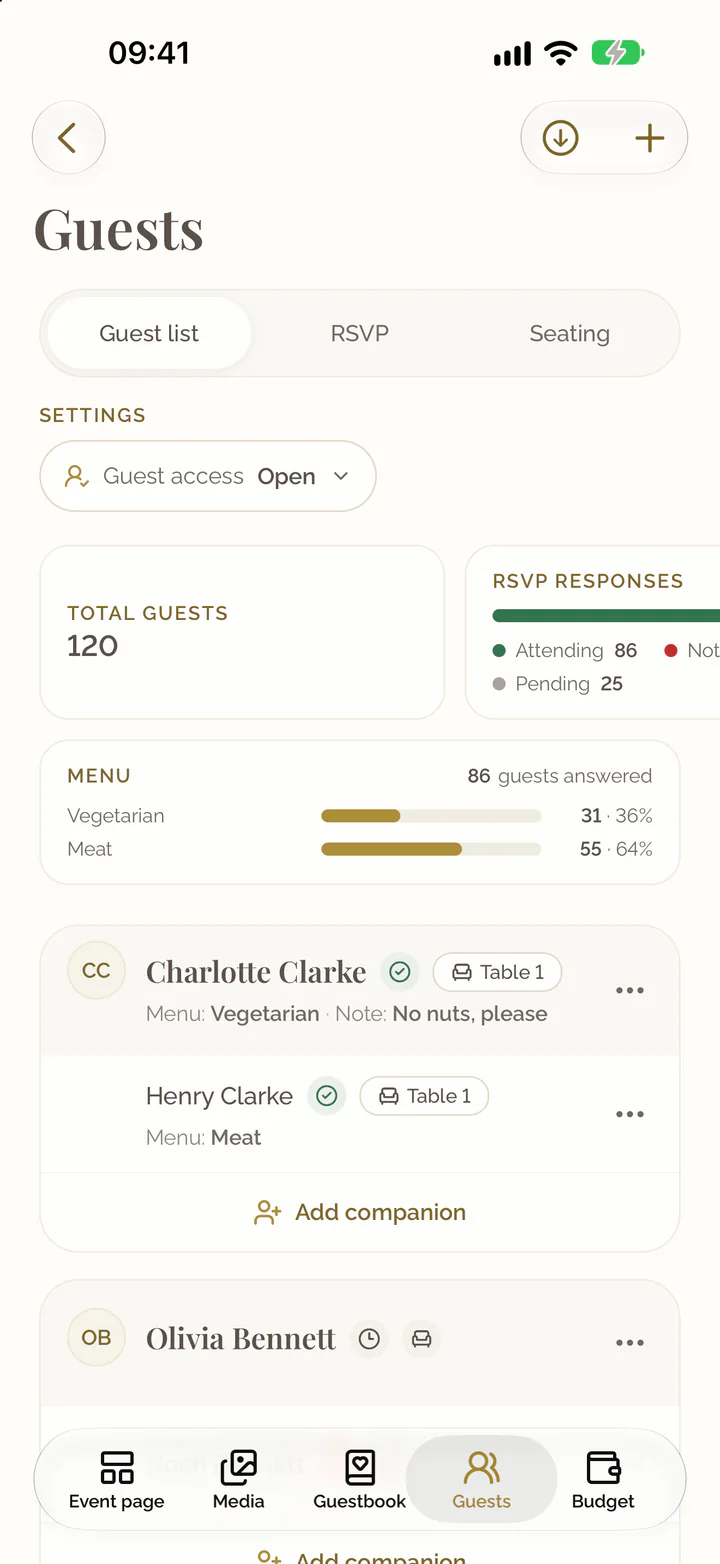
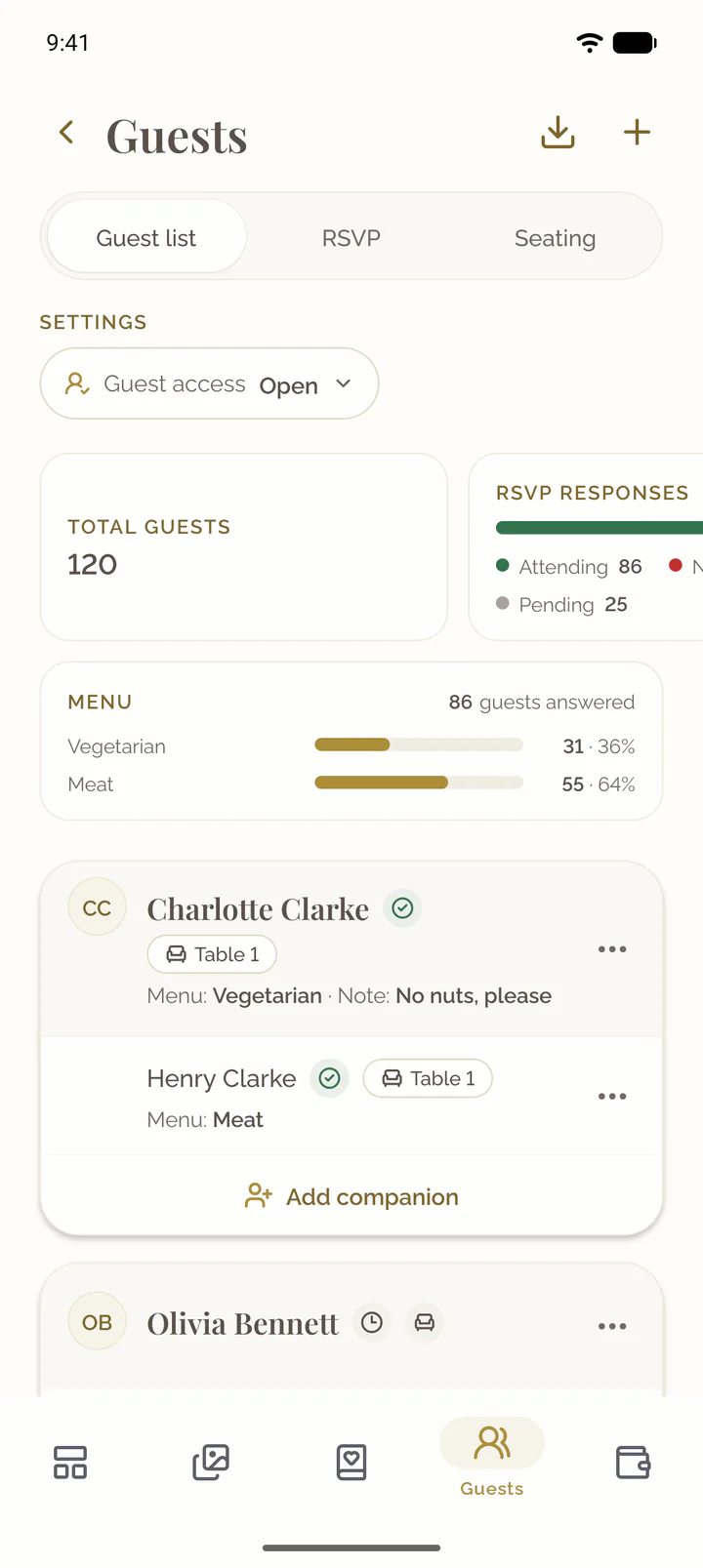
- Swipe the row of tiles: each question has its tile after RSVP responses.
- Read a single guest's answers on their row.
Set the deadline
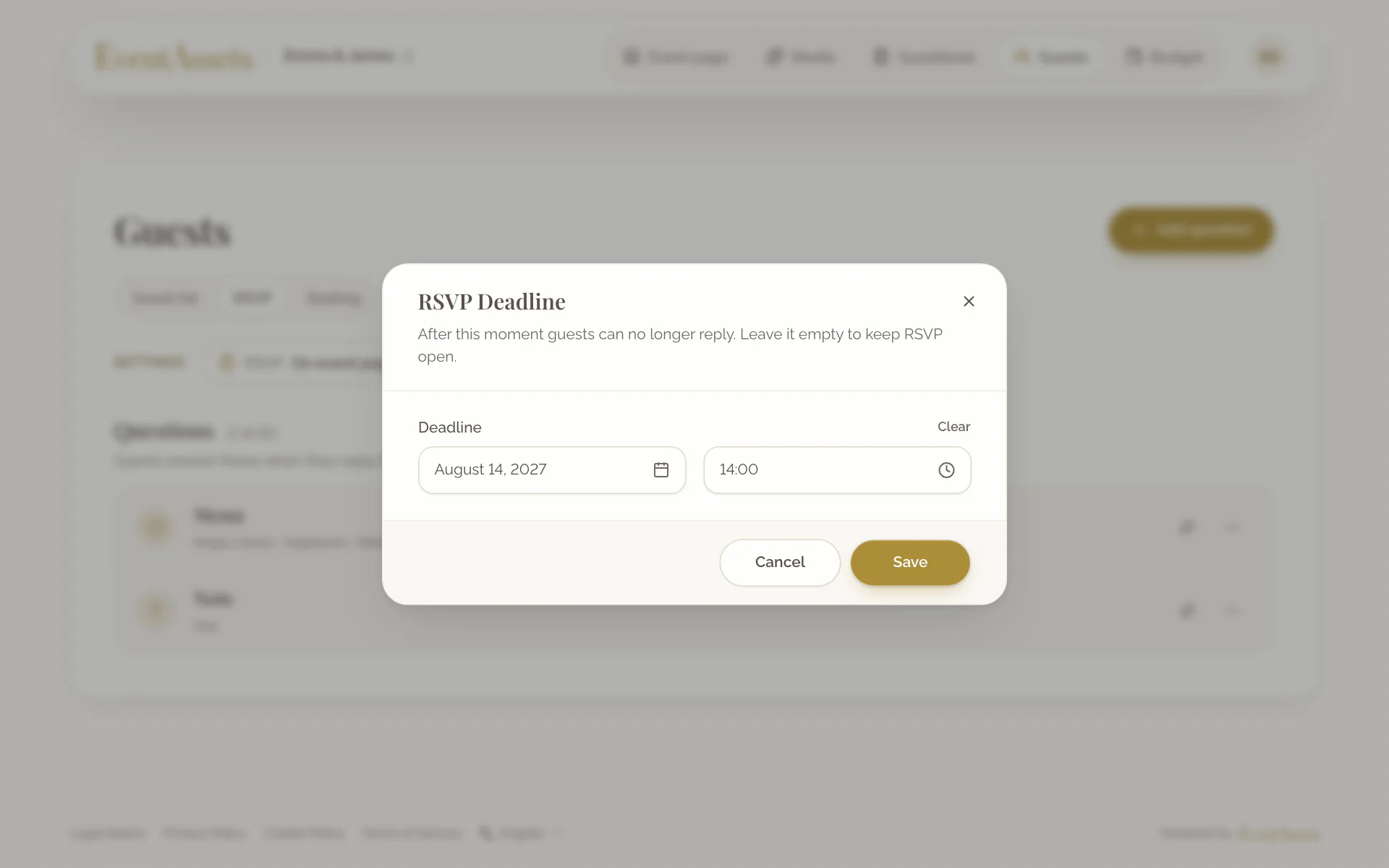
- Open the Guests tab and its view RSVP.
- Select Deadline.
- Choose a date and a time, then select Save. Clear leaves RSVP open without an end.
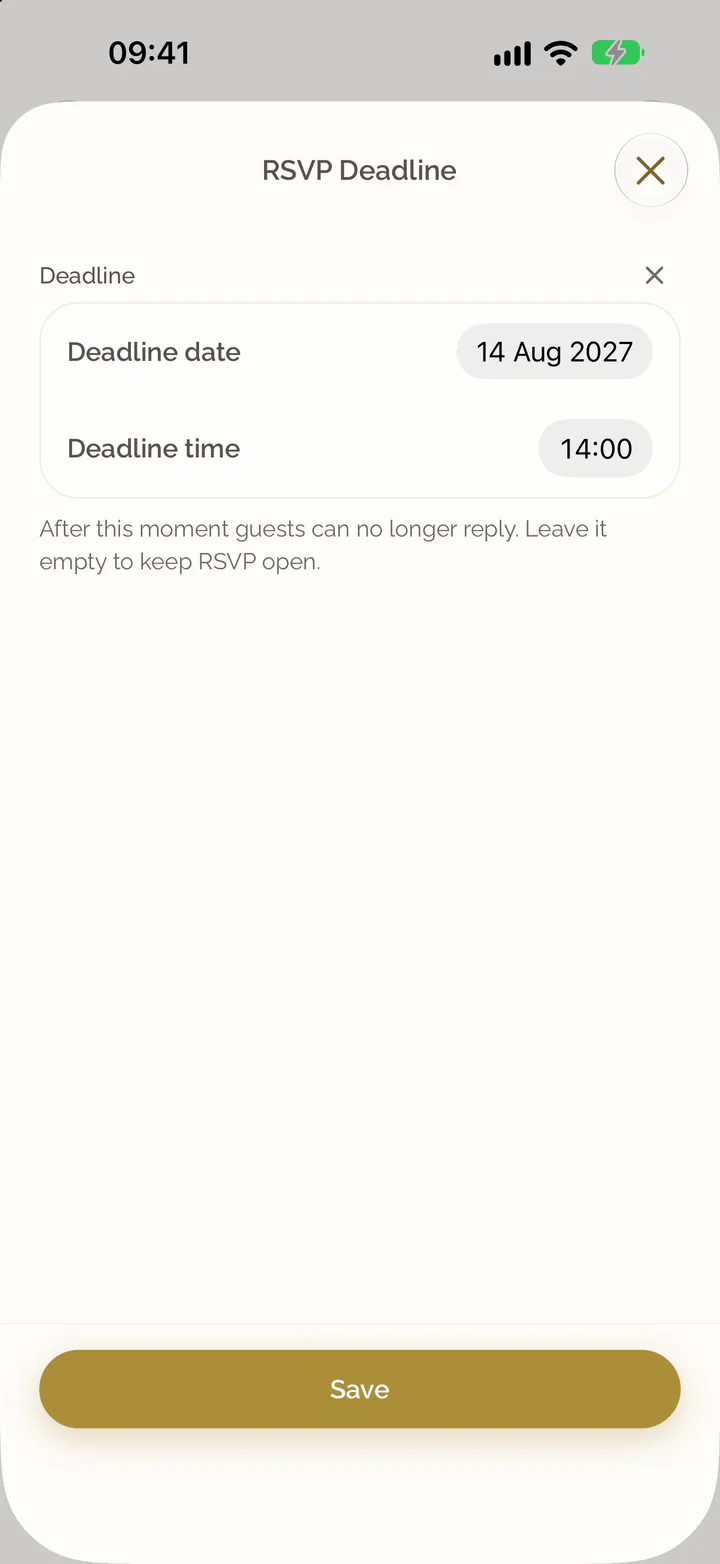
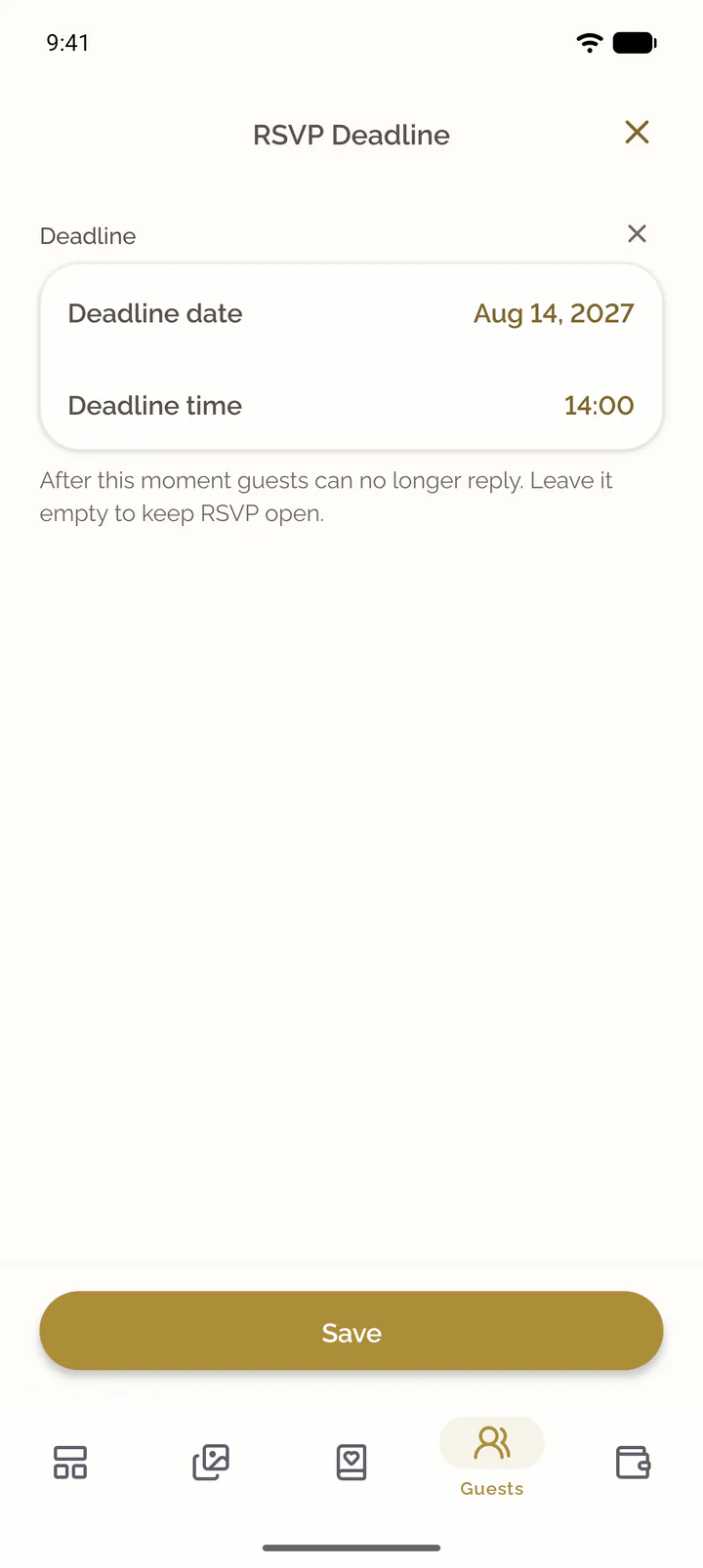
- Open the Guests tab and its view RSVP.
- Select Deadline.
- Choose a date and a time, then select Save. Remove deadline leaves RSVP open without an end, Set a deadline brings one back.
To export the guest list with every answer, see Build your guest list.