Collect RSVPs
Show RSVP on your event page, let guests reply for their whole party, and follow or record every reply.
Guests reply on your event page, for themselves and their companions, with no app and no account. Only guests on your list reply; to build it, see Build your guest list.
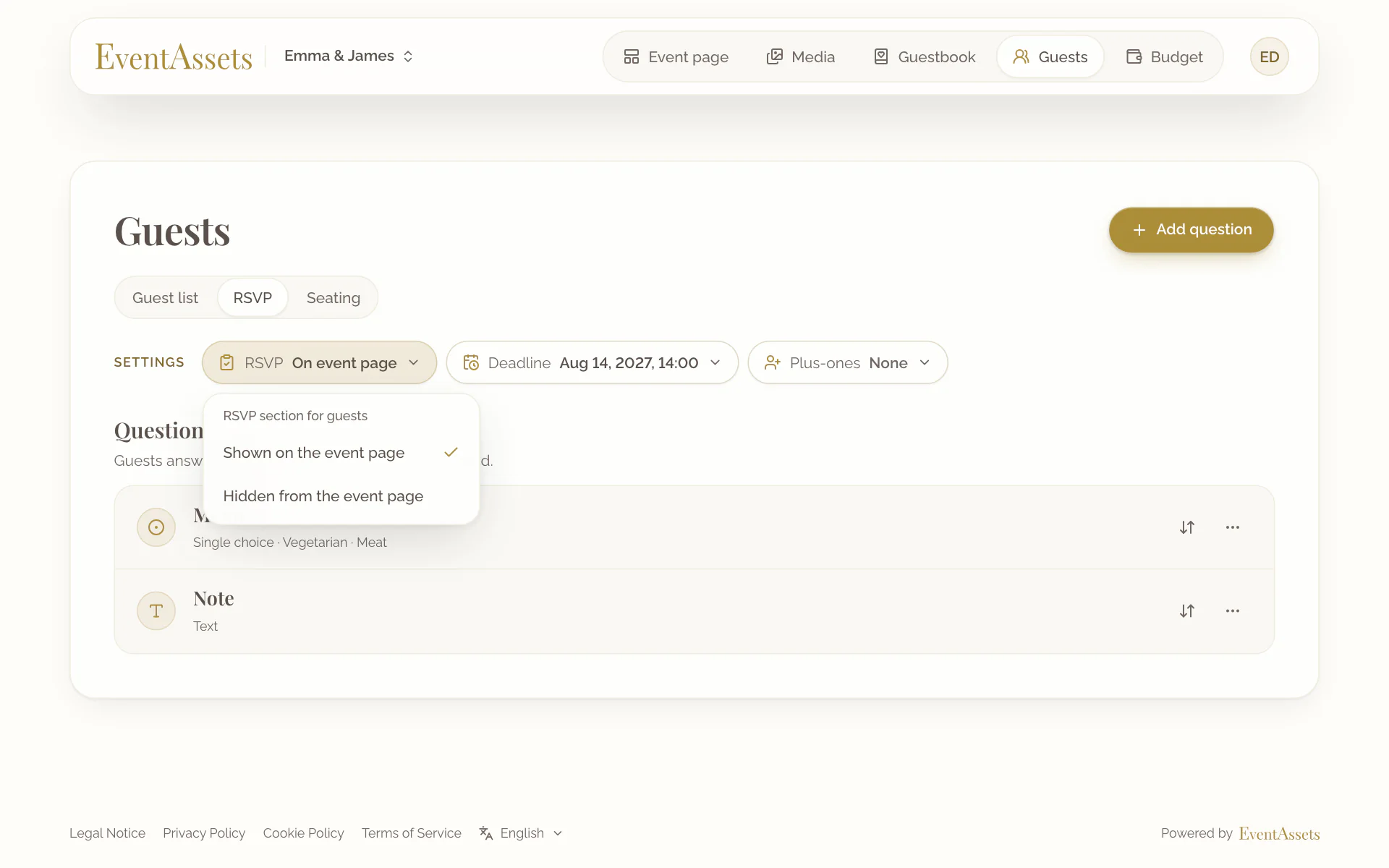
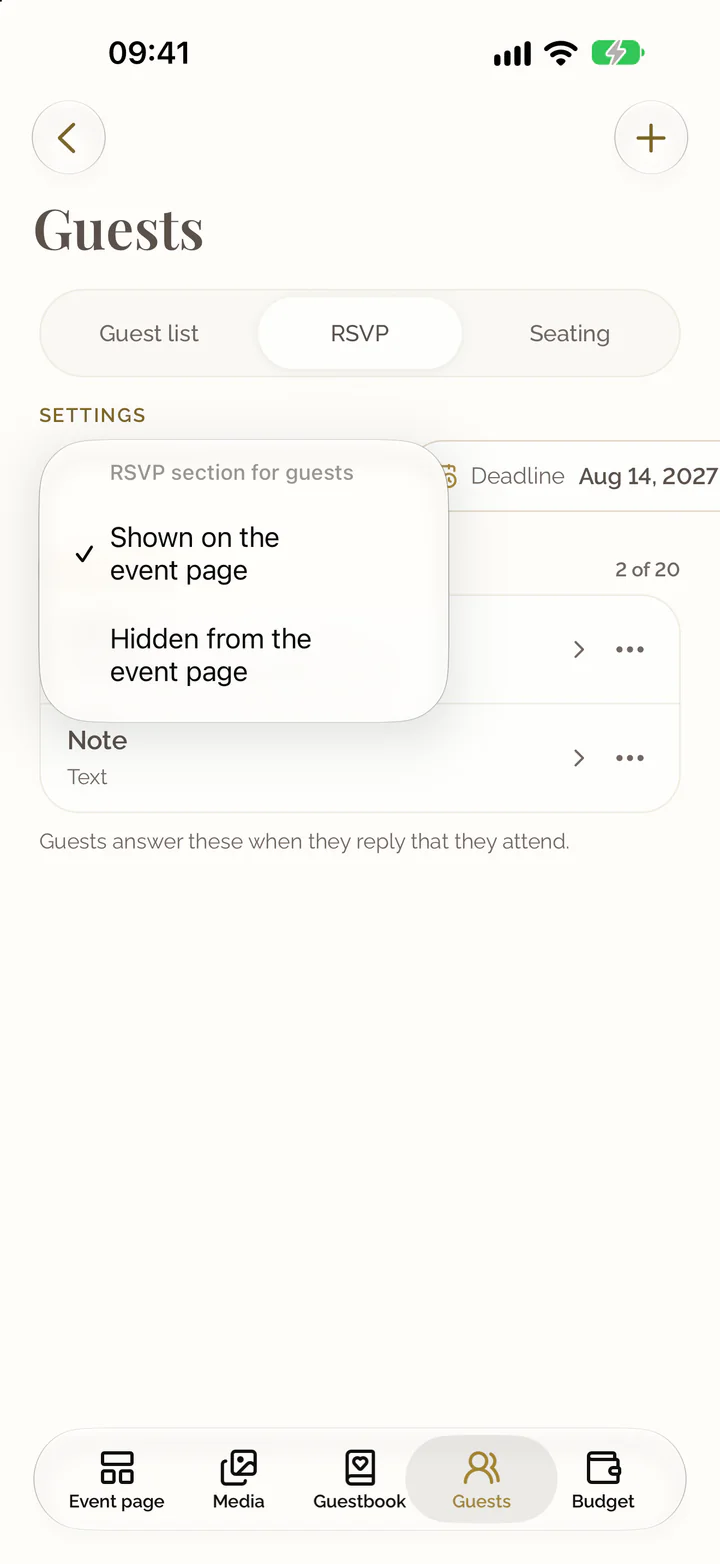
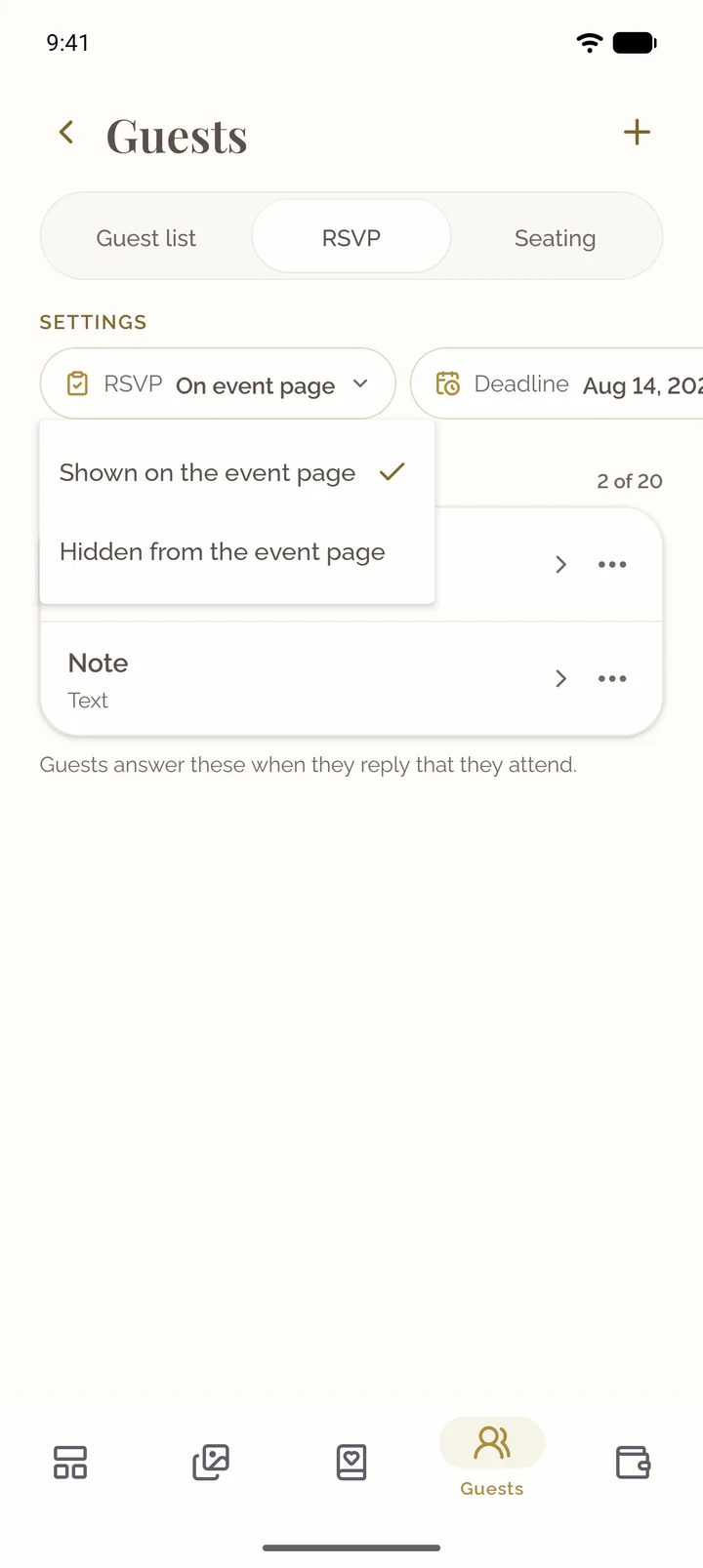
Show RSVP on the event page
- Open the Guests tab and its view RSVP.
- Select the setting RSVP.
- Choose Shown on the event page.
- Open the Guests tab and its view RSVP.
- Select the setting RSVP.
- Choose Shown on the event page.
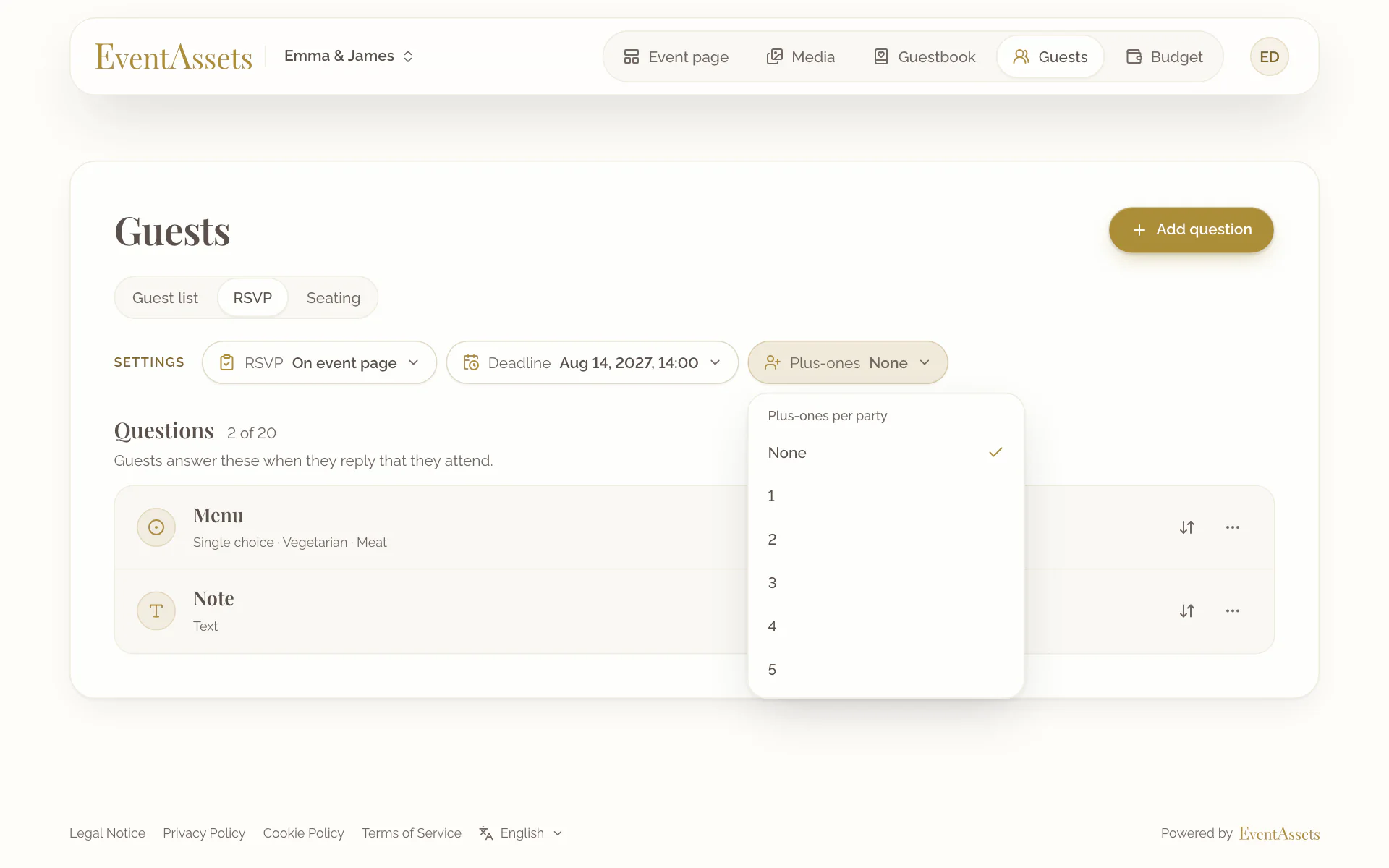
Let guests bring plus-ones
- Open the Guests tab and its view RSVP.
- Select the setting Plus-ones.
- Choose how many people each party may add.
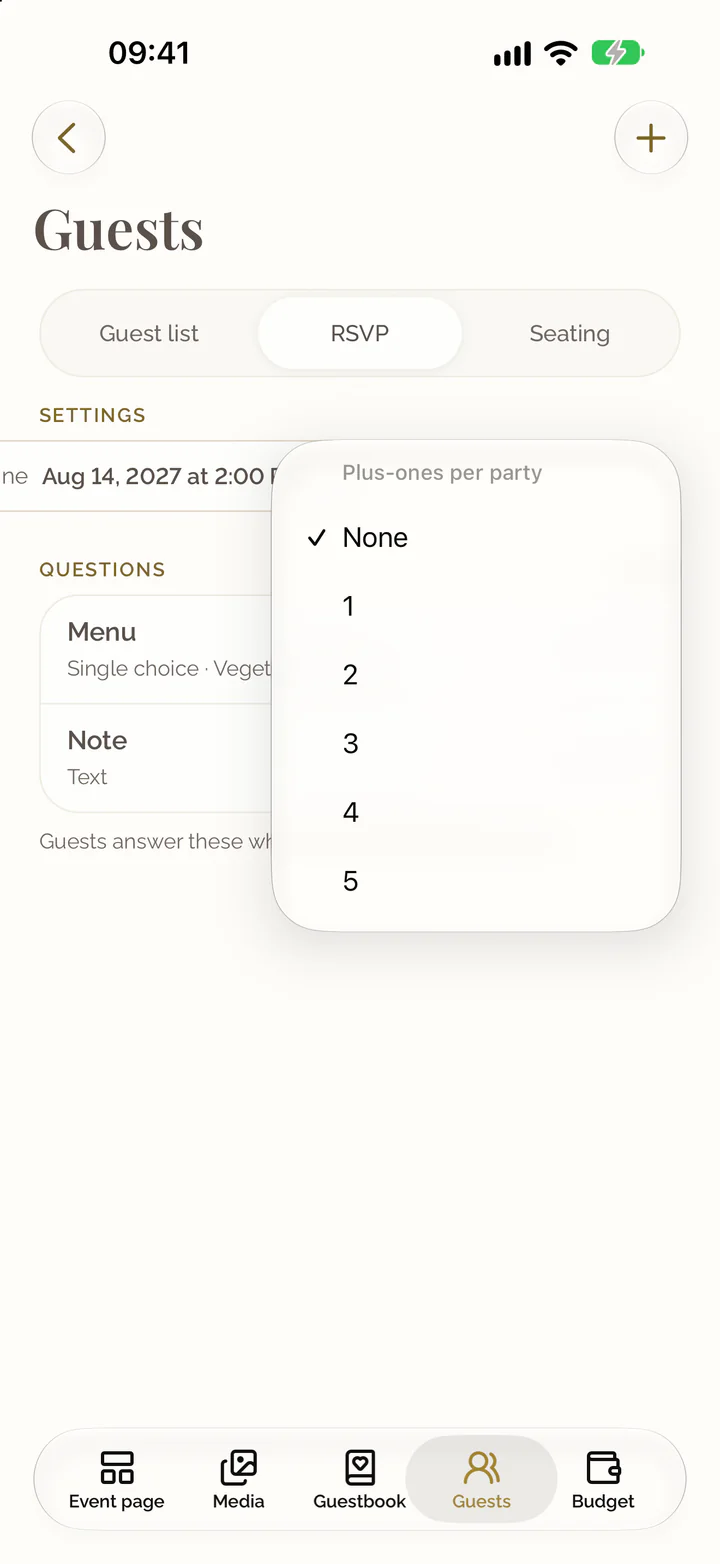
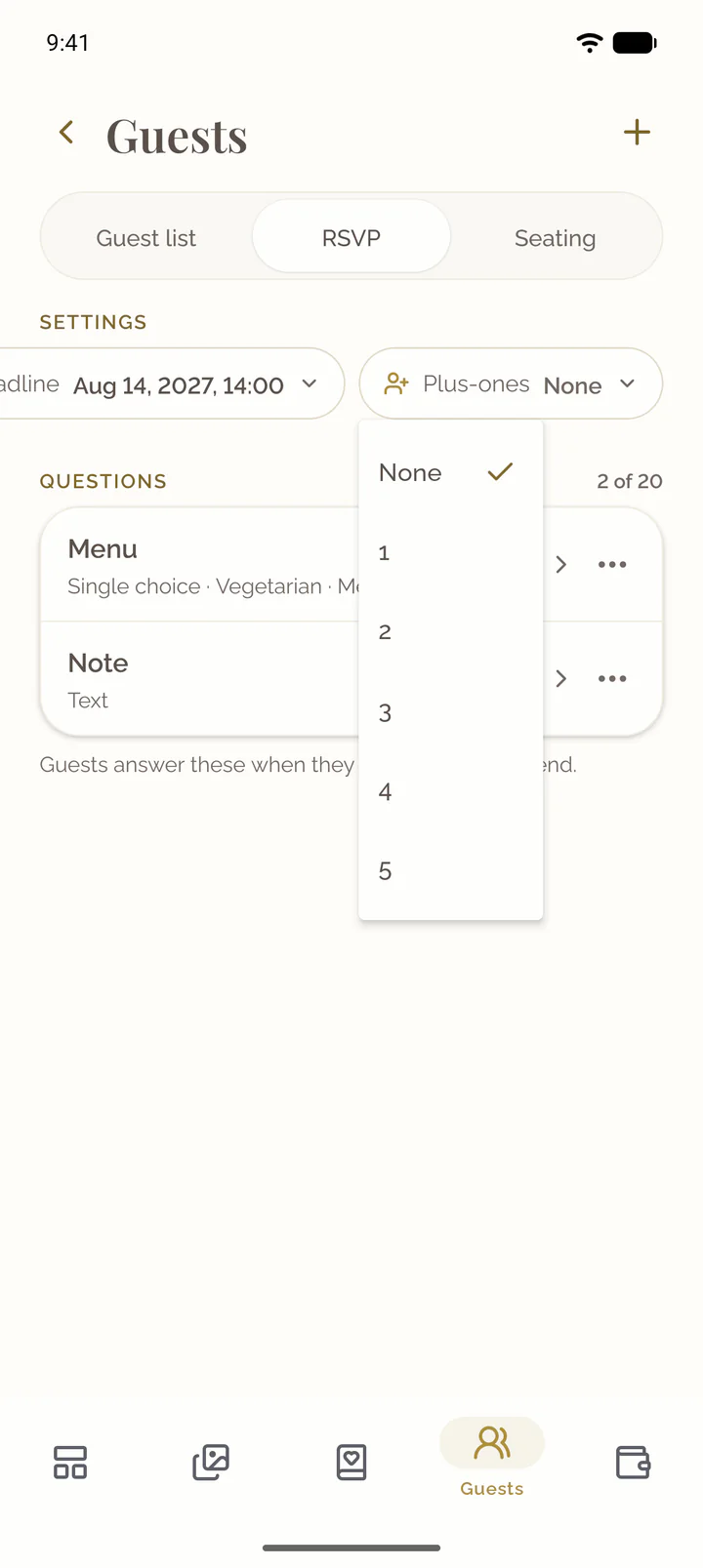
- Open the Guests tab and its view RSVP.
- Swipe the row of settings to its end.
- Select the setting Plus-ones.
- Choose how many people each party may add.
How guests find their name
- Guests open the event page and select Find your name under RSVP.
- They type their name; the guest list shows their party.
- They select themselves.
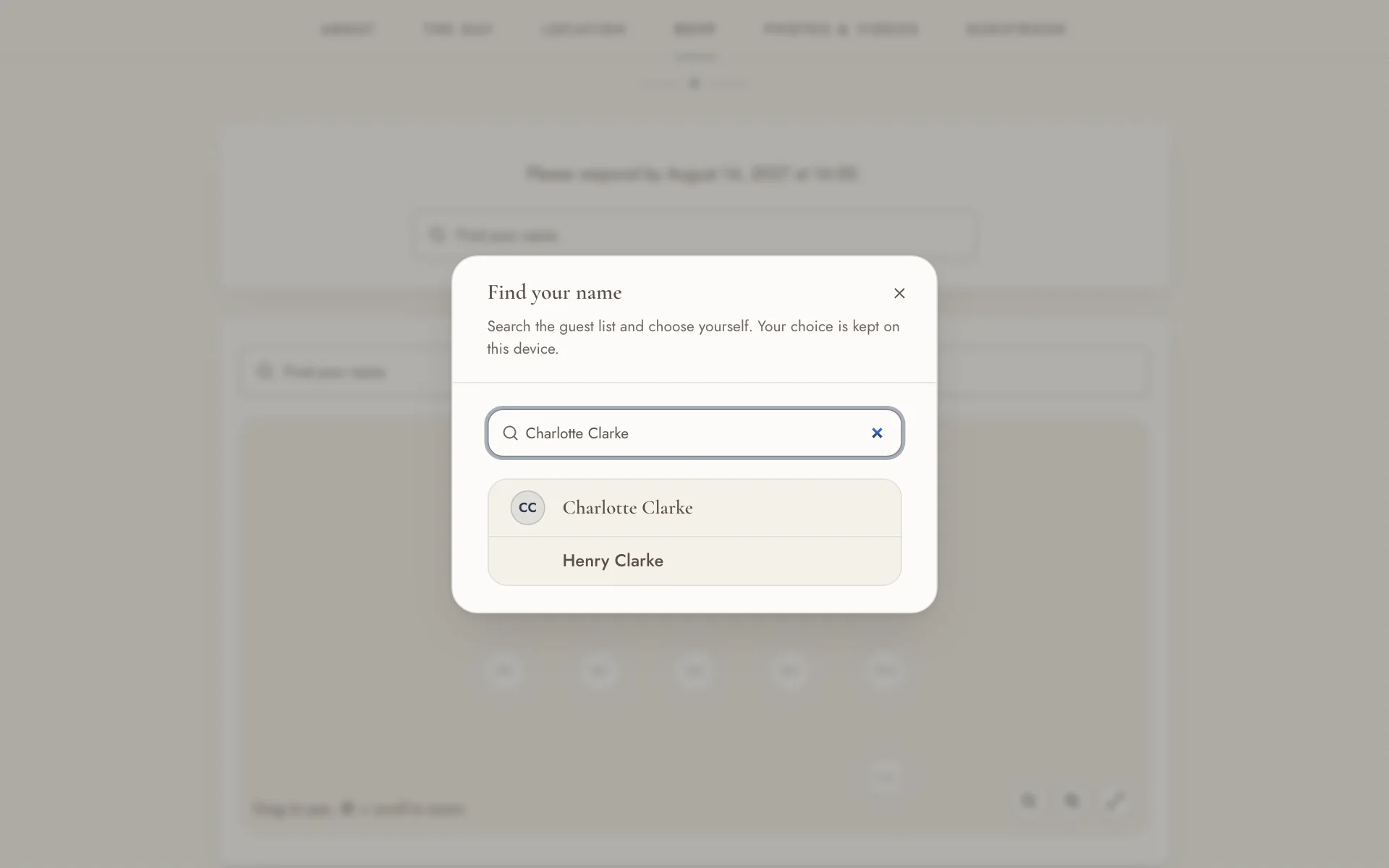
Guests choose their name on the web. The Event page tab shows the section as they see it: select Find your name and choose a guest to answer for their party.
How guests reply
- For each person of their party who has not replied yet, guests select Mark attending or Mark not attending.
- Where you ask questions, they answer them and select Save RSVP.
- Where their party may bring plus-ones, they select Add a plus-one, enter the name, answer your questions and select Add plus-one.
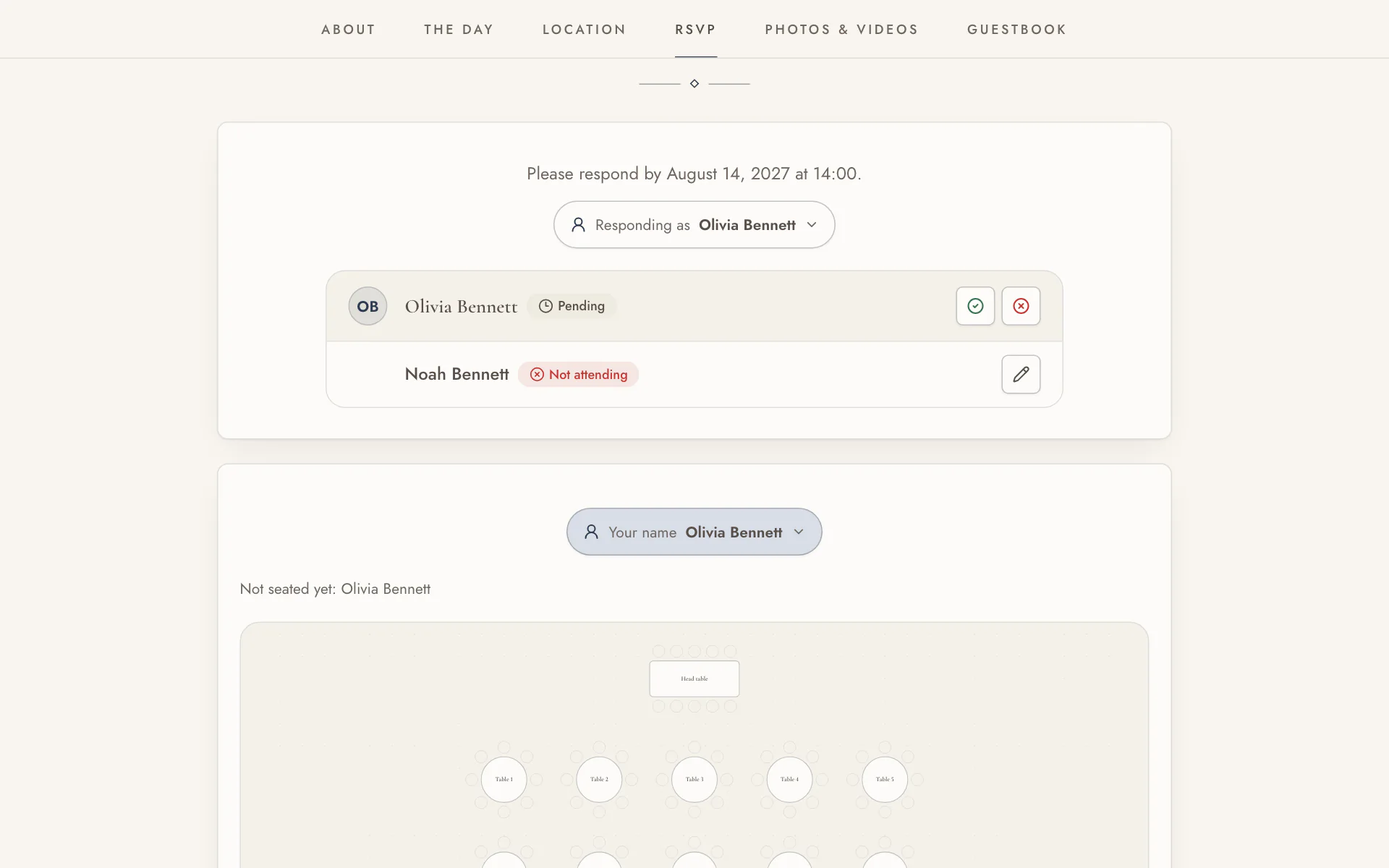
Guests reply on the web; to record a reply yourself, see below.
Record a reply yourself
- Open the Guests tab of the event.
- On a guest who has not replied, select Mark attending or Mark not attending. On a phone, open the menu of the guest first.
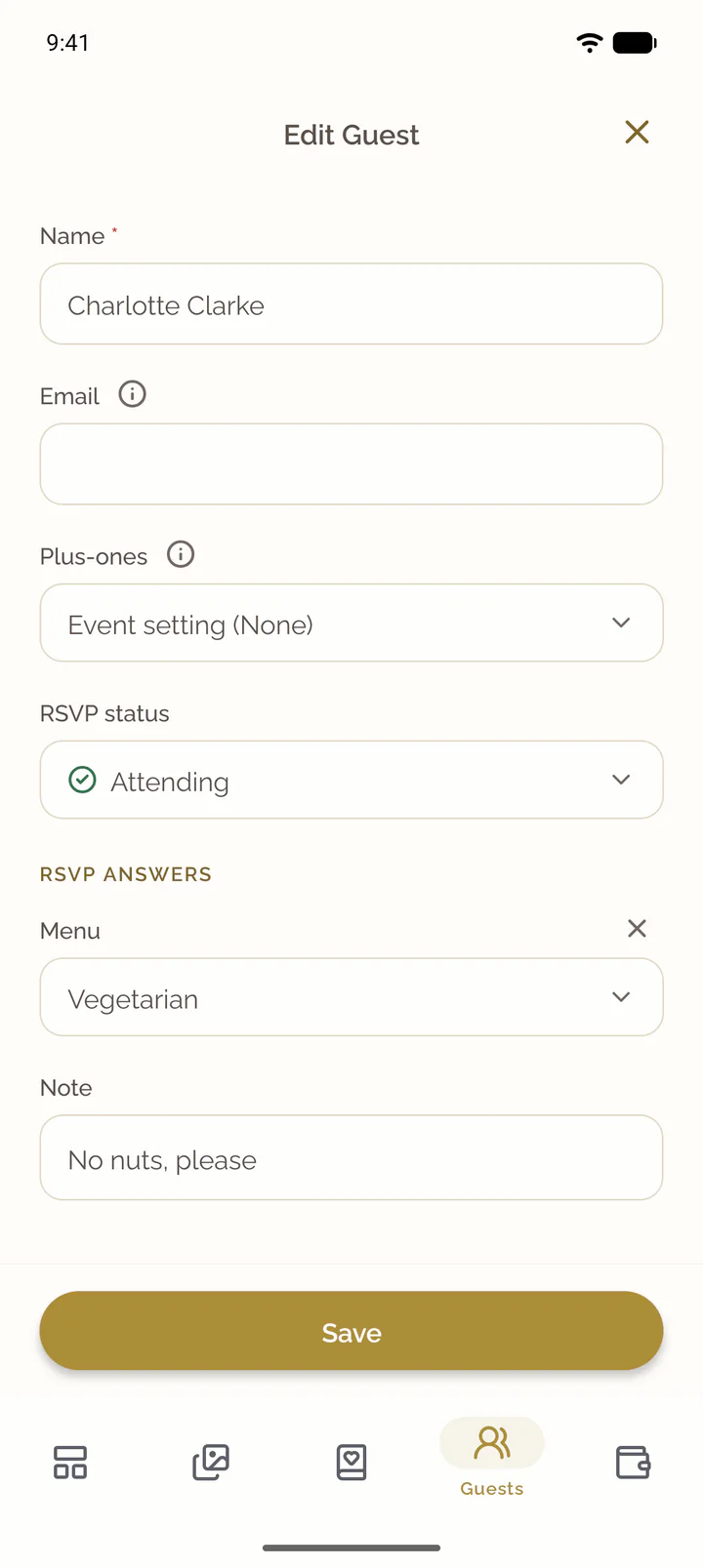
- To change a reply or to enter answers, open the menu of the guest and select Edit.
- Set RSVP status and the answers, then select Save.
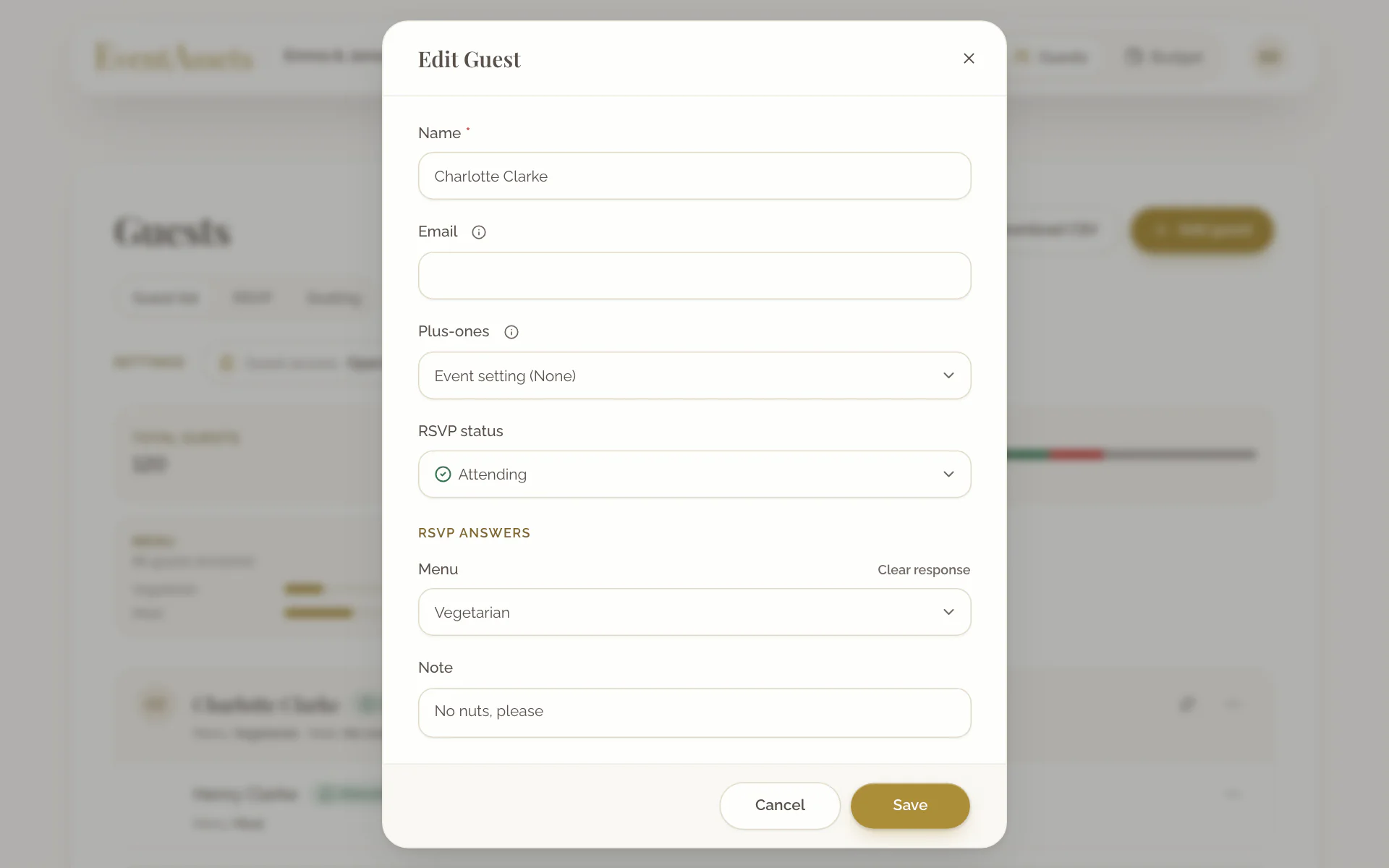
- Open the Guests tab of the event.
- On a guest who has not replied, open the menu at the end of the row and select Mark attending or Mark not attending. On a wide screen both stand in the row.
- To change a reply or to enter answers, select the guest.
- Set RSVP status and the answers, then select Save.
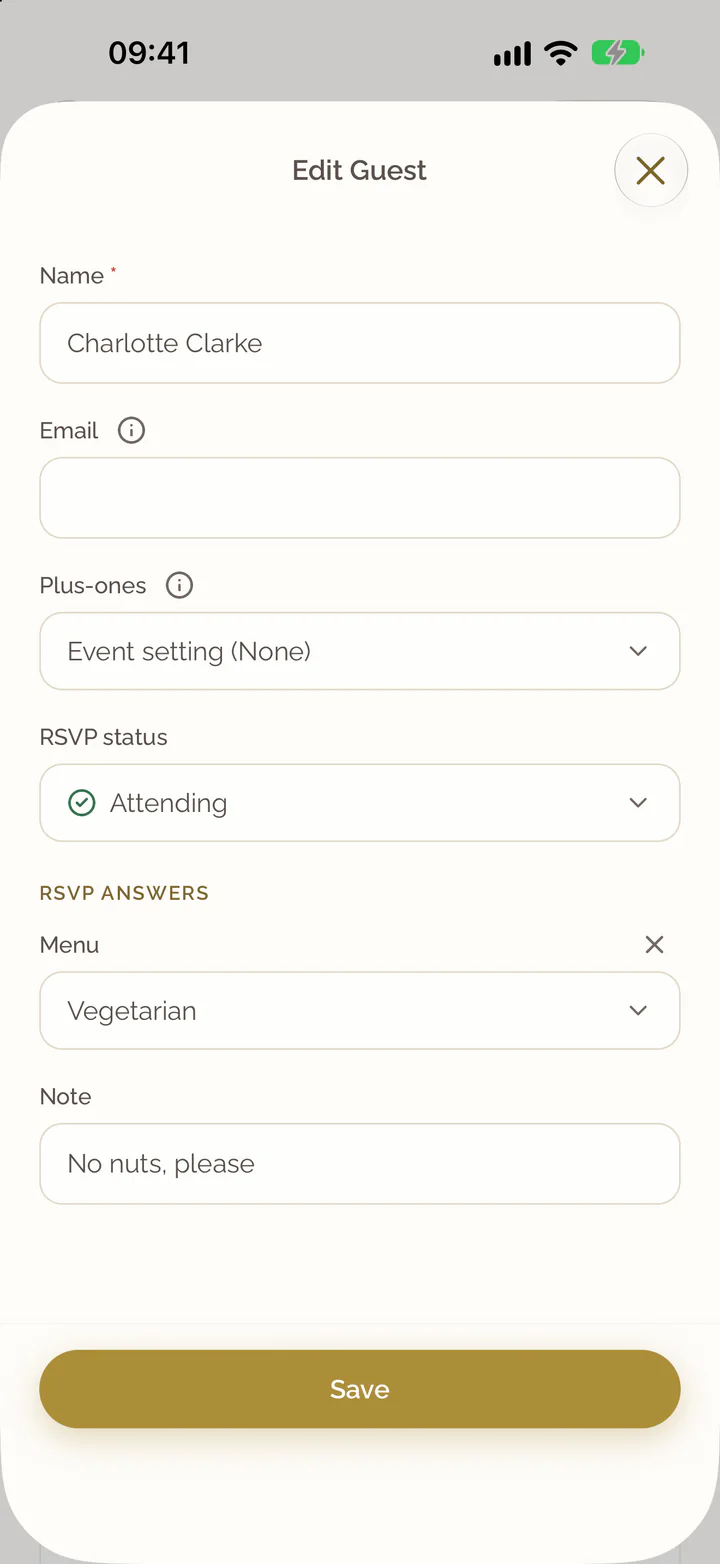
Follow the replies
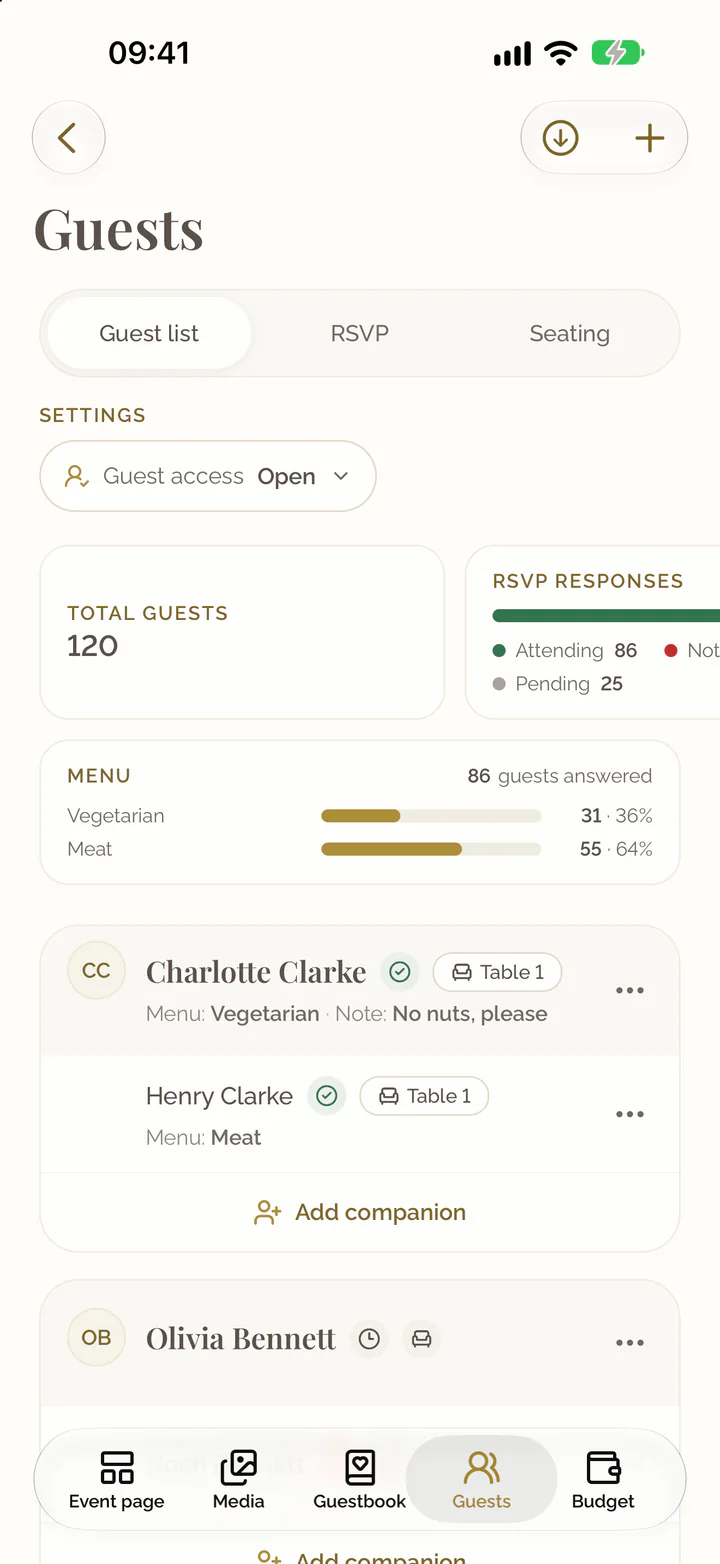
The tiles above the list show Total guests and, under RSVP responses, how many are Attending, Not attending and Pending. Every guest carries their answers on their row.
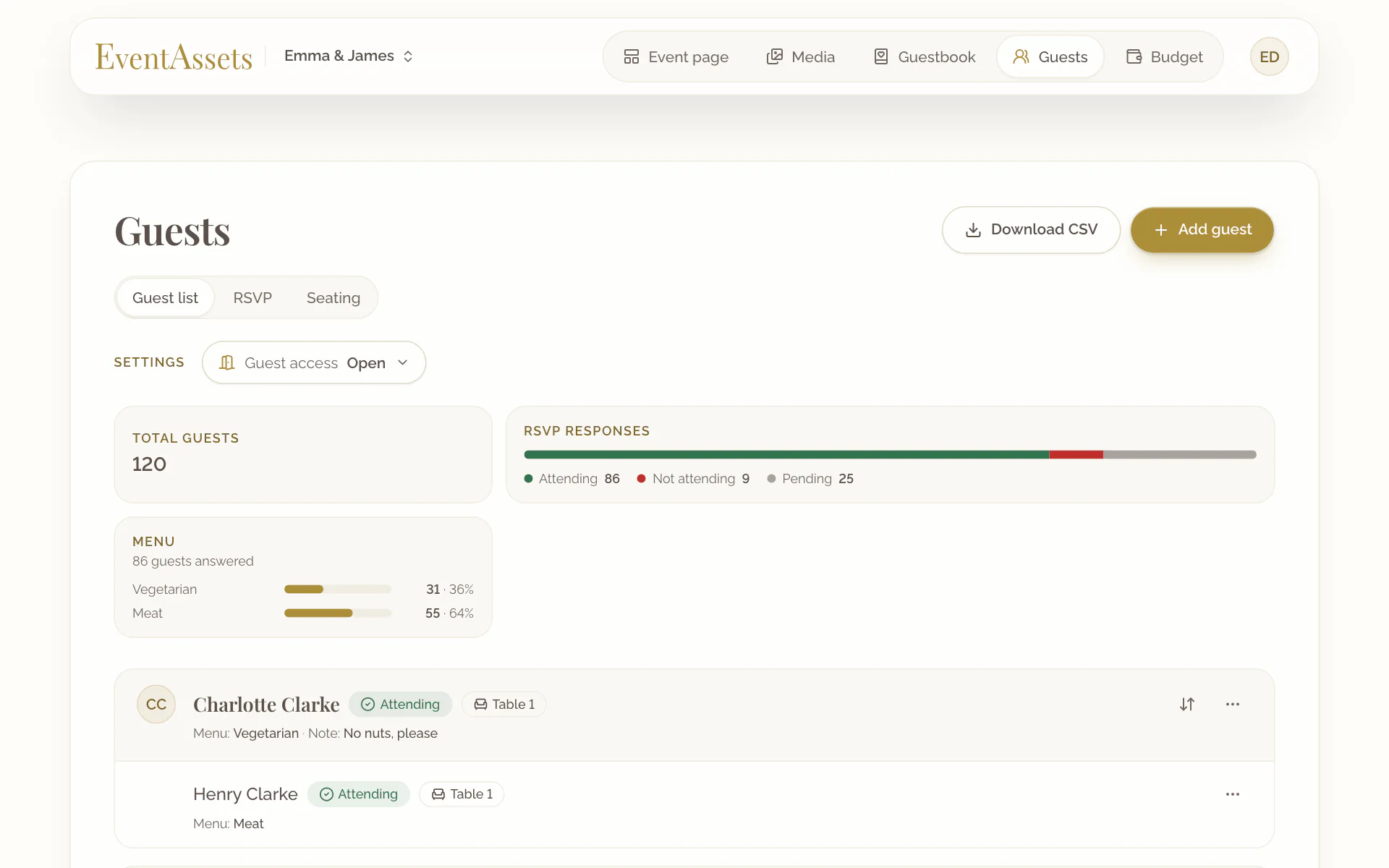
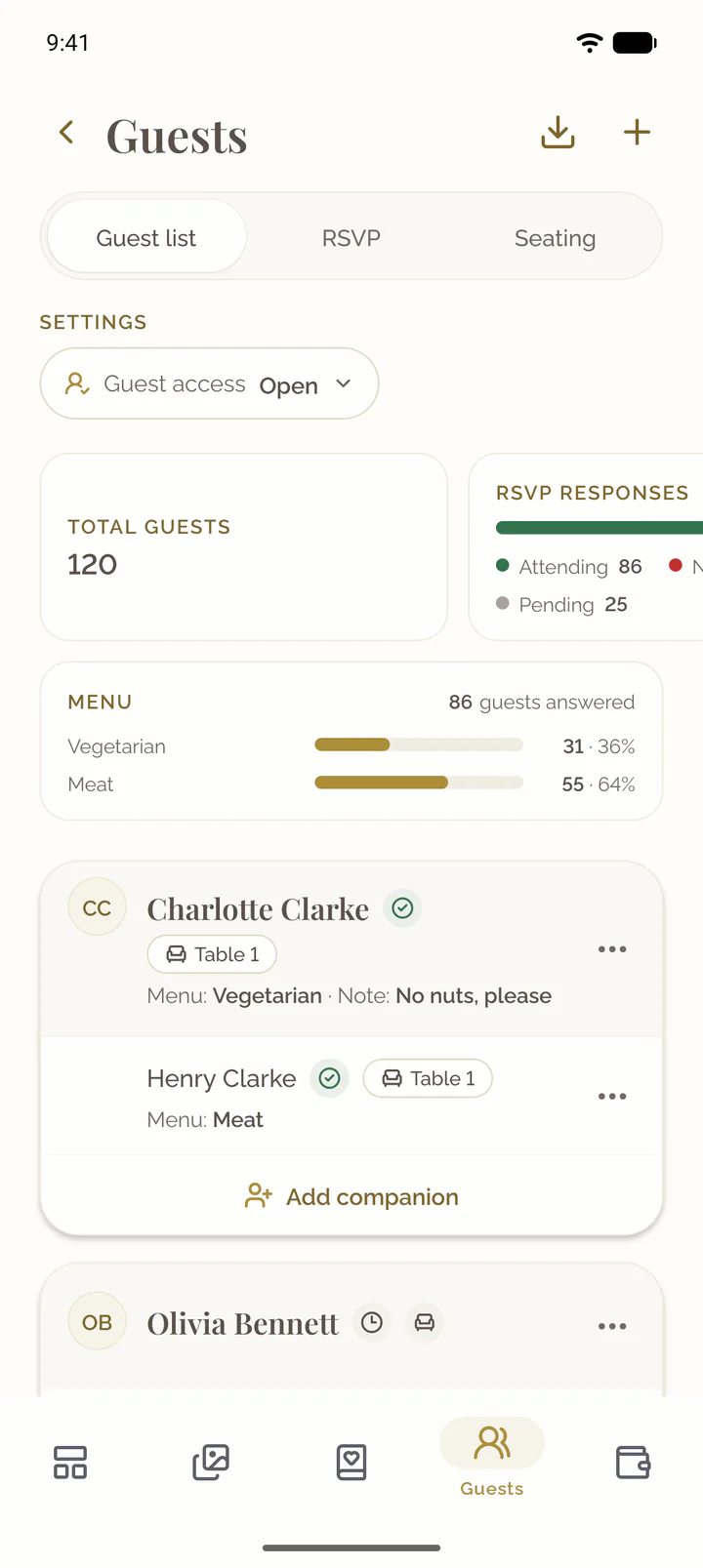
The tiles above the list show Total guests and, under RSVP responses, how many are Attending, Not attending and Pending. Swipe the row of tiles to see them all. Every guest carries their answers on their row.