
Build your guest list
Add your guests and their companions, keep the list in order, and export it with every reply.
Steps for
The Guests tab has two views: Guest list for the people you invite, RSVP for what they are asked. Only guests on your list reply and get a seat; to collect their replies, see Collect RSVPs.
Add a guest
- Open the Guests tab of the event.
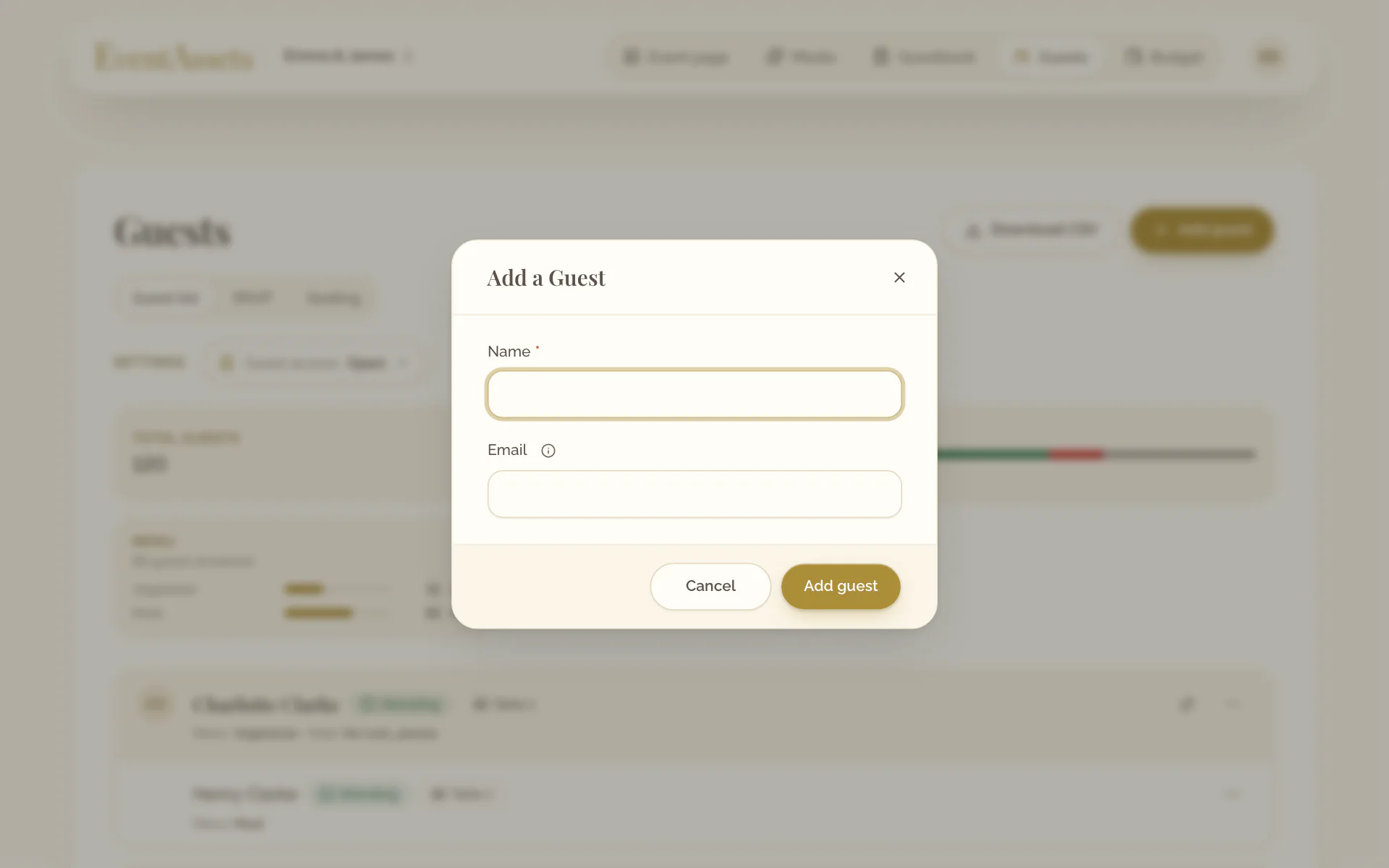
- Select Add guest.
- Enter the Name, and the Email if you like, then select Add guest.
- Open the Guests tab of the event.
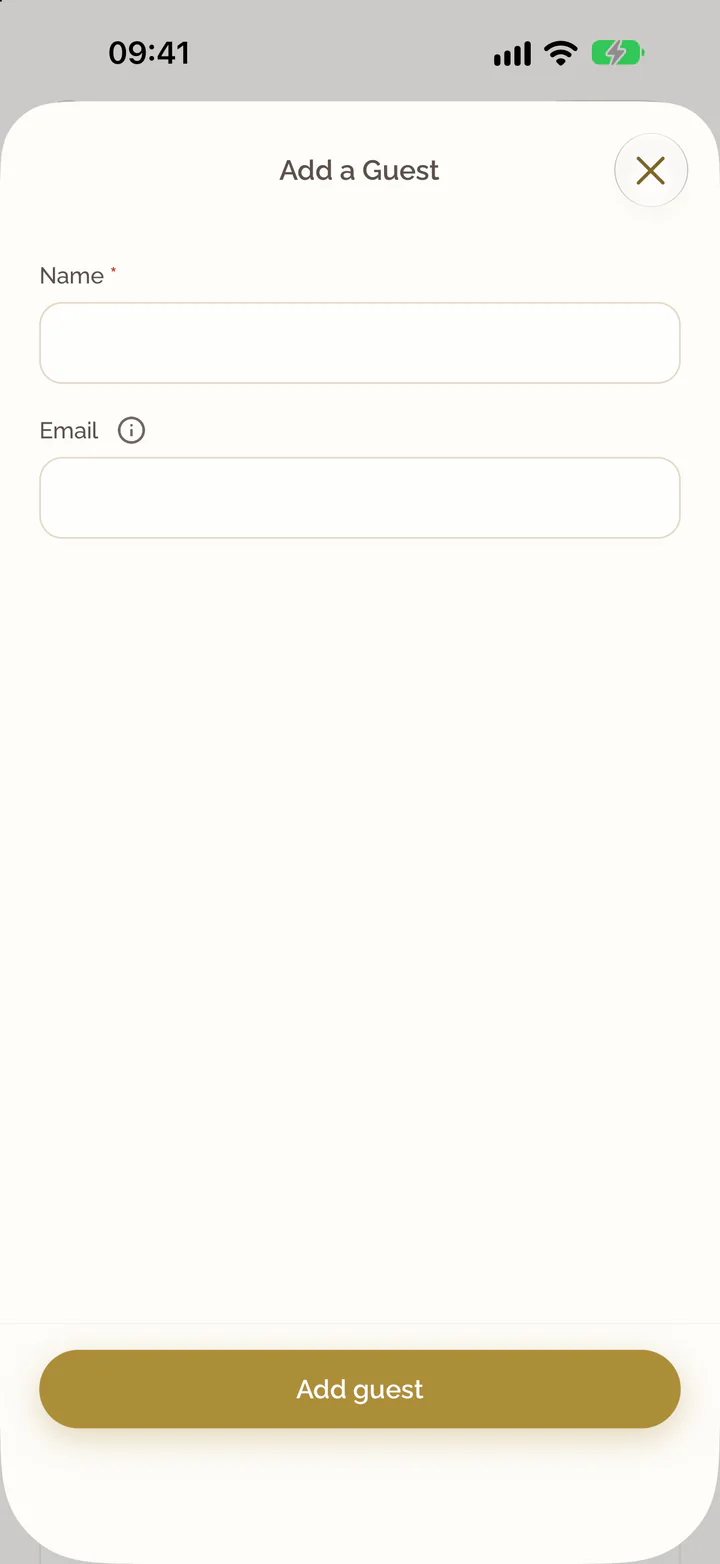
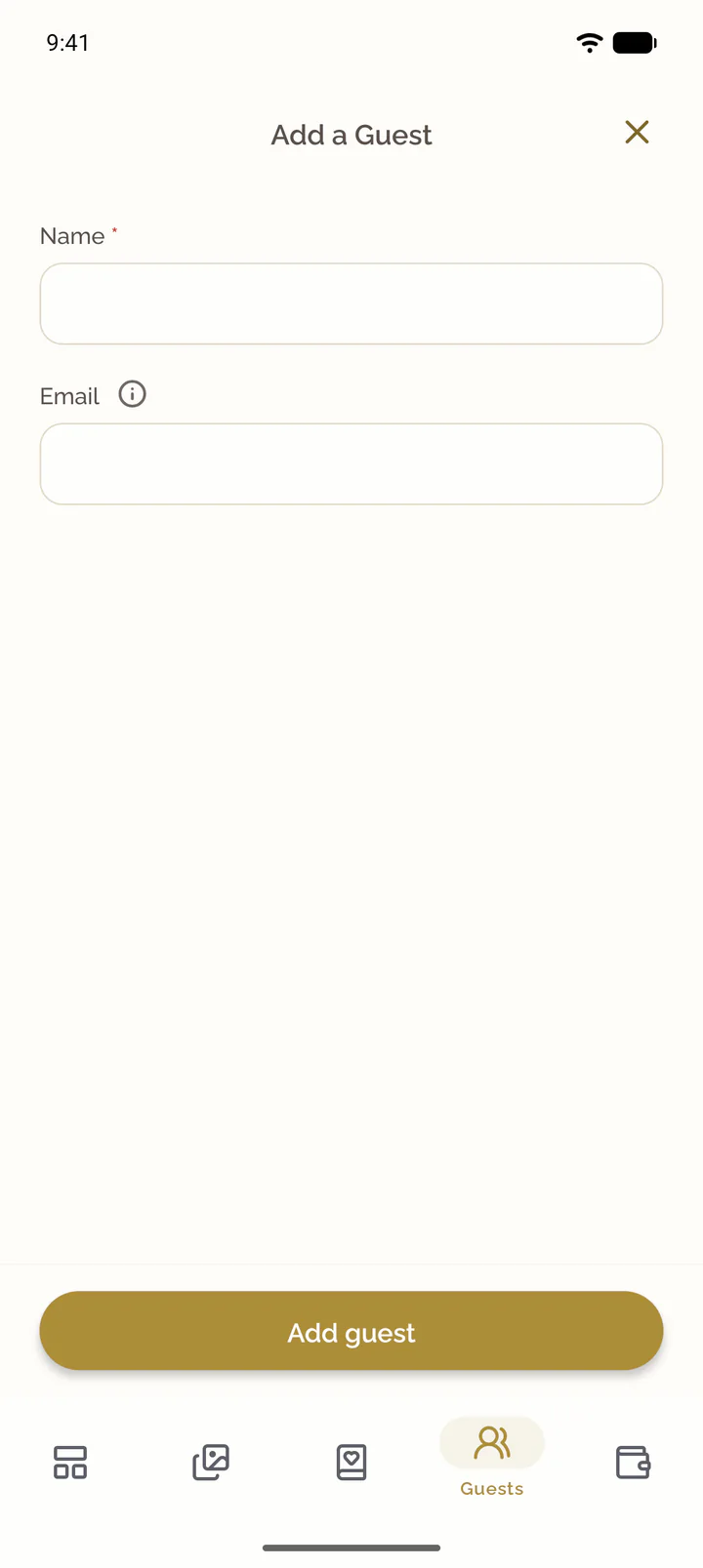
- Select the plus button at the top of the screen.
- Enter the Name, and the Email if you like, then select Add guest.
Add companions
- Open the menu of the guest, for example Actions for Anna Weber.
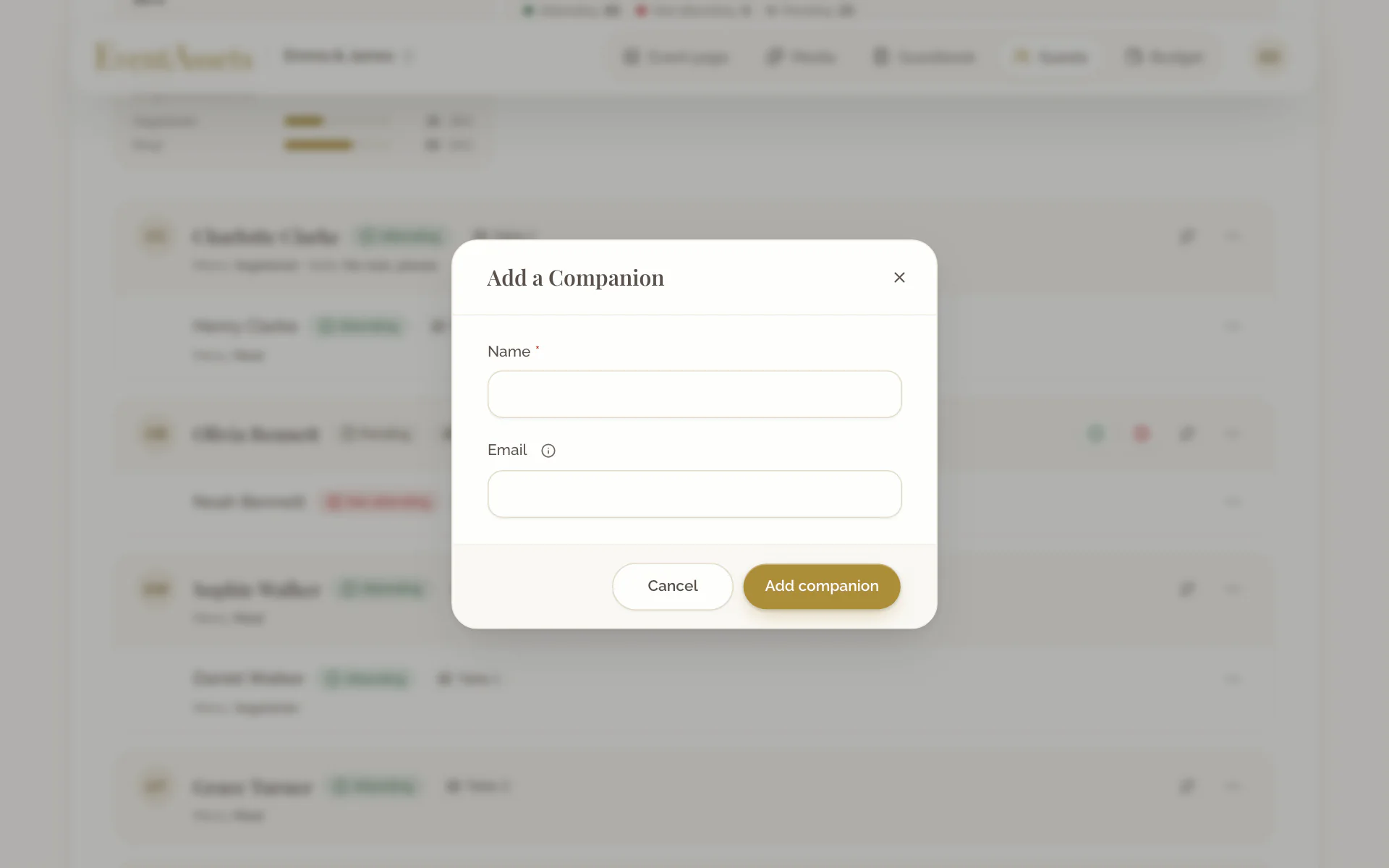
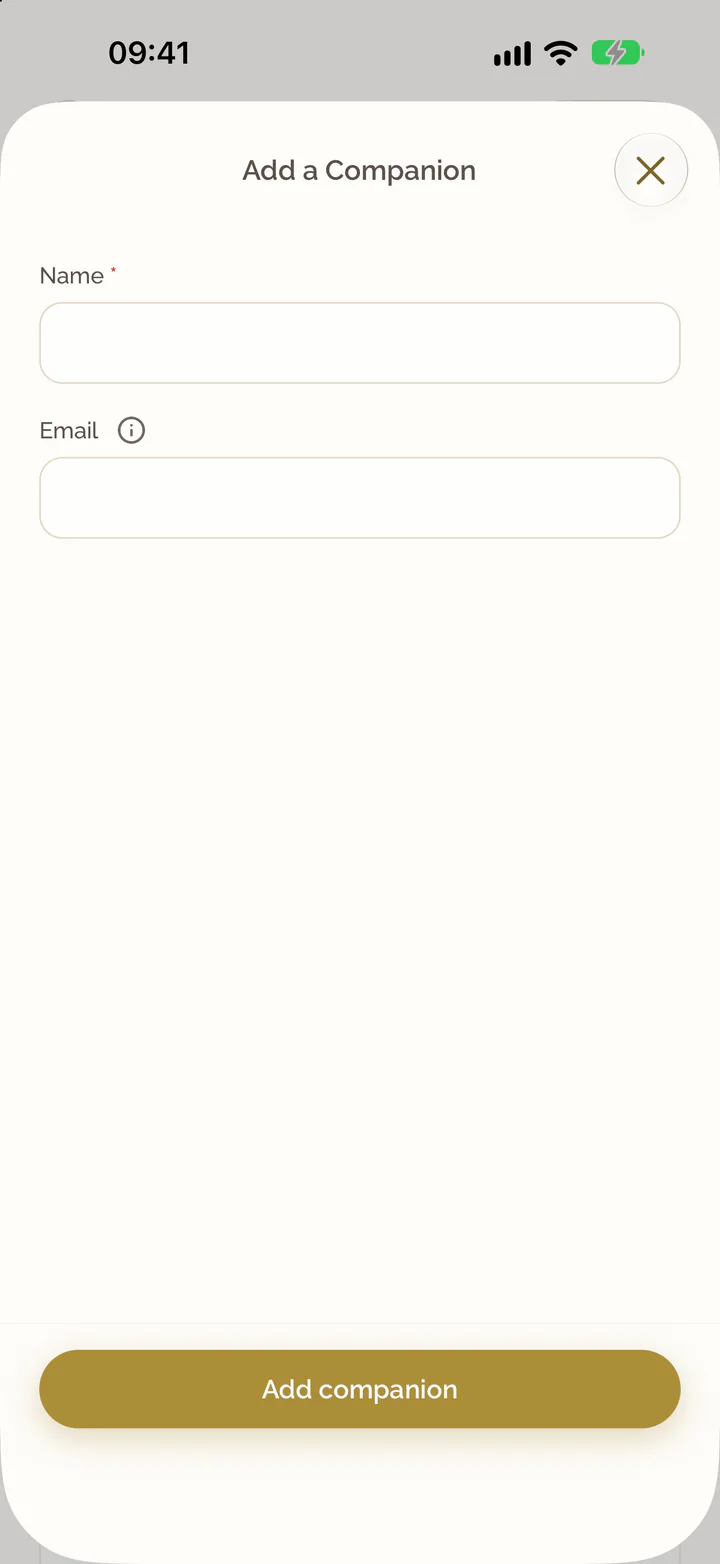
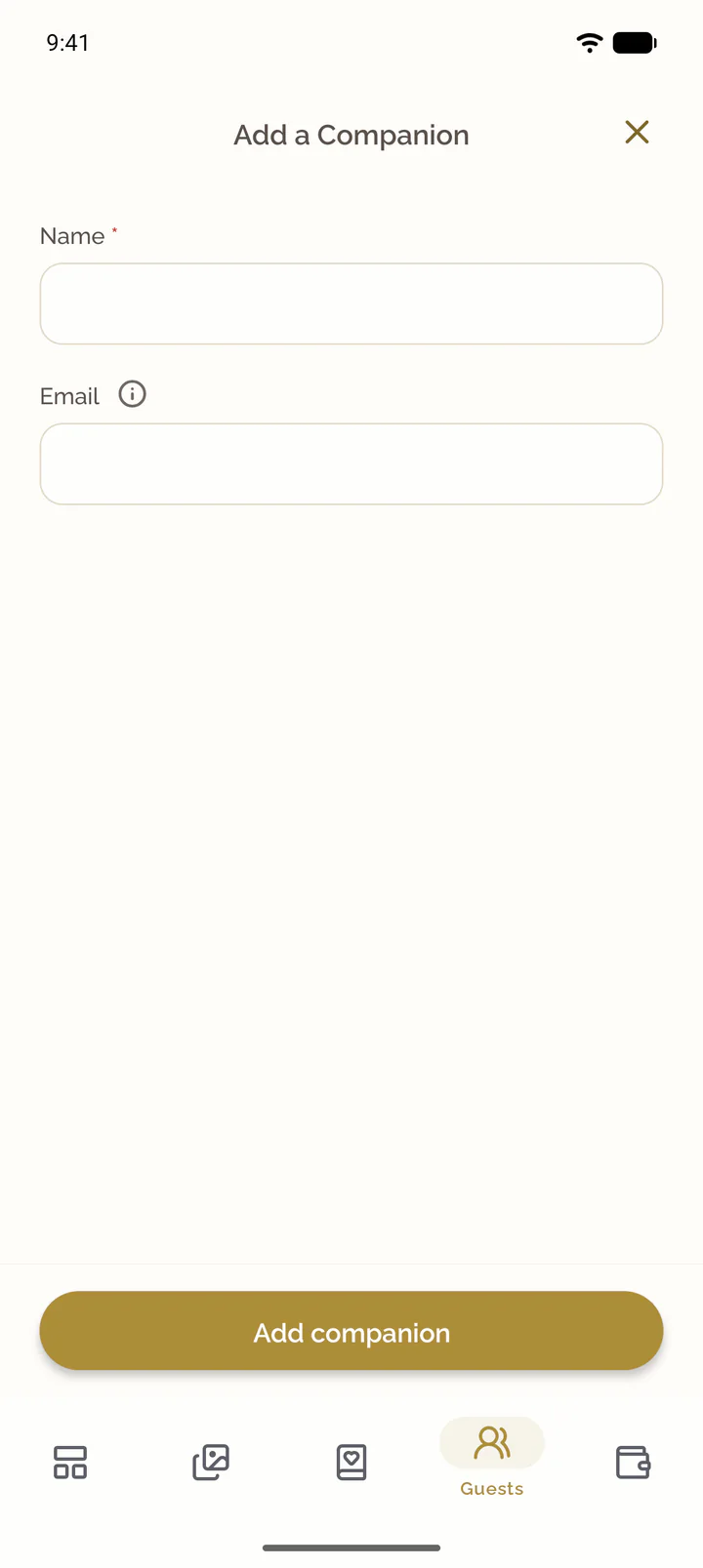
- Select Add companion.
- Enter the Name and select Add companion.
- Open the Guests tab of the event.
- Under the guest, select Add companion.
- Enter the Name and select Add companion.
Edit or reorder guests
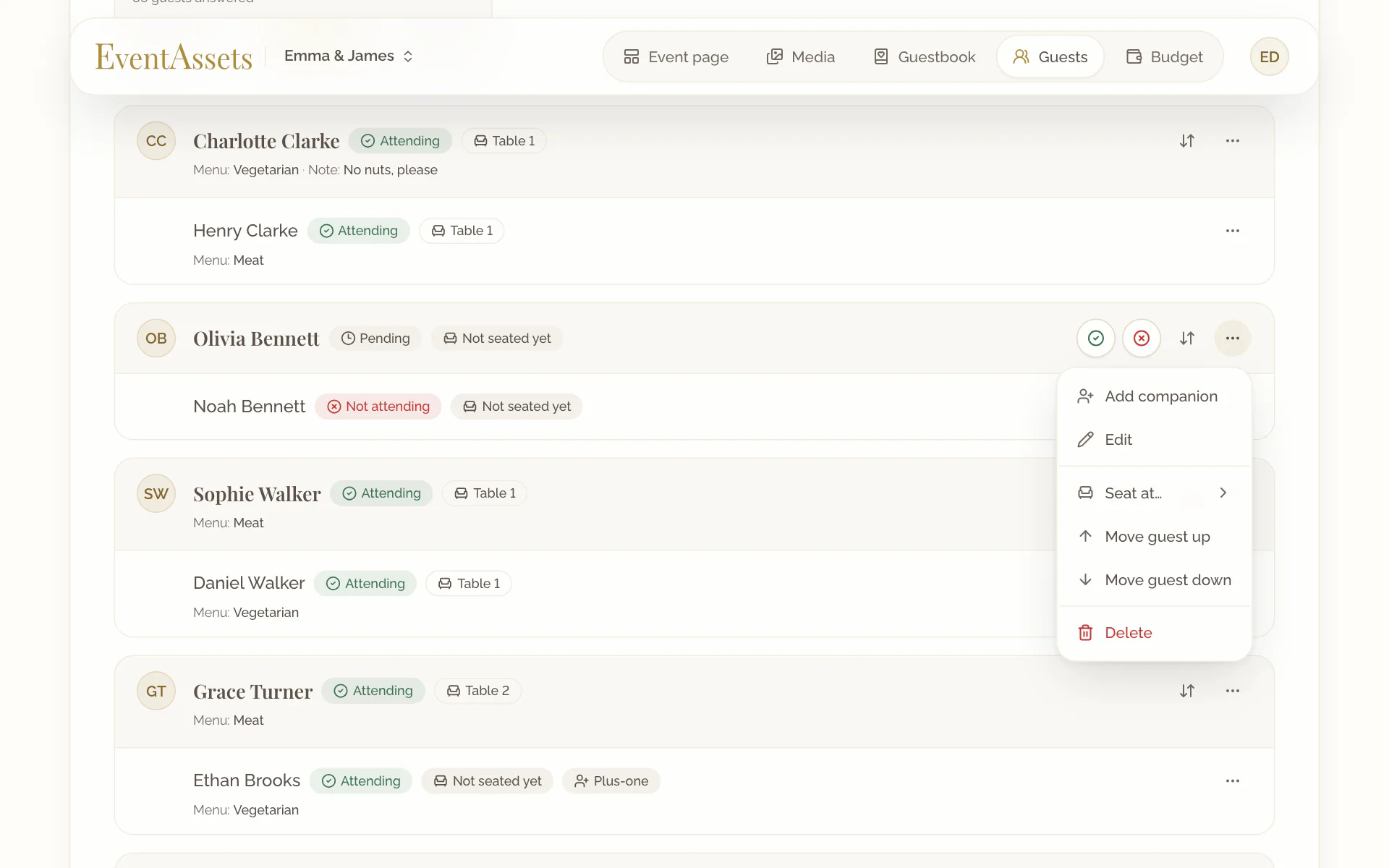
- Open the menu of the guest or the companion.
- Select Edit to change the name or the email, then Save.
- Select Move guest up or Move guest down to change the order.
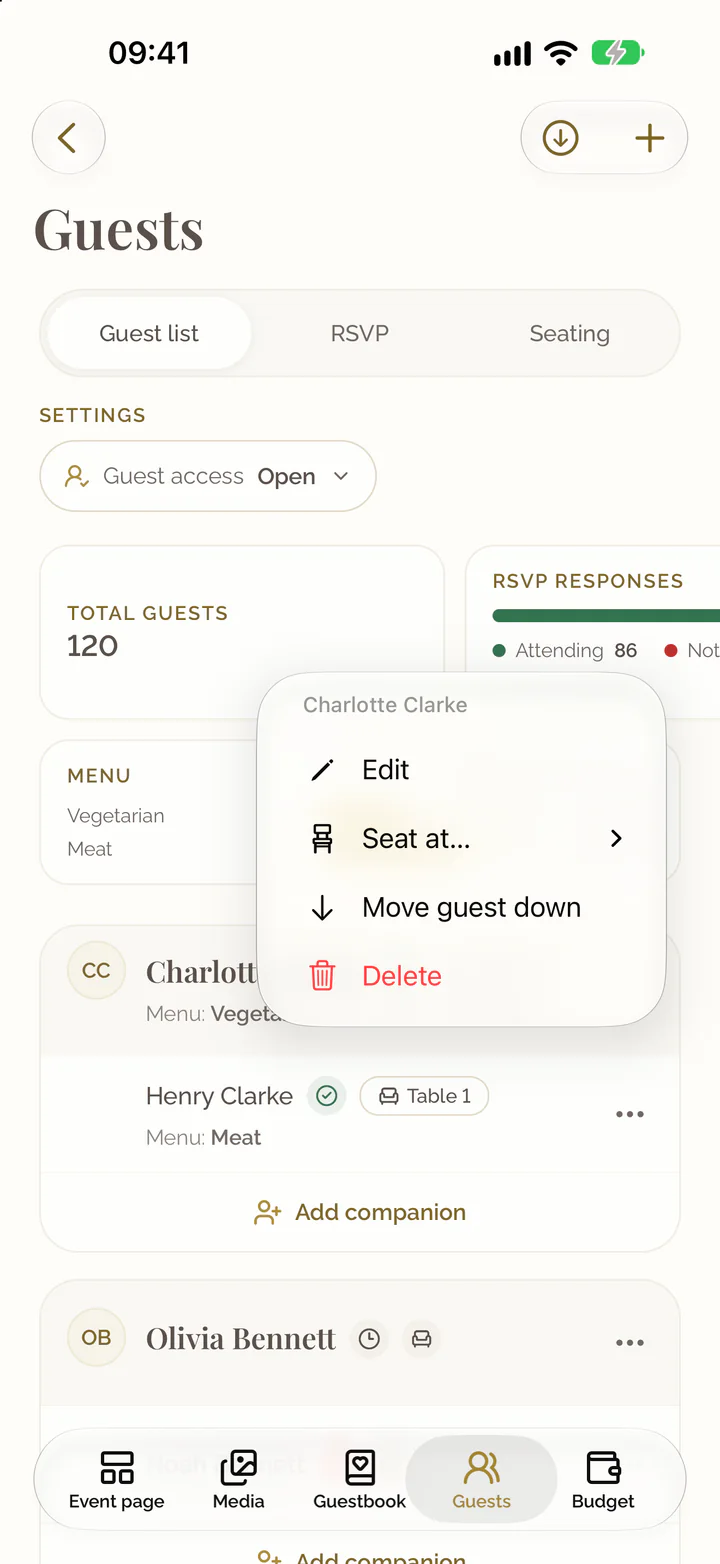
- Select the guest or the companion.
- Change the name or the email and select Save.
- To change the order, open the menu at the end of the row and select Move guest up or Move guest down.
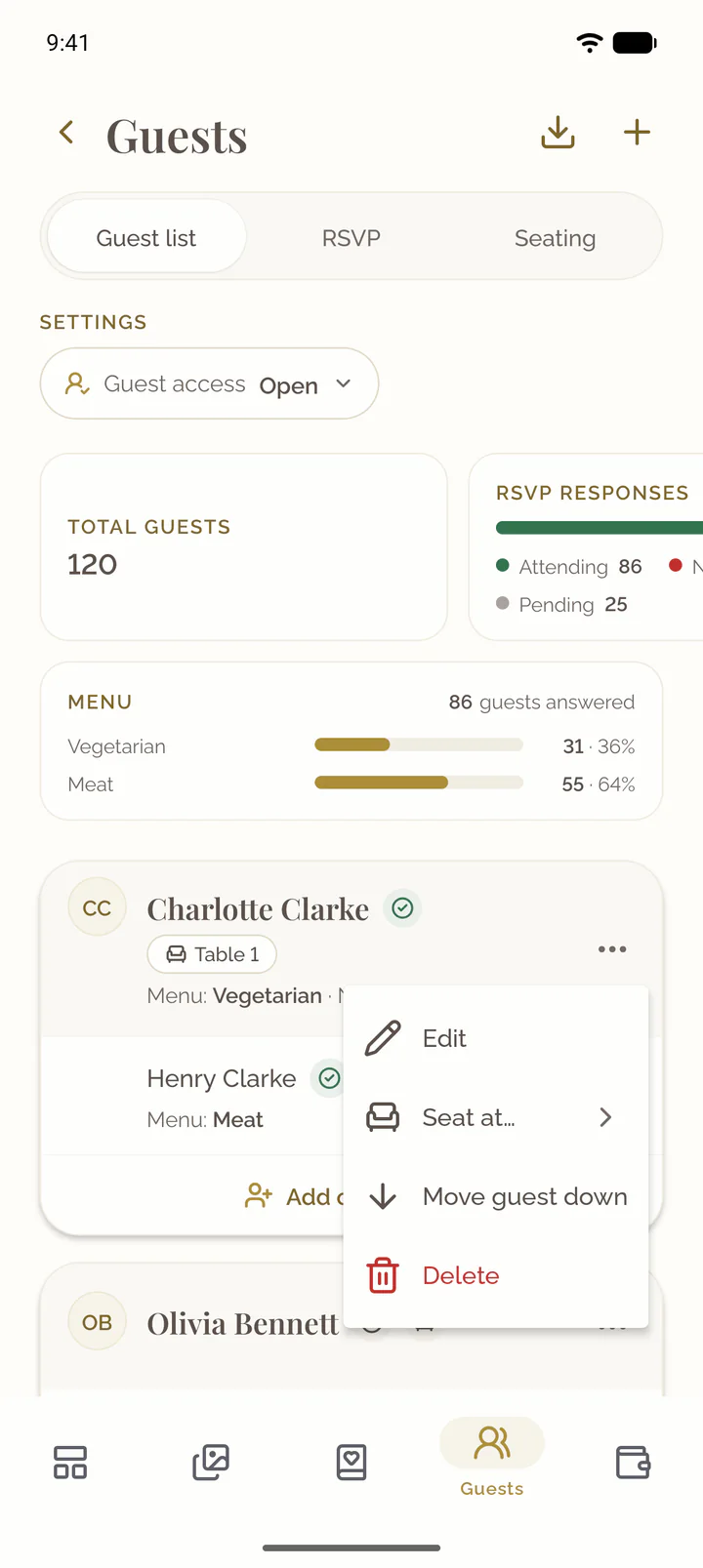
Delete a guest
- Open the menu of the guest or the companion.
- Select Delete.
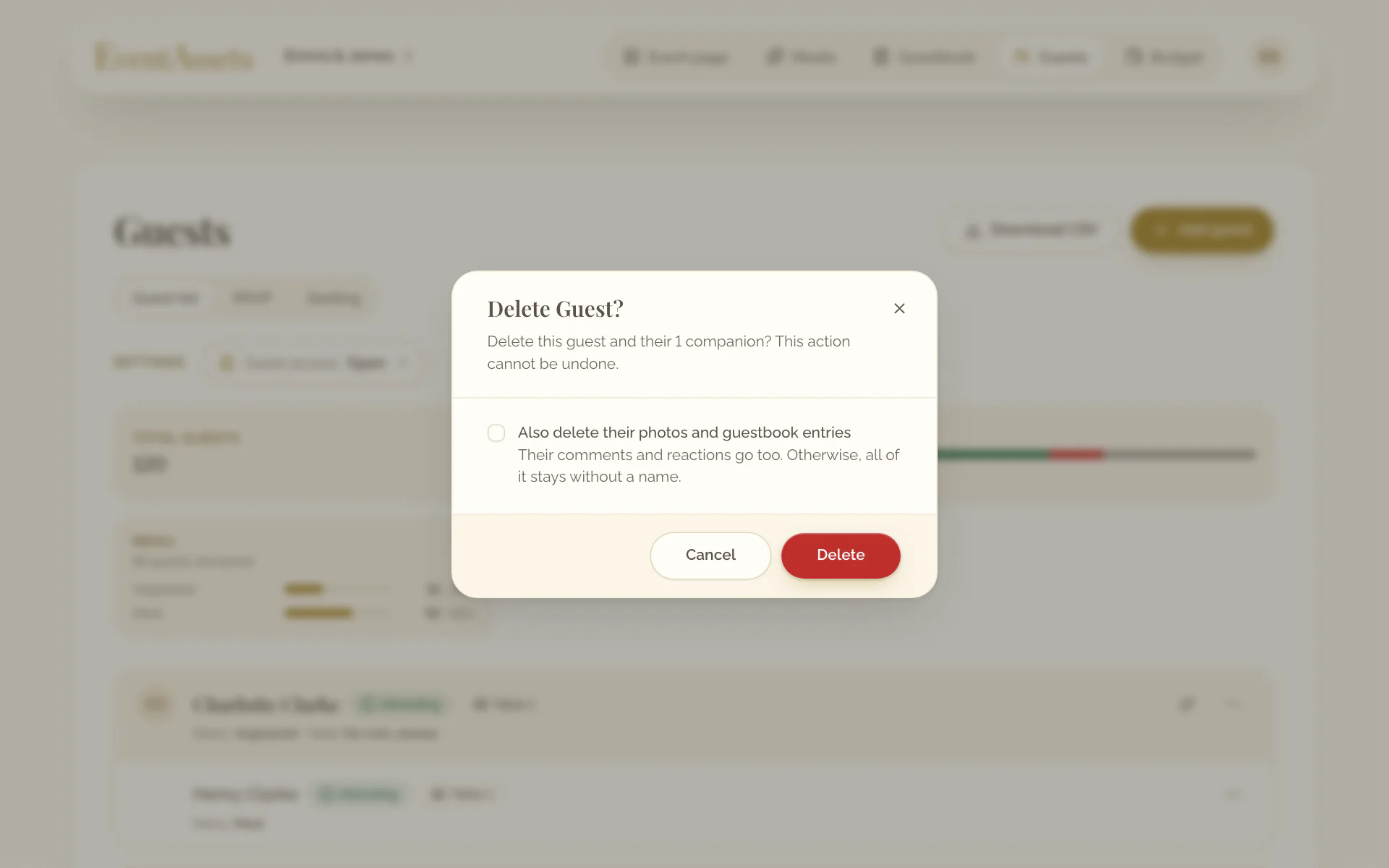
- To delete what they shared on the event page too, select Also delete their photos and guestbook entries.
- Confirm with Delete.
- Open the menu at the end of the row of the guest or the companion.
- Select Delete. A companion can also be swiped aside to delete.
- Confirm with Delete, or with Delete with what they shared to delete what they shared on the event page too.
Export the guest list
- Open the Guests tab of the event.
- Select Download CSV.
- Open the Guests tab of the event.
- Select the download button at the top of the screen. The file is handed to the apps on the phone: save it or send it on.