
Choose a template and design your event page
Choose a template for your event page, try it on your own page first, set its colors and fonts, and decide whether its chapters stand behind tabs.
Steps for
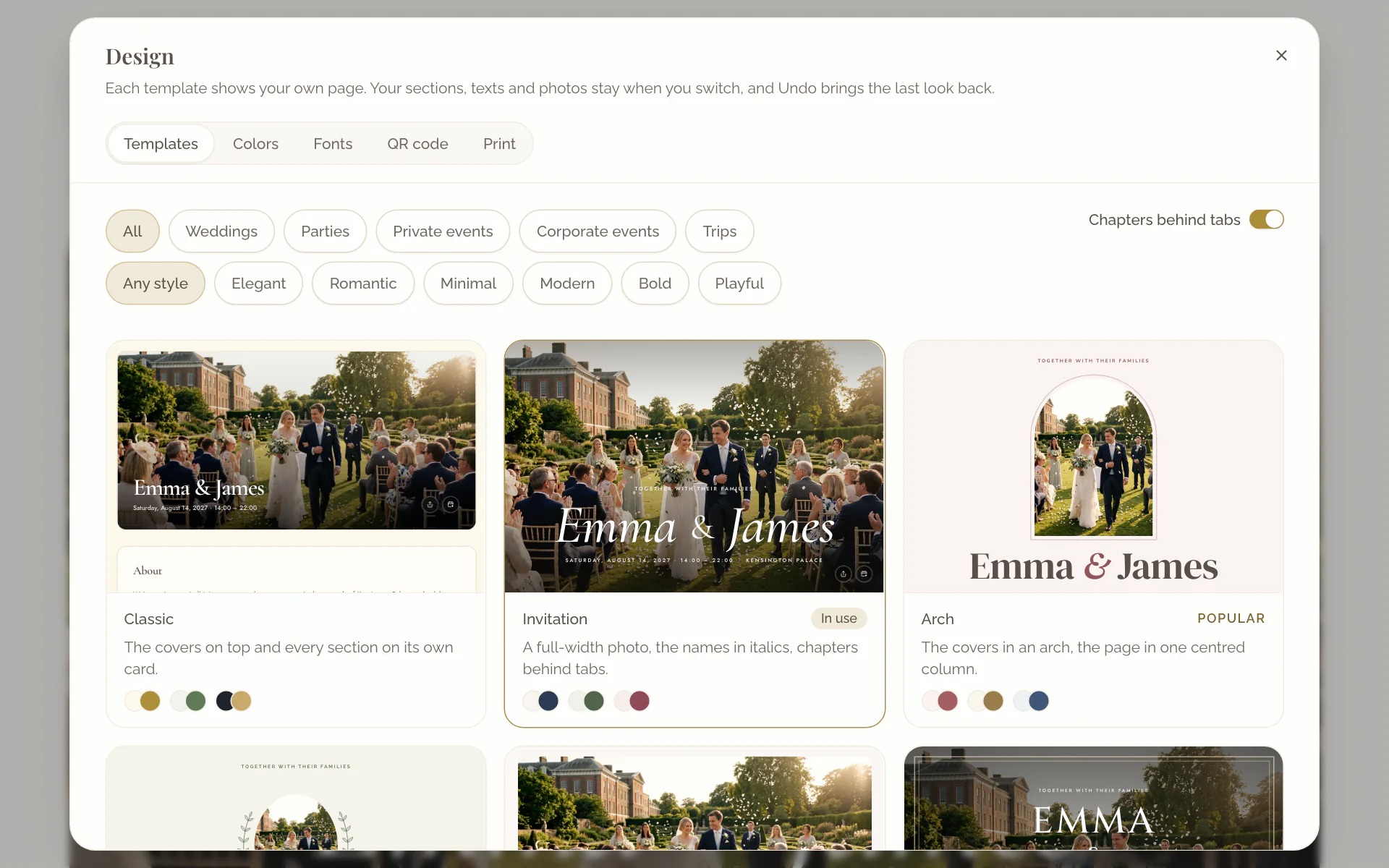
A template decides how the event page looks: where the covers stand, how the name is set and how its chapters follow each other. It changes nothing of what is on the page.
Open Design
- Open the Event page tab of the event.
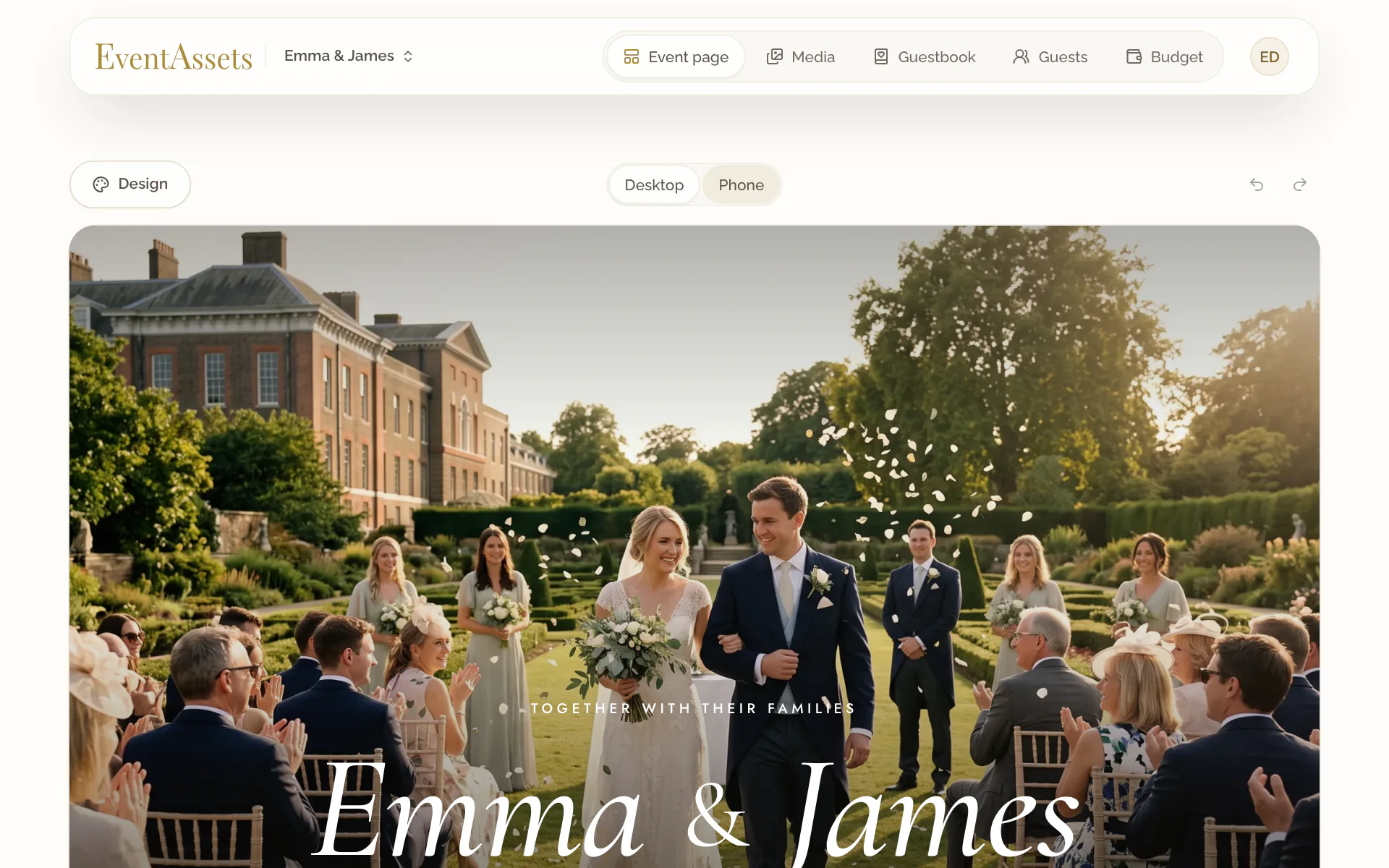
- Select Design over the page.
- Choose a part: Templates, Colors, Fonts, QR code or Print.
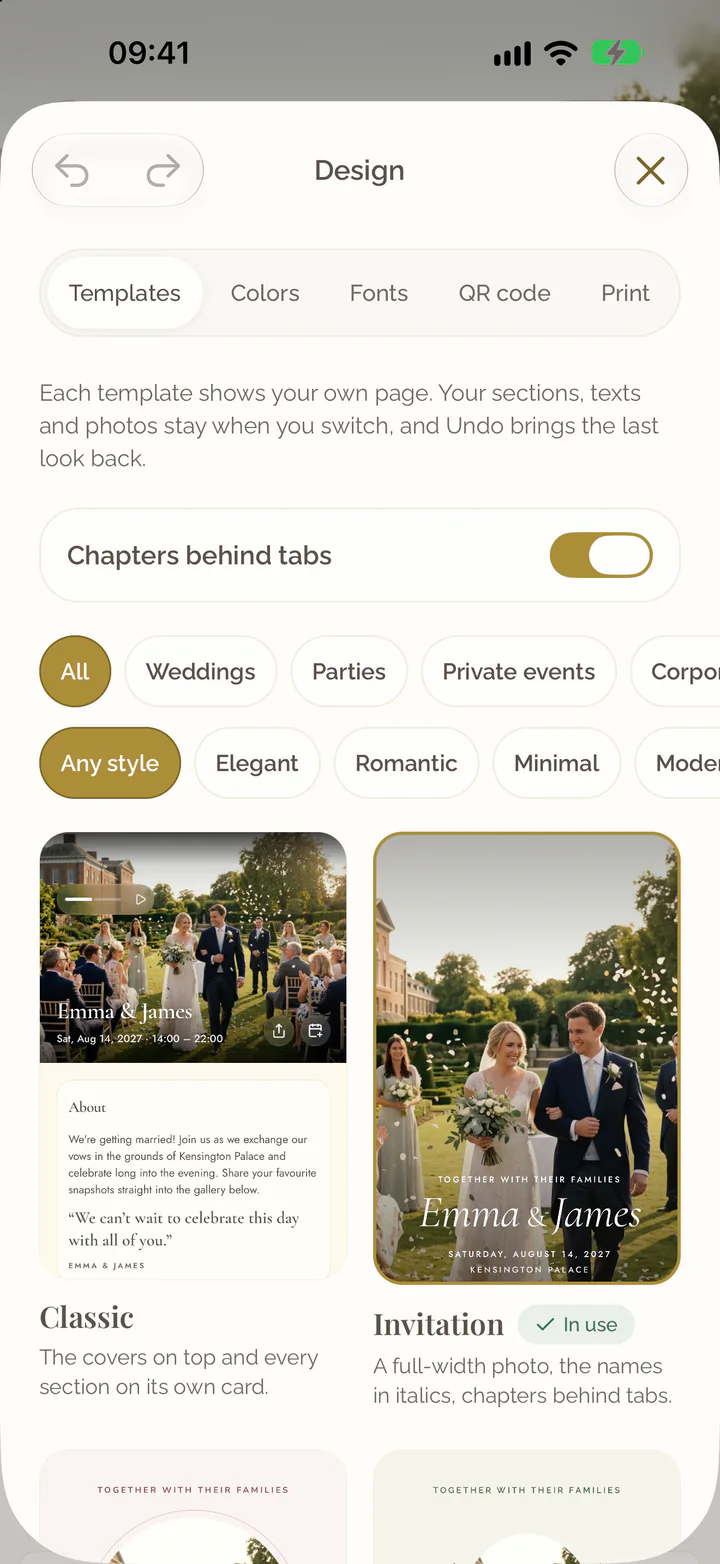
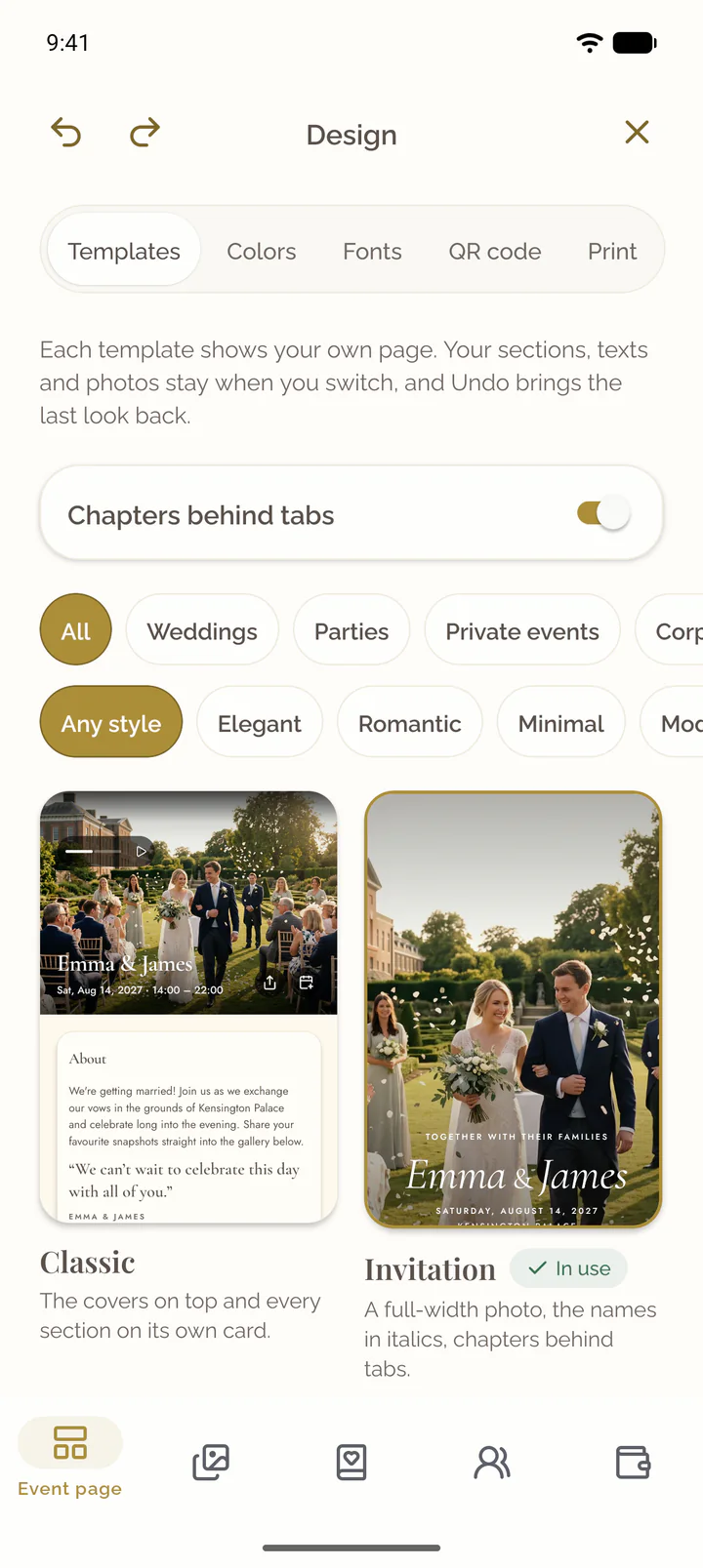
- Open the Event page tab of the event.
- Select the three dots at the top of the cover, then Design.
- Choose a part: Templates, Colors, Fonts, QR code or Print.
Choose a template
- Under Templates, narrow the templates with Occasion and Style if you like.
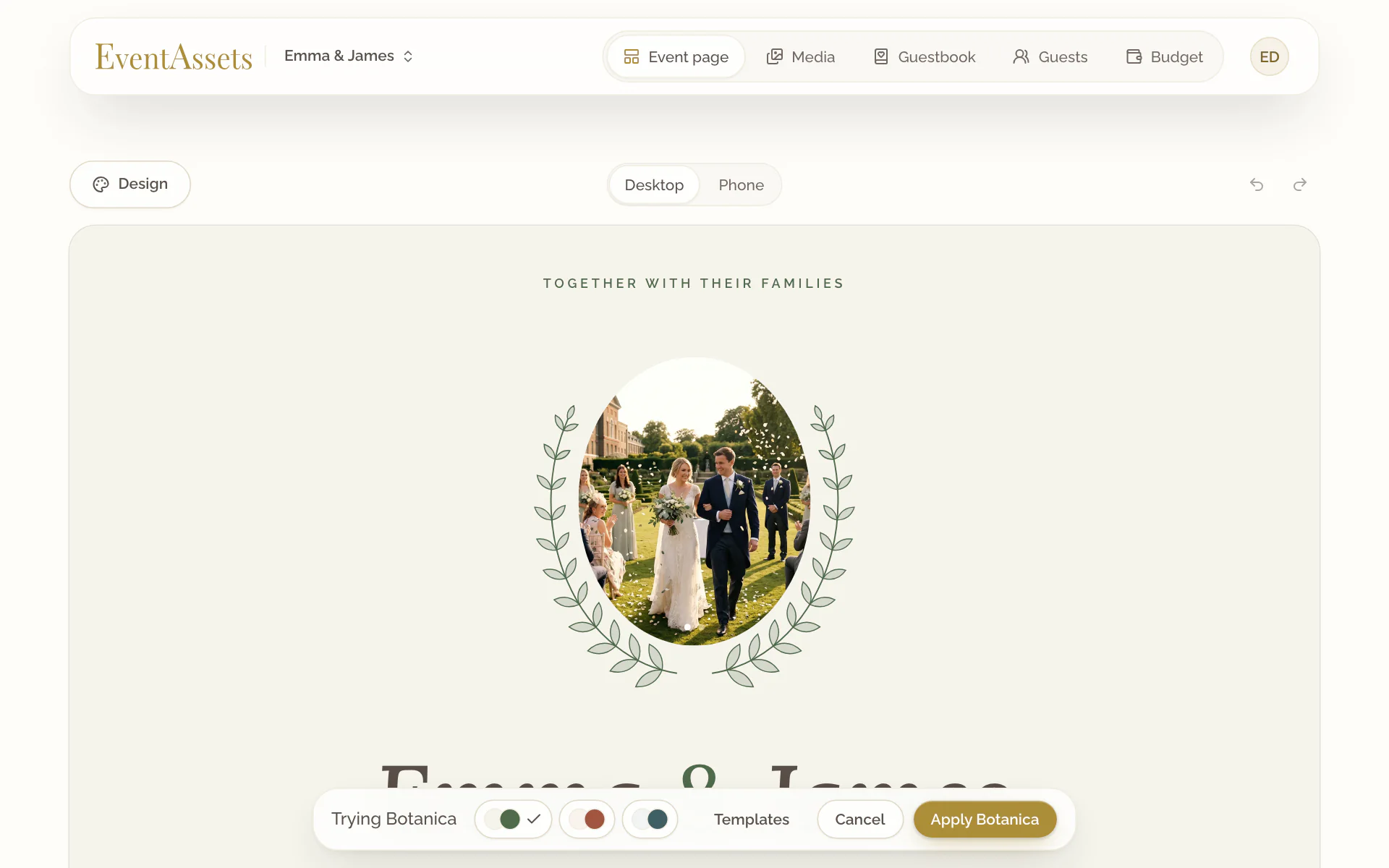
- Select a template. The dialog closes and your page stands in it; nothing has changed for your guests yet.
- In the bar at the bottom, select one of its palettes.
- Select the button that applies it, for example Apply Botanica. Cancel keeps the page as it was, Templates returns to the others.
- Under Templates, narrow the templates with Occasion and Style if you like.
- Tap a template. Your page opens in it; nothing has changed for your guests yet.
- Select one of its palettes.
- Select the button that applies it, for example Apply Botanica.
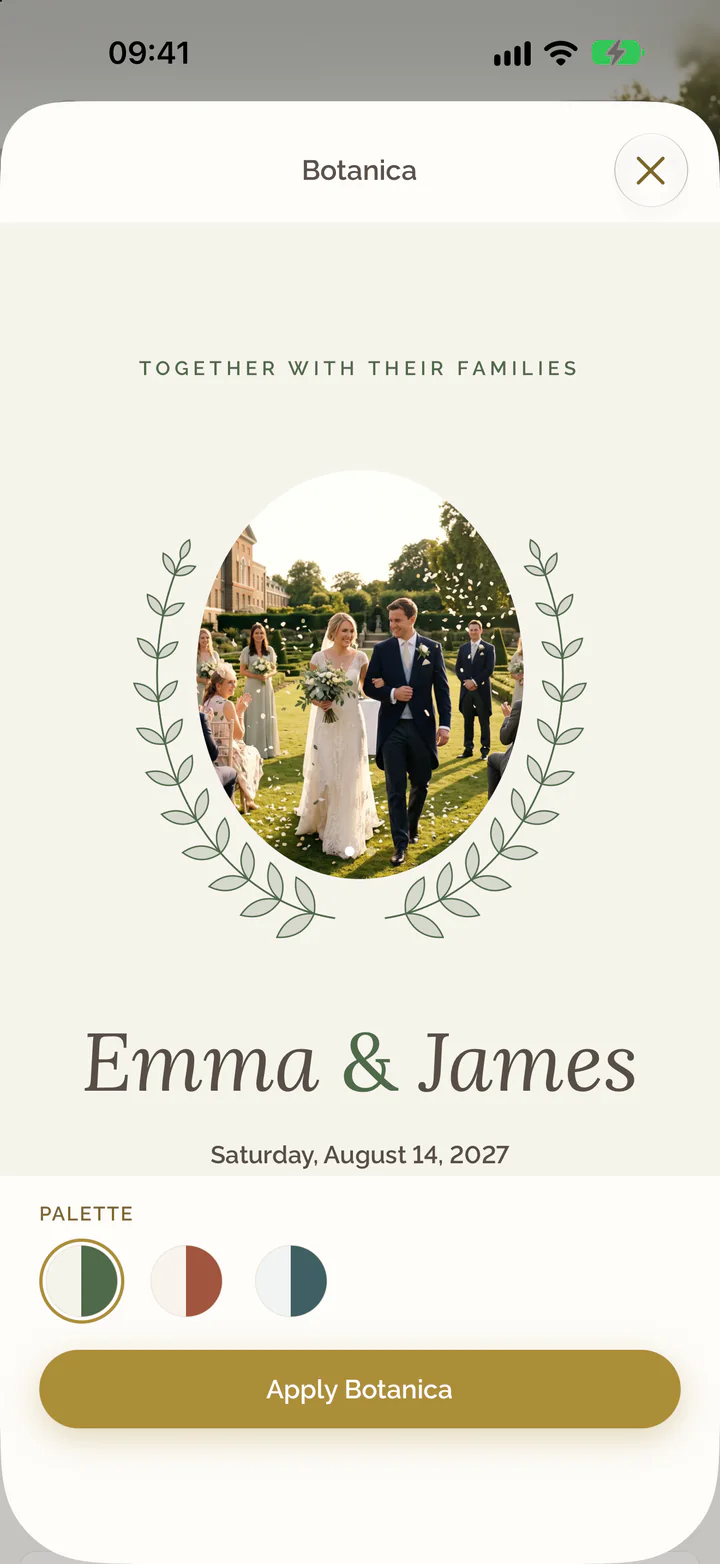
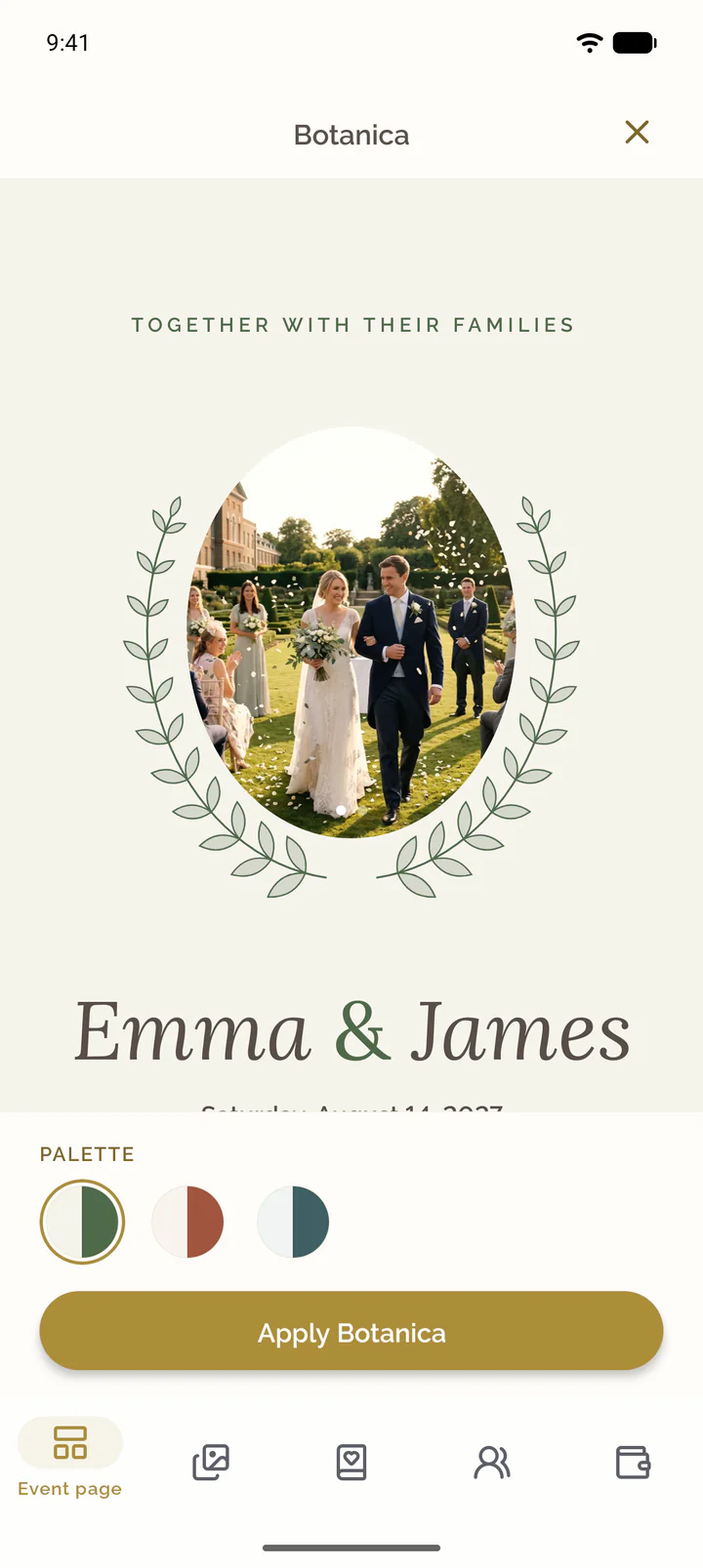
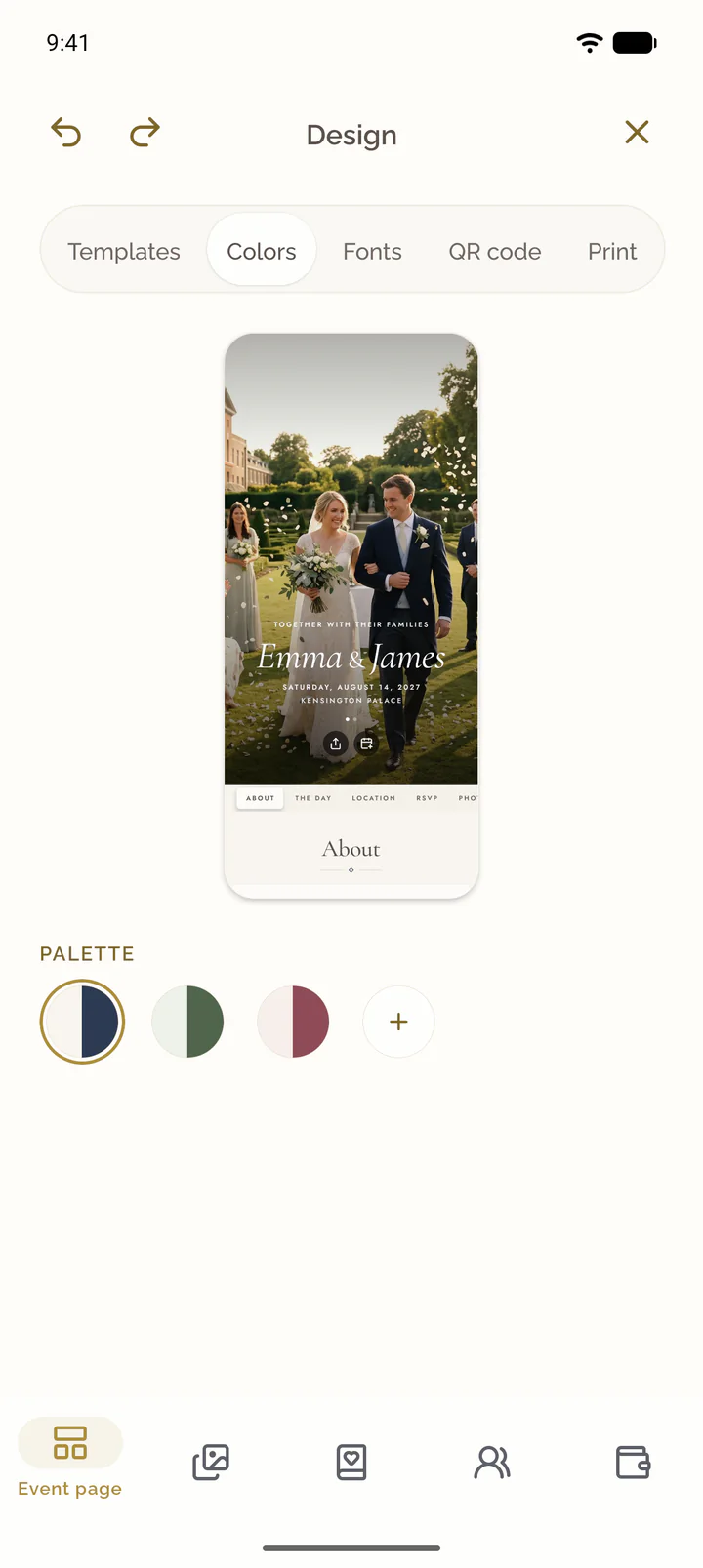
Choose the colors
- Under Colors, select one of the palettes of the template.
- For colors of your own, select Custom colors at the end of the row.
- Set Background and Primary.
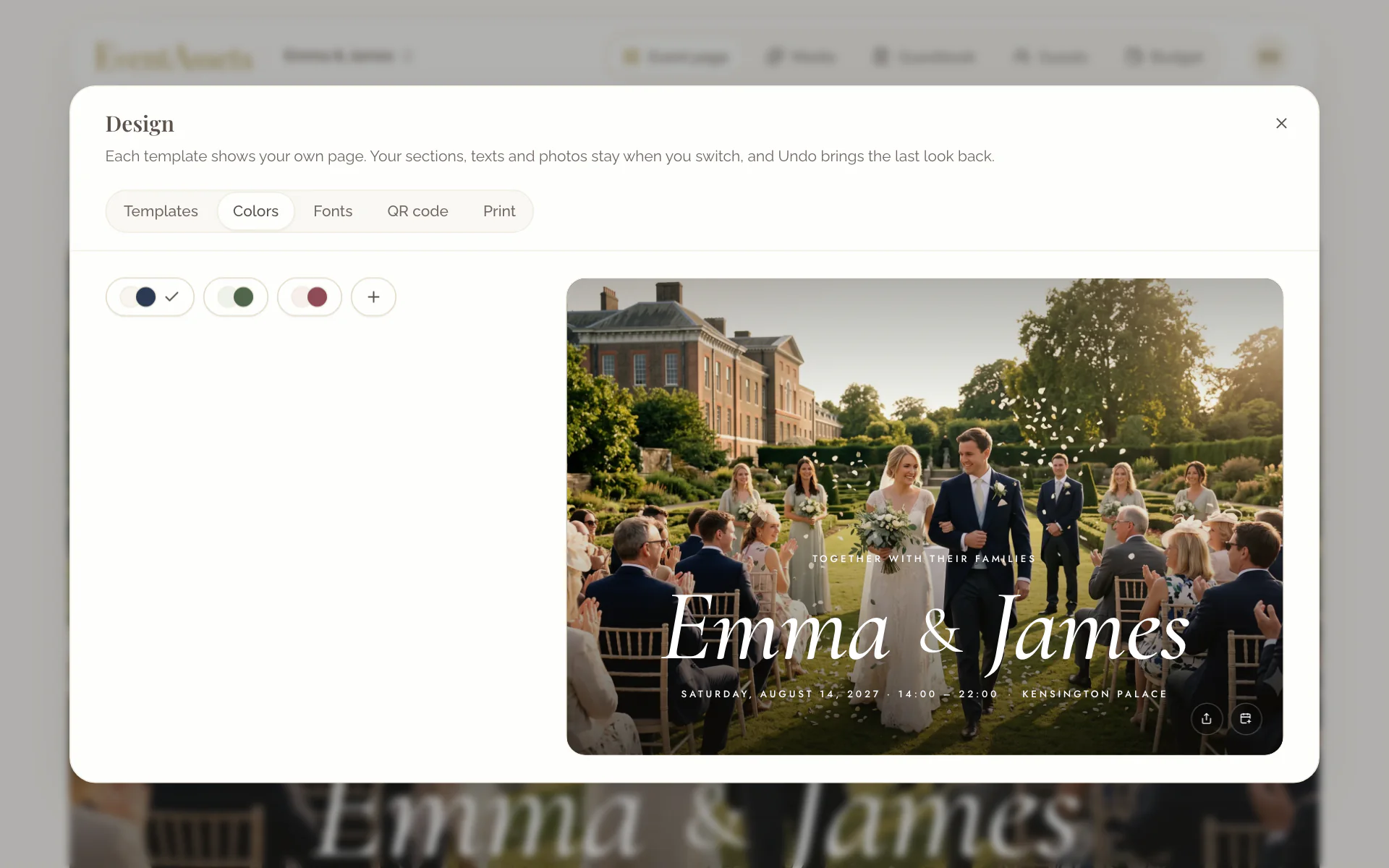
- Under Colors, select one of the palettes of the template.
- For colors of your own, select Custom colors at the end of the row.
- Set Background and Primary.
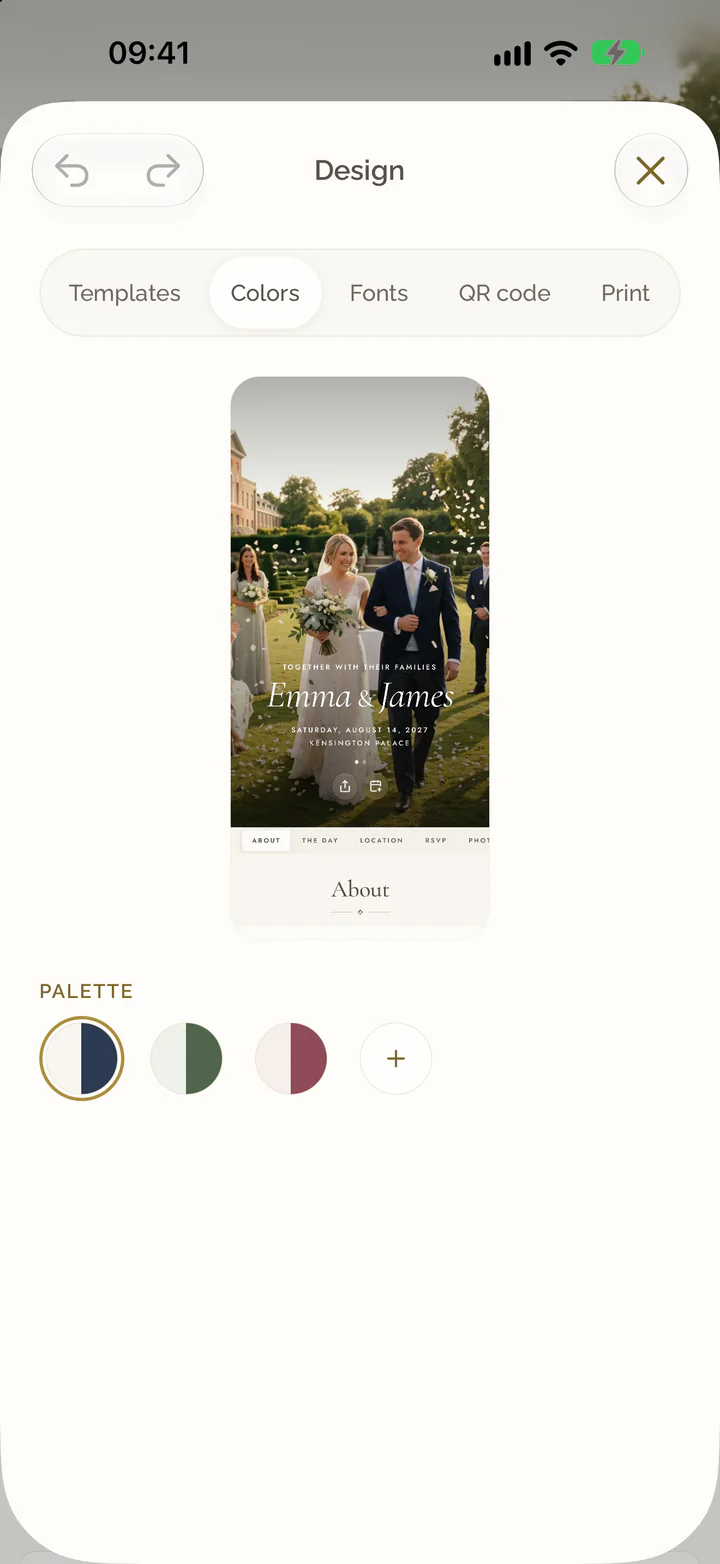
Choose the fonts
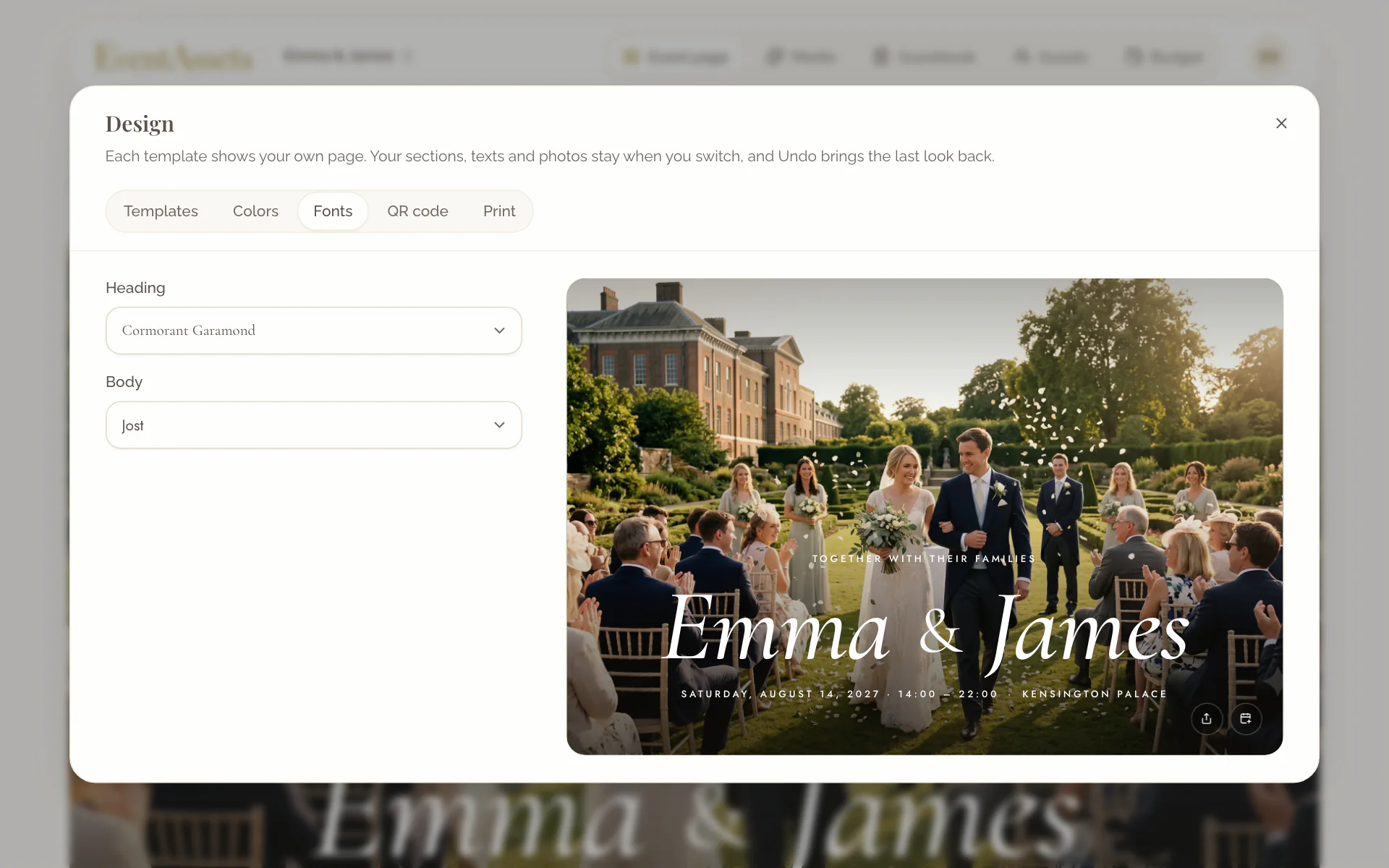
- Under Fonts, choose Heading.
- Choose Body.
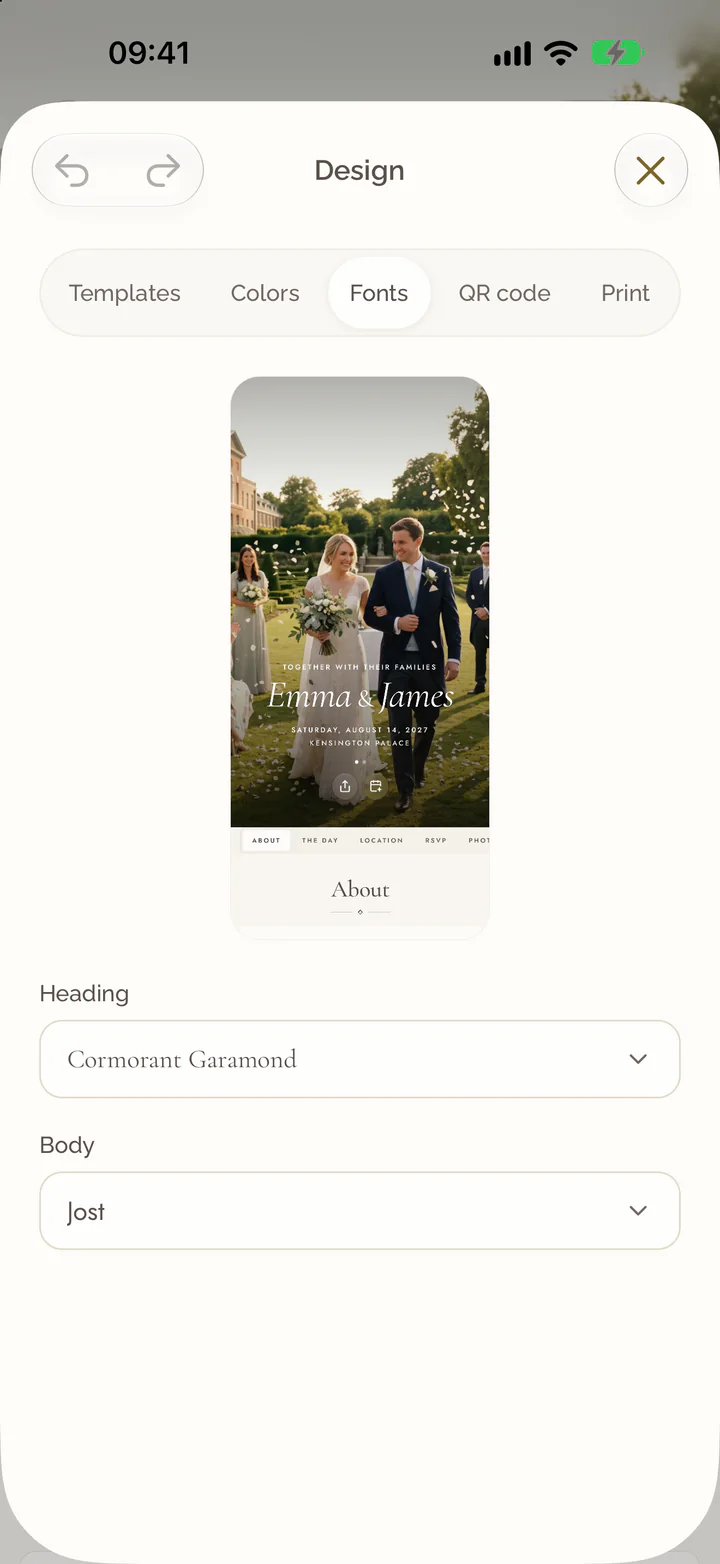
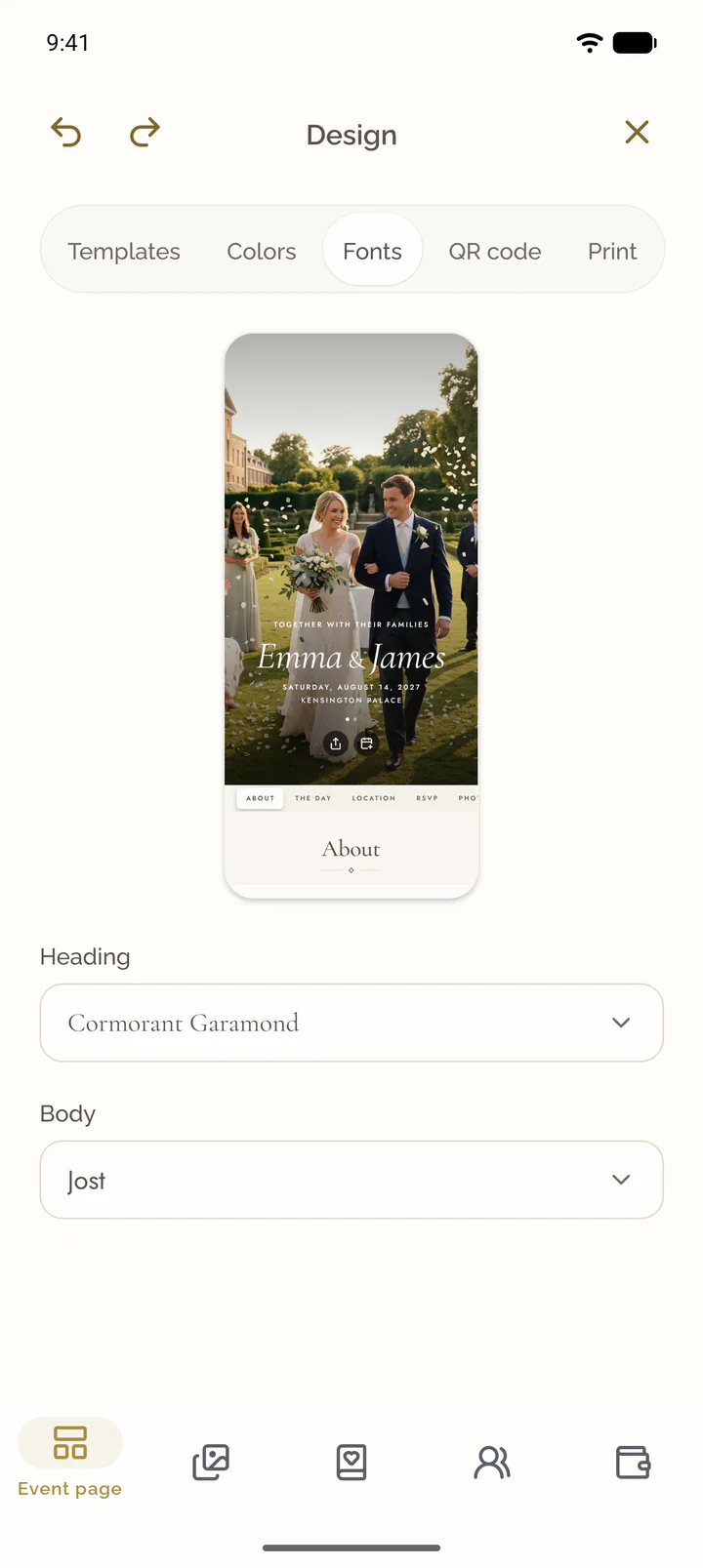
- Under Fonts, choose Heading.
- Choose Body.
Set the chapters behind tabs or down one page
- Select Design over the page.
- Under Templates, switch Chapters behind tabs on or off.
- Select the three dots at the top of the cover, then Design.
- Under Templates, switch Chapters behind tabs on or off.
Take a change back
- Select Undo over the page to take the last change back.
- Select Redo to make it again.
- Select the three dots at the top of the cover.
- Select Undo to take the last change back, Redo to make it again.
In Design, the two arrows stand at the top of the screen.