
Print QR code cards and signs
Choose a card or sign that matches your event page, set its size, its words and its language, and download it for a print shop or to print at home.
Steps for
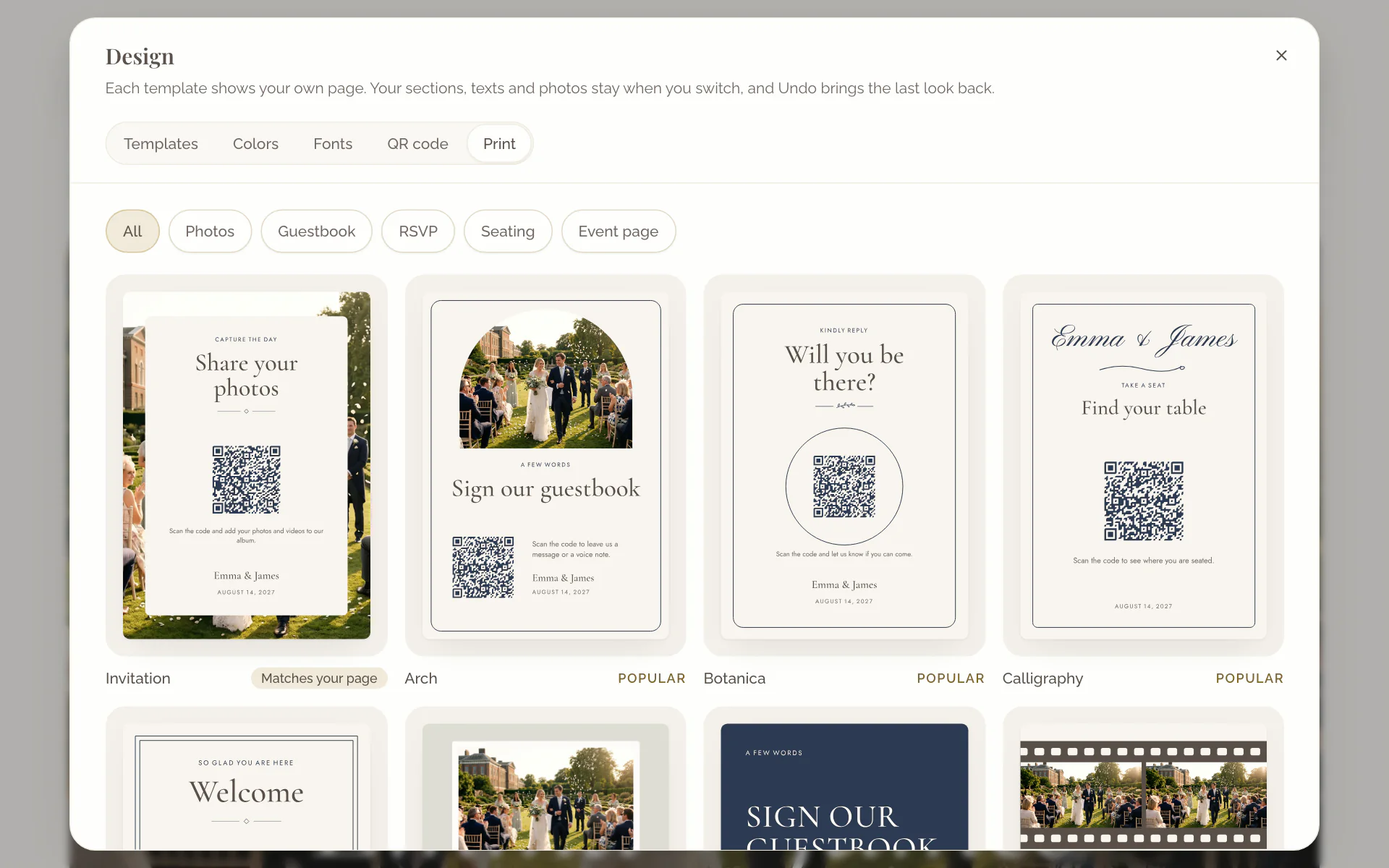
A print design is a card or a sign with your event's QR code, drawn in the fonts of your page and, until you choose others for the cards, in its colors. Its code opens the part of the page it is made for: the gallery, the guestbook, RSVP, the seating chart or the page itself.
Open the print designs
- Open the Event page tab of the event.
- Select Design over the page.
- Select Print.
Print designs in Share leads to the same place.
- Open the Event page tab of the event.
- Select the three dots at the top of the cover, then Design.
- Select Print.
Print designs in Share leads to the same place.
Choose a design
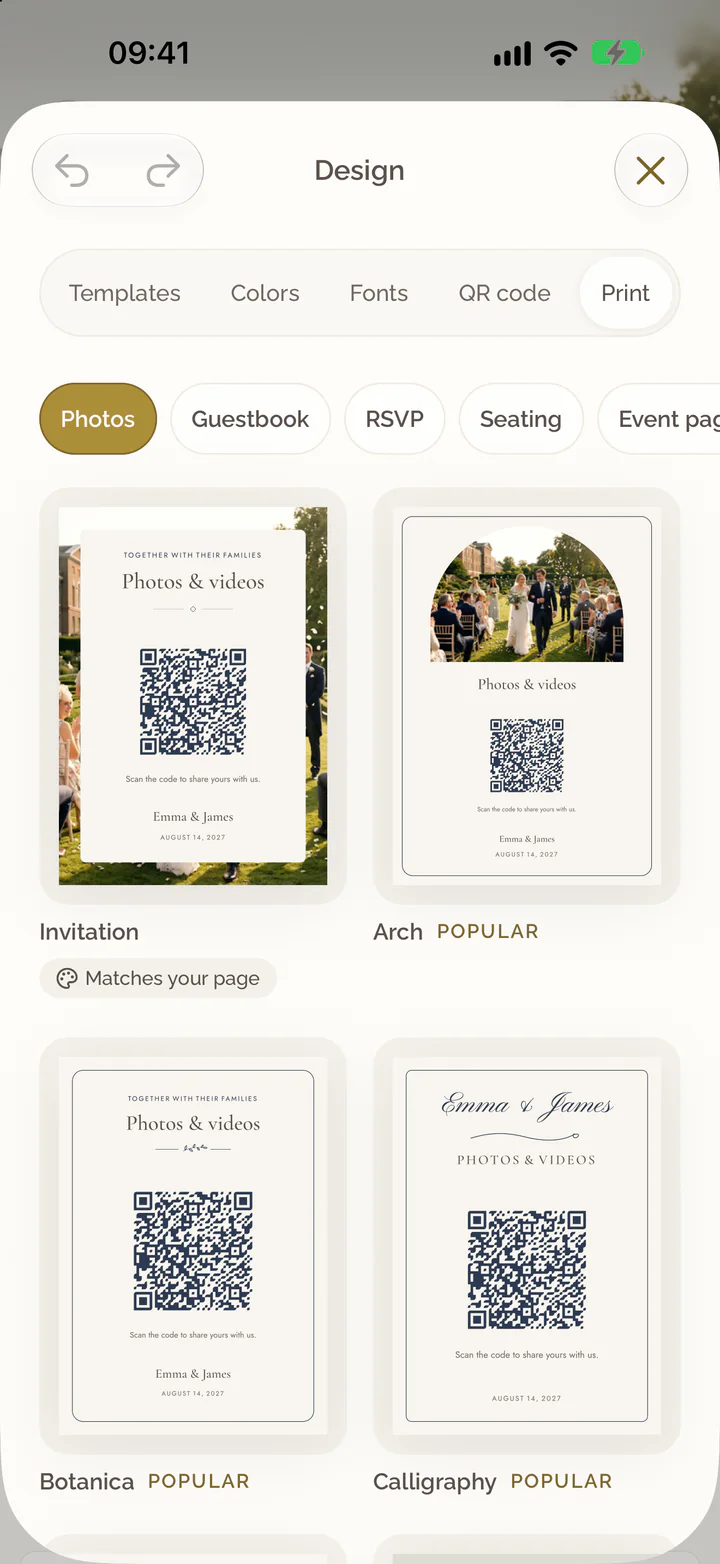
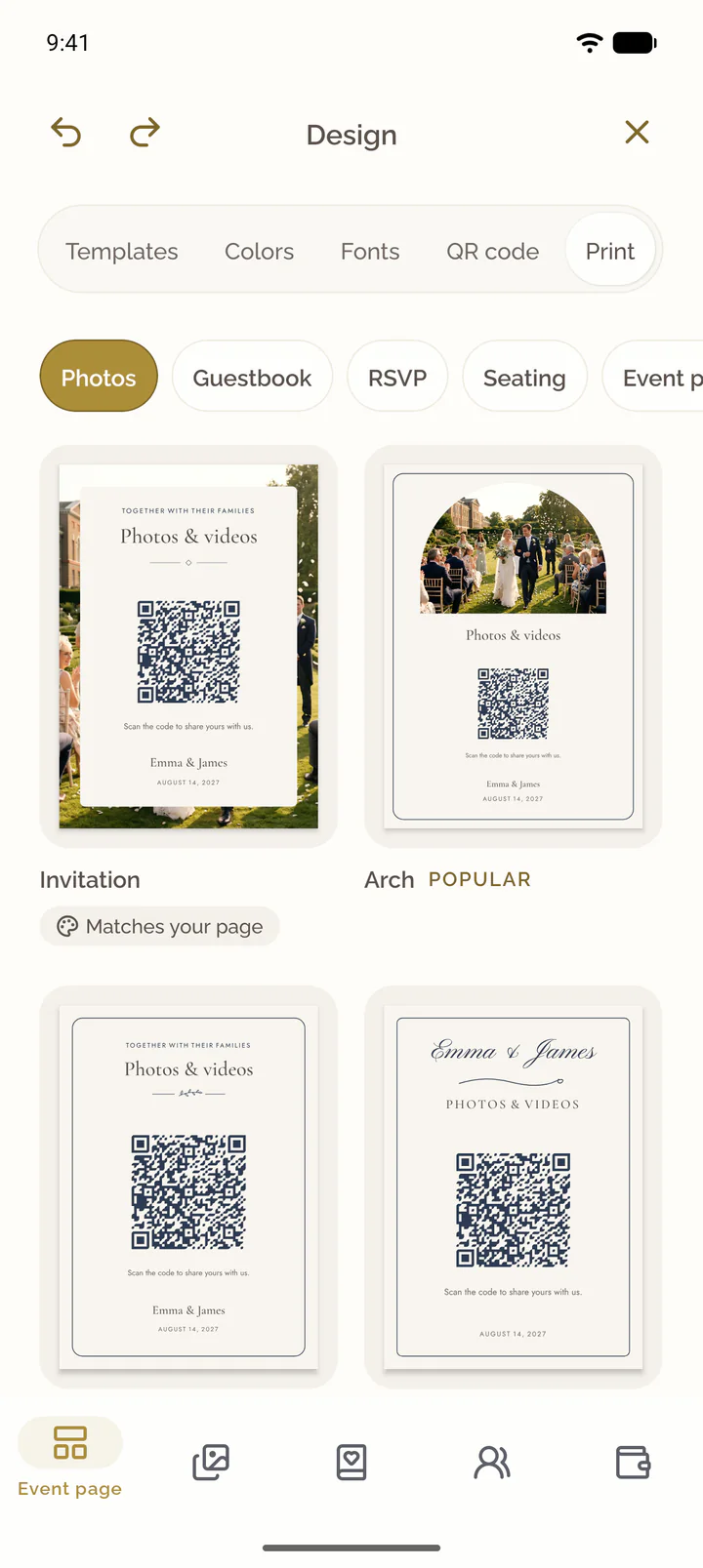
- Leave All selected to see the designs for each purpose in turn, or choose what the cards are for: Photos, Guestbook, RSVP, Seating or Event page.
- Select a design.
- Leave All selected to see the designs for each purpose in turn, or choose what the cards are for: Photos, Guestbook, RSVP, Seating or Event page.
- Select a design.
Choose what the card is for, its size and its words
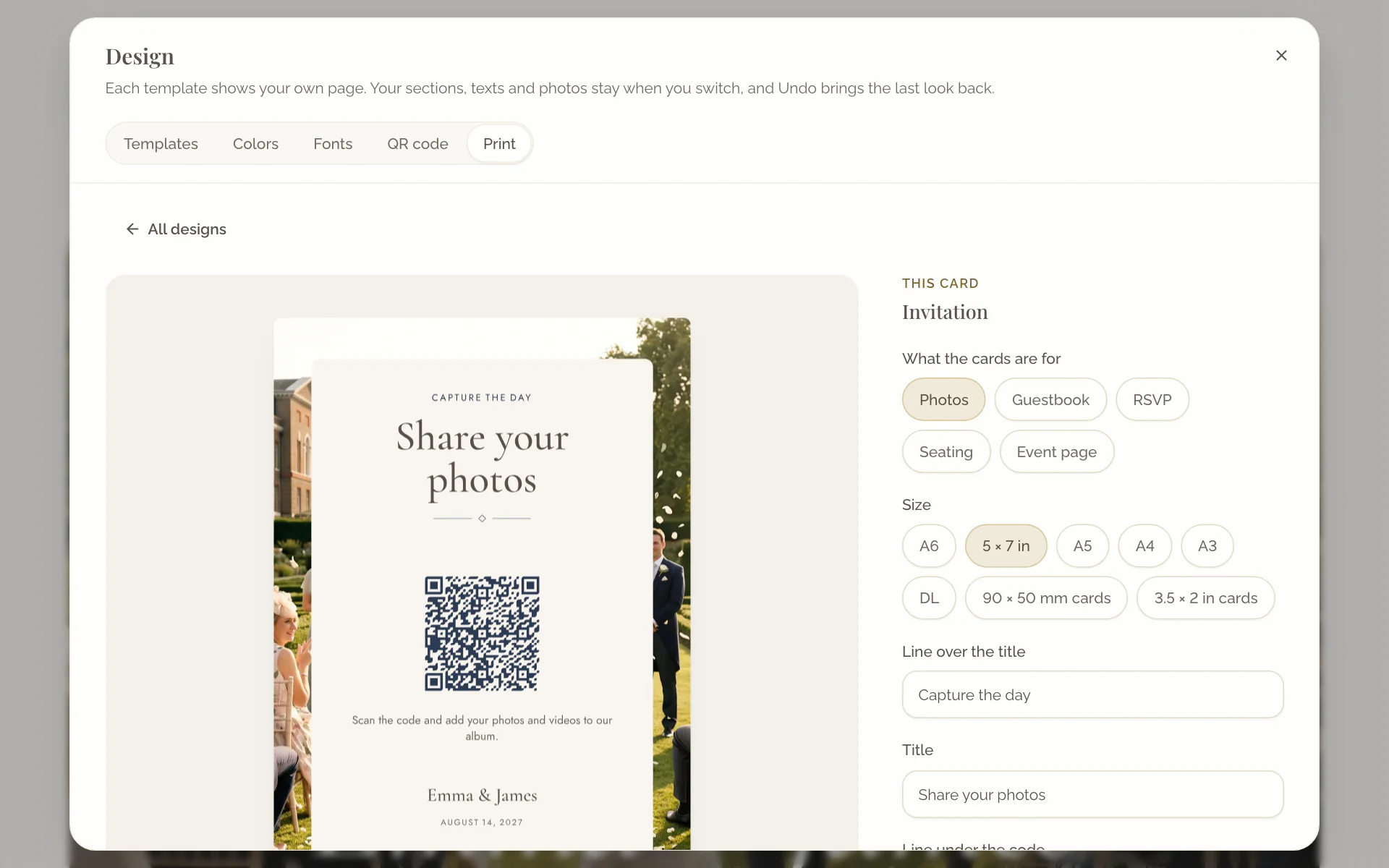
- Under What the cards are for, choose what this card is for.
- Under Size, choose a size. The small cards (90 × 50 mm cards, 3.5 × 2 in cards) have two sides: Front and Back under the card show each.
- Write your own words in Line over the title, Title and Line under the code. Each field shows what is printed; a field you empty prints nothing.
- To bring our words back, select Reset words.
- Under What the cards are for, choose what this card is for.
- Under Size, choose a size. The small cards (90 × 50 mm cards, 3.5 × 2 in cards) have two sides: Front and Back under the card show each.
- Write your own words in Line over the title, Title and Line under the code. Each field shows what is printed; a field you empty prints nothing.
- To bring our words back, select Reset words.
Set the colors, the photo and the language of all cards
- Under All cards, set Background and Primary.
- To return to the colors of your page, select Reset to event page.
- Under Photo, choose No photo, Event cover or Custom image.
- For Custom image, select Upload image. Remove takes the image out again.
- Under Language of the cards, choose the language the cards are printed in.
- Under All cards, set Background and Primary.
- To return to the colors of your page, select Reset to event page.
- Under Photo, choose No photo, Event cover or Custom image.
- For Custom image, select Upload image and choose the photo library or the camera. Remove takes the image out again.
- Under Language of the cards, choose the language the cards are printed in.
Download and print
- Select Download.
- Choose PDF for a print shop, PDF to print at home (A4), PDF to print at home (Letter) or Image (PNG).
- Scan the printed code with a phone before you print them all.
- Select Share file.
- Choose PDF for a print shop, PDF to print at home (A4), PDF to print at home (Letter) or Image (PNG).
- Save the file, print it or hand it to one of the apps on the phone, and scan the printed code with another phone before you print them all.